Billing & paymentsClients & CRMClient portal
Send each client a monthly statement with their invoices, payments and costs
Send a client one monthly statement from their screen: balances, payments, pass-through costs and spend against a monthly budget, with a page they can open.
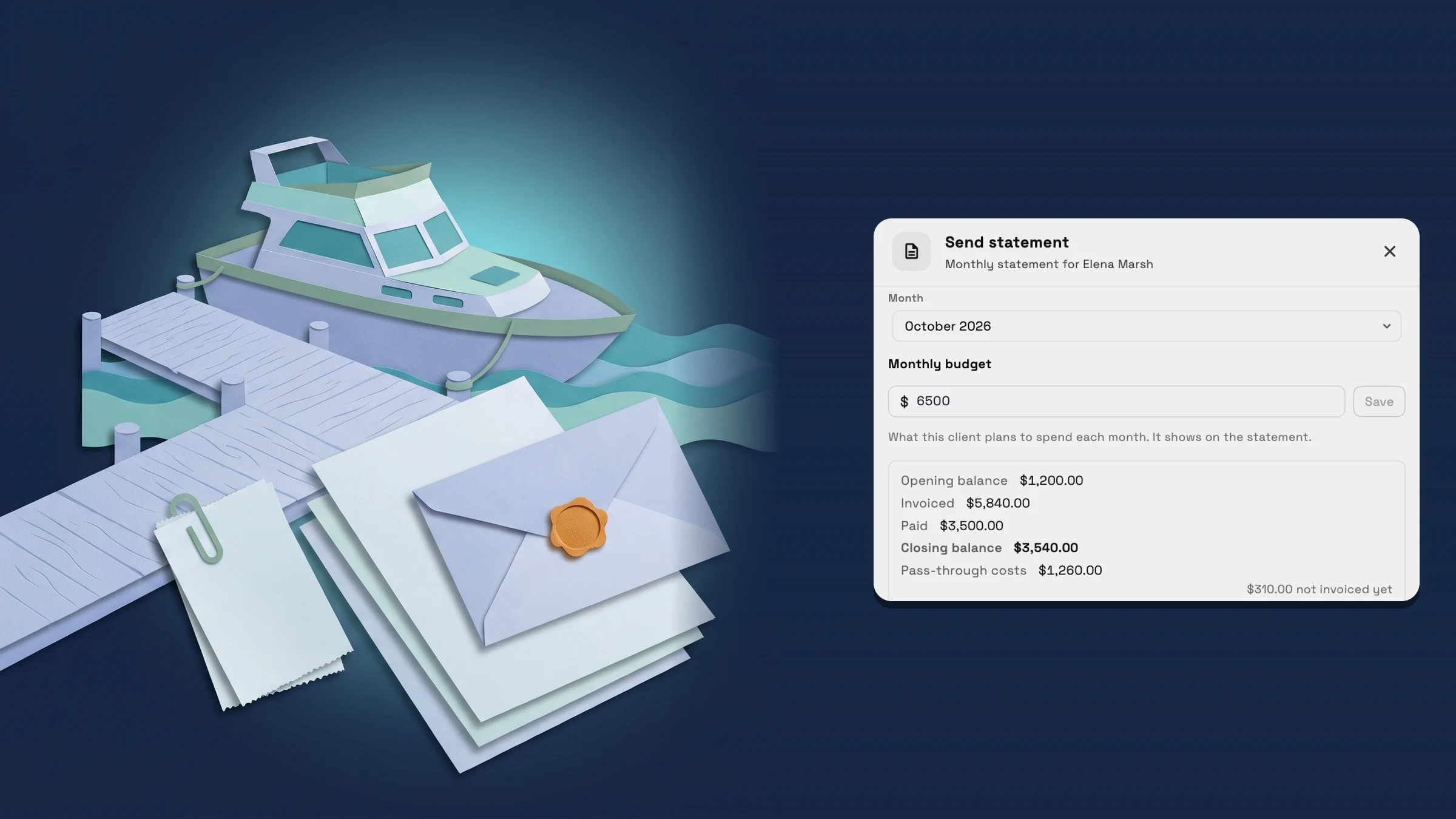
Send a monthly statement from the client's screen
Open a client, choose More actions, then Send statement. The sheet opens on last month, so on the 1st you can send the month that just ended. The Month menu also offers the current month, marked (so far), and earlier months, but never a future one.
The sheet shows the numbers for that month: Opening balance, Invoiced, Paid and Closing balance. When the client has pass-through costs, it adds a Pass-through costs line and says how much of it is not invoiced yet. Set a Monthly budget for the client in the same sheet and choose Save. The statement then shows Left in budget, or Over budget when spend has passed it. Spend counts what you invoiced plus pass-through costs not invoiced yet.
Before anything goes out you see the email: From (your workspace's name and address), To (the client's email), a Subject and a Note you can edit, and the line Uses 1 email credit. Pressing Send twice, or retrying after an error, sends one email for that press. If the client has no email address, the sheet says so and Send stays off, and Copy link still gives you the statement link to share yourself.
Members need permission to see invoices and their prices to open the sheet, to share invoices to send or copy the link, and to edit invoices to set the budget. Statements are on every plan, and pass-through costs come from billable expenses, which start on Specialist. It is on the web app now.
- Opens on last month; the current month reads (so far)
- Opening, Invoiced, Paid and Closing balance, plus spend against a monthly budget
- One email per press of Send, and each send uses 1 email credit
- Where to find it
- Clients
- open a client
- More actions
- Send statement
- Plans
- Every plan
The client opens a statement page on 369.dev
The email carries a link to a statement page on 369.dev. It shows the month's Invoices, any Retainer lines, Pass-through costs with their receipt links and markup, Payments received, and the Monthly budget with what is Left or Over by. It reads well on a phone.
The page is a snapshot of the moment it was prepared: later activity appears on a new statement. If a statement covers a month that is still running, the page says so. It opens without an account, and the page asks search engines not to list it. It is on the web app now.
- Invoices, Retainer lines, Pass-through costs and Payments received
- Receipt links and markup on each pass-through cost
- A snapshot of when it was prepared

- Where to find it
- Clients
- open a client
- More actions
- Send statement
- Copy link
- Plans
- Every plan
- Learn more
- InvoicesClients and CRM guide
Quick answers
- Where do I send a monthly statement to a client?
- Open the client, choose More actions, then Send statement. Pick the month, check the numbers and the email, and choose Send statement.#
- Which month does the statement open on?
- Last month. The Month menu also lists the current month, marked (so far), and earlier months, but never a future month.#
- What is on the statement?
- Opening balance, Invoiced, Paid and Closing balance, pass-through costs including the amount not invoiced yet, and spend against the client's Monthly budget when you have set one.#
- Does sending a statement use an email credit?
- Yes. The sheet shows Uses 1 email credit before you send.#
- What happens if I press Send twice?
- One email goes out for that press. A retry after an error is the same press, so it also sends one email.#
- Who can send a statement?
- Members who can see invoices and their prices can open the sheet. Sending or copying the link also needs permission to share invoices, and setting the budget needs permission to edit invoices.#
Related updates
 Set up a yacht management CRM in one step and price by the foot
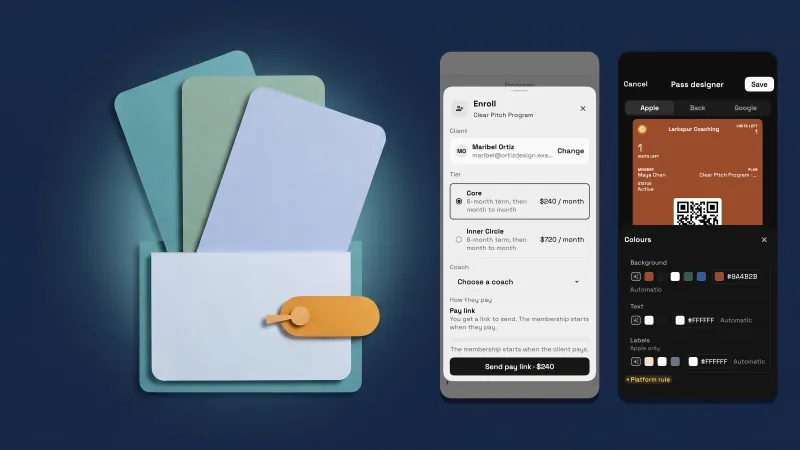 Programs and memberships now fit a phone
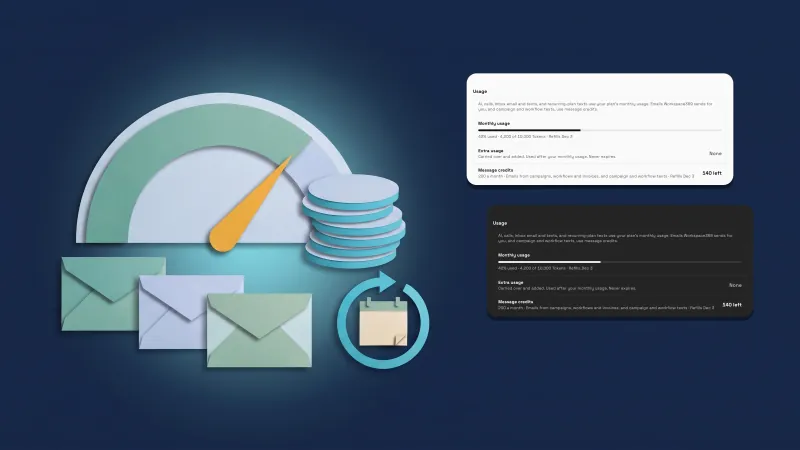 See your usage in Tokens and message credits
Send each client a monthly statement with their invoices, payments and costs, in your own workspace
Start your free trial, then find it under Clients.
14-day free trial. Card required. After the trial: from $29/month. Renews automatically every month until you cancel. Cancel anytime in Settings → Billing.