Clients & CRMClient portal
Programs and memberships now fit a phone
Programs and memberships get a phone layout: a compact program page, member cards, buttons pinned in sheets, and a pass designer that keeps the pass in view as you edit.
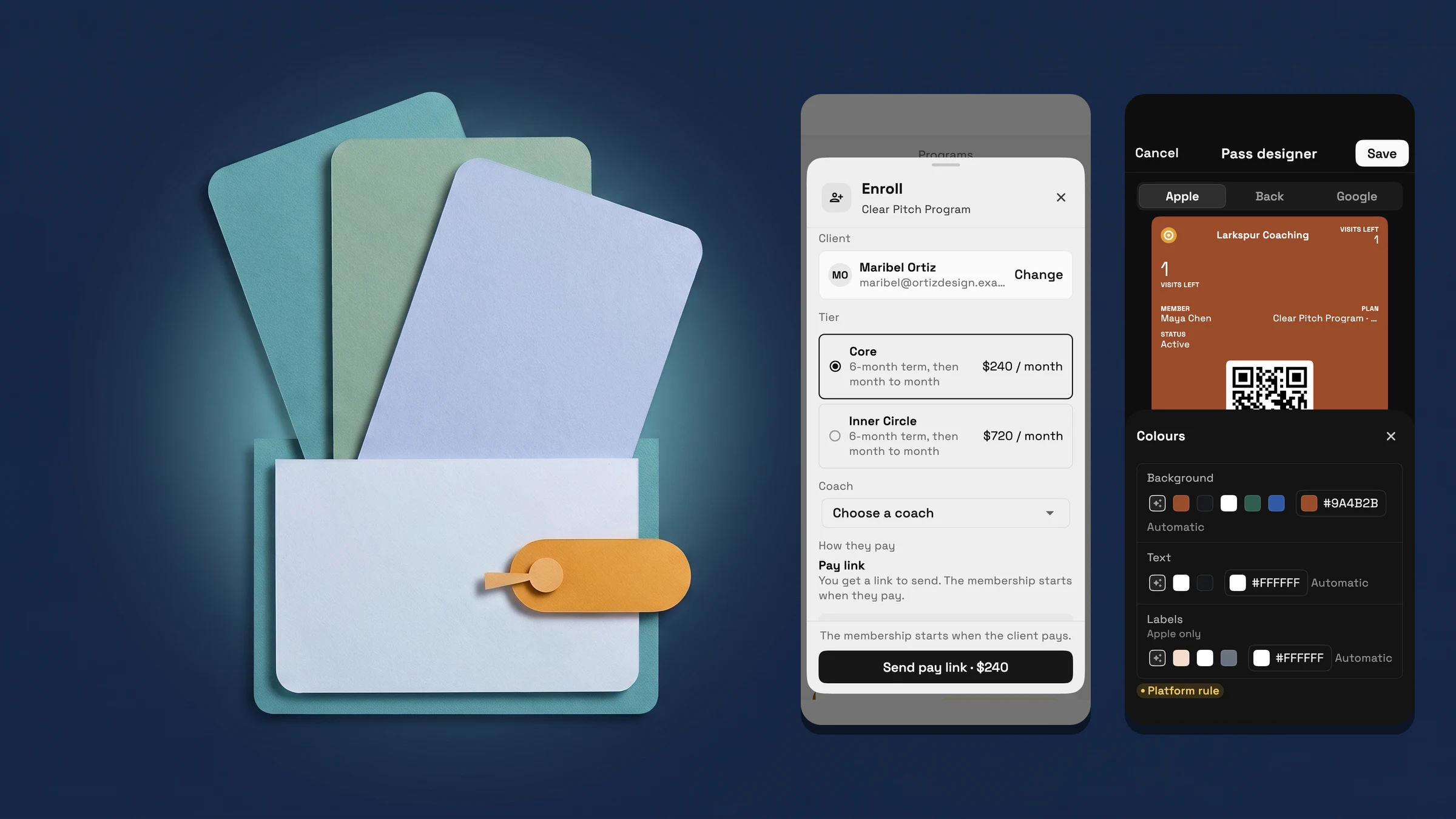
A program page, member cards and pinned buttons built for phones
On a phone, the program page puts Enroll and Edit side by side under the program's name, shows Members, Monthly revenue and Renewals for the month in one strip, and keeps the first member on the first screen. The tiers have their own Tiers tab next to Members, Sessions and Resources. Each member is one card with their name, a status tag, their tier, coach and month, and when their next session is.
In Clients → Memberships, the Types and Members lists use the same card style, and Member portal and pass is a storefront icon beside the tabs. A member's page shows their name, status and type with Show pass (for the owner), Freeze when the membership allows it, and More. More holds Change coach, Change plan, Adjust balance, Check-in PIN, Refund and, last, Cancel membership; a row that can't be used right now is left out.
Sheets keep their main button pinned under the form, above the keyboard: Enroll, Sell, Change plan, Adjust balance, Refund and Session note. In Enroll the button names the first charge, for example Send pay link, with the amount after it. The program editor, the membership type editor and Portal settings keep Save pinned too, and in Portal settings Preview as a member is one full-width button that opens the real member page.
This is on the web app now, on phones. Tablets and computers keep the layouts they had. Programs and memberships are on every plan.
- Enroll and Edit side by side, with Tiers in their own tab
- Member cards with status, tier, coach and next session
- Main buttons pinned in sheets and editors, above the keyboard
- Where to find it
- Finance
- Programs
- a program
- Plans
- Cadet and up
Design a member pass on a phone and watch it change
On a phone, the pass designer keeps the Apple, Back and Google switch and a live preview of the pass pinned at the top, no taller than 40% of the screen. Below it, each group of settings is one row: Template, Logo, Card style and image, Colours, What goes where, Code and check-in, Back of the pass, Buttons under the pass and When it pops up. A row opens a half-height sheet under the pass, so every change shows on the pass as you make it.
The sheets hold the same settings, with the same helper text and platform rules, as the form on a computer. When the text or label colours are too hard to read on the background, the Colours row shows a warning icon, and the contrast lines are in its sheet.
To open it, go to Clients → Memberships and press the storefront icon, Member portal and pass. Under Wallet, press Open next to Pass designer. It is on the web app now, on phones. Tablets and computers keep the form and side-by-side previews they had.
- The pass and its Apple, Back and Google switch stay pinned
- Each group of settings is one row that opens a half-height sheet
- A warning icon on Colours when text is hard to read

- Where to find it
- Clients
- Memberships
- Member portal and pass
- Pass designer
- Plans
- Cadet and up
Quick answers
- What changed for programs and memberships on a phone?
- The program page, the Types and Members lists, the member page, the pass designer and the editors have phone layouts, and sheets keep their main button pinned at the bottom, above the keyboard.#
- Where do I find the pass designer on a phone?
- Go to Clients → Memberships and press the storefront icon, Member portal and pass. Under Wallet, press Open next to Pass designer.#
- How do I see my changes on the pass while I edit?
- The pass and its Apple, Back and Google switch stay at the top. Each setting group is a row that opens a half-height sheet under the pass, so a change shows on the pass straight away.#
- Where did the tier cards go on the program page?
- On a phone they are in a Tiers tab next to Members, Sessions and Resources. On a tablet or computer they stay above the tabs, as before.#
- Do tablets and computers change?
- No. They keep the layouts they had, and the main buttons stay inline in sheets.#
- Which plans include this?
- Programs and memberships are on every plan, so the phone layouts are too.#
Related updates
 Send each client a monthly statement with their invoices, payments and costs
 Set up a yacht management CRM in one step and price by the foot
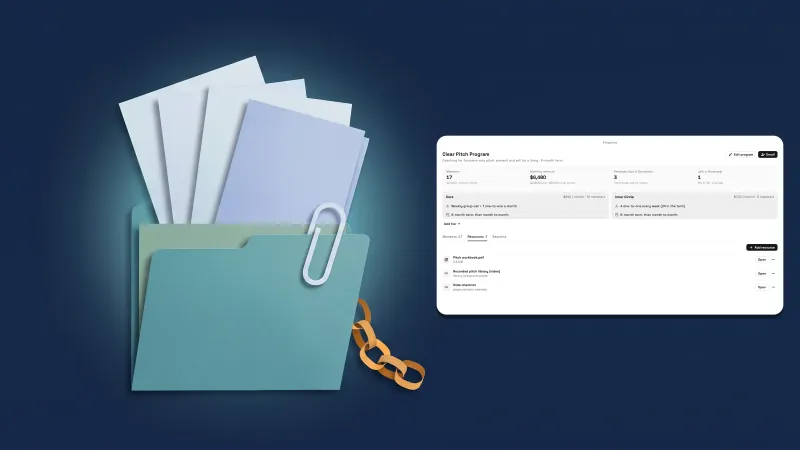 Share files and links in a program, and see Calendar full by coach
Programs and memberships now fit a phone, in your own workspace
Start your free trial on Cadet, then find it under Finance.
14-day free trial. Card required. After the trial: $29/month for Cadet. Renews automatically every month until you cancel. Cancel anytime in Settings → Billing.