Calendar & booking
The Google Meet link appears on your event live, and the Team picker shows photos
Open an event and its Google Meet link appears the moment it is ready, with Retry if it stalls. The Team picker now shows photos and emails and lists you first.
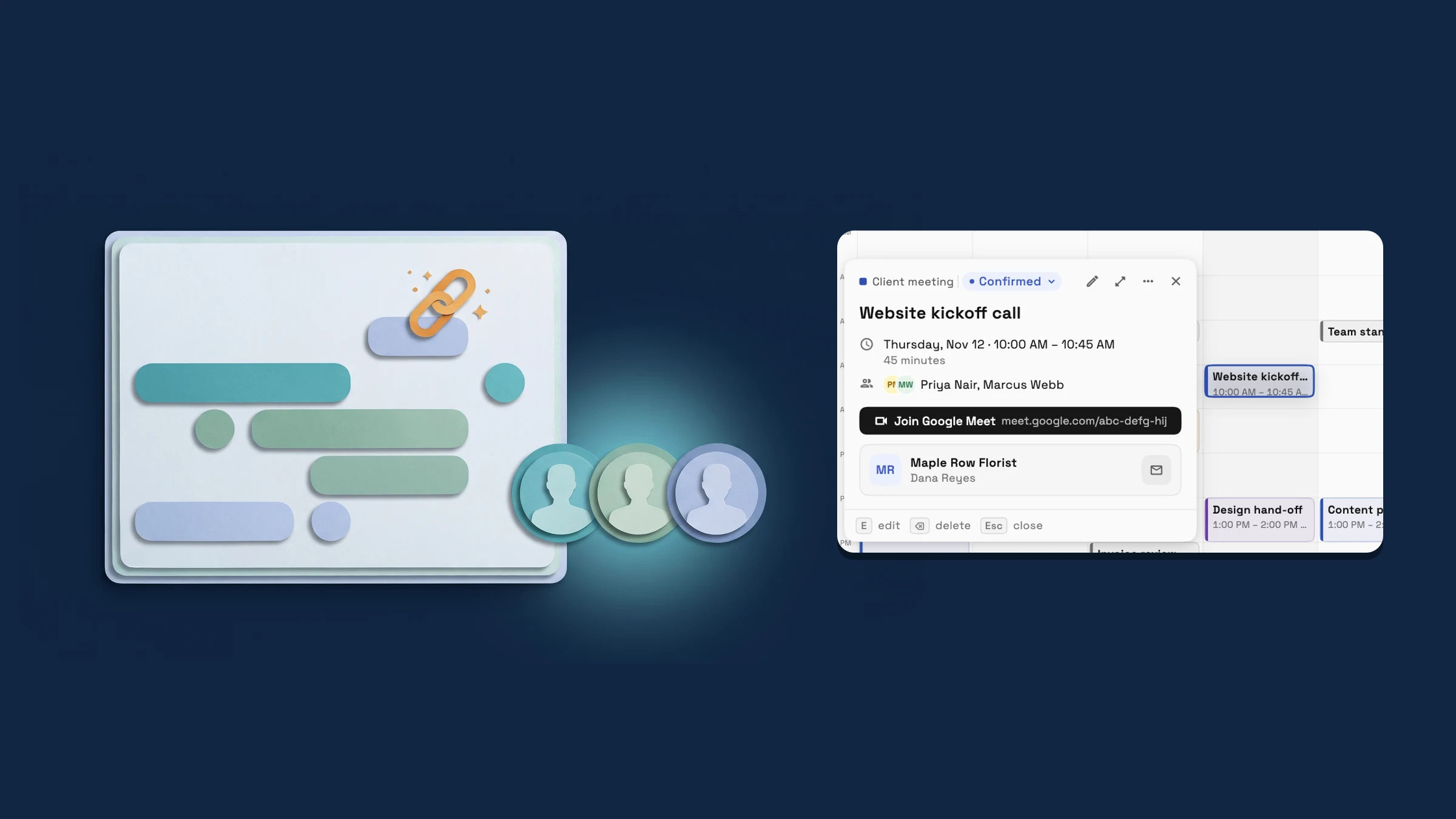
The Google Meet link arrives on the event as soon as it is made
When an event asks for a Google Meet link, the event now says "Creating the Google Meet link…" with a loader, and the Join button replaces it the moment the link is ready. You do not reload the page or switch pages. It works in the event popover on a computer, the event sheet on a phone, the details panel and the Video call row of the editor.
If the link is slow, after 30 seconds the event says "This is taking longer than usual." and offers Retry. If it could not be made, the event says why and what to do. When you are the host and have not connected Google Meet, it reads "Connect Google Meet to create the link" with a Connect Google Meet button and Retry; when you come back connected, the retry runs by itself. When someone else is the host, it reads "Name needs to connect Google Meet" with a Notify button that carries their name, plus Retry. Notify sends them an in-app notice only, no email or text.
Only people who can edit the event see Retry, Connect Google Meet and Notify. Each member connects their own Google account in Settings → Integrations → Google Meet. It is on the web app now.
- The link replaces "Creating…" live, without reloading the page
- Retry after 30 seconds, and Connect Google Meet when you are the host
- Notify asks another host to connect, in the app only
- Where to find it
- Calendar
- open an event
- Plans
- Every plan
- Learn more
- Calendar and schedulingGoogle Calendar
The event Team picker shows photos and emails, and puts you first
In the event editor, the Team picker now shows each teammate with their photo (their initials when they have none) and their email under the name. You are marked "(Me)" and always listed first, above the teammates assigned to the event. Search matches a name or an email, so typing part of an address finds the right person.
The task assignee picker gets the same email line and the same "(Me)" first order. It is on the web app now.
- Photo and email on every row
- "(Me)" and first in the list
- Search by name or email

- Where to find it
- Calendar
- open an event
- Edit
- Team
- Plans
- Every plan
- Learn more
- Calendar tutorialCalendar and scheduling
Quick answers
- When does the Google Meet link appear on my event?
- The moment it is ready. While it is being made the event says "Creating the Google Meet link…", and the link replaces that line without reloading the page.#
- What if the Google Meet link takes a long time?
- After 30 seconds the event says "This is taking longer than usual." and shows Retry to people who can edit the event.#
- What can I do when a Google Meet link could not be made?
- If you are the host, press Connect Google Meet, sign in with Google, and the retry runs by itself when you come back. If someone else is the host, press Notify with their name to ask them to connect, or press Retry.#
- Does Notify email or text the host?
- No. It sends the host an in-app notice that says you are waiting for their Google Meet connection.#
- Which plans include the Google Meet link and the Team picker?
- Every plan. Google Meet works for any member who connects their own Google account in Settings → Integrations.#
- How does the event Team picker work now?
- Each teammate shows a photo (their initials when they have none) and an email. You are marked "(Me)" and listed first, and the search matches a name or an email.#
Related updates
 Set up a yacht management CRM in one step and price by the foot
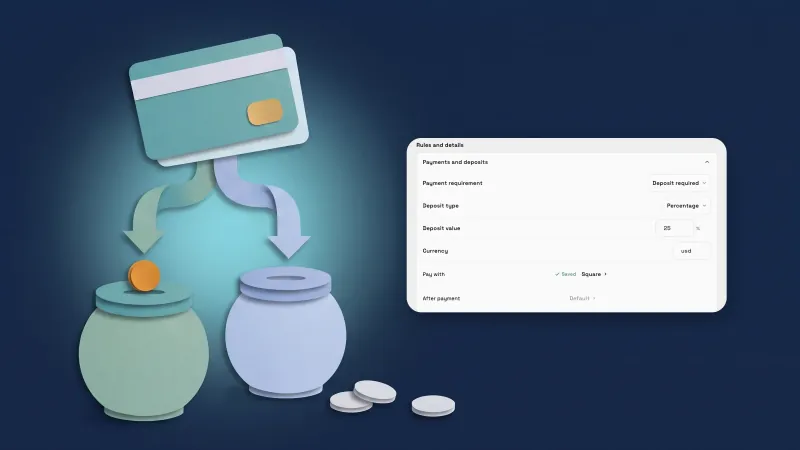 Take payments through your own Square account
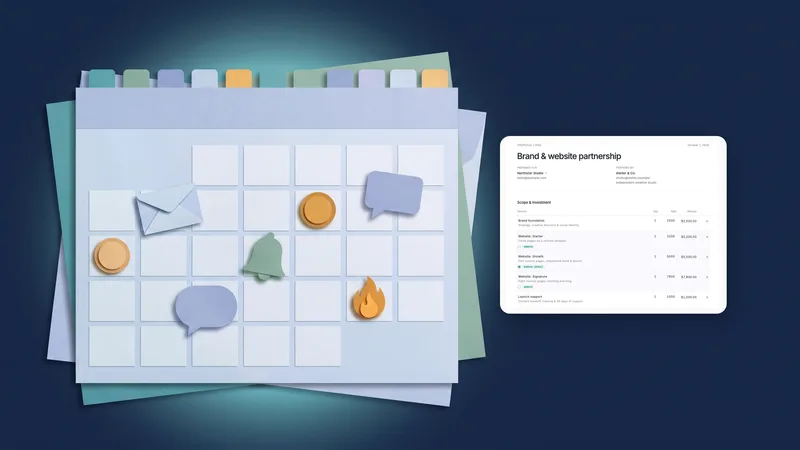 October 2026: Flash Pay, a new proposal builder, deeper booking and AI in your CRM
The Google Meet link appears on your event live, and the Team picker shows photos, in your own workspace
Start your free trial, then find it under Calendar.
14-day free trial. Card required. After the trial: from $29/month. Renews automatically every month until you cancel. Cancel anytime in Settings → Billing.