Clients & CRMInbox & calls
Select and copy client details and email recipients
Drag across a client's name, email address or number in the quick view and profile to copy it, and point at an email recipient for a one-click copy button.

Select and copy text from clients and email recipients
Open a client from Clients and the quick view beside the list lets you select its text: the name, company, email address, number, the figures, the next follow-up and each line of activity. Drag across it and press Cmd+C on a Mac or Ctrl+C on Windows. Drag down several rows and each one copies on its own line, without the button labels. Rows and buttons still open what they opened before.
The client profile works the same way. Its fields column, the Overview tab and the record tabs can be selected and copied.
In a New email window, each address in To, Cc and Bcc can be selected too. Drag across it or double-click it and the whole address is selected, even when it is cut off with “…”, so you never copy half an address. Point at a recipient and a small copy button appears over the end of the address. One click copies it and shows “Copied”, and × still removes the recipient. On a touch screen, press and hold a recipient to copy its address and see “Copied”, or press and hold client text for the handles and the Copy toolbar. It is on the web app now.
- Select and copy text in the client quick view and the client profile
- A recipient's address copies in full with one click, even when it is cut off with “…”
- Several selected rows copy on separate lines, without button labels
- Where to find it
- Clients
- a client
- To
- Plans
- Every plan
Quick answers
- Can I select and copy text in the Workspace369 client quick view?
- Yes. Open a client from Clients and drag across the name, company, email address, number, figures, follow-up or activity, then press Cmd+C on a Mac or Ctrl+C on Windows. Rows and buttons still open what they did before.#
- Can I copy a client's details from their profile?
- Yes. The profile's fields column, the Overview tab and the record tabs can be selected and copied the same way.#
- How do I copy an email address from a recipient in a New email window?
- Point at the recipient and click the small copy button that appears over the end of its address, and it says “Copied”. You can also drag across the address or double-click it and press Cmd+C or Ctrl+C. The whole address is copied, even when it is cut off with “…”.#
- How do I copy a recipient's address on a touch screen?
- Press and hold the recipient. Its address is copied and a Copied message appears. × still removes the recipient.#
- Which plans include this?
- Every plan. It works the same on Cadet, Voyager, Specialist, Commander and Enterprise.#
Related updates
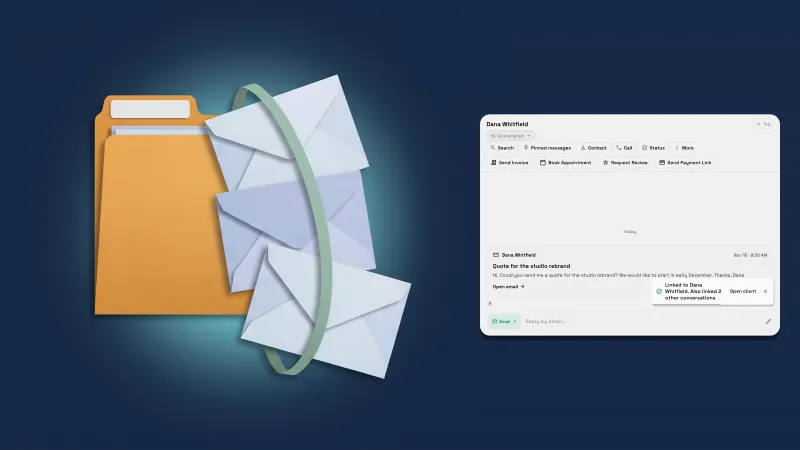 Link a sender to a client and their other conversations come too
 Send each client a monthly statement with their invoices, payments and costs
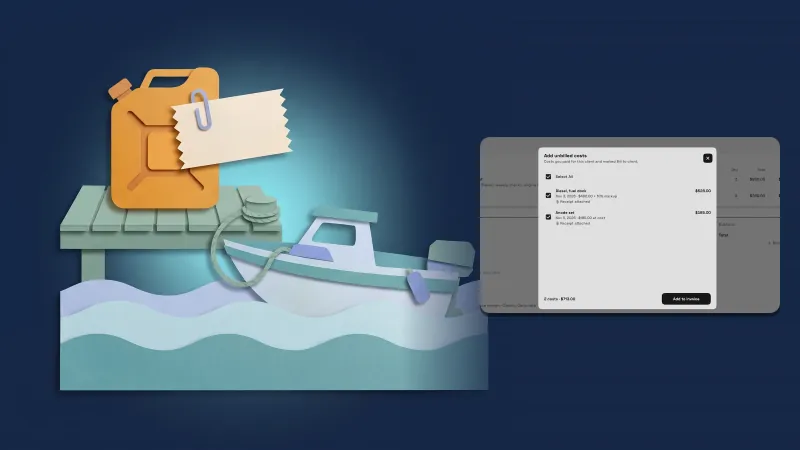 Bill costs to clients with a markup and a receipt they can open
Select and copy client details and email recipients, in your own workspace
Start your free trial, then find it under Clients.
14-day free trial. Card required. After the trial: from $29/month. Renews automatically every month until you cancel. Cancel anytime in Settings → Billing.