QR code or pay link
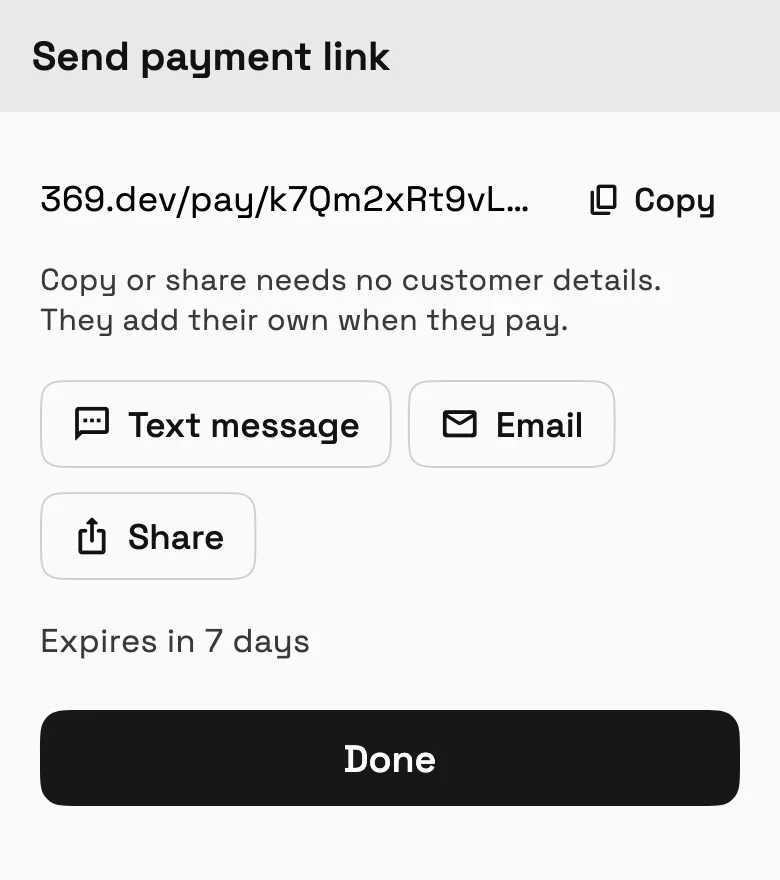
Show the code at the counter, or copy, share, text or email the link.
Get paid on the spot, with no invoice to write first. Type the amount and show a QR code, or send a link. The customer pays from their own phone, the money goes to your Stripe or Square account, and the sale is already a paid invoice. With both connected, pick the processor for each link.
14-day free trial. Card required. After the trial: from $29/month. Renews automatically every month until you cancel. Cancel anytime in Settings → Billing.
Request a demoOn every plan (Cadet and up), once Stripe is connected. Works with QR codes and pay links, not card readers.
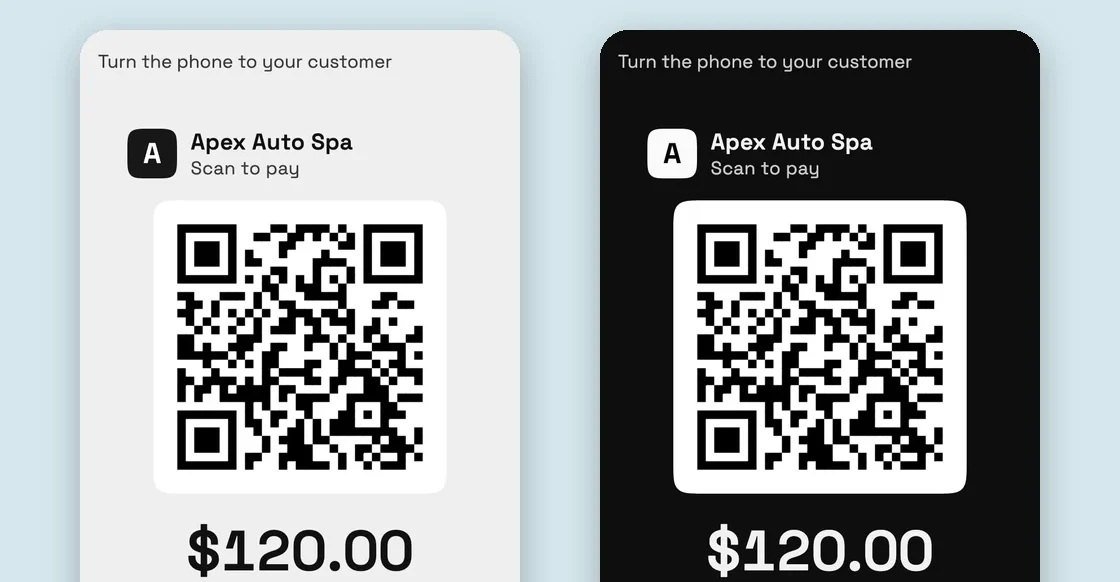
Turn the phone to your customer
$180.00Scan to pay
Open your camera and point it here. Card, or Apple Pay and Google Pay where supported.
Waiting for payment
Text or email the link instead
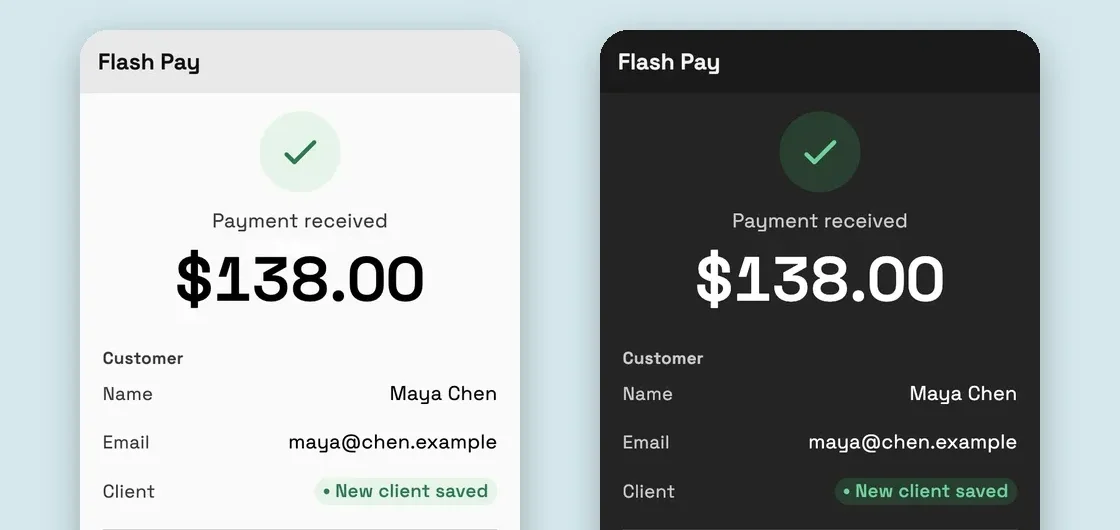
Flash Pay on a phone: Turn the phone to your customer, $180.00, Scan to pay and a QR code, then Waiting for payment turns into Payment received for $180.00 from Sam Ortiz, with New client saved.
Flash Pay is how Workspace369 takes a payment in person or on the go, without writing an invoice first. Without it you would create an invoice, find or add the client and send it. With Flash Pay you type the amount and show a QR code, or send a pay link. The customer pays on their own phone and adds their own details when they pay, and Workspace369 saves the payment as a paid invoice in your own Stripe account.
Reviewed November 4, 2026 by the Workspace369 Product Team. Availability can vary by plan, region, and workspace configuration.
Read the invoices and payments documentationFlash Pay works with QR codes and pay links, not card readers or tap to pay. Every payment runs through your own Stripe or Square account.
Show the code at the counter, or copy, share, text or email the link.
Links expire after 1, 7, 30 or 90 days, and cancelling a link charges nothing.
Choose whether to ask for a name, email or phone, and save customers as clients.
Each payment shows as Waiting, Paid, Cancelled or Expired, with Collected today at the top.
Suggest tip percentages, or fixed tips on small amounts, worked out before or after tax.
Built into the operating flow
Flash Pay uses your Stripe connection and payment methods, or your Square account when you pick it for a link, and every payment becomes a paid invoice on the client's record.
Connect Stripe or Square when Flash Pay asks. The money goes straight to your own account.
Open Flash Pay in the sidebar, just below Invoices, and type what the customer owes.
Choose Show QR code and turn the phone to your customer, or Send payment link by text, email or share. Waiting for payment turns into Payment received.
Turn the phone to your customer. They point their camera at the code and pay on their own phone.
Copy or share needs no customer details. They add their own when they pay, and the link expires when you choose.
The payment is booked as a paid invoice, and a new customer is saved as a client when you turn that on.
These examples show the steps in Workspace369. They are product workflows, not promised business outcomes.
Yes. Flash Pay uses a QR code on your phone or a pay link, so you don't need a card reader. It doesn't use card readers or tap to pay.#
Just their phone. They scan the code with the camera or open the link, and add their own details when they pay.#
By card. Apple Pay and Google Pay appear where the customer's device supports them and you have turned them on in your payment methods.#
Straight to your own Stripe account, or your own Square account if you connected Square and picked it for the link. Flash Pay needs a connected processor first, and it uses the payment methods you chose for your workspace.#
Flash Pay is on every plan, Cadet and up, once Stripe or Square is connected. The pricing page has the full plan comparison.#
Yes. Type the deposit amount. It becomes its own paid invoice, not a payment on an invoice you already sent, and you can refund it from that invoice.#
Start free and bring this workflow into the rest of your workspace.
14-day free trial. Card required. After the trial: from $29/month. Renews automatically every month until you cancel. Cancel anytime in Settings → Billing.
See pricing