Google Calendar two-way sync for client work: jobs, visits, and reminders
How Google Calendar two-way sync works for client businesses, what to check before you rely on it, and how Workspace369 syncs both ways.

By Simon Dziak, Founder, Workspace369 · LinkedIn
Client businesses run on two calendars at once: the calendar inside the work system where jobs, visits, and deadlines live, and the Google Calendar the team actually checks every morning. When those calendars disagree, people miss visits, double-book clients, and lose reminders.
Two-way sync is one way to keep them as one system. This guide explains what it means, what to check before you rely on it, and how the Workspace369 Google Calendar connection handles the job: your Workspace369 schedule goes to Google, your Google events show in Workspace369, and booking pages (Specialist and up) skip the times you are busy.
What's inside?
Quick answerWhy one-way calendar exports fail client businessesWhat real two-way sync looks likeHow Workspace369 syncs with Google CalendarWho two-way sync is forGet started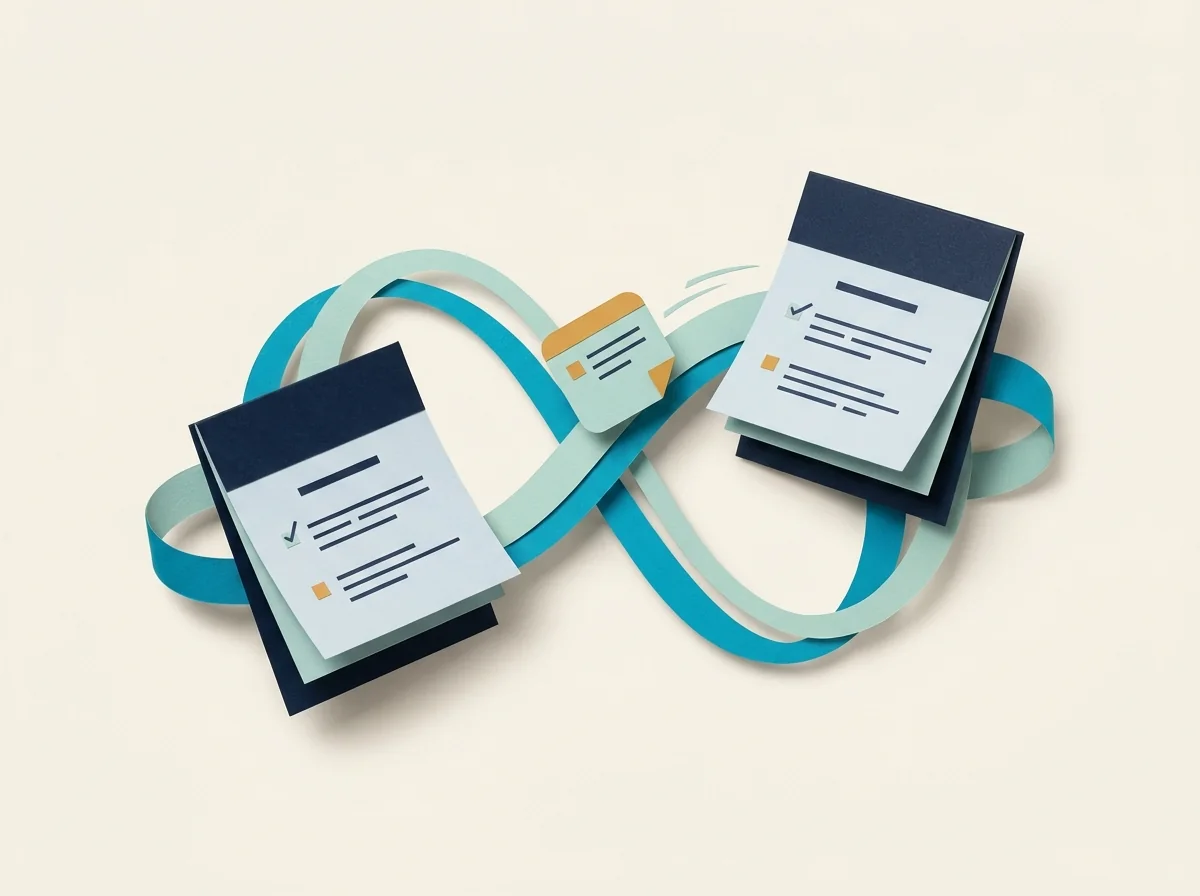
Quick answer
Two-way sync means events and changes flow in both directions between your work system and Google Calendar, instead of exporting a static feed. Workspace369 syncs both ways: the events and bookings you are assigned in Workspace369 land in the Google calendar you choose and stay updated, and the events on the Google calendars you pick show in your Workspace369 calendar. When you are busy on the Google calendars you select, those times are also blocked on public booking pages (Specialist and up). Connection runs through Google account permissions: Workspace369 only touches the calendars you approve, and you can disconnect anytime from either side.
Why one-way calendar exports fail client businesses
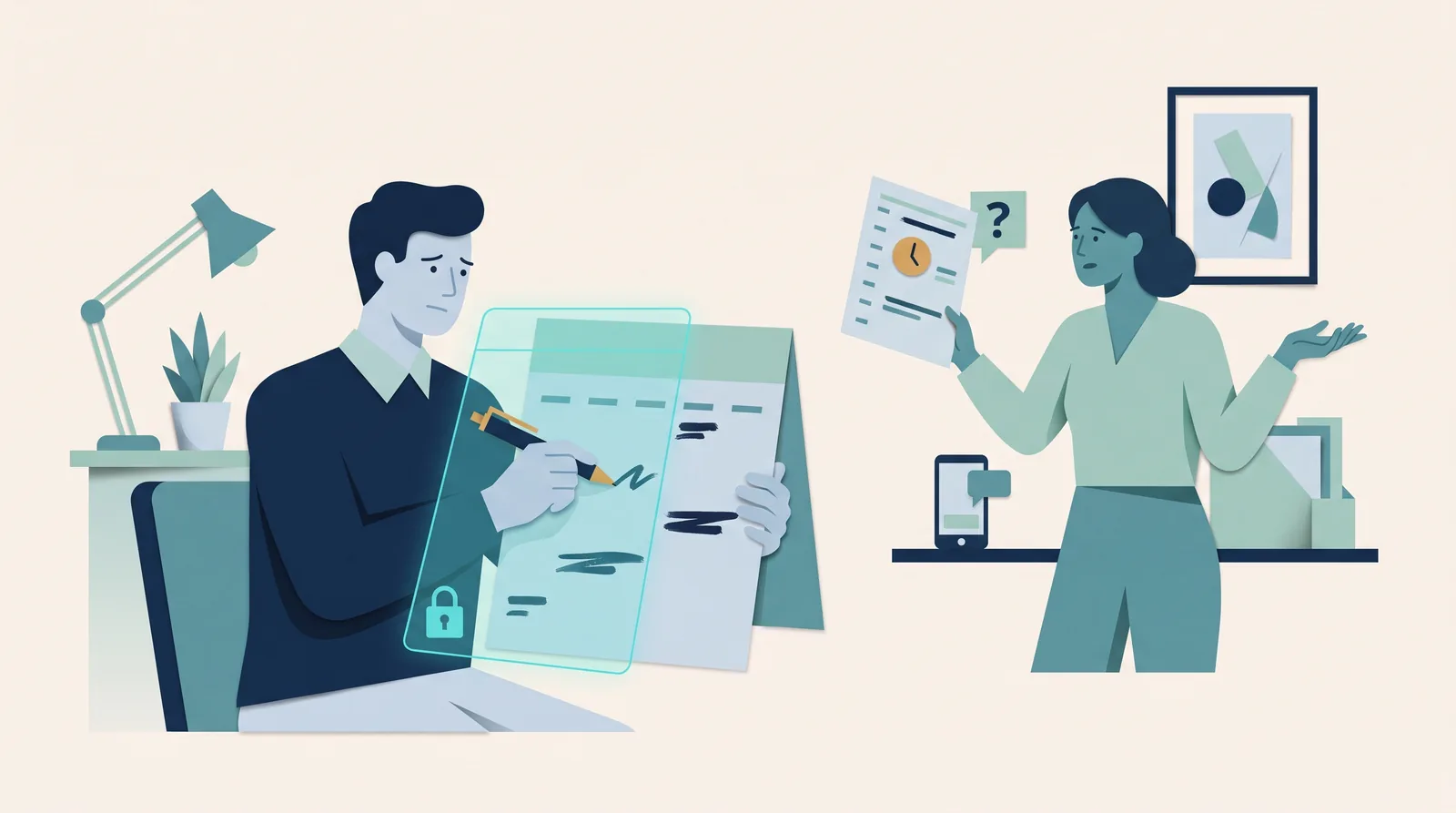
Most work tools offer a one-way calendar export: a feed URL you subscribe to in Google Calendar. It looks like sync, but it breaks in practice:
- Updates arrive late. Feed subscriptions refresh on the calendar app's schedule, not yours. A job rescheduled at 9am can still show the old time at noon.
- Events are read-only. The team cannot complete, reassign, or add notes from the calendar where they see the work.
- Context is missing. A feed entry says "site visit" without the client record, the address history, or the invoice attached to the job.
- Feeds multiply. Every tool adds its own feed, and soon nobody knows which calendar is true.
The result is a team that stops trusting the calendar and starts asking in chat where they need to be.
What real two-way sync looks like
A Google Calendar integration built for client work should do four things:
- Write real events. Jobs, visits, reminders, and delivery work appear as native Google Calendar events with the details that matter.
- Keep events updated. When the job moves, the calendar event moves with it — no stale copies.
- Respect permissions. The integration connects through Google account permissions and only touches the calendars you approve.
- Disconnect cleanly. You can revoke access from your Google account or from the work system, anytime, from either side.
How Workspace369 syncs with Google Calendar
Workspace369 connects Google Calendar to the same workspace that holds the client record, and the sync runs both ways:
- Workspace369 to Google. Events and bookings you are assigned in Workspace369 go to the Google calendar you choose, and they update or disappear when the work moves or is cancelled.
- Google to Workspace369. Events on the Google calendars you pick show in your Workspace369 calendar, so personal appointments and client work sit in one view. They show read-only and only to you; open one to jump to it in Google Calendar.
- Booking pages respect your calendar. When you are busy on the calendars you select, those times are blocked on public booking pages (Specialist plan and up).
The Workspace369 schedule stays the place where client bookings change, so reminders, deposits and client notifications follow the real schedule.
Because the calendar entry comes from the client workspace, the work behind it stays one click away: the client CRM record, the project, the files, the invoice, and the inbox history that explains the job.
Setup runs through each team member's own Google account permissions. Workspace369 only touches the calendars you approve, and you can disconnect anytime — from Workspace369 or from your Google account.
Who two-way sync is for
Two-way Google Calendar sync matters most when the calendar is the operating schedule of the business:
- Agencies coordinating client calls, reviews, and delivery deadlines
- Field and home service teams running visits and install windows
- Consultants and freelancers whose bookings, follow-ups, and invoice reminders share one day
- Any team where a missed calendar event means a missed client commitment
Get started
Connect the Google Calendar integration to put the client work you are assigned on the calendar you already check, and your Google events beside it in Workspace369 — with approved access and disconnect anytime.
Run client follow-up in one workspace.
CRM, inbox, voice, invoicing, payments, projects, files, AI, and workflow automations — connected instead of exported.
14-day free trial. Card required. After the trial: from $29/month. Renews automatically every month until you cancel. Cancel anytime in Settings → Billing.