How to make an invoice with ChatGPT (and actually send it)
Make an invoice with ChatGPT two ways: invoice text you copy out, or a real draft from your own services with the Workspace369 plugin that waits for your OK.

By Simon Dziak, Founder, Workspace369 · LinkedIn
Workspace369 publishes this guide. The screenshots come from our own demo workspace, recorded in ChatGPT on November 20, 2026.
You can make an invoice with ChatGPT in two ways. On its own, ChatGPT writes invoice text or a template that you copy into a document and send yourself. Connected to invoicing software through a plugin, it makes a real invoice: numbered, saved with the client, priced from your own services and ready to send. This guide shows both, then walks through the second with the Workspace369 plugin, step by step.
Key takeaways
- ChatGPT on its own can write invoice text or a template, but it can't number the invoice, keep a record of it or send it to a client to pay. You copy the text out and do the rest by hand.
- With an invoicing plugin, ChatGPT makes a real invoice. With Workspace369's approved plugin, ask in your own words and it drafts the invoice with the client, line items, prices and tax from your own workspace.
- By default, nothing goes out on its own: when you ask ChatGPT to send the invoice, the send waits in Workspace369's Approvals until you approve it, or decline.
- Check four things before you approve: the client, the line items and prices, the tax, and the due date.
What's inside?
Two ways to make an invoice with ChatGPTHow to make an invoice with ChatGPT and Workspace369What waits in Approvals before an invoice goes outInvoice prompts to try in ChatGPTWhat it costs
Two ways to make an invoice with ChatGPT
1. ChatGPT on its own. Ask it to write an invoice for a client and it gives you text, often laid out as a table. That's handy for a one-off, but everything after it is yours to do: copy it into a document or PDF, give it a number, check the math, email it, and keep a record of who has paid. ChatGPT doesn't know your prices or your tax rate unless you type them in, and it can't send anything.
2. ChatGPT with an invoicing plugin. Add your invoicing app's plugin in ChatGPT, and ChatGPT works inside your account. With Workspace369, it finds the client, picks the line items and prices from your own catalog, applies your default tax and saves the invoice as a draft, numbered like any other. When you ask it to send, the send waits for your approval.
| ChatGPT on its own | ChatGPT with the Workspace369 plugin | |
|---|---|---|
| Prices | What you type in | Your own catalog prices |
| Tax | What you type in | Your workspace's default tax |
| Invoice number and record | None | Numbered draft saved with the client |
| Sending | You send it yourself | Waits in Approvals until you approve it |
| Getting paid | Separate | The invoice stays in Workspace369 with the client |
How to make an invoice with ChatGPT and Workspace369
Step 1: Connect Workspace369 to ChatGPT
The workspace owner or an admin turns on Allow AI connections in Settings, AI connections. Then, in ChatGPT, open the Workspace369 plugin, add it, and sign in to Workspace369 to choose the workspace and approve what ChatGPT may do. The ChatGPT tutorial shows every click.
Step 2: Ask for the invoice in your own words
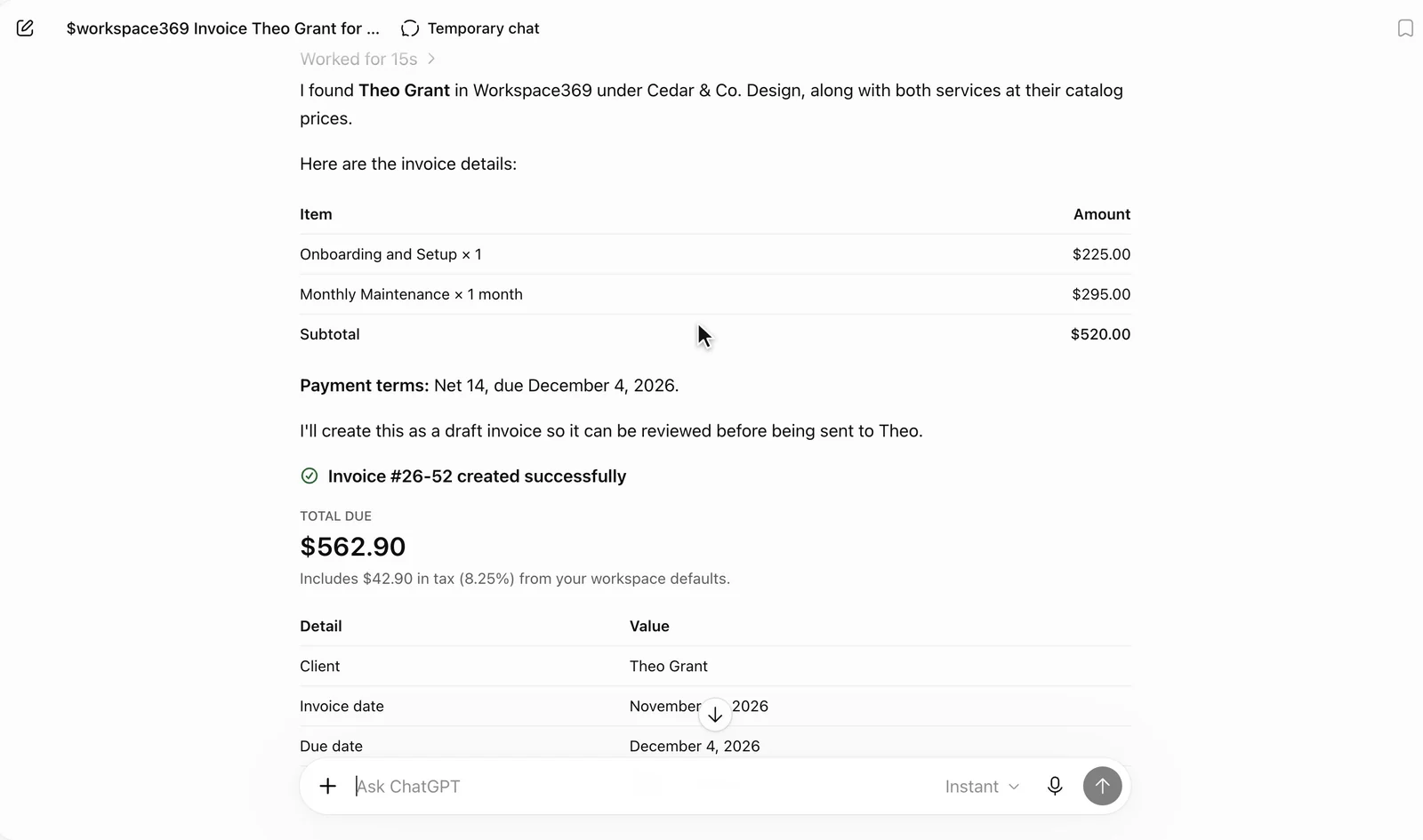
Pick Workspace369 in the message box and say who the invoice is for and what it covers. For example: "Invoice Theo Grant for Onboarding and Setup plus one month of Monthly Maintenance, due in 14 days."
ChatGPT finds the client, matches the services to your catalog and creates the invoice as a draft. Nothing has been sent at this point.
Step 3: Check the draft
Before anything goes out, check four things: the client, the line items and prices, the tax, and the due date. The draft also shows up in Invoices in Workspace369 like any other, so you can open it there to edit a line, add a note or change the terms. Want something different? Ask ChatGPT in the same chat, like "make it due in 30 days".
Step 4: Ask ChatGPT to send it, then approve
Ask ChatGPT to send it. By default, it doesn't go out on its own: the request waits in Approvals in Workspace369, with the invoice, the amount and the recipient, until you press Approve and send, or Decline. Only the person who made the connection can turn on Send without asking for it.

What waits in Approvals before an invoice goes out
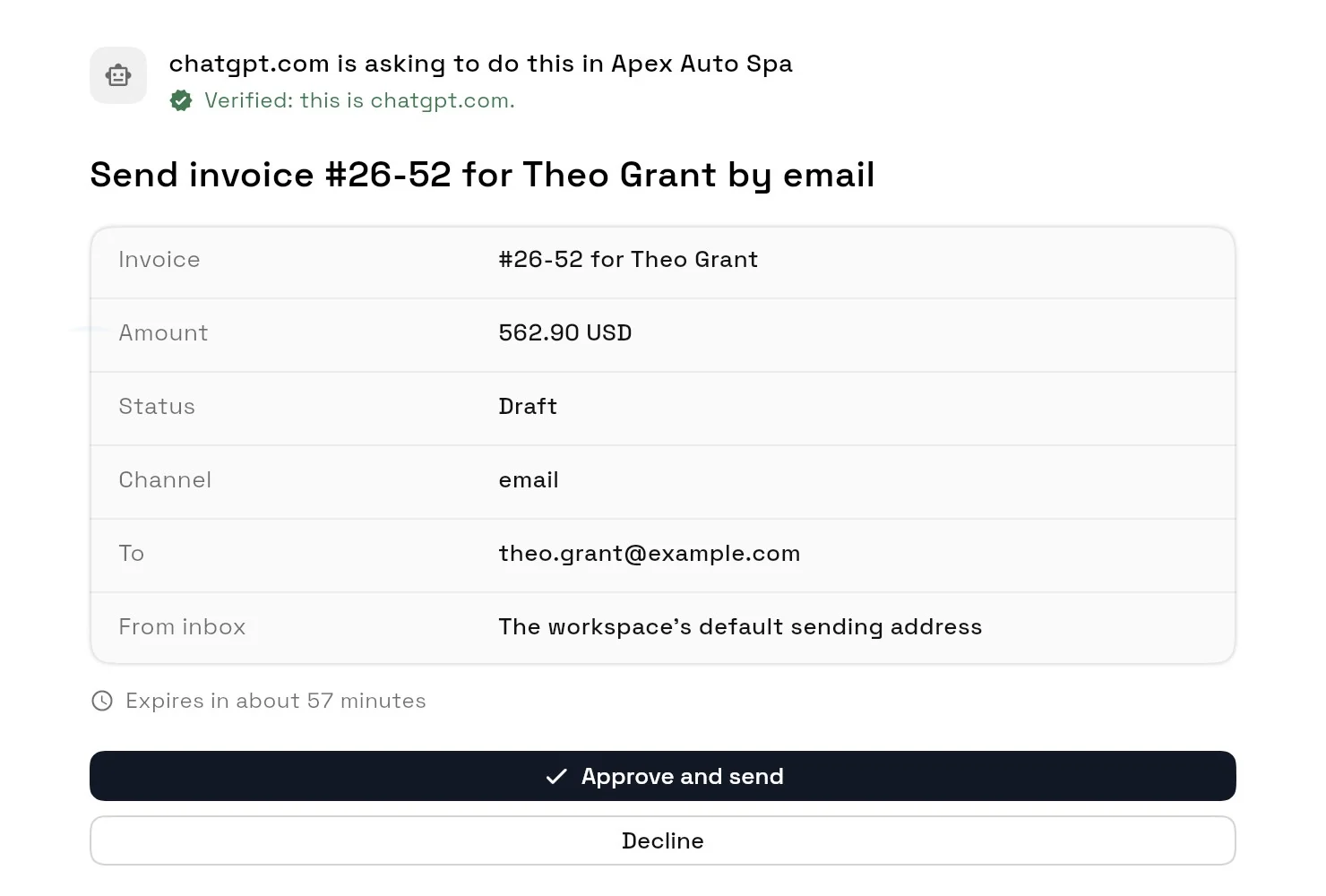
The approval page shows which app is asking, verified, and exactly what will go out. Once you approve, the invoice is emailed to your client. A request nobody decides expires after an hour, so unless you've turned on Send without asking, ChatGPT never sends an invoice you didn't see. The same rule covers proposals, contracts, emails and texts.
Invoice prompts to try in ChatGPT
- "Invoice Theo Grant for Onboarding and Setup plus one month of Monthly Maintenance, due in 14 days."
- "Which invoices are overdue, and which client owes me the most?"
- "How much unbilled time have I logged on my active projects?"
- "Make that invoice due in 30 days."
- "Send it to Theo."
For more, see 24 MCP CRM prompts, or how to write a proposal with ChatGPT the same way.
What it costs
The ChatGPT plugin is on every Workspace369 plan, from Cadet at $29 a month (one seat). Every successful request counts toward the workspace's monthly AI usage. Start with the 14-day trial; a card is required, and the plan renews monthly after the trial until you cancel. Compare the plans or see how invoicing works.
Sources reviewed for this guide
- Workspace369 is now an approved ChatGPT pluginApproval, plans and what waits for approval, reviewed November 20, 2026.
- Workspace369 MCP permissions, usage and auditApprovals and Send without asking, reviewed November 20, 2026.
- Workspace369 pricingPlan prices and trial terms, reviewed November 20, 2026.
Run client follow-up in one workspace.
CRM, inbox, voice, invoicing, payments, projects, files, AI, and workflow automations — connected instead of exported.
14-day free trial. Card required. After the trial: from $29/month. Renews automatically every month until you cancel. Cancel anytime in Settings → Billing.
See pricing