Inbox & calls
Add addresses on your custom email domain, including send-only ones
A new short Add address flow for a verified custom domain, with send-only addresses, inbox.yourdomain receiving that sends as you@yourdomain, and simpler domain setup.

Add an address on your custom domain
Once your custom email domain is verified, adding an address is a short flow. In Domains & connections, open your domain and choose Add channel on its Addresses tab; a domain with no address yet offers Add address as its next step. A domain set up to send only skips step 1 and goes straight to the address. Step 1 asks what the address will do: Send and receive, where customers write to it and you answer from your Workspace369 inbox, or Send only, where you send from your domain and replies go to your usual mailbox.
Step 2 is a name only your team sees and the part before the @, with a domain switcher, and it spells out what will happen: who customers write to, what the address sends as, and where replies land. When your domain's own mail stays with Google Workspace or Microsoft 365, mail is received on inbox.yourdomain. Customers keep writing to hello@studio.example, you forward that mailbox to hello@inbox.studio.example, and the address sends as hello@studio.example, with replies coming back to the inbox subdomain. The flow gives forwarding steps for Gmail, Outlook or another provider, and you don't need to change your MX records. Step 3 sets the sender name and inbox color and previews how the email looks to your customer and to your team.
Domain setup changed too. Only send from this domain skips the receiving record altogether: the domain shows as Active with Sends only, and Turn on receiving adds it later. Receiving on inbox.yourdomain is the default, so nobody has to move their main MX records. While you check DNS, the page rechecks itself, and when the domain has no DMARC record the last step suggests a monitoring-only one that doesn't change how your email works. Adding addresses needs inbox settings edit access. A first custom domain is on Cadet and above; a second domain or an extra receive hostname needs Specialist. It is on the web app now and comes to the iPhone app with its next update.
- Add address opens a short flow: purpose, address, look (the purpose step is skipped on a send-only domain)
- Mail is received on inbox.yourdomain while the address sends as you@yourdomain
- Send only for a domain that only needs to send, with Turn on receiving later
- Where to find it
- Settings
- Email, SMS & phone
- Domains & connections
- your domain
- Addresses
- Add channel
- Plans
- Every plan
- Learn more
- Inbox and emailInbox overview guide
Quick answers
- Can I add hello@ on my own domain if my main mail stays with Google Workspace?
- Yes. Mail is received on inbox.yourdomain: customers keep writing to hello@studio.example, you forward it to hello@inbox.studio.example, and the address sends as hello@studio.example. You don't need to change your MX records.
- What is a send-only address?
- A send-only address sends from your domain, and replies go to your usual mailbox instead of the Workspace369 inbox. Turn on receiving later from the domain's page.
- Where do I add an address?
- In Settings → Email, SMS & phone → Email → Domains & connections, open your verified domain and, on its Addresses tab, choose Add channel. A domain with no address yet offers Add address as its next step.
- Which plans can add addresses on a custom domain?
- A first custom domain is on Cadet and above. A second domain or an extra receive hostname needs Specialist, and you need inbox settings edit access.
- Does the domain check update on its own?
- Yes. While the check step is open the page rechecks your DNS itself, then stops once the records are found.
Related updates
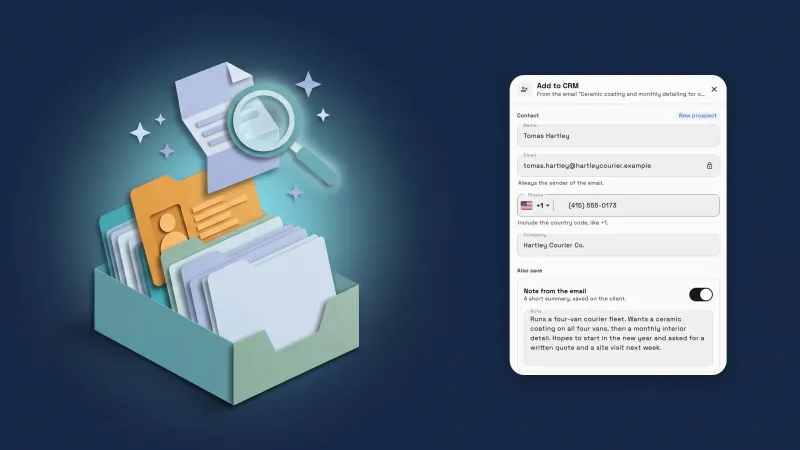 Add emails to your CRM with AI, and import proposals and client lists
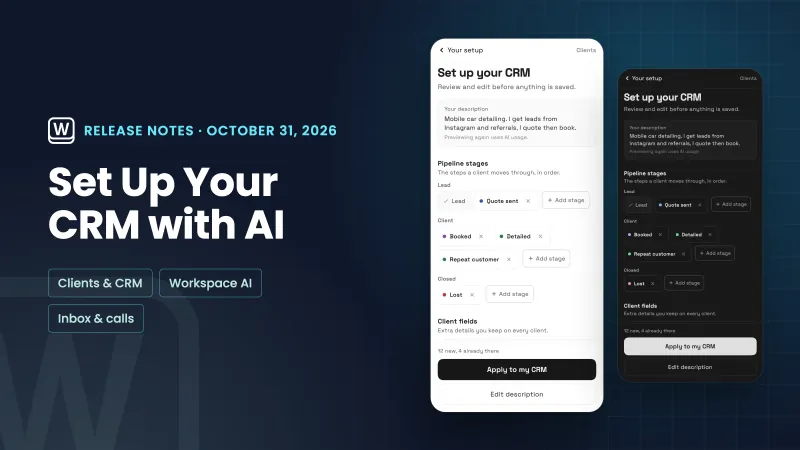 Set up your CRM with AI, and read through your email faster
 October 2026: Flash Pay, a new proposal builder, deeper booking and AI in your CRM
Add addresses on your custom email domain, including send-only ones, in your own workspace
Start your free trial, then find it under Settings.
14-day free trial. Card required. After the trial: from $29/month. Renews automatically every month until you cancel. Cancel anytime in Settings → Billing.