Billing & paymentsProposals & contractsCalendar & bookingClients & CRMWorkspace AIInbox & callsWorkflowsClient portalWorkspace & teamProjects, tasks & time
October 2026: Flash Pay, a new proposal builder, deeper booking and AI in your CRM
Flash Pay, retainers and more ways for clients to pay; a new proposal builder with packages; deeper online booking; and CRM tools with AI lead scoring and setup.

Get paid more ways: Flash Pay, payment methods, tips, retainers and autopay
Flash Pay takes a payment on the spot with a QR code or a pay link, and every payment becomes a paid invoice. In Online payments you choose which payment methods clients see through your Stripe account, and you can override them on a single invoice. Clients can add a tip when they pay an invoice online, and tips on in-person Flash Pay card payments are now kept with the payment.
Retainers run as an hour bank, a fixed monthly fee or a prepaid deposit with a live hours meter, and recurring invoices can go on card autopay your client agrees to. After a client pays, they see your note and next-step buttons under the confirmation. You can also void an invoice that was sent but never paid.
Finance → Reports now lists every report in one place, with search.
- Flash Pay by QR code or pay link
- Payment methods per workspace and per invoice
- Retainers with a live hours meter
- A thank-you note and next steps after payment
- Where to find it
- Flash Pay in the sidebar; Settings
- Online payments
- Payment methods; Retainers in the sidebar; Finance
- Reports
- Plans
- Every plan
No-show fees and tips for online bookings
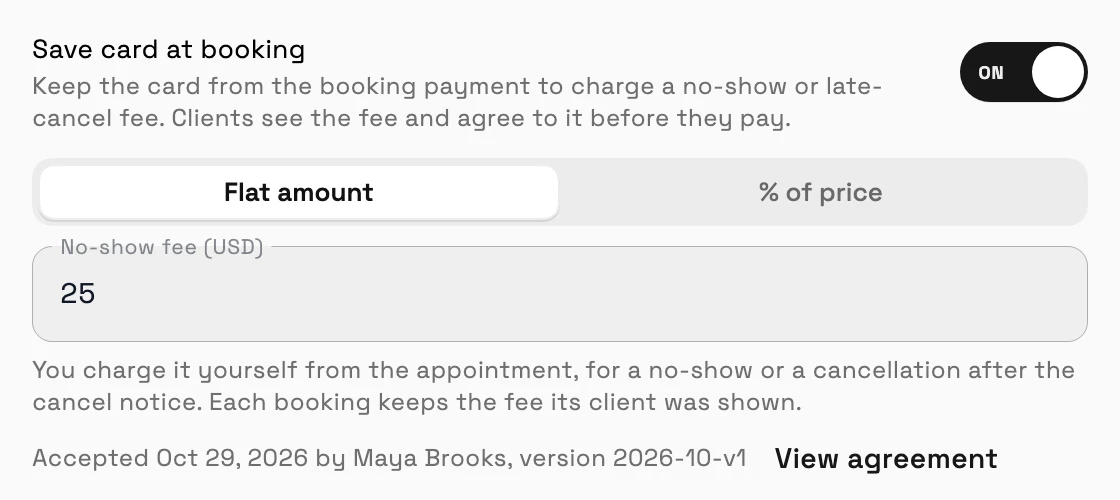
Services that take a deposit or full payment can keep the client's card at booking. When an online booking is marked as a no-show, or the client cancels after your cancel notice, you charge the fee they agreed to right from the appointment. Clients can also add a tip when they pay for a booking online.
- Save card at booking
- Charge no-show fee from the appointment
- Tips on online bookings
- Where to find it
- Catalog
- open a service
- Online Booking
- Configure booking; Calendar
- open the booking
- ⋯
- Charge no-show fee
- Plans
- Specialist and up
A new proposal builder, pick-one packages and Write with AI
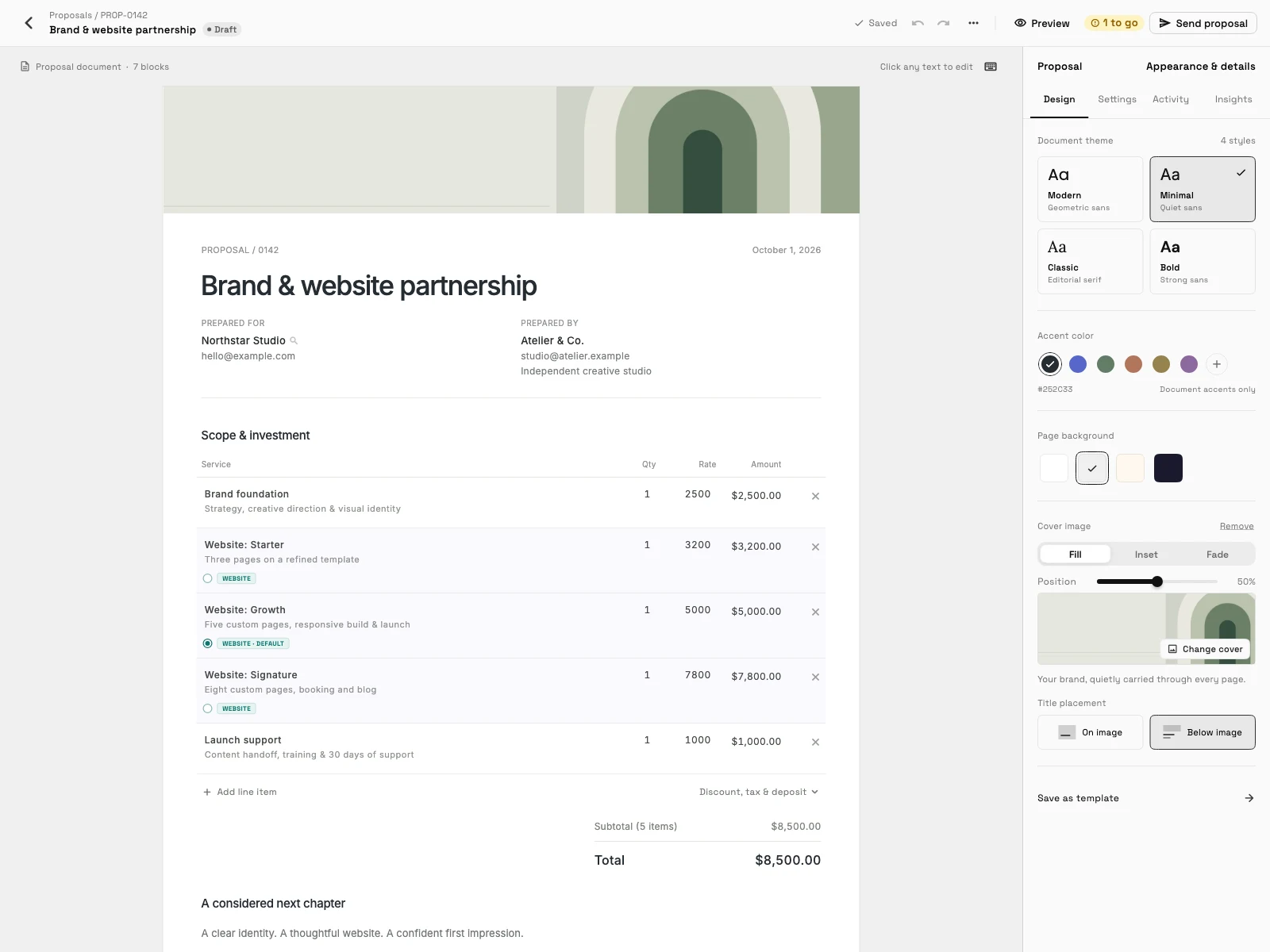
The proposal editor has a cleaner toolbar and an easier block picker, and an AI app connected to Workspace369, such as Claude or ChatGPT, can build or restyle a proposal for you. You can offer good, better and best packages your client picks from, and Write with AI drafts a proposal's introduction, scope and line items.
Contract templates have Proposal total and Proposal deposit merge fields, and proposals in Hebrew or Arabic now read right to left, including in the Proposal Builder. A workflow can also make a proposal from a template and email it to the client.
- Pick-one packages
- Write with AI for proposals
- Design proposals with your AI assistant
- Right to left in Hebrew and Arabic
- Where to find it
- Proposals
- open a proposal
- Plans
- Every plan
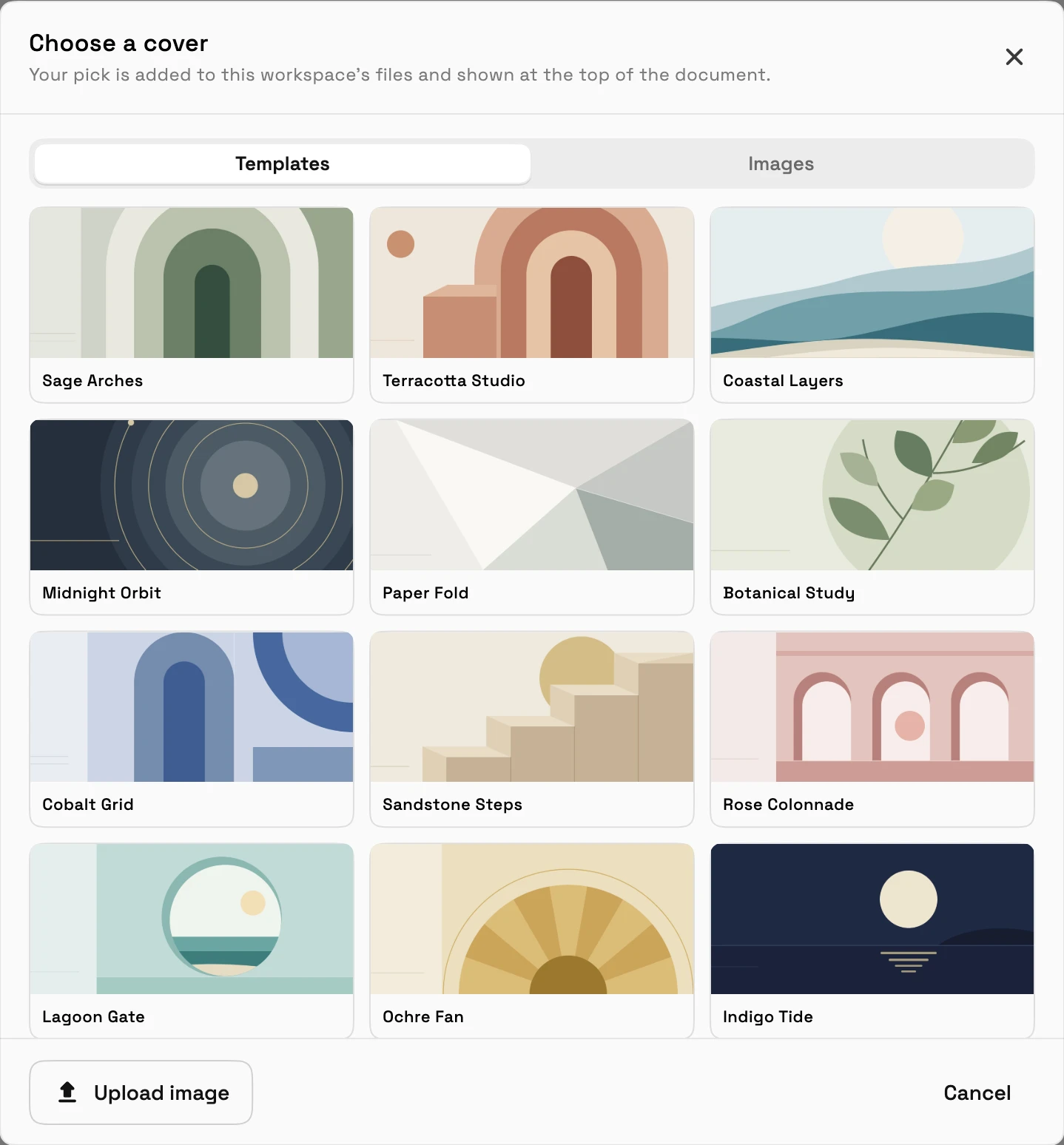
Pick a cover for your proposal
Choose a cover from ready-made banner designs or upload your own image. The cover shows at the top of the proposal your client opens and on its PDF.
- Where to find it
- Proposals
- open a proposal
- Choose a cover
- Plans
- Specialist and up
- Learn more
- ProposalsNew proposal builder
Google events, Meet on every plan, no-show status and services on events
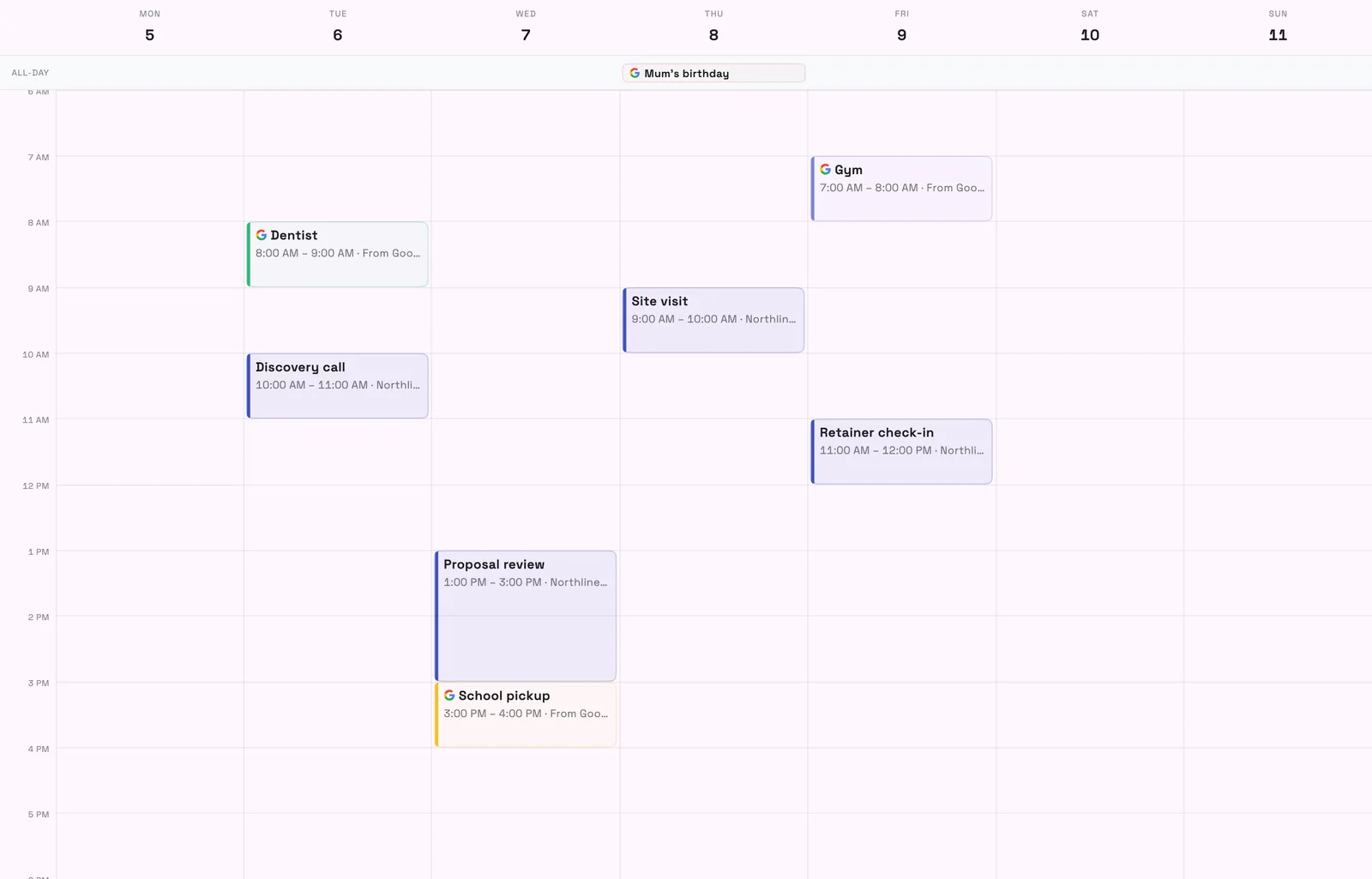
See your Google Calendar events next to your bookings, read-only and visible only to you. Google Meet is available to every workspace, and connecting Google Calendar connects Meet too.
When a client doesn't turn up, set the appointment to No-show, and start a workflow from it. Calendar events also have a Services & products row, so you can say what an appointment is for.
- Google Calendar events in your calendar
- Google Meet on every plan
- No-show status on appointments
- Where to find it
- Settings
- Integrations
- Google Calendar; Calendar
- open an appointment
- Plans
- Every plan
Deeper online booking: approval by day, team members, limits, one-time links and a clearer setup
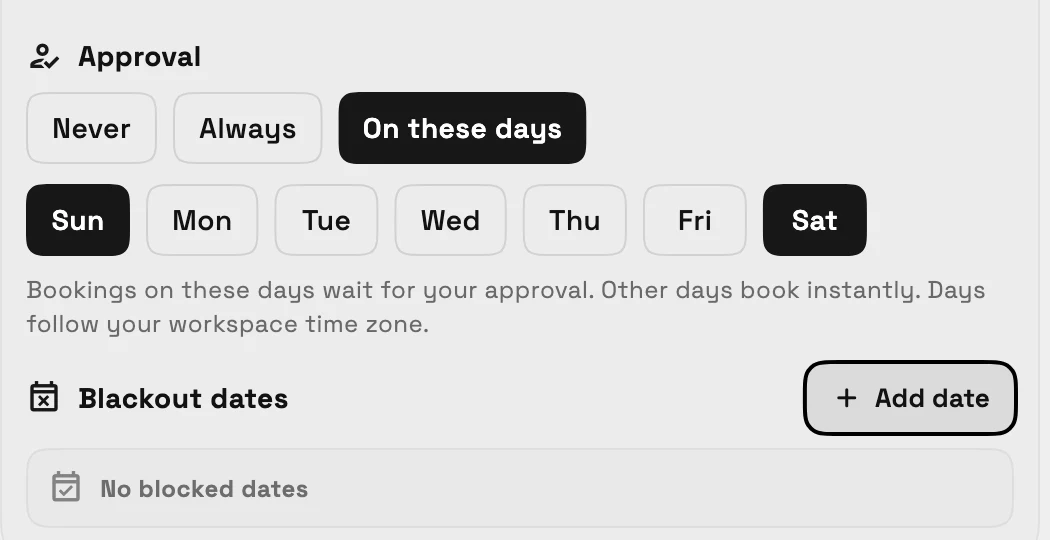
Bookings can need your approval only on the days you pick, and booking pages tag times Instant or Request. Clients can choose their team member, with each person's own service length, and embedded booking can record where new clients came from.
Services get a weekly limit per teammate and bookable dates, a buffer before each booking, and one-time booking links that work once. Configure booking is regrouped so the essentials come first, and guided setup can make your booking page in one step.
- Approval on the days you pick
- Clients choose their team member
- Weekly limit and bookable dates
- One-time booking links and a buffer before bookings
- Where to find it
- Catalog
- open a service
- Online Booking
- Configure booking; Settings
- Booking pages
- Plans
- Specialist and up
Set up your CRM with AI and turn client notes into follow-ups
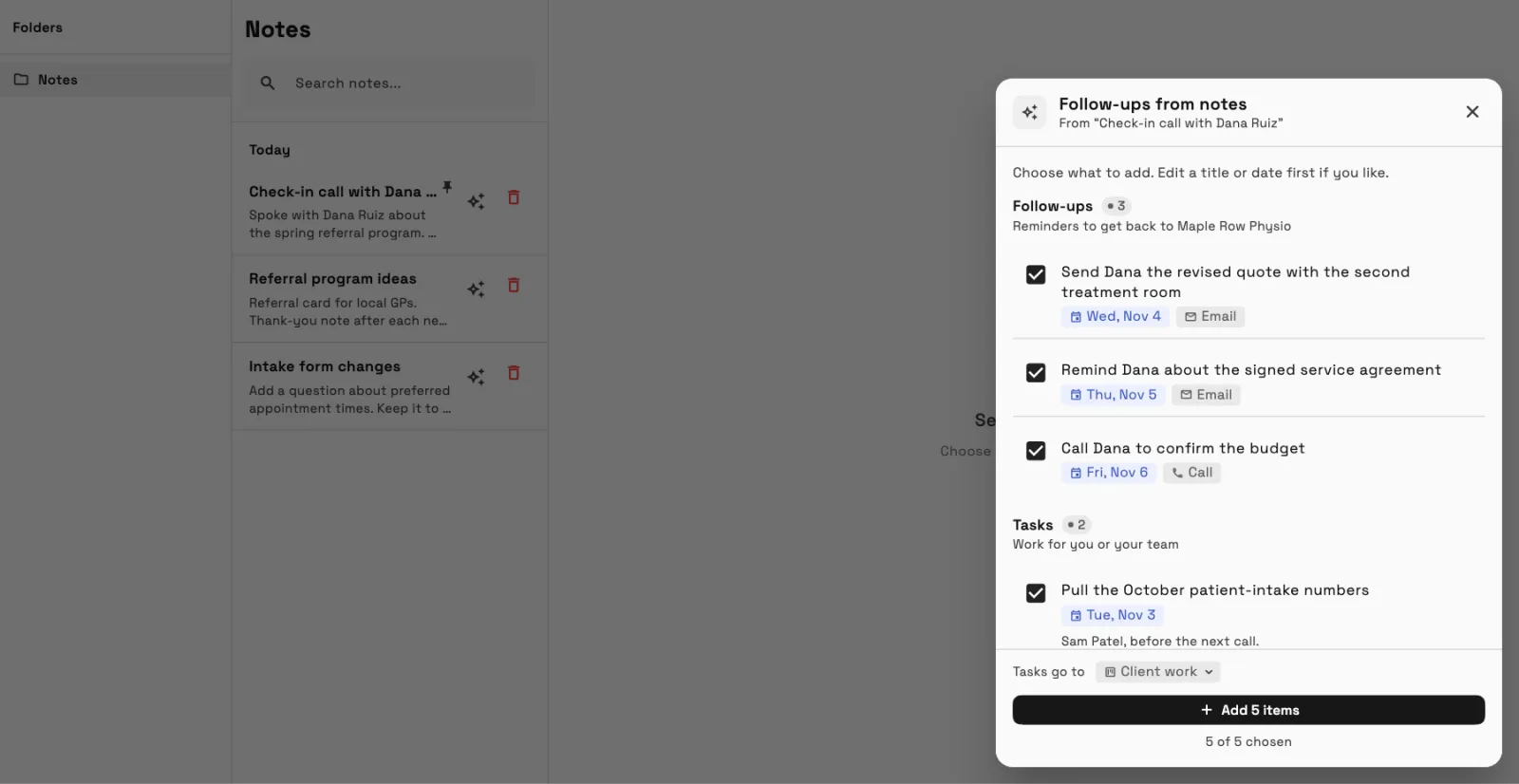
Describe your business in a sentence or two and Workspace369 suggests pipeline stages, client fields and lead sources you edit before saving. Choose a note on a client, or paste in a call summary, and AI suggests follow-ups and tasks you tick, edit and date before adding them in one step.
You can also bring your data over with AI Import, which now recognizes HoneyBook, Dubsado, Bonsai, 17hats and Moxie exports.
- CRM setup with AI
- Client notes into follow-ups and tasks
- AI Import from five more tools
- Where to find it
- Clients
- a client
- Notes; Workspace setup
- Add your first client
- Plans
- Every plan
AI lead scoring labels new requests hot, warm or cold
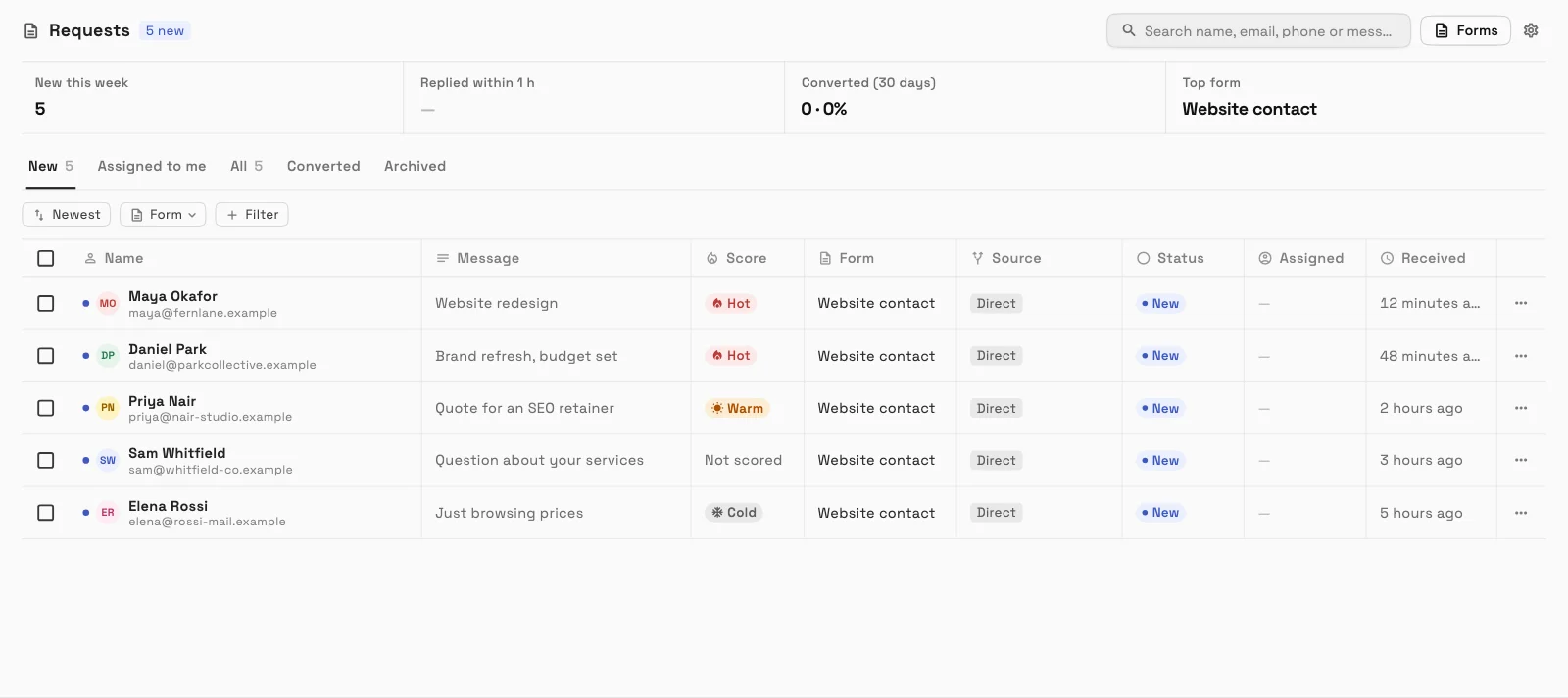
Turn on Score new leads with AI in your Requests settings and new requests get a Hot, Warm or Cold label with a short reason, so you reply to the best leads first.
- Where to find it
- Settings
- Requests
- Lead scoring
- Plans
- Voyager and up
- Learn more
- Leads from your websiteAI lead score
AutoPilot chat, approvals for connected AI apps and the ChatGPT plugin
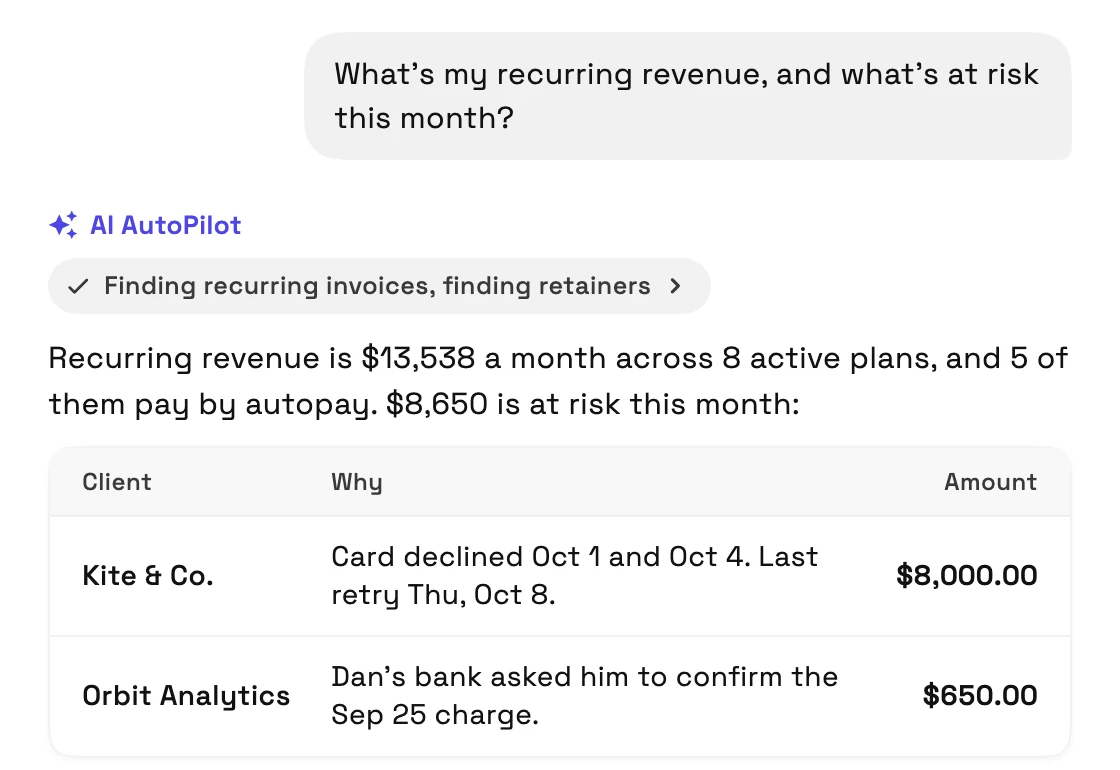
AutoPilot chat has a new look with private chats you can rename, pin and delete, and buttons under its answers for the next step. Messages that Claude, ChatGPT or another connected AI app wants to send wait for your approval.
OpenAI approved and published the Workspace369 plugin for ChatGPT, so you can find it in ChatGPT and connect it.
- Private, pinnable AutoPilot chats
- Approve what a connected AI app sends
- Workspace369 plugin in ChatGPT
- Where to find it
- Sidebar
- AI AutoPilot
- Chat; Settings
- Approvals
- Plans
- Every plan
Client emails in your brand, a calmer Emails inbox and AI writing help
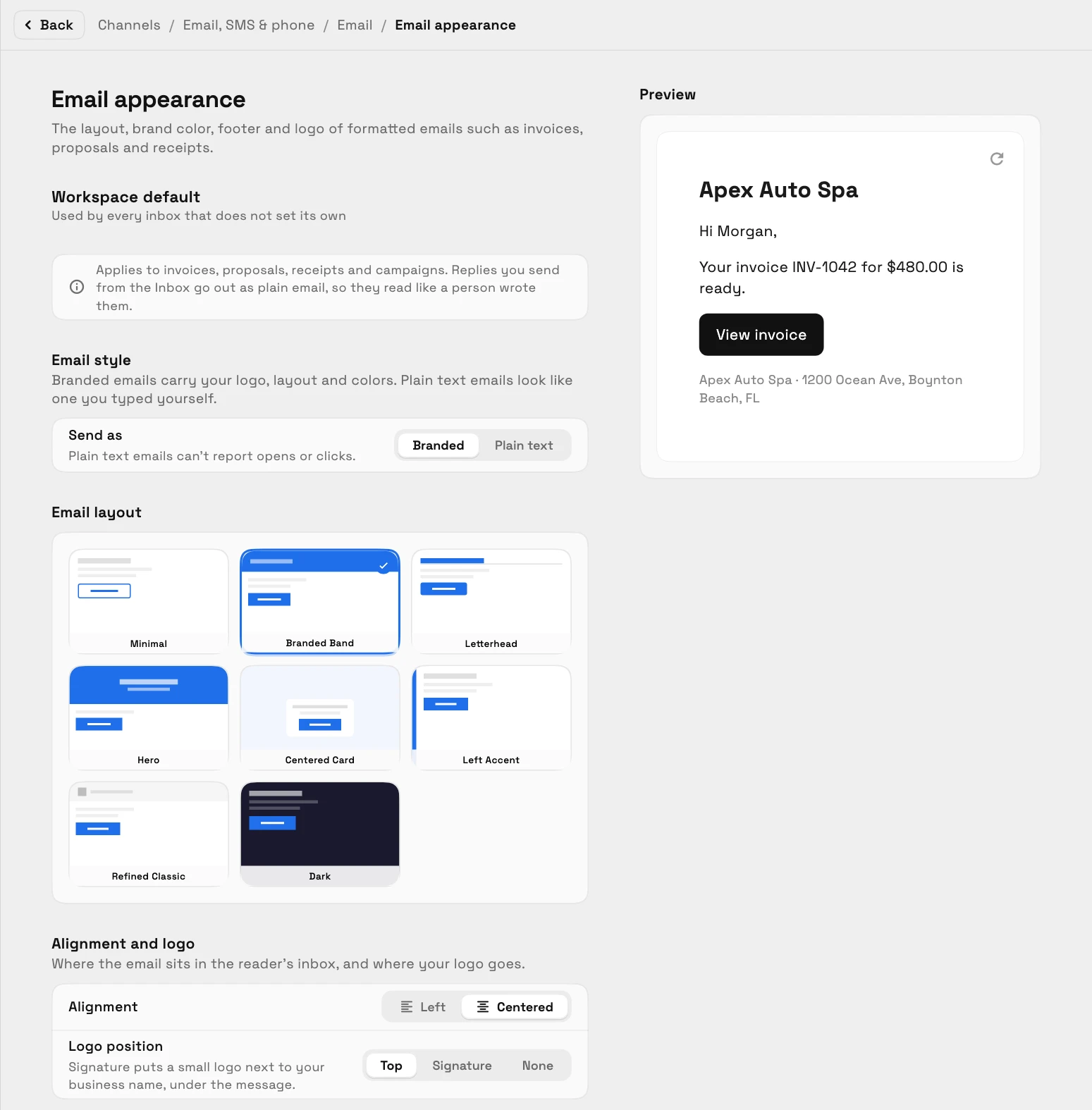
Invoice reminders, proposals, receipts and e-signature emails go out in your workspace's look from your mailbox, with a richer signature editor and a reply box with a real Send button. Emails has a new look with folders in one row, a preview line on every email and one-click archive, and you can step from one email to the next.
The email composer gets AI writing help to draft, improve, shorten or change the tone with Undo, a default sender inbox for each team member, and a bigger composer with full screen. Connecting your own email domain is now three steps.
- Branded client emails and a signature editor
- A quieter Emails list and reader
- AI writing help in the composer
- Where to find it
- Settings
- Email, SMS & phone; Communications
- Emails
- Plans
- Every plan
Reusable text messages with a default for each message type
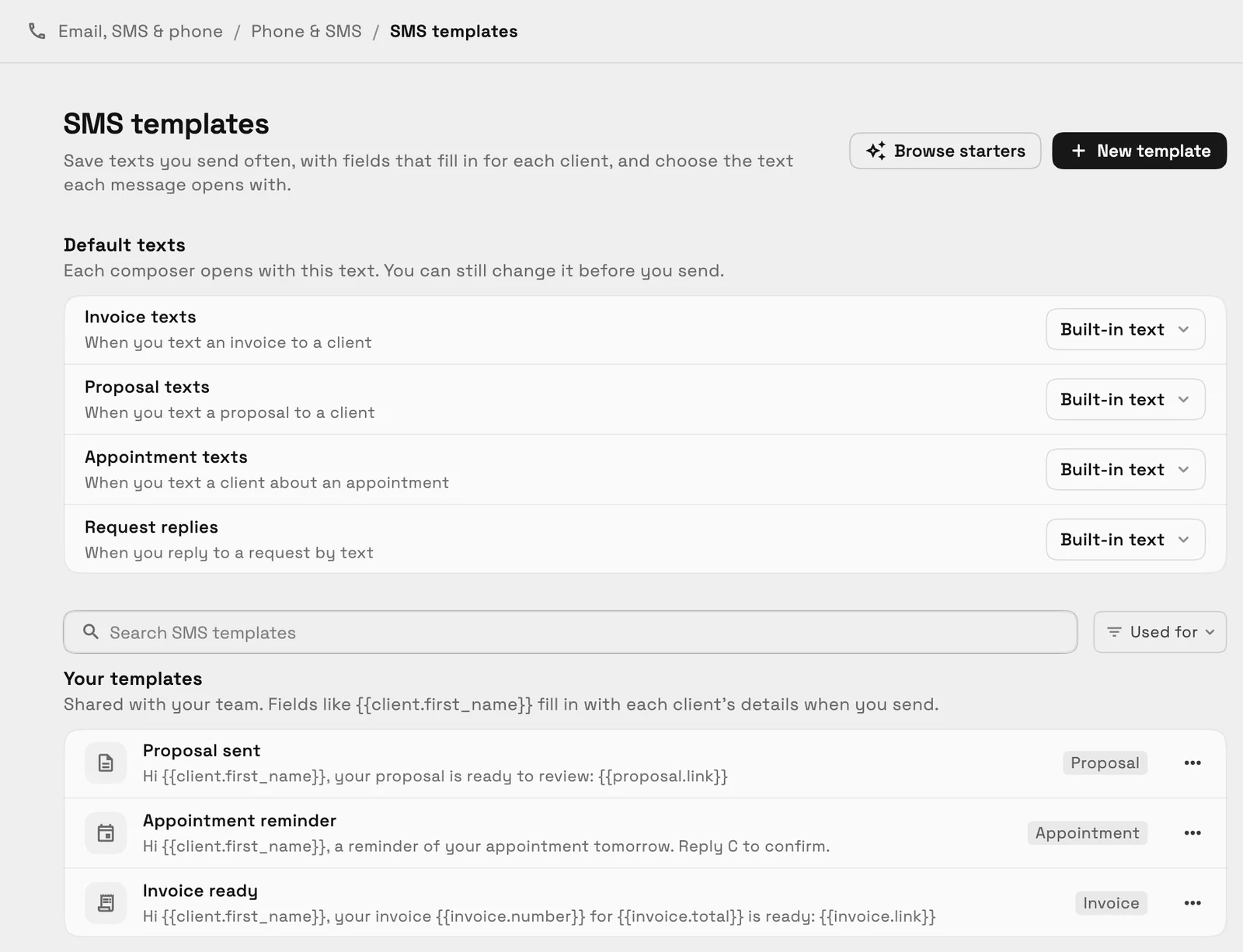
Save texts you send often, with fields that fill in for each client, and see a phone-bubble preview. Choose the text that opens when you text an invoice or other message type.
- Where to find it
- Settings
- Email, SMS & phone
- Phone & SMS
- SMS templates
- Plans
- Voyager and up
- Learn more
- Inbox and communicationsSMS templates
Workflows with decisions, drafts and project triggers, and webhooks on every plan
Workflows get a Check a condition step, waits and business hours, and a live workflow keeps a draft you can test and publish. A new Project completed trigger starts a workflow when a project is done, a Send proposal step emails a proposal, and a workflow can email your review page link after each appointment.
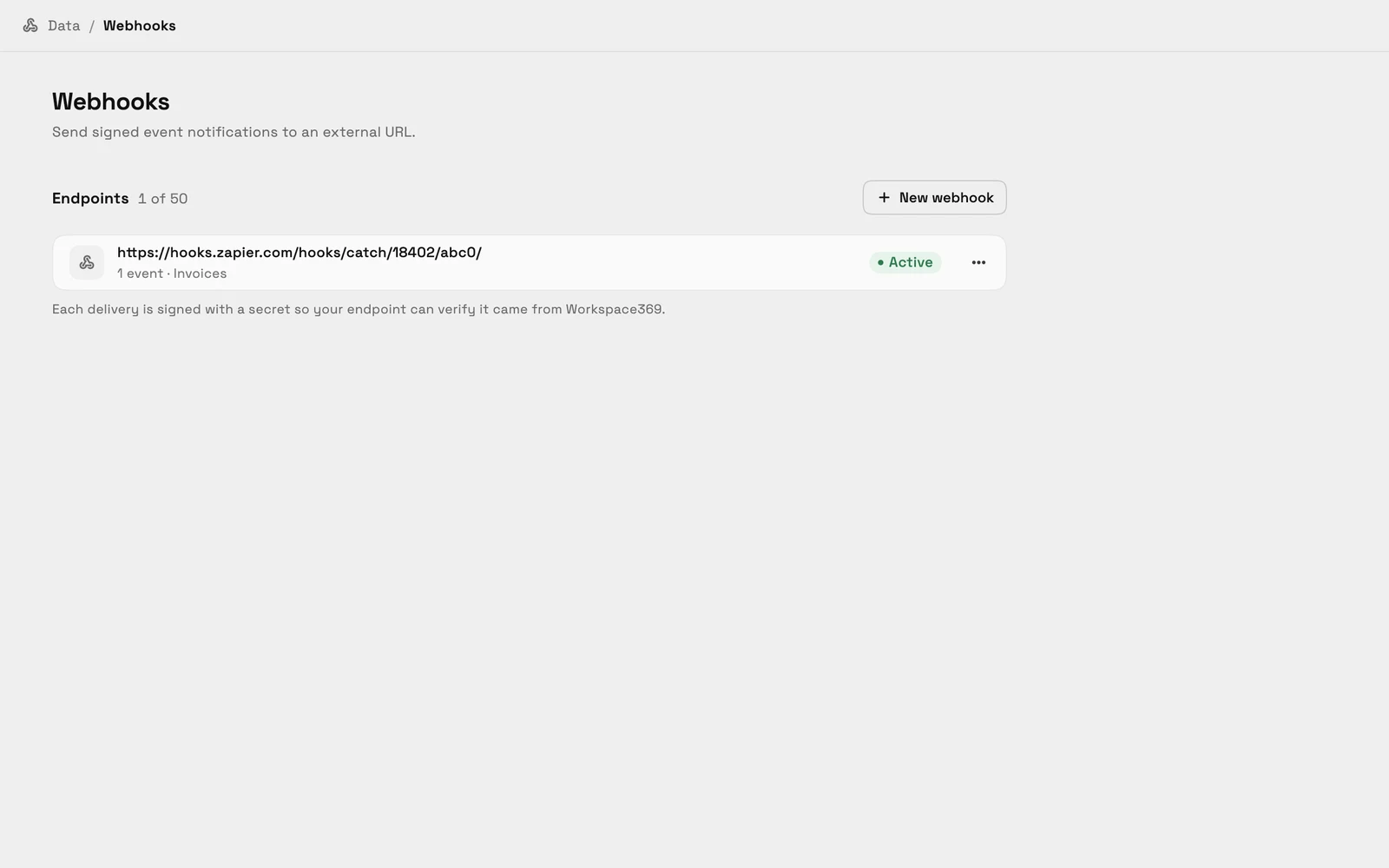
Webhooks now come with every plan, so you can send signed notifications to Zapier, Make, n8n or your own server.
- Decisions, waits and drafts
- Project completed trigger
- Ask for a review workflow
- Webhooks on every plan
- Where to find it
- Workflows in the sidebar; Settings
- Integrations
- Webhooks
- Plans
- Every plan
Messages on the client portal, and an easier way to style it
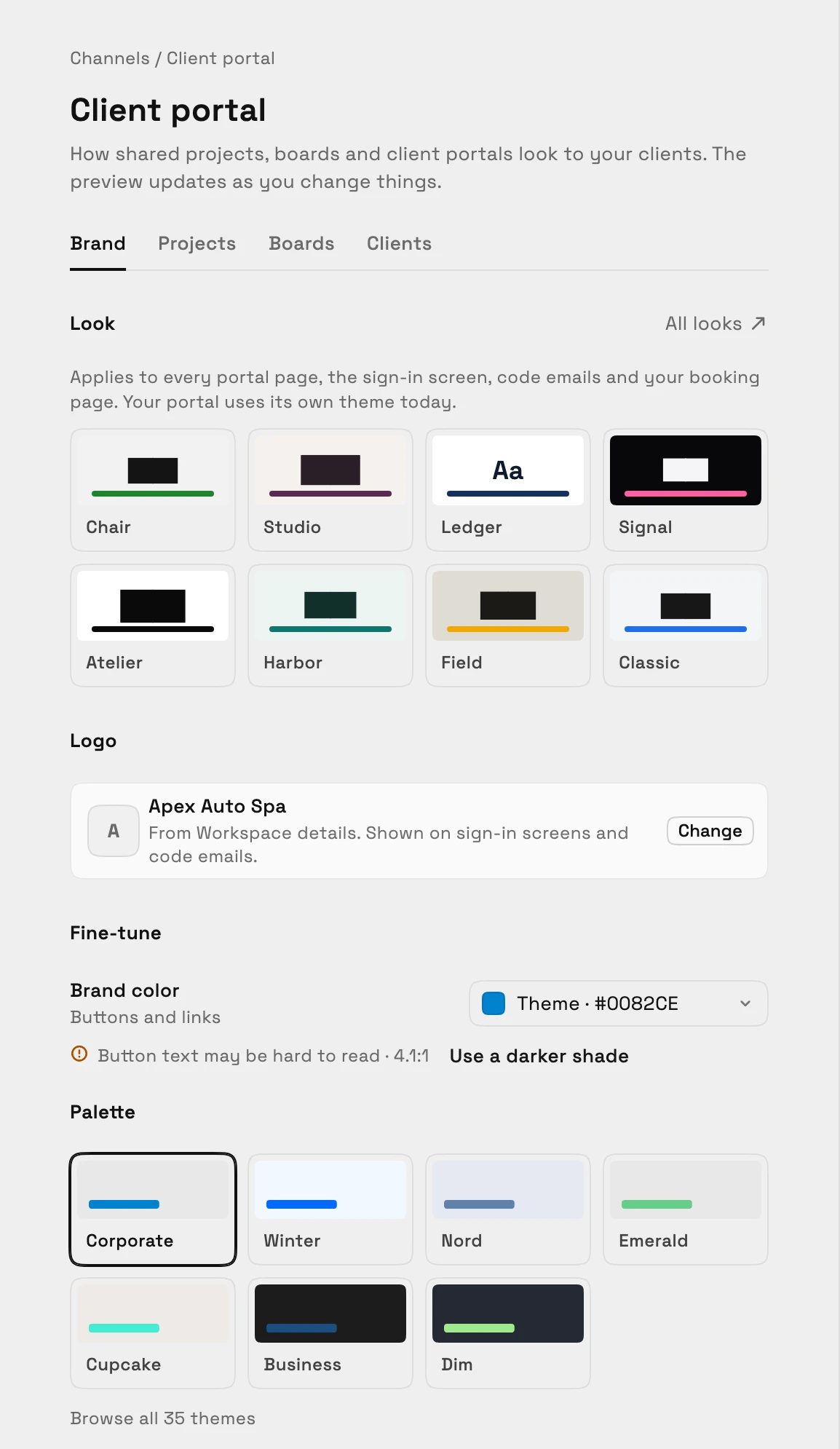
Show the Messages module and clients can read their email conversation with you on the portal and reply there, and the reply lands in your Inbox. Set your portal's accent color with a readability check and choose a default theme.
- Where to find it
- Settings
- Client portal
- Plans
- Every plan
Appointments on the client portal
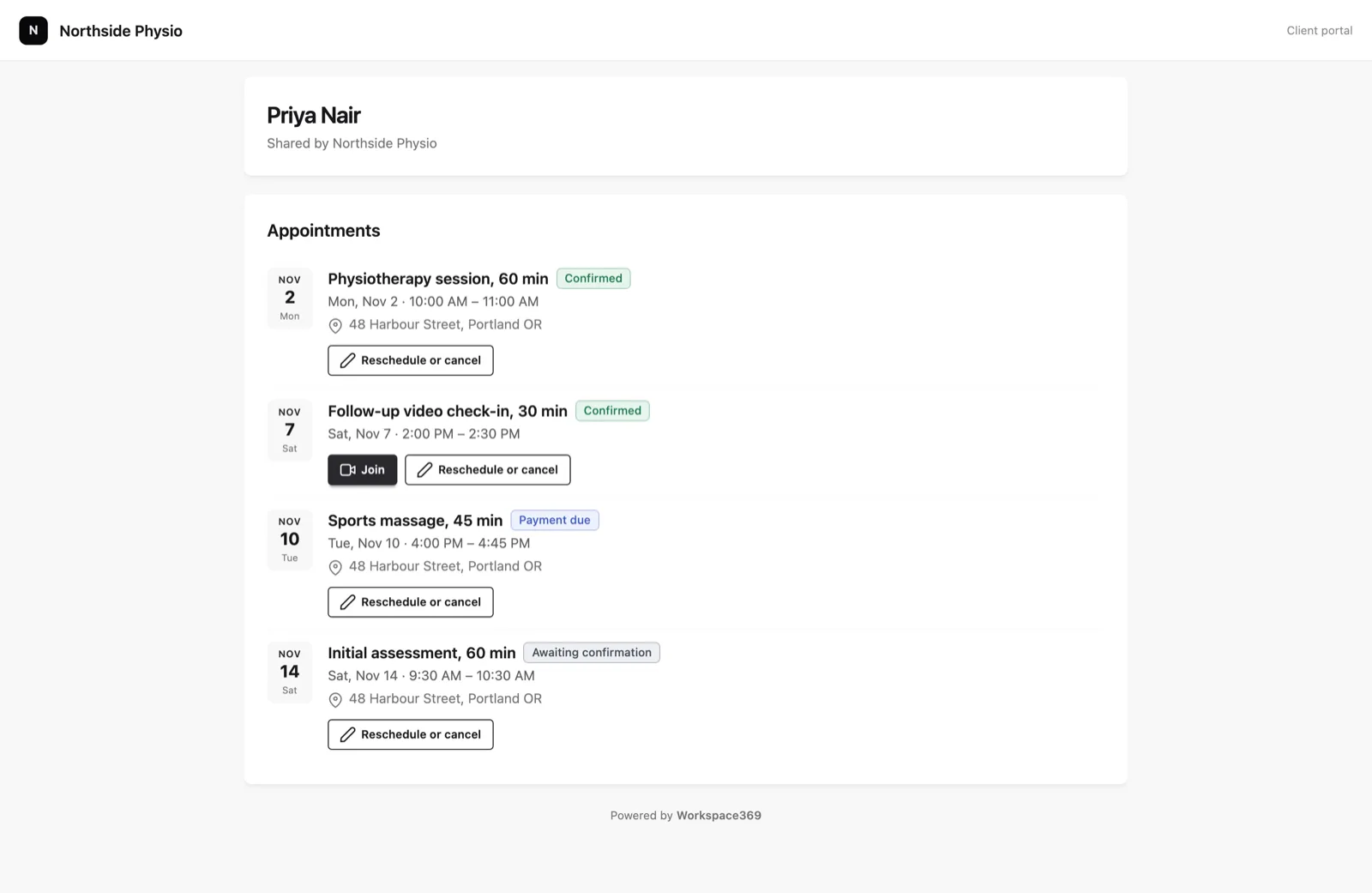
Show the Appointments module on your client portal and each client sees their own upcoming bookings with you. They can open a booking to reschedule or cancel it within your booking policy.
- Where to find it
- Settings
- Channels
- Client portal
- Clients
- Modules
- Appointments
- Plans
- Specialist and up
Hide the Powered by Workspace369 credit
Commander and Enterprise can remove the Powered by Workspace369 line from client portals and booking pages, so clients see only your brand.

- Where to find it
- Settings
- Channels
- Client portal
- Brand
- Footer
- Plans
- Commander and up
A new Home, guided setup, linkable settings and clearer plan prompts
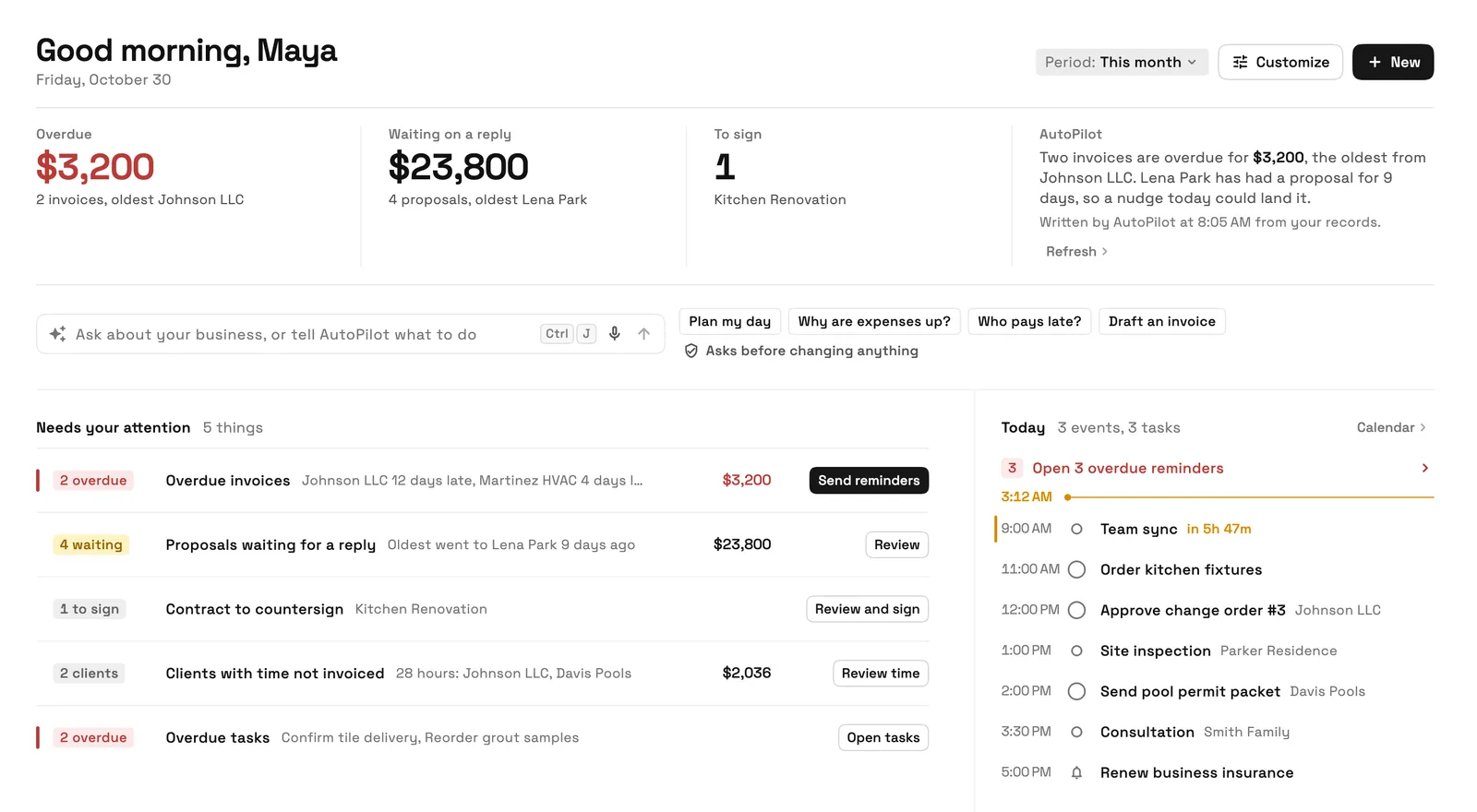
The new Home puts overdue, waiting and to-sign figures at the top, with an Ask bar for AutoPilot and today's plan, and it is now the default on the web. Guided setup on Home takes a new workspace from empty to its first invoice one step at a time, and each workspace you belong to can have its own light or dark mode and accent color.
Every Settings page on the web has its own address you can bookmark. Locked features now show a preview and the plan that includes them, and unsaved work is kept on your device so you can recover it. Signing in on the web is also faster.
- The new Home is the default
- Guided setup and a theme per workspace
- Locked features explain themselves
- Interrupted work kept on your device
- Where to find it
- Home; Settings
- Appearance
- Plans
- Every plan
Quick answers
- What's new in Workspace369 in October 2026?
- Flash Pay, retainers and more payment methods, a new proposal builder with packages, deeper online booking with no-show fees, Google Meet on every plan, and AI in the CRM with lead scoring and setup.
- Can I take a payment in person with Workspace369?
- Yes. Flash Pay is on every plan: type an amount, show a QR code or send a pay link, and the customer pays by Apple Pay, Google Pay or card. Each payment becomes a paid invoice.
- Can I charge a no-show fee for online bookings?
- Yes, on Specialist and up. Save the client's card at booking, then charge the fee they agreed to from the appointment when it is a no-show or a late cancel.
- Can my client choose between proposal packages?
- Yes, on every plan. Offer good, better and best options on a proposal and your client picks one. Write with AI can also draft the introduction, scope and line items.
- Does Workspace369 score leads with AI?
- Yes, on Voyager and up. Turn on Score new leads with AI in Requests settings and new requests get a Hot, Warm or Cold label with a short reason.
- Are webhooks available on every plan?
- Yes. Webhooks now come with every plan, starting with Cadet, so you can send signed notifications to Zapier, Make, n8n or your own server.
Related updates
 The Builder API now comes with every plan
 Accounting reports move to one clear report page
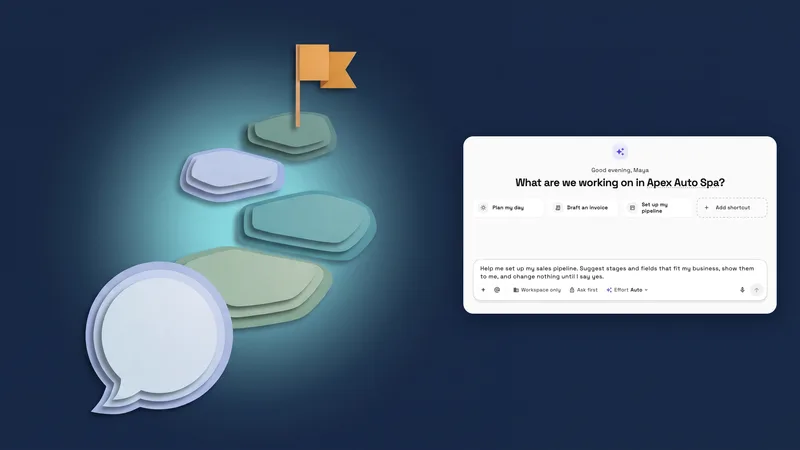 New workspaces get a Set up my pipeline starter in AI chat
October 2026: Flash Pay, a new proposal builder, deeper booking and AI in your CRM, in your own workspace
Start your free trial on Commander, then find it under Flash Pay in the sidebar; Settings.
14-day free trial. Card required. After the trial: $299/month for Commander. Renews automatically every month until you cancel. Cancel anytime in Settings → Billing.