Clients & CRMInbox & calls
Campaign emails get eight looks, a button and a picture
Pick one of eight looks for each campaign email, previewed with your logo and brand color. Add a button and a picture, and watch the email take shape in the live preview.
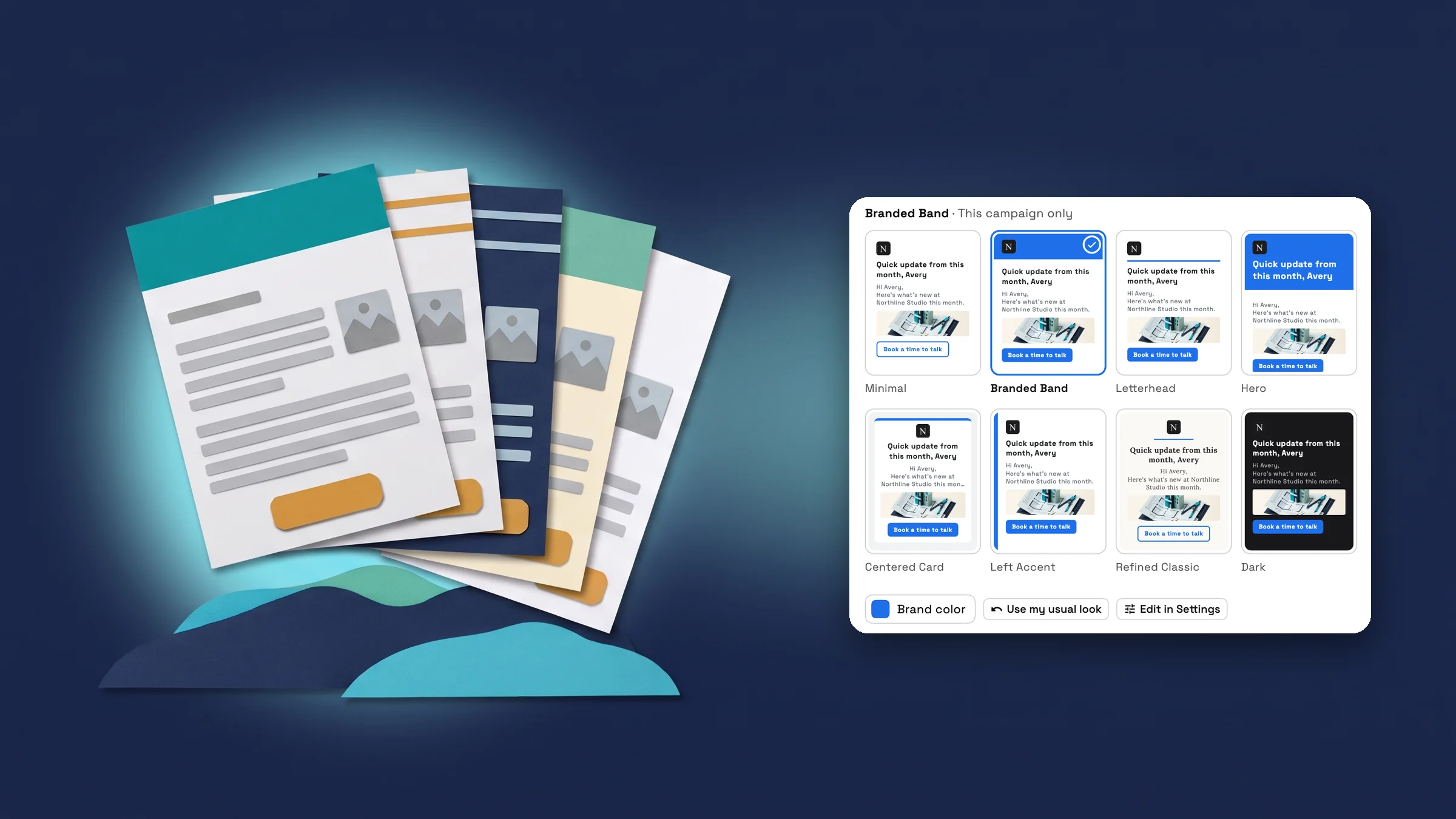
Pick a look for each campaign email
The email campaign editor has a new Design section. Look shows all eight email looks as small previews of your own message, drawn with your logo, your brand color, your subject line and your button and picture: Minimal, Branded Band, Letterhead, Hero, Centered Card, Left Accent, Refined Classic and Dark. Tap one and the live preview beside the message changes to match. On a phone, the Preview button under the editor opens it.
A campaign uses the look from Settings → Email appearance unless you pick another, and the line above the previews says which: Same as your other emails, or This campaign only. Brand color changes the color for this one campaign. Once you have picked a look or a color, Use my usual look goes back to the one in Settings, and Edit in Settings opens Email appearance. What you pick applies to that campaign and its test sends; your invoices and other emails keep their look.
Campaigns are on Specialist, Commander and Enterprise.
- Eight looks, previewed with your logo and brand color
- A look or a color for one campaign only
- Back to your usual look in one tap
- Where to find it
- Campaigns
- New campaign
- Email campaign
- Design
- Plans
- Specialist and up
Add a button and a picture, and see the email as it will arrive
Above the message are three insert buttons: Button, Picture and Divider line. Each one goes where your cursor is, on a line of its own, and shows in the message as a labeled marker, so you choose where the button, the picture or a divider line sits in the email.
The Design section holds the rest. For the button, write its words, like Book a time to talk, and a link that starts with https://. Without a link the email goes out with no button, and the editor says so. For the picture, add a JPG or PNG and describe it for people who can't see it. The description is needed before you can send.
The Preview beside the message shows the email with a client's name filled in. When it loads, it is drawn by the same code that sends the email, and it updates a moment after you stop typing.
The ready-made email templates under Campaigns → Templates now come with a button in their own words, such as Book a time to talk or Leave a review. Add your link and the button appears. Templates already in My templates keep their current wording.
- Button, Picture and Divider line go where your cursor is
- A picture needs a short description before you send
- Live preview drawn by the code that sends the email

- Where to find it
- Campaigns
- New campaign
- Email campaign
- Message
- Plans
- Specialist and up
Quick answers
- How do I change how a campaign email looks?
- Open an email campaign and go to Design. Tap one of the eight looks, which are drawn with your logo and brand color, and the preview changes. Use my usual look goes back to the look in Settings → Email appearance.#
- Which plans include campaign email looks?
- Campaigns are on Specialist, Commander and Enterprise, and the looks, the button and the picture come with them.#
- Does picking a look change my invoices and other emails?
- No. A look or color picked in a campaign applies to that campaign and its test sends. Your other emails keep the look in Settings → Email appearance.#
- Tap Button or Picture above the message. It goes where your cursor is. Give the button its words and a link that starts with https://. Pictures can be JPG or PNG and need a short description before you send.#
- Is the preview what my clients will see?
- Yes. When it loads, the preview is drawn by the same code that sends the email, with a client's name filled in, and it updates a moment after you stop typing.#
- Did the ready-made campaign templates change?
- The ready-made email templates now come with a button in their own words, such as Book a time to talk. Add your link and the button appears. Templates already in My templates keep their current wording.#
Related updates
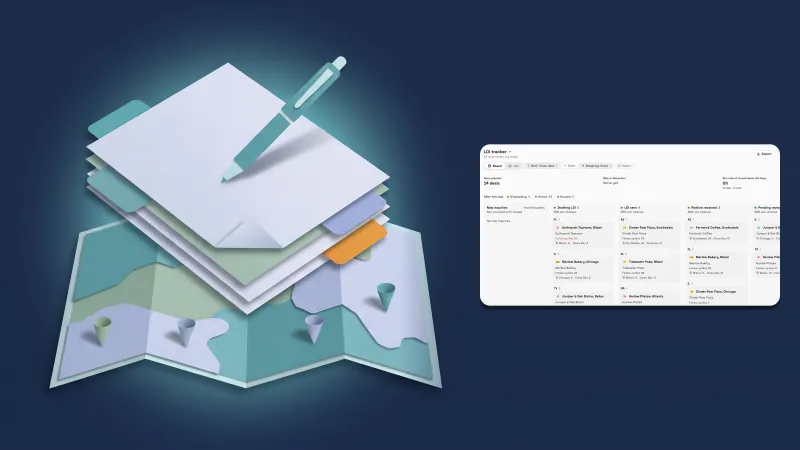 Deals your way: custom fields, saved views and an LOI tracker
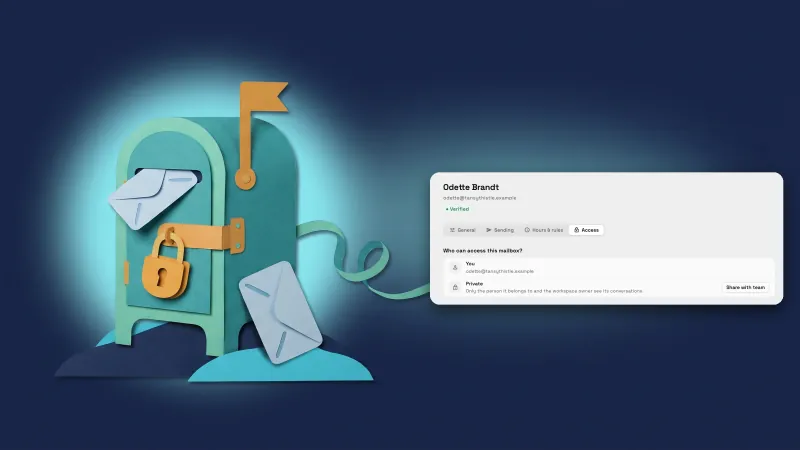 Teammates’ Outlook mailboxes start private
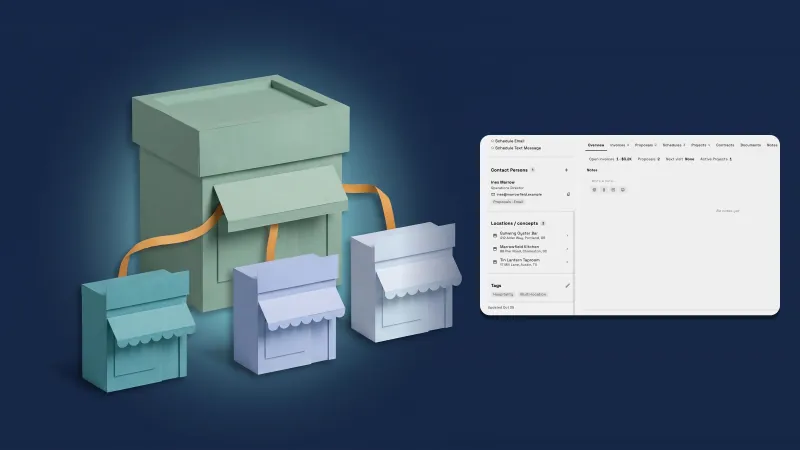 Give a company a parent company and see all its locations on one page
Campaign emails get eight looks, a button and a picture, in your own workspace
Start your free trial on Specialist, then find it under Campaigns.
14-day free trial. Card required. After the trial: $149/month for Specialist. Renews automatically every month until you cancel. Cancel anytime in Settings → Billing.