Inbox & calls
Teammates’ Outlook mailboxes start private
When a teammate connects their Outlook mailbox, its mail stays private to them and the workspace owner until they share it with the team.
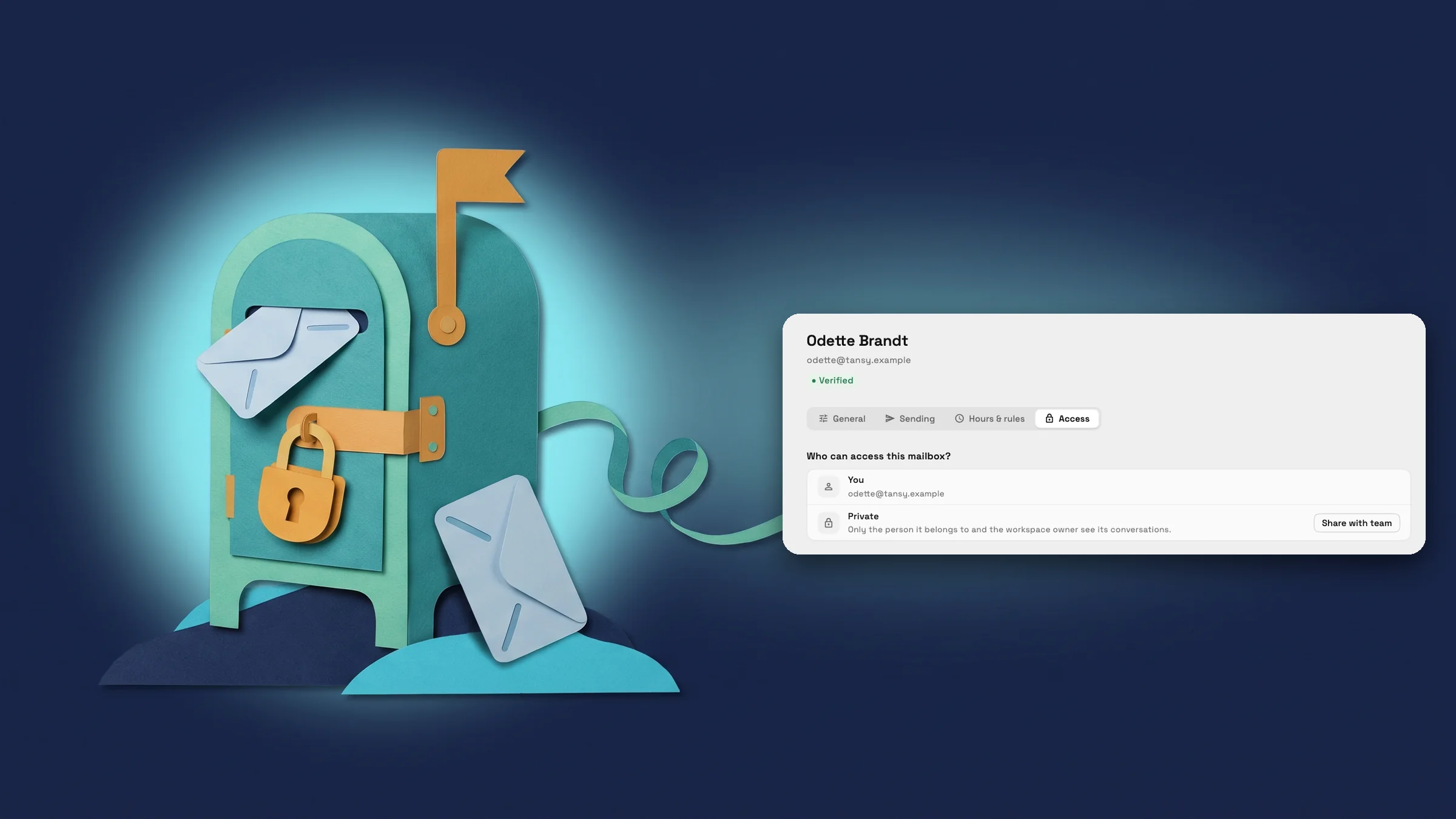
A teammate’s Outlook mailbox starts private
Connecting your whole team’s Outlook mailboxes brings in everyone’s own mail, including sent mail and Bcc lists. So when a teammate connects their own Microsoft 365 or Outlook mailbox, it now starts private: only that teammate and the workspace owner can see its conversations. Admins don’t, unless it is shared with them.
When they want the rest of the team to see it, they open the mailbox, go to Access and choose Share with team. This needs access to edit inbox settings, or the workspace owner can share it for them. It asks once and says who can undo it: you or the workspace owner can make it private again. Make private sends it back to that teammate and the owner. The workspace owner can also use the mailbox’s ⋯ menu under Email → Domains & connections.
A shared address such as sales@ or info@ can be marked as a shared inbox on the connect screen (This is a shared inbox for the team), and it starts visible to the whole team. The owner’s own mailbox starts visible to the team, as before. Mailboxes connected before this update keep the access they have today. This applies to Microsoft 365 and Outlook mailboxes; Gmail and domain addresses are unchanged. The privacy default works the same on each of these plans, and choosing specific teammates for a mailbox stays on Specialist and up.
- A teammate’s own Outlook mailbox starts private to them and the owner
- Share with team opens it to everyone with inbox access, after one confirmation
- Make private takes it back, by that teammate or the owner
- Shared inboxes such as sales@ start visible to the whole team
- Where to find it
- Settings
- Channels
- Email, SMS & phone
- Email addresses
- your mailbox
- Access
- Plans
- Voyager and up
Share with team, and take it back
Share with team asks for one confirmation and shows its undo line: You or the workspace owner can make it private again. Once confirmed, everyone with inbox access sees the mailbox’s conversations. The workspace owner can also share any private Outlook mailbox.
Make private appears on a shared Outlook mailbox for the teammate it belongs to and for the workspace owner. It puts access back to that teammate and the owner, and teammates lose access to the conversations. Shared inboxes have no single owner, so they don’t offer it.

- Where to find it
- Settings
- Channels
- Email, SMS & phone
- Email addresses
- your mailbox
- Access
- Share with team
- Plans
- Voyager and up
- Learn more
- Inbox and emailInbox overview
Quick answers
- Who can see a teammate’s Outlook mailbox in Workspace369?
- When a teammate connects their own Outlook mailbox, only that teammate and the workspace owner can see its conversations. Admins can’t, unless it is shared with them. Until it is shared, no one else on the team sees it.#
- Open Settings → Channels → Email, SMS & phone → Email → Email addresses, pick the mailbox, go to Access and choose Share with team. This needs access to edit inbox settings. After one confirmation, everyone with inbox access sees its conversations.#
- Yes. The teammate it belongs to, or the workspace owner, can choose Make private on the mailbox. The Share with team dialog says so before sharing: you or the workspace owner can make it private again.#
- Switch on This is a shared inbox for the team when you connect the Outlook mailbox and it starts visible to the whole team. A shared inbox has no single owner, so it doesn’t offer Make private.#
- Does this change mailboxes that are already connected?
- No. Mailboxes connected before this update keep the access they have today. The owner’s own mailbox also starts visible to the team, as before.#
- Which plans start teammates’ mailboxes private?
- Voyager, Specialist, Commander and Enterprise. The privacy default works the same on each. Choosing specific teammates for a mailbox stays on Specialist and up.#
Related updates
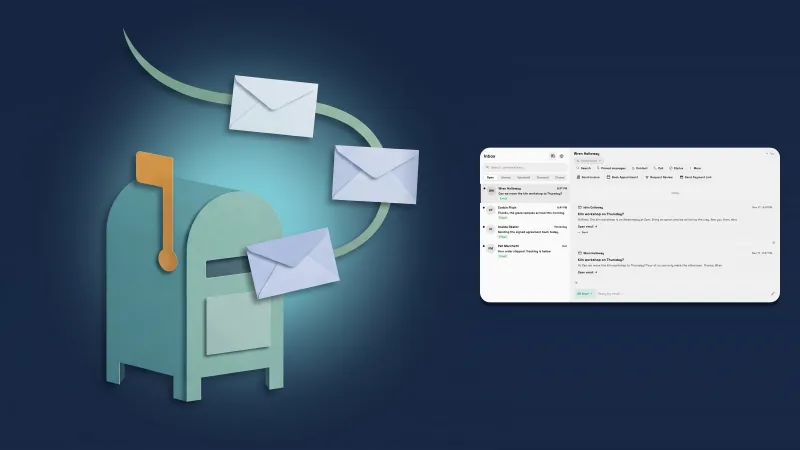 Connect your Microsoft 365 or Outlook mailbox to the Inbox
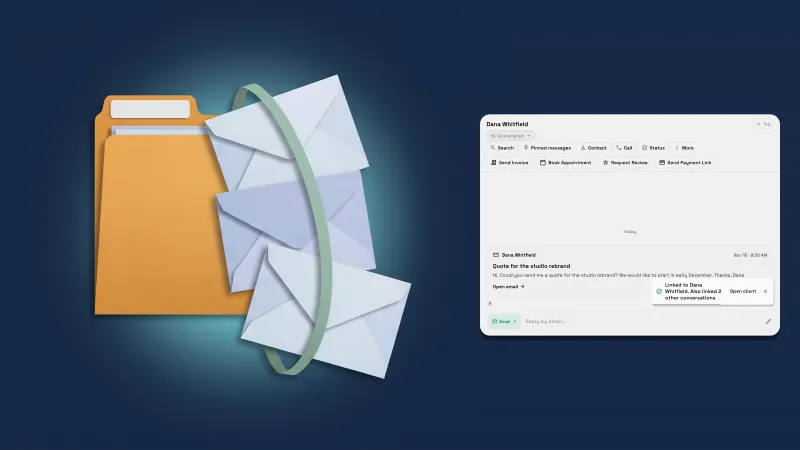 Link a sender to a client and their other conversations come too
 Select and copy client details and email recipients
Teammates’ Outlook mailboxes start private, in your own workspace
Start your free trial on Voyager, then find it under Settings.
14-day free trial. Card required. After the trial: $74/month for Voyager. Renews automatically every month until you cancel. Cancel anytime in Settings → Billing.