Billing & paymentsWorkspace & team
Reports now opens with your key figures
The Reports page now starts with an At a glance strip of net income, cash, owed to you and to pay on Commander and up, then lists every report in a quiet two-column index.
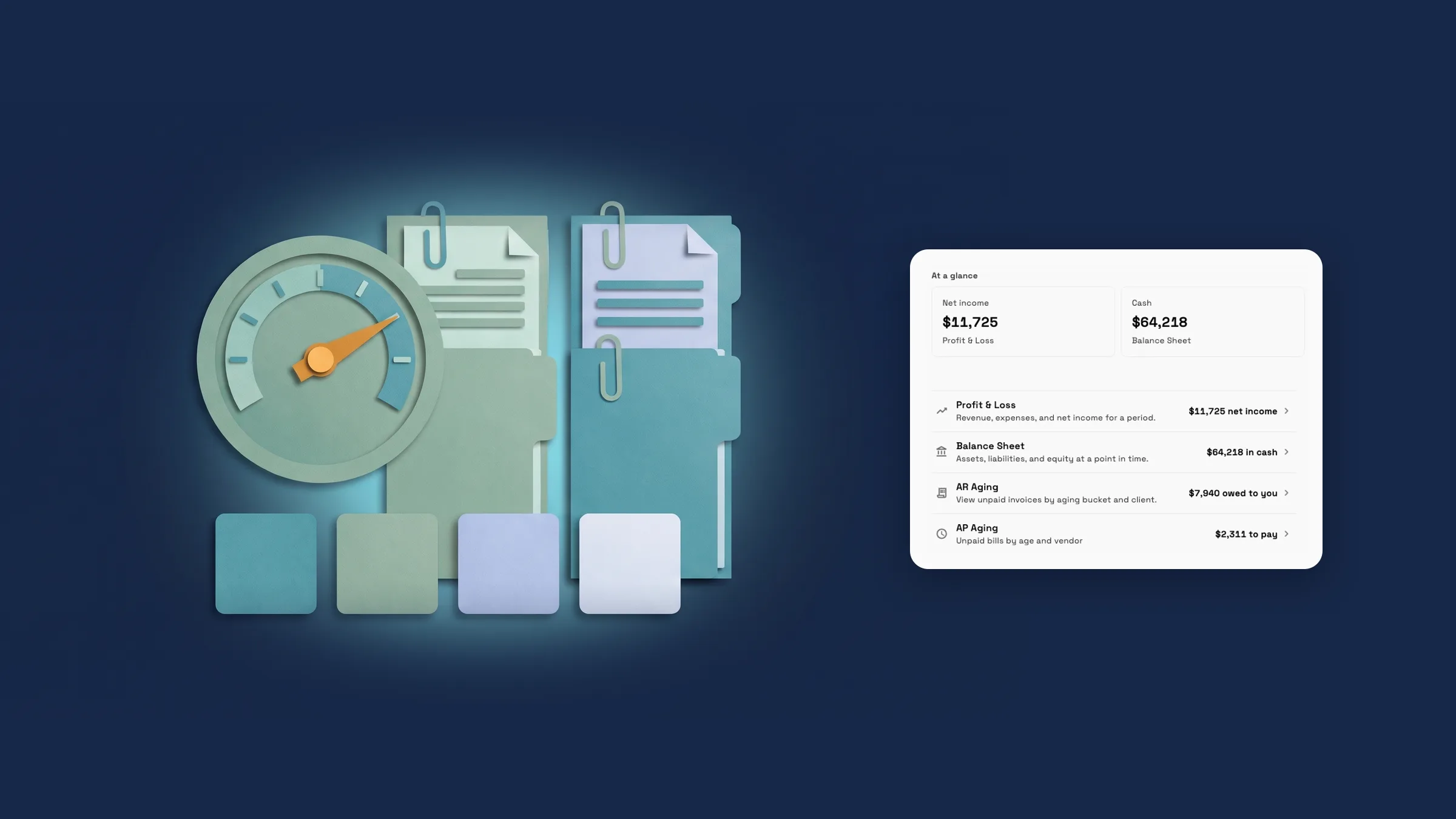
Reports opens with your key figures
The Reports page now has a Reports title with a Find a report search beside it. Under it, an At a glance strip shows four figures: Net income, Cash, Owed to you and To pay. Each figure opens its report: Profit & Loss, Balance Sheet, AR Aging and AP Aging. The strip appears when two or more of those reports are open on your plan, so a single figure never stands alone. The strip needs Profit & Loss and the Balance Sheet, which are on Commander and up; on other plans Reports opens on the index.
Below the strip, the page is a quiet index with one row per report: its name, a one-line description and its figure where it has one, then a chevron to open it. On a desktop the rows run in two columns. On a phone they run in one column, with the figure under the name. When two or more reports in a group aren't on your plan, they fold into one row that opens Unlock, and Coming later is a single quiet line at the bottom of the page.
It is on the web app now and comes to the iPhone app with its next update. Which individual reports you can open depends on your plan and your role.
- At a glance: Net income, Cash, Owed to you and To pay
- Each figure opens its report
- One row per report, two columns on desktop and one on a phone
- Locked reports fold into one row that opens Unlock
- Where to find it
- Finance
- Reports
- Plans
- Every plan
- Learn more
- Dashboards and reportsAccounting
Customize Dashboard opens Home's editor
In Settings, Customize Dashboard in Appearance now takes you to Home with the editor open. On the web and on a tablet the editor opens in place on Home. On a phone it opens the Customize panel. If your workspace has locked Home, you see the message that your Home is set by your workspace and to ask an admin to change it.
It is on the web app now and comes to the iPhone app with its next update.
- Settings → Appearance → Customize Dashboard opens Home's editor
- On a phone it opens the Customize panel
- Where to find it
- Settings
- Appearance
- Customize Dashboard
- Plans
- Every plan
- Learn more
- Dashboards and reportsAI chat
Quick answers
- Which plans include the new Reports page?
- Every plan can open Reports. Which individual reports you can open depends on your plan and your role.
- Where do I find my key figures?
- Go to Finance → Reports. The At a glance strip at the top shows Net income, Cash, Owed to you and To pay, and each figure opens its report.
- Why don't I see the At a glance strip?
- It needs two or more of its reports open on your plan, which means Commander and up, and it shows only for people who are allowed to see accounting reports.
- What happens to reports my plan doesn't include?
- Two or more of them in the same group fold into one row on the Reports page, and tapping it opens Unlock. A single one keeps its own row.
- Where did Customize Dashboard in Settings go?
- It is still in Settings → Appearance. It now opens Home with the editor on, in place on the web and a tablet, and as the Customize panel on a phone.
Related updates
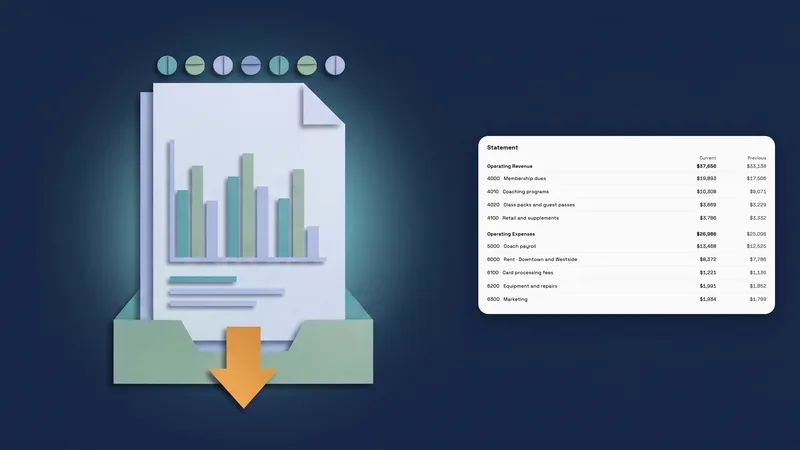 Accounting reports move to one clear report page
 Sell memberships and check members in
 Refund a card payment straight from the invoice
Reports now opens with your key figures, in your own workspace
Start your free trial, then find it under Finance.
14-day free trial. Card required. After the trial: from $29/month. Renews automatically every month until you cancel. Cancel anytime in Settings → Billing.