Clients & CRMWorkspace & teamClient portal
Merge lead sources, pick any accent color, and see when a portal can't open
Merge one lead source into another, set a custom hex accent color in Appearance, and see a notice when you share a portal with a client who has no email to sign in with.

Merge one lead source into another
Open Settings → Clients → Leads and use the ⋯ menu on a lead source. Choose Merge into…, pick the source it should fold into, and continue. A confirm dialog then says how many clients move, for example “12 clients move from “Podcast” to “Google”, and “Podcast” is removed. This can't be undone.” Choose Merge to finish. The lead list, the Clients list and the client form refresh afterwards.
Merge into… shows only to members who can edit and delete lead sources and edit clients, and only when the workspace has another source to merge into. With rename and delete already there, this finishes the set for tidying lead sources, so a duplicate or retired source can be folded into the one you keep. It is on the web app now and comes to the iPhone app with its next update.
- Merge into… is in each lead source's ⋯ menu
- The confirm dialog says how many clients move before anything changes
- A merged source is removed and can't be brought back
- Where to find it
- Settings
- Clients
- Leads
- ⋯ menu
- Merge into…
- Plans
- Every plan
Pick any accent color, not just the presets
In Settings → Appearance, the Accent color row now ends with Custom color. Choose it and a picker opens under the row with a hex field, a saturation and brightness area and a hue slider. The color previews across the app while you pick it. Save keeps it and Discard puts the old one back, the same as the presets. The accent changes how Workspace369 looks for you, not what your clients see.
Type six hex digits, such as #2B6CB0. Anything else shows “Use a 6-digit hex code, like #2B6CB0.” and the color can't be saved until it is fixed. A readability line warns when the color is hard to read in light or dark mode and offers a darker or lighter shade.
Two things in Appearance got simpler. The Right-to-left layout row now shows only when the language you chose is written right to left, and the Classic and New Home switch is gone because New Home is the only home. The custom accent is on every plan. It is on the web app now and comes to the iPhone app with its next update.
- Custom color is the last option in the Accent color list
- Live preview; Save keeps it and Discard restores the old accent
- Right-to-left layout shows only for right-to-left languages
- Where to find it
- Settings
- Appearance
- Accent color
- Custom color
- Plans
- Every plan
Know when a client can't open their portal
The client portal signs people in with a one-time code sent by email. When you open Client portal on a client and neither the client nor their contact people have an email address that can receive mail, the share sheet now starts with a notice: “Can't sign in to this portal yet”. It explains that no code can be sent, so the link won't open for them. If the address on file is the problem, the notice quotes it back.
If you can edit clients, the notice has an email field and Save email, so you can add the address right there and the client can sign in. Members who can't edit clients see the explanation only. Nothing is sent when you save. One address that works is enough, so the notice appears only when none of the client's addresses can receive mail.
Only members who can share clients see the Client portal button, and the notice appears in the client portal sheet. It applies on every plan. It is on the web app now and comes to the iPhone app with its next update.
- A plain notice at the top of the share sheet: Can't sign in to this portal yet
- Add the client's email in place with Save email, if you can edit clients
- Shown only when none of the client's addresses can receive mail

- Where to find it
- Clients
- a client
- Client portal
- Plans
- Every plan
- Learn more
- Client portalClients and CRM guide
Quick answers
- How do I merge two lead sources?
- Go to Settings → Clients → Leads, open the ⋯ menu on the source you want to remove, choose Merge into…, pick the source to keep and continue. The confirm dialog says how many clients move; choose Merge to finish.
- Can a merged lead source be restored?
- No. The merged source is removed and the confirm dialog says it can't be undone.
- Who sees Merge into… on a lead source?
- Members who can edit and delete lead sources and edit clients, and only when there is another lead source to merge into.
- Can I use my own hex color as the accent?
- Yes. In Settings → Appearance, choose Custom color at the end of the Accent color list and enter six hex digits such as #2B6CB0. Save keeps it and Discard restores the old accent.
- Why is the Right-to-left layout row missing in Appearance?
- It now shows only when the language you chose is written right to left. For other languages the Language group is just the Language row.
- What happens if I share a portal with a client who has no email?
- The share sheet says “Can't sign in to this portal yet”, because the portal sends a sign-in code by email. If you can edit clients you can add their email there with Save email.
Related updates
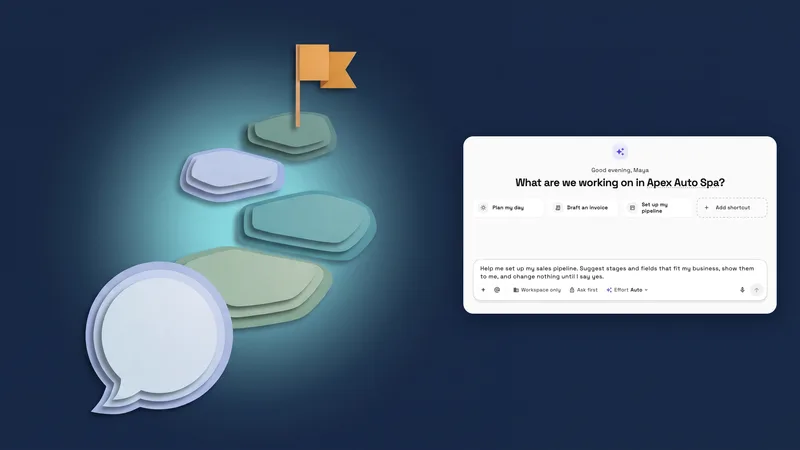 New workspaces get a Set up my pipeline starter in AI chat
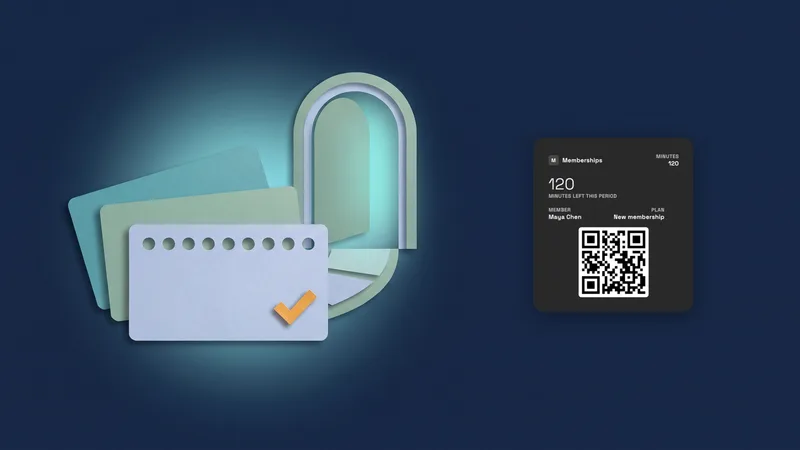 Sell memberships and check members in
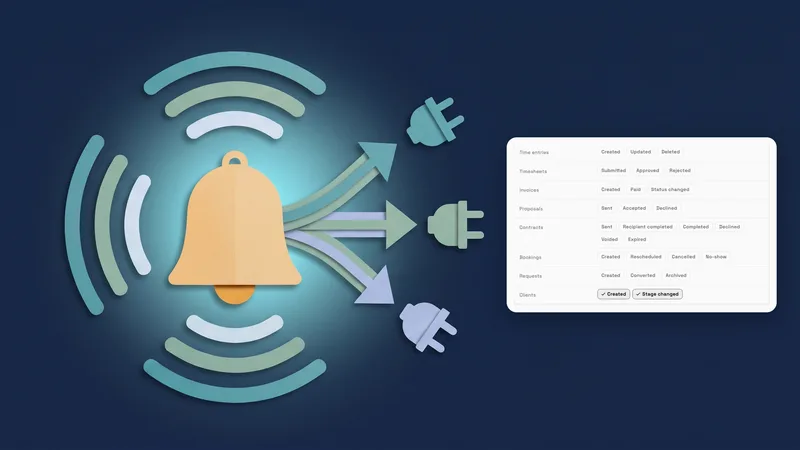 Webhooks for new clients and stage changes
Merge lead sources, pick any accent color, and see when a portal can't open, in your own workspace
Start your free trial, then find it under Settings.
14-day free trial. Card required. After the trial: from $29/month. Renews automatically every month until you cancel. Cancel anytime in Settings → Billing.