Inbox & calls
A tidier New email window, with every tool in one bar
Formatting, attachments, templates, Write with AI and scheduling now share one bar at the bottom of a new email, and on a phone the message uses the full width.
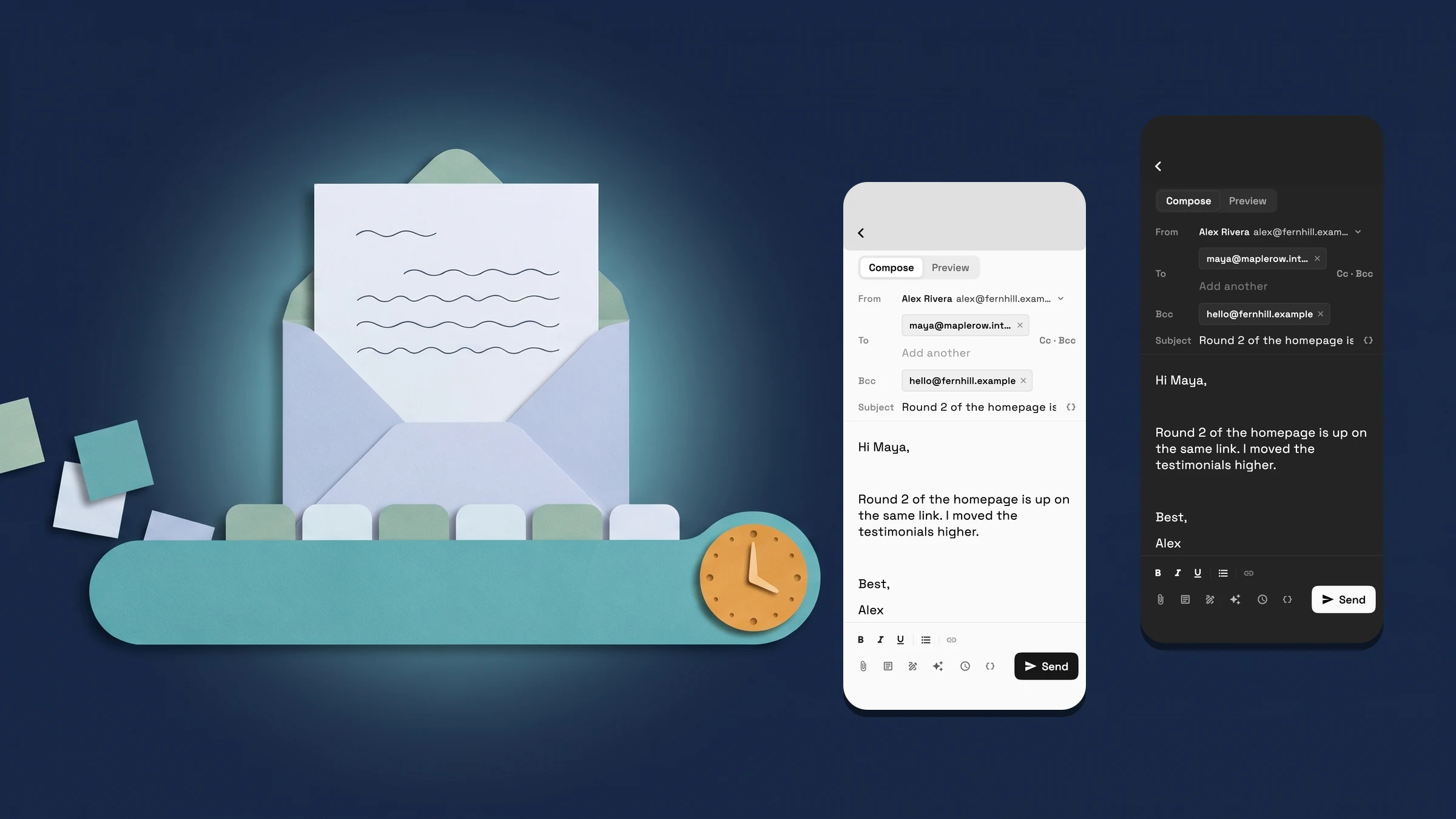
One bar for formatting and tools, and Insert field on the Subject line
When you write a new email, bold, italic, underline, bullet lists and links now sit in one bar at the bottom of the window, next to attachments, templates, your signature, Write with AI and scheduling. On a phone the formatting buttons join that bar only while you're typing in the message, so the rest of the time the screen stays clear. Insert field, for adding details such as the client's first name, now sits at the end of the Subject line, and the same icon in the bottom bar adds a field to the message.
On a phone the message now uses the full width of the screen. The button reads Send, or Schedule send once you've picked a time, and on a computer you can remove the time to send straight away. Sending, scheduling, attachments and Write with AI work just as before, and the wide window and full screen on a computer are unchanged. The New email window is on every plan. It is on the web app now and comes to the iPhone app with its next update.
- Formatting and tools in one bottom bar
- On a phone, formatting shows while you type
- Insert field on the Subject line
- Send, or Schedule send once a time is picked
- Where to find it
- Communications
- Emails
- Compose
- Plans
- Every plan
Quick answers
- Where are the bold, italic and list buttons in the Workspace369 email composer?
- In the bar at the bottom of the New email window, next to attachments, templates, your signature, Write with AI and scheduling. On a phone they show in that bar while you're typing in the message.
- Why don't I see the formatting buttons on my phone?
- On a phone they appear only while you're typing in the message. Tap into the message and bold, italic, underline, bullet lists and links show above the other tools.
- Where is Insert field in a new email?
- At the end of the Subject line, where it adds a field such as the client's first name to the subject. The same icon in the bottom bar adds a field to the message.
- How do I schedule an email to send later?
- Choose the schedule button in the bottom bar and pick a time, such as Tomorrow morning or a custom date. The button then reads Schedule send. On a computer, remove the time to send straight away.
- Did sending or scheduling change with the new layout?
- No. Only the layout changed. Sending, scheduling, attachments and Write with AI work as before, and the New email window is on every plan.
Related updates
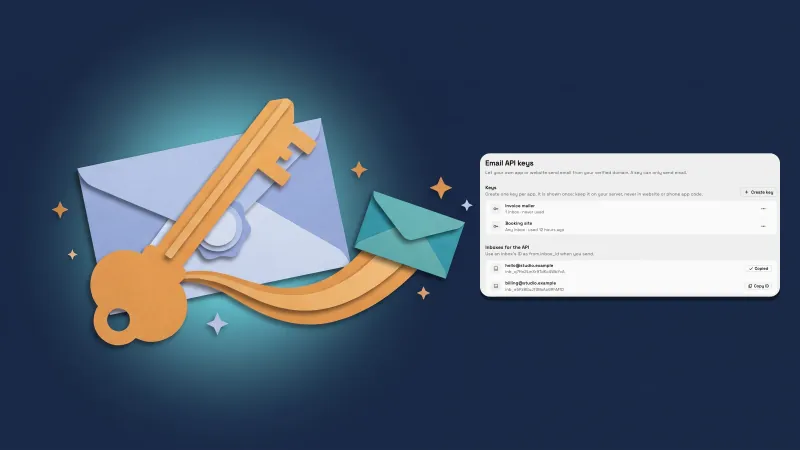 Send email from your own app with the Workspace369 email API
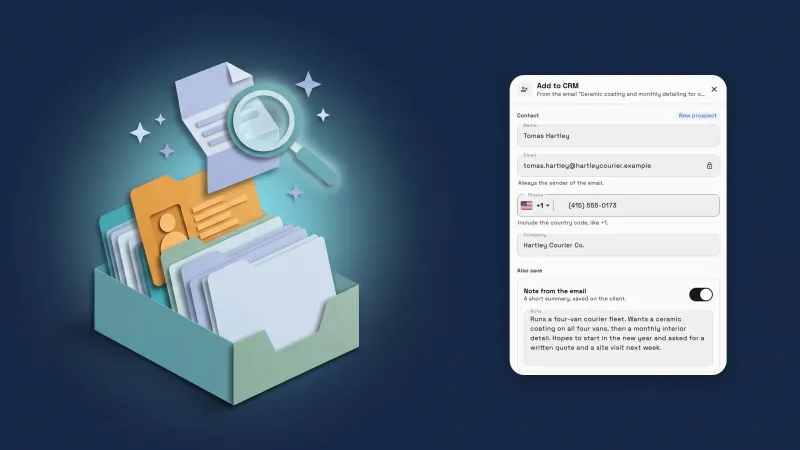 Add emails to your CRM with AI, and import proposals and client lists
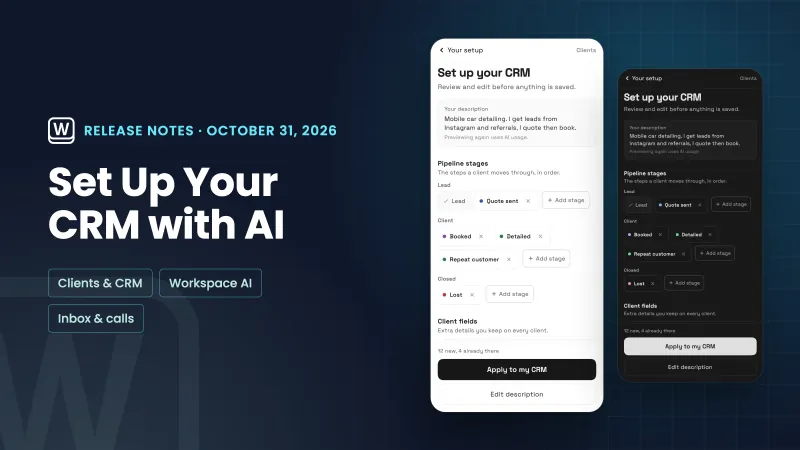 Set up your CRM with AI, and read through your email faster
A tidier New email window, with every tool in one bar, in your own workspace
Start your free trial, then find it under Communications.
14-day free trial. Card required. After the trial: from $29/month. Renews automatically every month until you cancel. Cancel anytime in Settings → Billing.