Inbox & callsWorkspace AI
AI writing help in the email composer and your own default sender
Draft, improve, shorten or change the tone of an email with AI, undo any change, choose the inbox your new emails start from, and write in a bigger composer with full screen.
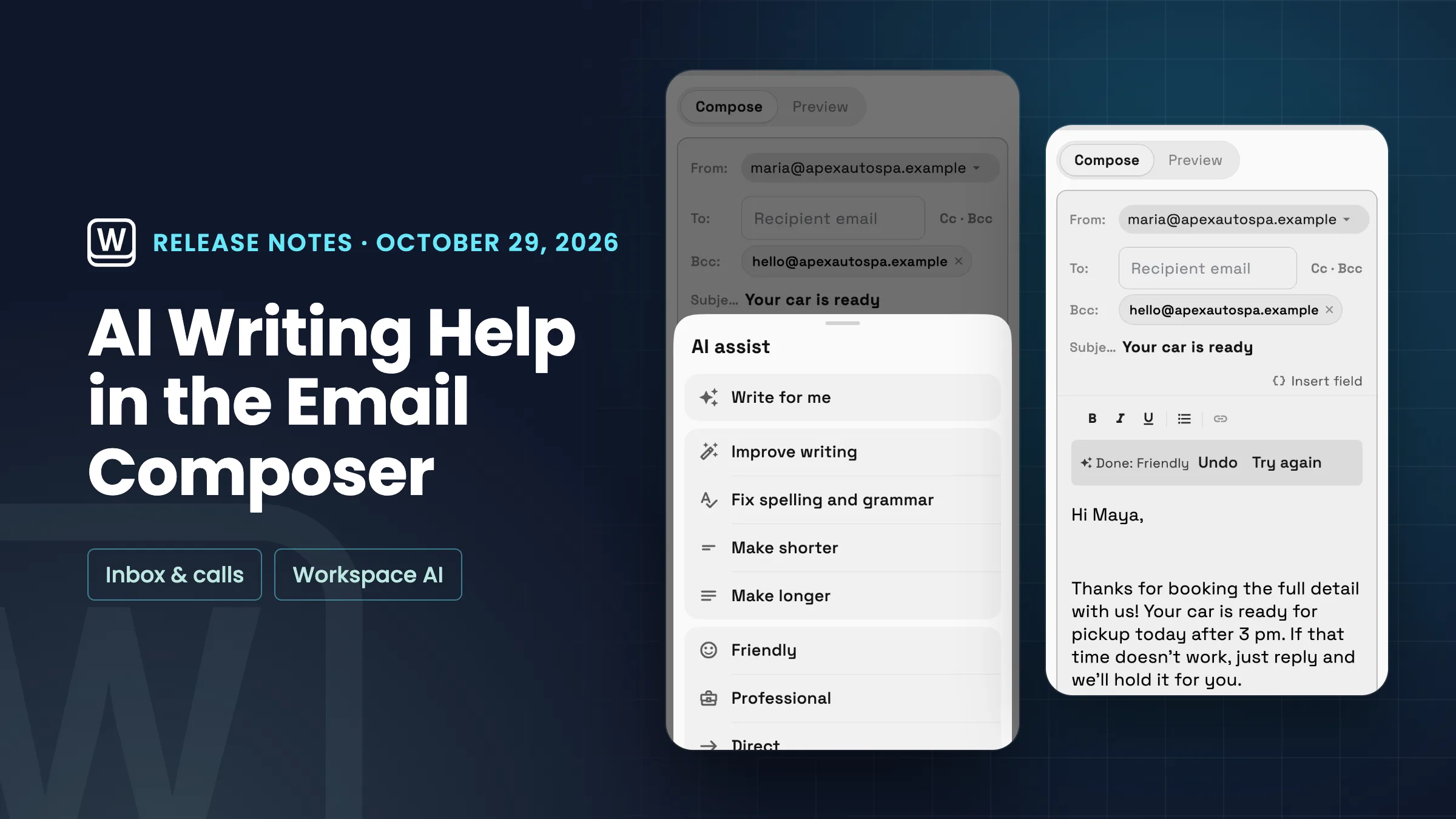
AI writing help: draft, edit and change the tone, with Undo
The ✨ Write with AI button in the email composer now opens a full set of writing tools. Write for me drafts the email for you, and fills in the subject if it's empty. Under Edit your draft you can pick Improve writing, Fix spelling and grammar, Make shorter or Make longer, and under Change tone you can make it Friendly, Professional or Direct. On a phone the button shows just the ✨ icon, and the same actions open in a sheet. The edits need some text to work on, so they light up once you've started writing.
After each change a bar reads Done, with the action's name, and offers Undo and Try again. Undo puts back exactly what you had, and Try again runs the same action again on your original text. The bar goes away as soon as you start typing, so Undo never throws away new writing. Your signature is kept out of the AI and added back after, so it's never doubled, and merge fields such as the client's first name stay in place. Writing help is on for every workspace unless an admin turns off Writing assistance in Inbox settings → Inbox AI assistance; when it's off, the Write with AI button doesn't show in the composer. It uses your workspace's AI usage like other AI features, and if you run out you'll see "You've reached your AI usage limit" with a way to add more. It is on the web app now and comes to the iPhone and Android apps with their next update.
- Write for me drafts the email and its subject
- Improve, fix grammar, shorten or lengthen
- Friendly, Professional or Direct tone
- Undo or Try again after every change

- Where to find it
- Any new email
- Write with AI in the bottom toolbar (the ✨ icon on a phone)
- Plans
- Every plan
- Learn more
- CommunicationsAI in your workspace
Your own default sender inbox
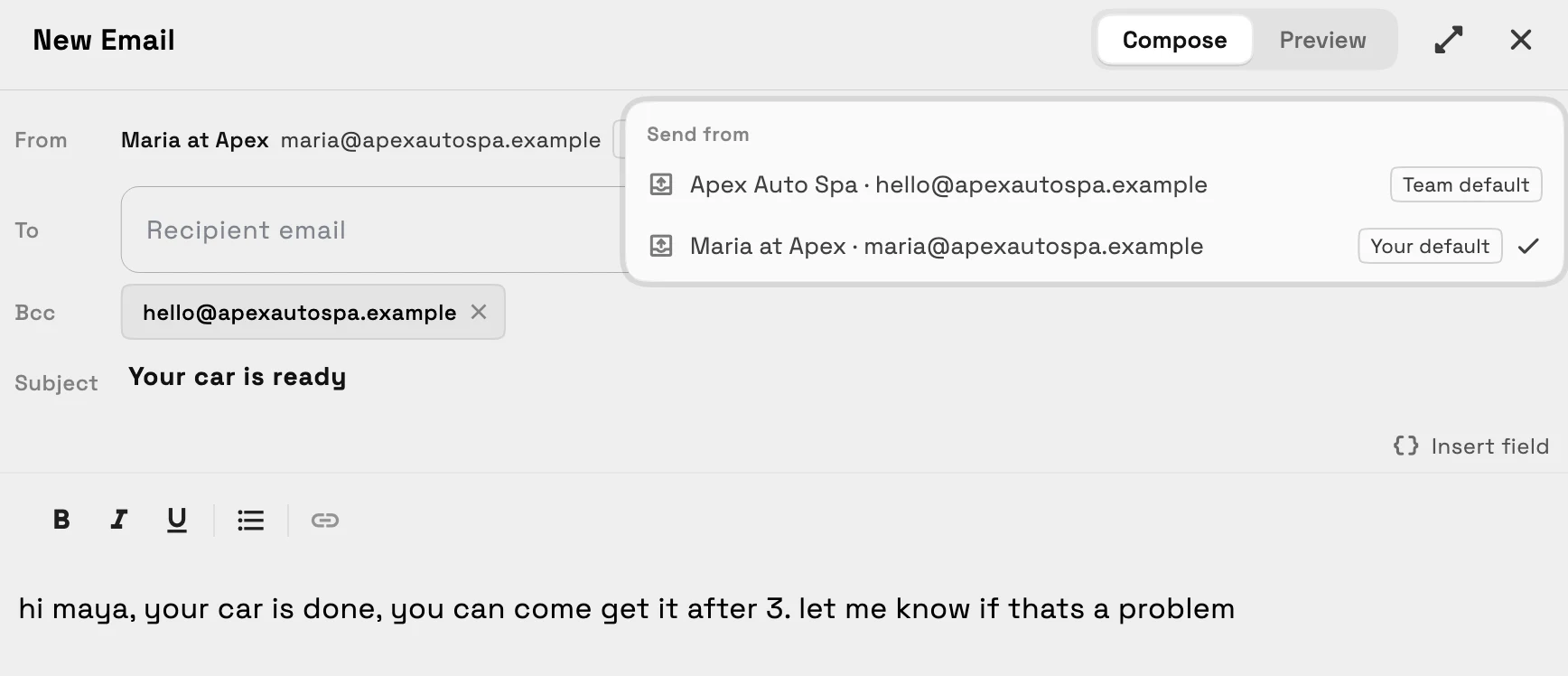
Each team member can now choose the inbox their new emails start from, without changing it for everyone else. Open the From menu in any new email: it lists every inbox you can send from with its name and address, tagged Your default and Team default, and Always send from, followed by the inbox's address, saves the one you picked as your default. You can also set it in Inbox settings → Inboxes → Your default sender, which only you see. Both appear once your workspace has two or more inboxes.
A restored draft keeps the inbox it was written from. Otherwise new emails start from your default, then the team default. If your default inbox is removed or you lose access to it, new emails start from the team default again, or from your oldest inbox if there's no team default. It is on the web app now and comes to the iPhone and Android apps with their next update.
- Pick your own default sender inbox
- From menu shows each inbox's name and address
- Your default and Team default tags
- Only you see your setting
- Where to find it
- Any new email
- From menu, or Inbox settings
- Inboxes
- Your default sender
- Plans
- Every plan
- Learn more
- CommunicationsInbox tutorial
A bigger composer with full screen
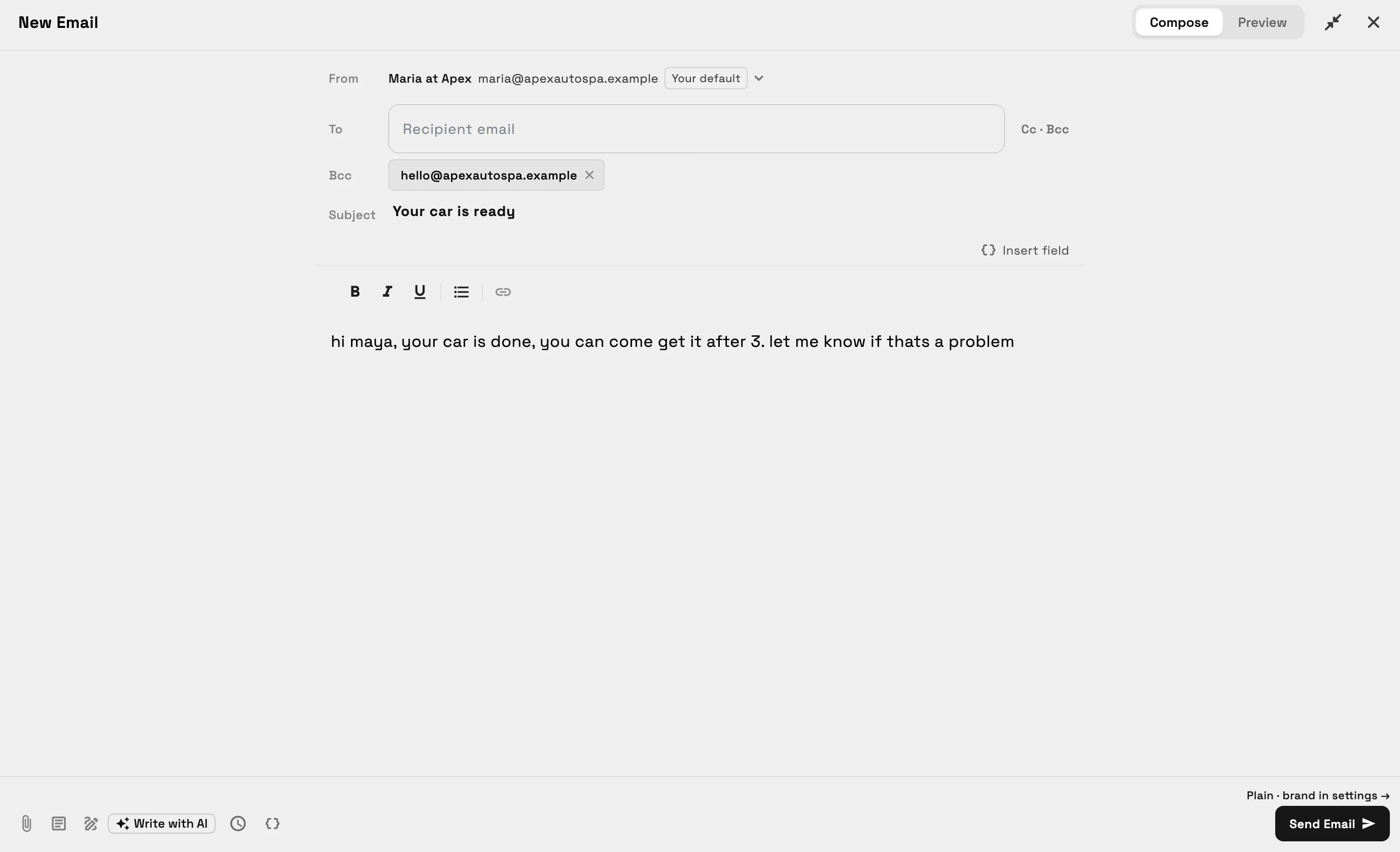
In the web app on a computer or tablet, the email composer now opens as a wide window in the middle of the screen instead of a narrow panel on the right, so your message has room and the From address shows in full. The full screen button next to Close, or ⌘/Ctrl+Shift+F, fills the window and keeps your message in one easy-to-read column, and the composer remembers your choice on that device.
⌘/Ctrl+Enter sends the email whenever the Send button would. On a phone, and in the iPhone and Android apps, the composer keeps the layout you know.
- Opens wide in the middle of the screen
- Full screen with ⌘/Ctrl+Shift+F
- ⌘/Ctrl+Enter to send
- Same layout on a phone
- Where to find it
- Any new email in the web app on a computer or tablet
- the full screen button next to Close
- Plans
- Every plan
- Learn more
- Communications
Related updates
 Pick-one proposal packages, Write with AI for proposals and services on calendar events
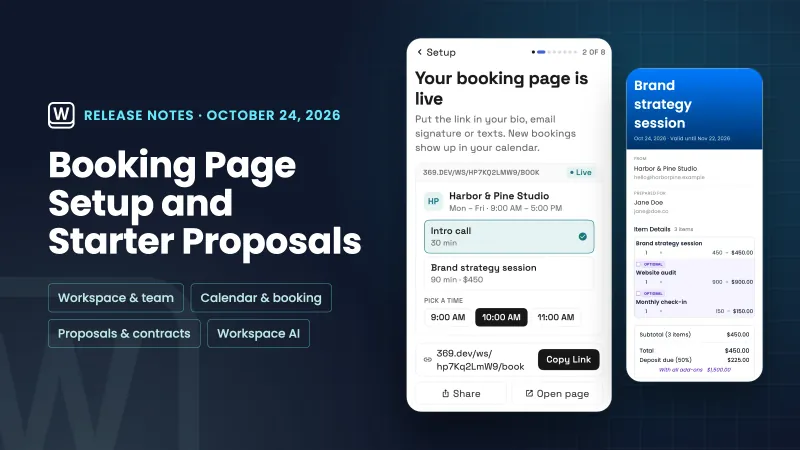 Setup now builds your booking page and starts your first proposal from your services
 Client emails now arrive in your brand, and signatures get a proper editor
AI writing help in the email composer and your own default sender, in your own workspace
Start your free trial, then find it under Any new email.
14-day free trial. Card required. After the trial: from $29/month. Renews automatically every month until you cancel. Cancel anytime in Settings → Billing.