Clients & CRM
Deals get a location and your own fields
Give each deal a city, state and address plus your own fields, then filter the Pipeline by State and City, sort the list by place and export it. On the web app now.
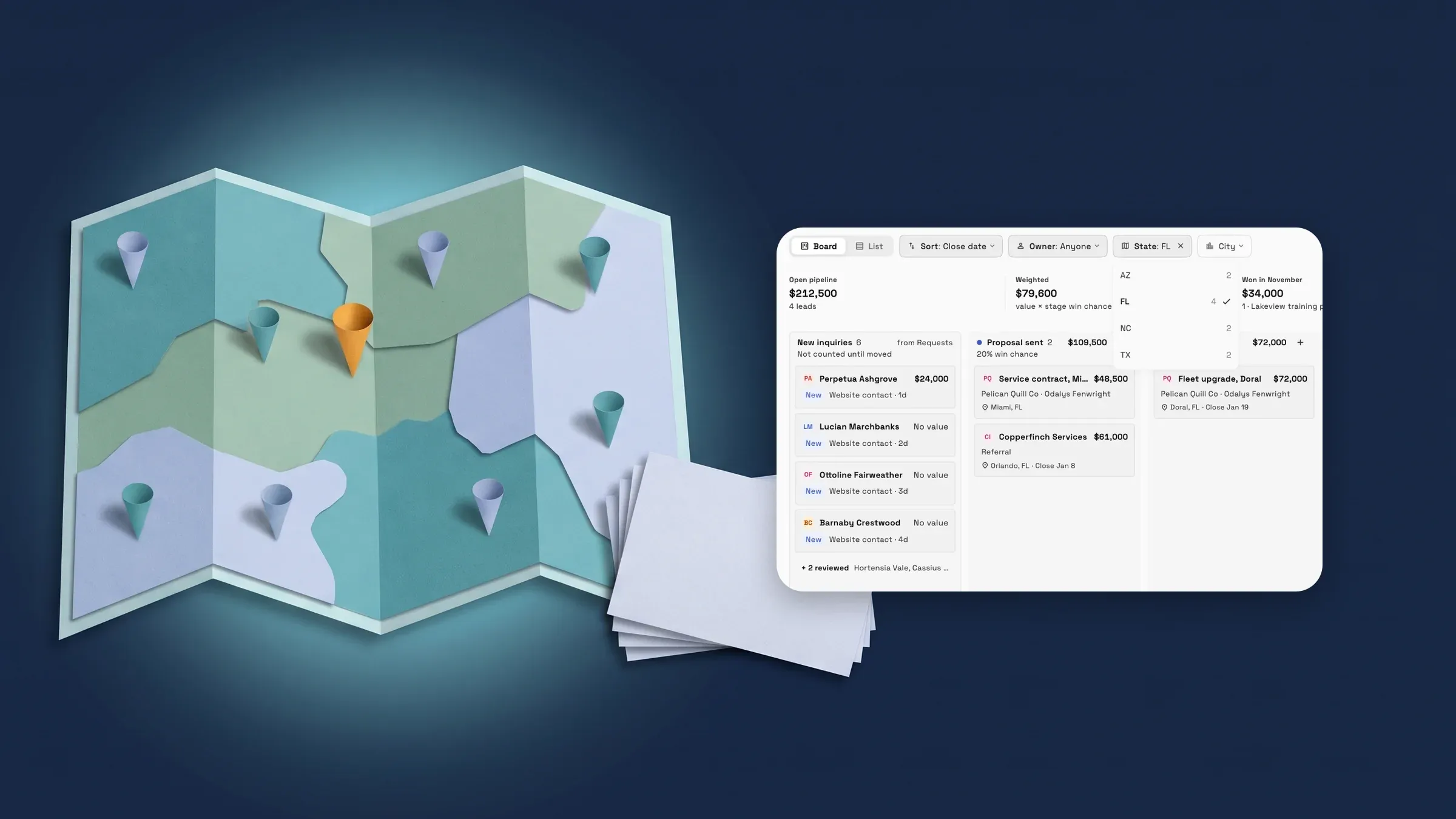
Give a deal a city, state and address
Open an opportunity from the Pipeline and use the new Location field. When the client has an address on file, choose it from the list, primary address first, or choose Another location to type a street (optional), a city and a state. No location leaves it blank, and it is where a new opportunity starts. A client with no address on file shows the typed fields straight away.
City and state go together: type one without the other and the sheet asks you to “Add a city and a state.” A US state name or written abbreviation is saved as its two-letter code, so Texas and Tex. both become TX, and a near miss such as Flordia offers “Did you mean Florida?” with one tap to take it. A region outside the US, such as Ontario, is saved as you typed it.
A deal keeps its own copy of the address you picked. If the client's address changes later, existing deals keep their copy; open the deal and pick the address again to update it. A client's own lead card on the board shows the client's main address instead. Setting a location needs permission to edit clients. It is on the web app now.
- Pick one of the client's addresses, or type a city and a state
- US state names and abbreviations are saved as the state code
- A deal keeps its own copy if the client's address changes later

- Where to find it
- Clients
- Pipeline
- open an opportunity
- Location
- Plans
- Every plan
Filter the Pipeline by State and City
Once an open deal has a location, State and City chips appear next to Sort and Owner on the Pipeline board. Each one is a multi-select list of the places your deals are in, with the number of deals beside each. City lists only the cities in the states you picked, and Portland, Maine stays apart from Portland, Oregon. The cards, column counts and totals narrow together, and the chips work alongside Owner. Each card also shows its city and state, such as Miami, FL.
The Pipeline list has the same State and City filters, and you can sort it by either column, with deals that have no place at the end in both directions. Your picks are remembered, and the board and the list keep their own, as they do for Owner. It is on the web app now.
- Pick several states or cities at once
- City lists only the cities in the states you picked
- Cards, column counts and totals narrow together
- Where to find it
- Clients
- Pipeline
- State or City
- Plans
- Every plan
See the place in the list and take it into the export
In the Pipeline list, City and State columns show where each deal is once any deal has a place, so a workspace that never sets one keeps its table as it was. Click either column header to sort by it.
Export adds City, State and Address columns after Contact, for every deal the export covers. Address is one line: street, city, state and ZIP. It is on the web app now.
- City and State columns appear once a deal has a place
- Export adds City, State and Address after Contact

- Where to find it
- Clients
- Pipeline
- List
- Plans
- Every plan
Add your own fields to every deal
In Settings → Clients → Deal fields, add the details you want on every deal. A field can be text, a number, a currency amount, a date or a choice from a list you set. Drag fields to reorder them, and edit or delete one whenever you like; deleting a field clears its value from every deal. Owners, admins and members who can edit workspace details manage the fields, and everyone else can read them.
Each opportunity then gets a Deal fields section after Location, with the right input for each type: a date picker for dates, a menu with None for choices, and a currency input for currency fields. A currency field shows only to members who can see prices, as a deal's Value does. An edit saves only the fields you changed.
In the Pipeline list, the Deal fields button above the table adds any field as a column after Contact. They start off, so a workspace's fields do not widen everyone's table, and each column hides from its header. Export adds every deal field after Address, with currency fields left out for members who cannot see prices. Deal fields do not show on board cards, and the list's deal field columns do not sort. It is on the web app now.
- Text, number, currency, date and choice fields
- A currency field shows only to members who can see prices
- Add a field as a column in the Pipeline list, and it comes out in the export

- Where to find it
- Settings
- Clients
- Deal fields
- Plans
- Every plan
Quick answers
- How do I add a city and state to a deal?
- Open the opportunity from the Pipeline and use the Location field. Choose one of the client's addresses, or Another location to type a street, a city and a state. No location leaves it blank.#
- Can I filter my Pipeline by state or city?
- Yes. State and City chips sit next to Sort and Owner on the board, and the list has the same two filters. Both let you pick several, and they narrow the cards, column counts and totals together.#
- Which plans include deal locations and deal fields?
- Every plan. The State and City chips appear once an open deal has a location, so a workspace that never sets one sees its Pipeline as before.#
- Does the Pipeline export include the location and deal fields?
- Yes. Export adds City, State and Address columns after Contact, and every deal field after Address. Address is one line with the street, city, state and ZIP.#
- What can a deal field hold?
- Text, a number, a currency amount, a date or a choice from a list you set. Add them in Settings → Clients → Deal fields, and each shows on every opportunity in a Deal fields section.#
- Who can see a currency deal field?
- Only members who can see prices, the same rule as a deal's Value. Others do not see it on the opportunity, in the list or in the export.#
Related updates
 Give a company a parent company and see all its locations on one page
 See the people at a business client, and give each one their own follow-ups and notes
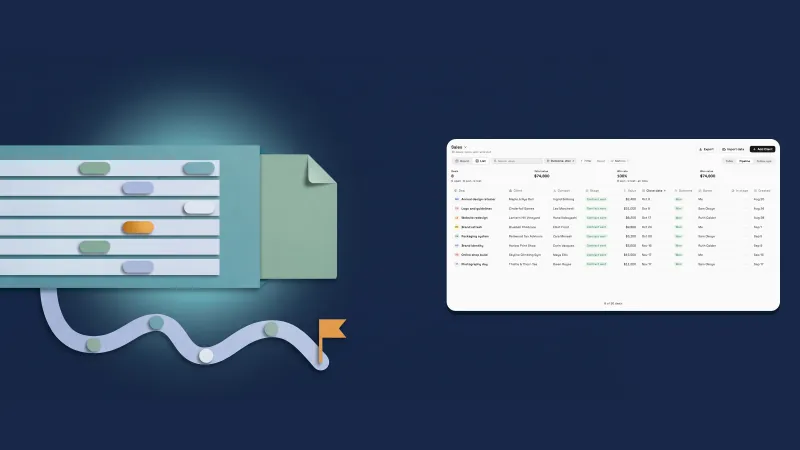 Pipeline: list view, export and stage history
Deals get a location and your own fields, in your own workspace
Start your free trial, then find it under Clients.
14-day free trial. Card required. After the trial: from $29/month. Renews automatically every month until you cancel. Cancel anytime in Settings → Billing.