Clients & CRM
Pipeline: list view, export and stage history
Switch any Pipeline to a list you can sort and filter, pick the figures above it, export every deal to CSV, and see when each deal moved and who moved it.
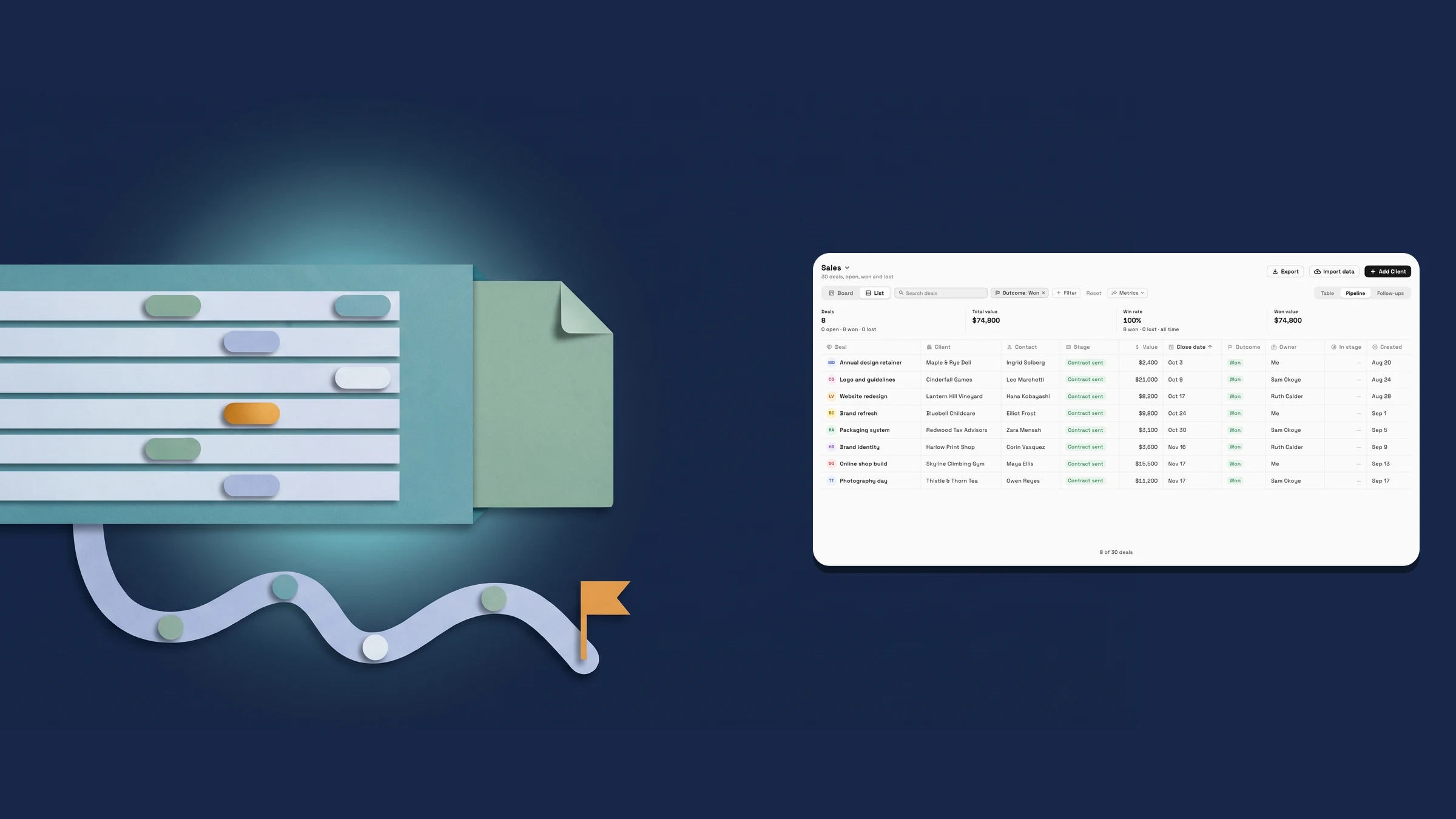
Switch any Pipeline from Board to List
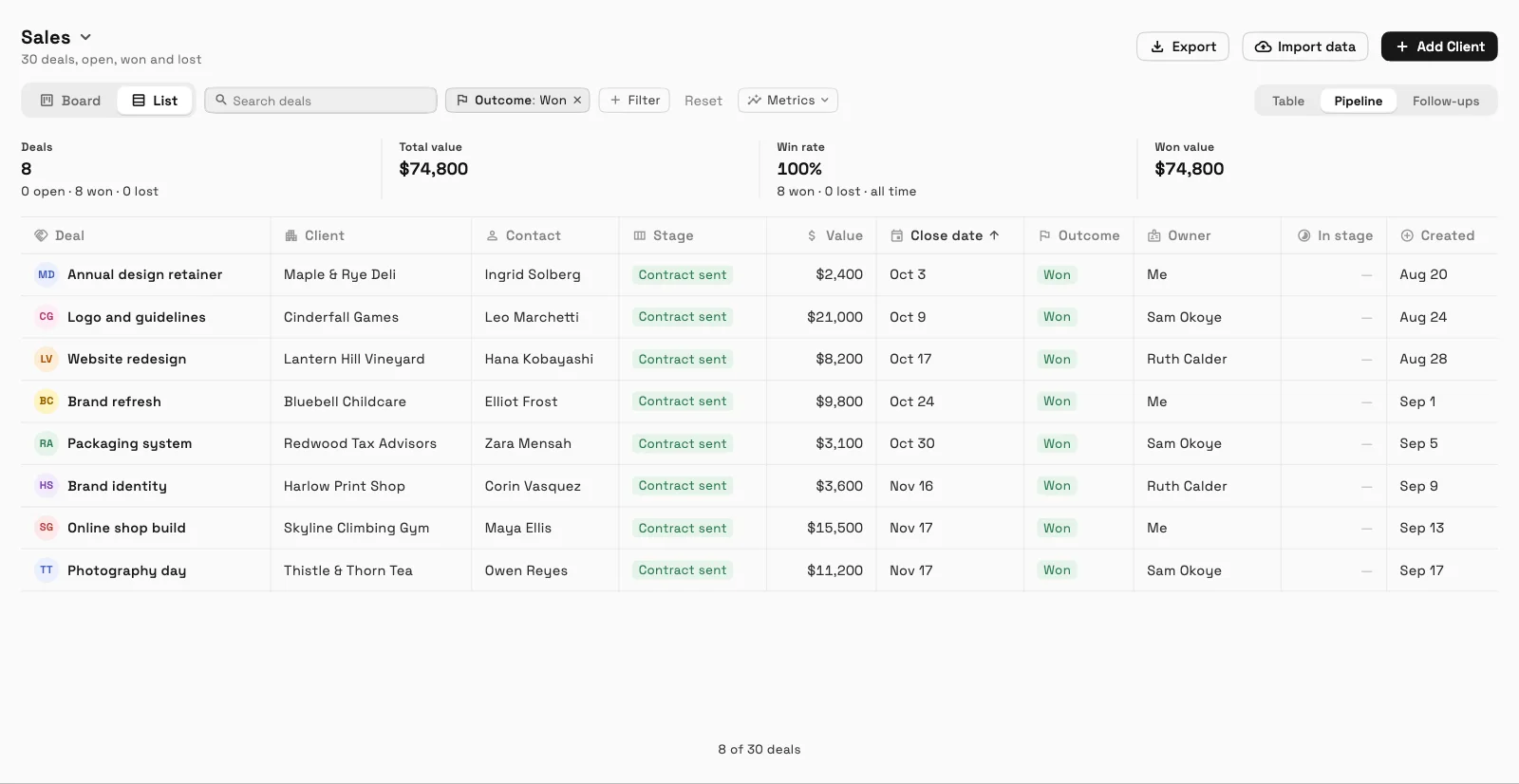
In Clients, open Pipeline and choose List next to Board. The list shows every deal in the Pipeline you are on, open, won and lost, with the deal, client, contact, stage, value, close date, outcome, owner, how long it has been in its stage and when it was created. Your choice is remembered on that device, so the Pipeline opens the way you left it.
Open a column's menu to sort it either way or hide it. Every column except Deal can be hidden, and a chip above the table brings hidden columns back. Search by deal, client or contact, or add a filter: Stage, Outcome, Owner, Value (for members who can see prices), and four date filters, Close date, Created, Stage changed and Closed. Reset clears them.
It is on the web app now. The Value column and the money figures show only to team members who can see prices.
- Every deal in one table: open, won and lost
- Sort or hide any column, and filter by stage, outcome, owner, value and dates
- Where to find it
- Clients
- Pipeline
- List
- Plans
- Every plan
Pick the figures you want above the list
Above the list, a row of figures counts only the deals your filters keep, so it changes the moment a filter does. Press Metrics to choose which figures show: Deals, Total value, Win rate, Avg. days in stage, Open pipeline, Weighted, Won value and Avg. won deal. The row holds a few at a time, so adding one replaces the oldest, and a reset puts the defaults back.
Deals shows how many are open, won and lost. Win rate says all time unless you filter by a closed date range. Avg. days in stage looks at open deals only. The money figures show only to team members who can see prices.
- Filter to Won, and the won-value figures count just those deals
- Your figures are remembered on that device
- Where to find it
- Clients
- Pipeline
- List
- Metrics
- Plans
- Every plan
Export every deal to a spreadsheet file
Press Export on a Pipeline, on the board or the list. The dialog offers a CSV of the deals in that Pipeline, open, won and lost, which Excel, Numbers and Google Sheets open. When the list has filters on, you can choose to export just the deals the list shows instead of every deal in the Pipeline.
Each deal is one row: deal, client, company, contact, stage, pipeline, value and currency, close date, outcome, closed on, won or lost reason, owner, last stage change, created, lead source, and the last activity note and its date. Amounts are plain numbers, so a spreadsheet can add them. Each deal's last activity note is included by default, and you can switch that off to leave the notes out. Team members who cannot see prices get a file without the value and currency columns. If a Pipeline has more deals than one export can read, the app says some are missing and asks you to filter the list and export again.
- Won and lost deals included, not only the open ones
- Export what a filtered list shows, or the whole Pipeline

- Where to find it
- Clients
- Pipeline
- Export
- Plans
- Every plan
See when each deal moved, to which stage and who moved it
A deal now keeps a stage history, newest first: created in a stage, moved from one stage to another, marked won, marked lost or reopened, with who did it, or that an automation did. It shows in the deal when you open it, in the deal panel on a client, and in a closed deal's summary, which opens when you select a closed deal in the list. The latest four show first, with a link to show all.
History is recorded from November 16, 2026. Earlier moves weren't recorded, so an older deal says No moves recorded yet until it moves again. The history never holds amounts.
- Created, moved, won, lost and reopened, each with who and when
- In the deal, on the client's deal panel and in a closed deal's summary

- Where to find it
- Clients
- Pipeline
- open a deal
- Plans
- Every plan
Quick answers
- Where do I find the Pipeline list?
- In Clients, open Pipeline and choose List next to Board. The list shows every deal in the Pipeline you are on, open, won and lost, and Workspace369 remembers your choice on that device.#
- Can I export only the deals I filtered?
- Yes. When the list has filters on, Export lets you choose to export just the deals the list shows or every deal in the Pipeline.#
- What does the export file contain?
- One row for each deal, open, won and lost: deal, client, company, contact, stage, pipeline, value and currency, close date, outcome, closed on, won or lost reason, owner, last stage change, created, lead source, and the last activity note and its date. Excel, Numbers and Google Sheets open it.#
- Does Export work on a very large Pipeline?
- If a Pipeline has more deals than one export can read, the app says some are missing and asks you to filter the list and export again.#
- Since when is stage history recorded?
- From November 16, 2026. Earlier moves were not recorded, so an older deal can say No moves recorded yet until it moves again.#
Related updates
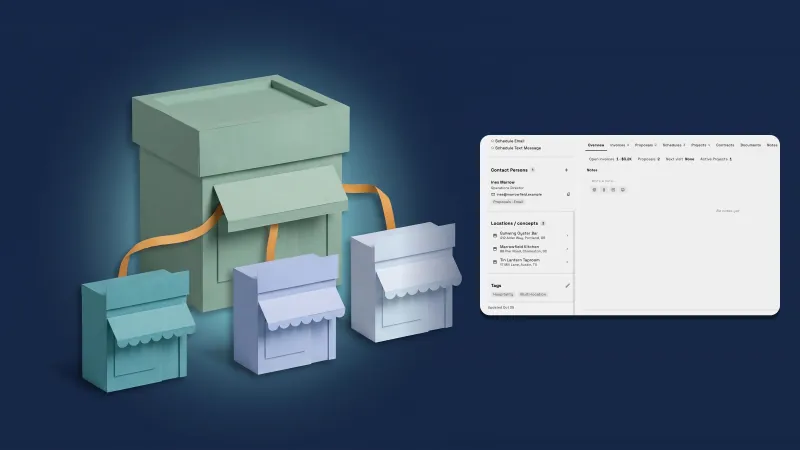 Give a company a parent company and see all its locations on one page
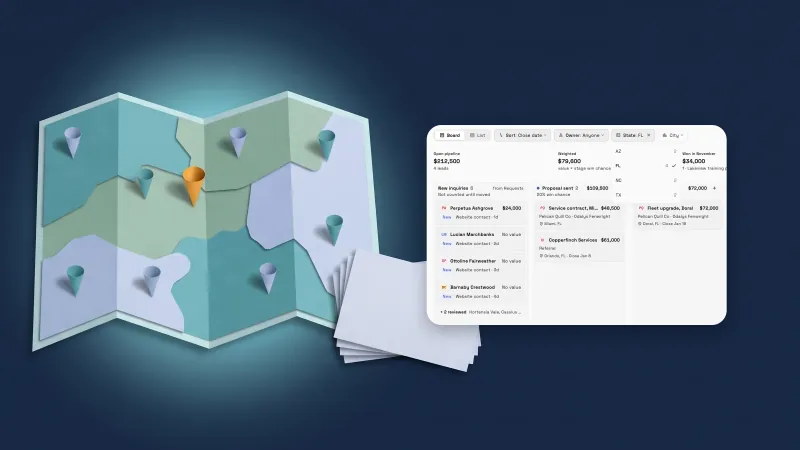 Deals get a location and your own fields
 See the people at a business client, and give each one their own follow-ups and notes
Pipeline: list view, export and stage history, in your own workspace
Start your free trial, then find it under Clients.
14-day free trial. Card required. After the trial: from $29/month. Renews automatically every month until you cancel. Cancel anytime in Settings → Billing.