Clients & CRM
See the people at a business client, and give each one their own follow-ups and notes
Open a business client in the Clients table to see its contact persons under it. Open one to plan follow-ups with them and keep notes that belong to them.

Open a business client to see its people
In Clients, a business client with contact persons has an arrow beside its name and a count, such as 3 people. Open the arrow and its people are listed right under the company, by first name. Each person has their own row with their name, title, email and phone, so you can see who works at a client without leaving the table.
Click a person and their details open beside the table, with actions such as Call, Email and Edit, shown when the person has the details and you have the permission, and a way back to the company. The menu on a person's row carries the company row's usual actions, such as Send Email, Copy email and Delete, with the same permissions as on the company row. Expand all, with the table's other view toggles, opens every business at once. The businesses you opened and Expand all are remembered for you on this device.
Search Clients for a person's name and their company opens in the table with that person highlighted. A company that is not on the page you are viewing shows on the first page under Found by contact person, opened the same way. Clearing the search closes them again.
On a narrow screen there is no table: a business shows a 3 people line instead, and tapping it lists its people in a sheet. When a search matches someone there, the line names them and the sheet opens on that person. Only business clients have this. It is on the web app now.
- People are listed by first name, with title, email and phone
- Expand all opens every business at once
- Your choice is remembered on this device
- Where to find it
- Clients
- a business client
- the arrow beside its name
- Plans
- Every plan
Follow-ups and notes for each person
Open a person from the expanded list and, under their details, you will find Follow-ups and Notes. Follow-ups shows that person's open follow-ups, soonest first, each with a check to mark it done. Plan follow-up plans a new one with them, and it appears under that person right after you save.
A follow-up planned with a person is still a follow-up for the company. When it is the soonest one, it shows as the company's Next follow-up, reading Follow up with the person's name, and it appears in the Follow-ups view like any other.
Notes lists the person's own notes, last edited first. Add note opens the usual note editor. The notes are kept in a folder named after the person inside the company's notes, so they show with the company's notes too. Members who cannot edit clients can read a person's notes but not add one. Deleting a person asks first and tells you their notes and follow-ups stay with the company. It is on the web app now.
- Open follow-ups per person, with a check to mark it done
- Plan follow-up and Add note from the person's own view
- Delete keeps their notes and follow-ups with the company

- Where to find it
- Clients
- a business client
- a person
- Plans
- Every plan
Quick answers
- How do I see the people at a business client?
- In Clients, open the arrow beside a business client's name. Its contact persons are listed under it by first name, each with a title, email and phone. Expand all opens every business at once.#
- Can each contact person have their own follow-ups?
- Yes. Click a person in the expanded list. Their Follow-ups show their open follow-ups, and Plan follow-up adds one with that person. It is also a follow-up for the company.#
- Where do a person's notes go?
- Add note on a person opens the usual note editor. Their notes are kept in a folder named after them inside the company's notes, so they also show with the company's notes.#
- What happens to a person's notes and follow-ups if I delete them?
- They stay with the company. The delete confirmation says so before you confirm.#
- Can I search for a contact person?
- Yes. Type their name in the Clients search and their company opens in the table with that person highlighted, even when you search by the person and not the company.#
- Which plans include this?
- All of them. Clients are on every plan, and so are contact persons with their own follow-ups and notes.#
Related updates
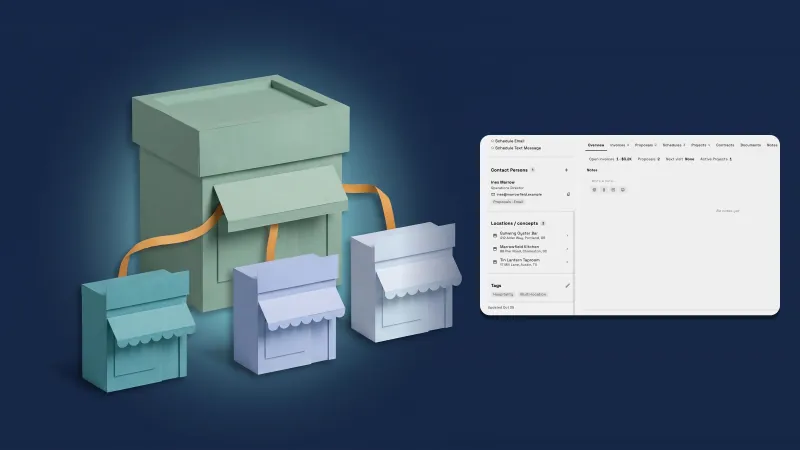 Give a company a parent company and see all its locations on one page
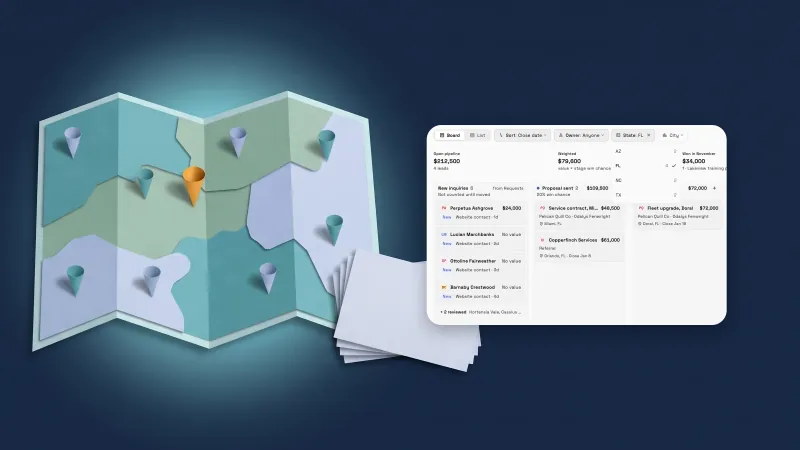 Deals get a location and your own fields
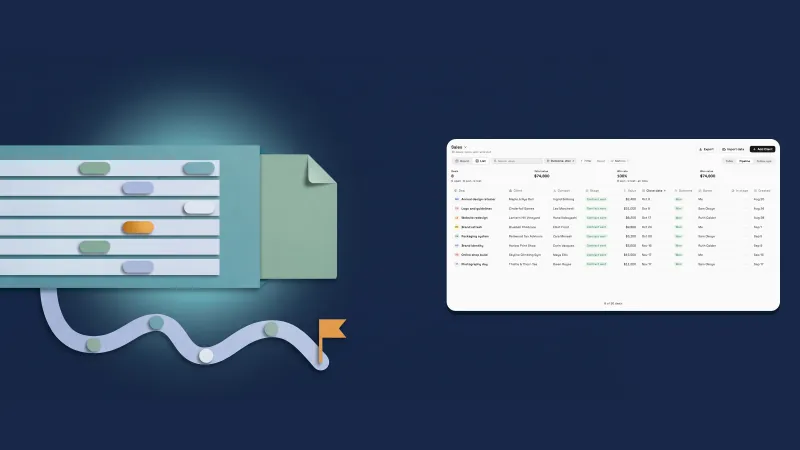 Pipeline: list view, export and stage history
See the people at a business client, and give each one their own follow-ups and notes, in your own workspace
Start your free trial, then find it under Clients.
14-day free trial. Card required. After the trial: from $29/month. Renews automatically every month until you cancel. Cancel anytime in Settings → Billing.