Clients & CRM
Give a company a parent company and see all its locations on one page
Link a company client to a parent company, such as a hospitality group over its concepts, and the group's page lists every location, one click each.
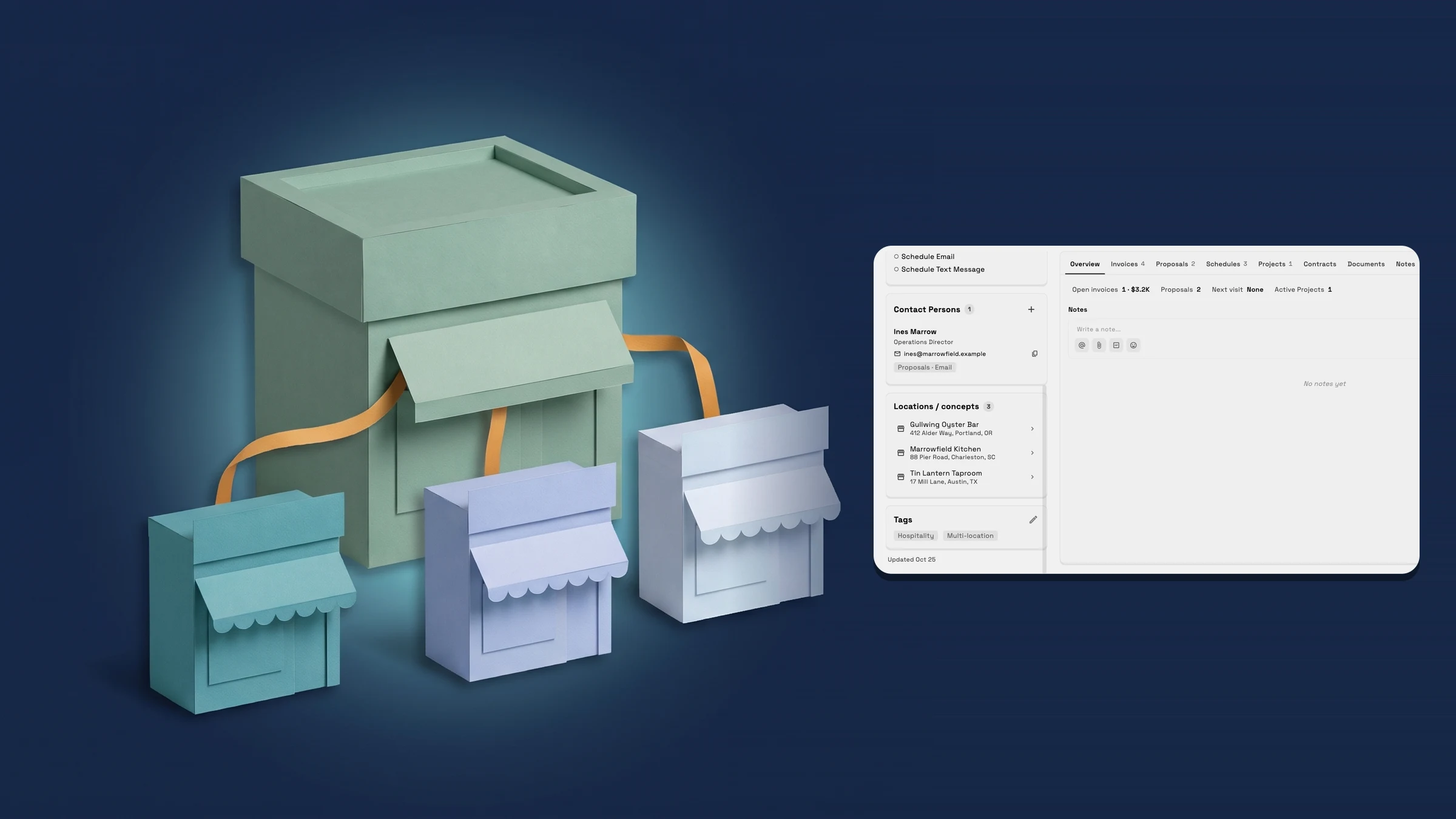
A parent company for companies that have locations
Some clients are organized as a group with locations underneath, such as a hospitality group over its concepts or a landlord over its locations. Open a company client and use the new Parent company field to say which company it belongs to. Press Add a parent company, search the list in Choose the parent company, pick the group, and the field shows its name. The list only offers companies that don't belong to another company, and No parent company removes the link. The same field is on the client form.
The group's page now shows Locations / concepts: every company that names it as its parent, by name with the address under each, and one click opens that company. The same list sits in the quick view beside the Clients list. When there are more than six, Show all in Clients opens the Clients list filtered to that group. A company that has its own locations can't also have a parent company, so a group stays at the top and a location doesn't list locations of its own. A team member who sees only some clients sees only the locations they can access.
In the Clients list, Filter now offers Parent company: pick a group from the ones in the list, or Choose a company to search, and only its locations show. There is a Parent company column too. It starts hidden, so use the Hidden: line at the end of the filter row to show it. Searching Clients for a group's name also finds its locations, the client data export includes each location's parent company, and AI assistants connected to your workspace can read a company's locations and set its parent. It is on the web app now.
- A Parent company field on company clients, picked from your other companies
- The group's page and quick view list its Locations / concepts, one click each
- Filter the Clients list by parent company, and show a Parent company column
- Where to find it
- Clients
- a company
- Parent company
- Plans
- Every plan
Quick answers
- How do I add a parent company to a client in Workspace369?
- Open a company client and press Add a parent company in the Parent company field, then pick the group in Choose the parent company. The field is on the client form too. Only companies that don't belong to another company are listed, and No parent company removes the link.#
- Where do I see a parent company's locations?
- On the group's client page and in its quick view, under Locations / concepts. Each location opens with one click, and when there are more than six, Show all in Clients opens the Clients list filtered to that group.#
- Can a location have locations of its own?
- No. A company that has its own locations can't also have a parent company, so there are two levels: a group and its locations.#
- Can I filter the Clients list by parent company?
- Yes. Choose Filter, then Parent company, and pick a group or Choose a company to search. The Parent company column starts hidden; the Hidden: line at the end of the filter row shows it.#
- Which plans include a parent company?
- Every plan. It works the same on Cadet, Voyager, Specialist, Commander and Enterprise.#
Related updates
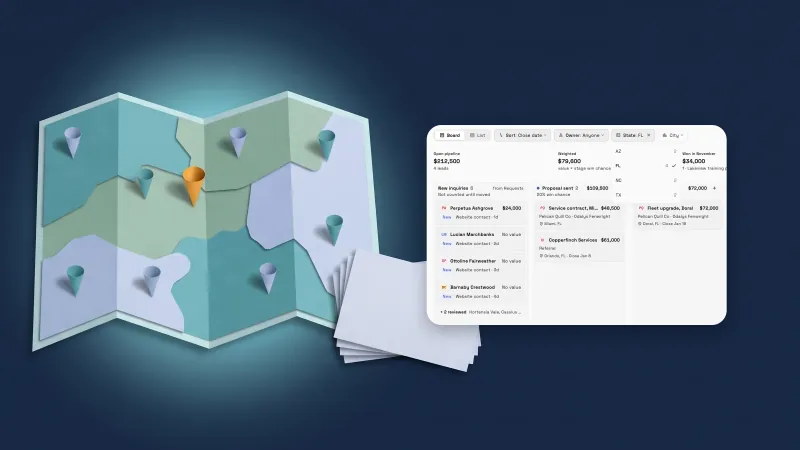 Deals get a location and your own fields
 See the people at a business client, and give each one their own follow-ups and notes
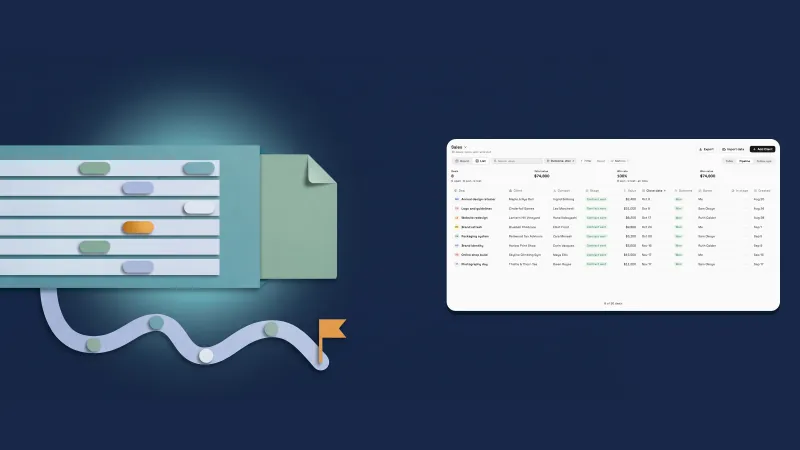 Pipeline: list view, export and stage history
Give a company a parent company and see all its locations on one page, in your own workspace
Start your free trial, then find it under Clients.
14-day free trial. Card required. After the trial: from $29/month. Renews automatically every month until you cancel. Cancel anytime in Settings → Billing.