Clients & CRM
Deals your way: custom fields, saved views and an LOI tracker
Rename, hide and require deal fields, add parties with roles, group the Pipeline by state or any choice field, save views and start a one-click LOI tracker.
Rename, reorder, hide and require deal fields
In Settings → Clients → Deal fields, every field on a deal sits in one list: the location fields (Street address, City, State and Zip) and your own. Drag any of them to reorder the deal sheet. Rename or hide a location field from its menu; a hidden field leaves the deal sheet, the cards, the columns and the filters, and its values are kept, so showing it again brings them back. A field you added can be edited, hidden or deleted the same way, and a field marked Required means a deal cannot be saved without it.
Add field now offers Multi-select (several choices from a list you set), Checkbox (yes or no), Link (a web address that opens from the deal) and Person (a client contact or a teammate, with an option to allow several people), next to text, number, currency, date and a choice from a list. Owners, admins and members who can edit workspace details manage the fields, and everyone else can read them. The earlier release covers location and the first five field types.
- Rename, hide or reorder the location fields
- Mark a field Required
- New types: Multi-select, Checkbox, Link and Person

- Where to find it
- Settings
- Clients
- Deal fields
- Plans
- Every plan
Put the parties, a follow-up date and the files on the deal
Open a deal and use Parties → Add party to say who is on it: pick a client contact or a teammate, or type a name such as a law firm, then give each one a role. Roles are set in Settings → Clients → Deal fields → Party roles. They start as Landlord, Tenant, Landlord's attorney, Tenant's attorney, Developer, Architect, Builder and Broker, and you can add, rename, reorder or delete them, to Buyer and Seller for instance.
Next follow-up sits beside Expected close. The card shows it as Follow up and the date, in red once the day has passed and with a Today tag on the day, and the list has a Next follow-up column. The Files section keeps the LOI drafts, redlines and signed copies on the deal, and they also show in the client's Documents. Export adds the follow-up date, the parties and your deal fields, and Include hidden deal fields brings the hidden ones along.
- Parties with roles you define
- A Next follow-up date on every deal
- Files on the deal, also in the client's Documents

- Where to find it
- Clients
- Pipeline
- open a deal
- Parties
- Plans
- Every plan
Group and filter the Pipeline, then save the view
On the Pipeline board and list, Group by sorts deals into sections by State, City, Parent company, Client or Owner, and by any Select, Multi-select, Checkbox or Person deal field that is not hidden; the list can also group by Stage. Under + Filter, Parent company, Client and those same fields narrow the deals, so one board can show only the redline LOIs, state by state.
Views remembers the filters and grouping you have on, for the board or the list. Save view asks for a name; owners, admins and members who can edit workspace details also see Share with the workspace. Shared views appear under Shared for everyone and your own under My views, and Update and Delete sit on the same menu.
- Group by State, Client, Owner or any choice field
- Filter by the same fields
- Shared or private saved views
- Where to find it
- Clients
- Pipeline
- Group by or Views
- Plans
- Every plan
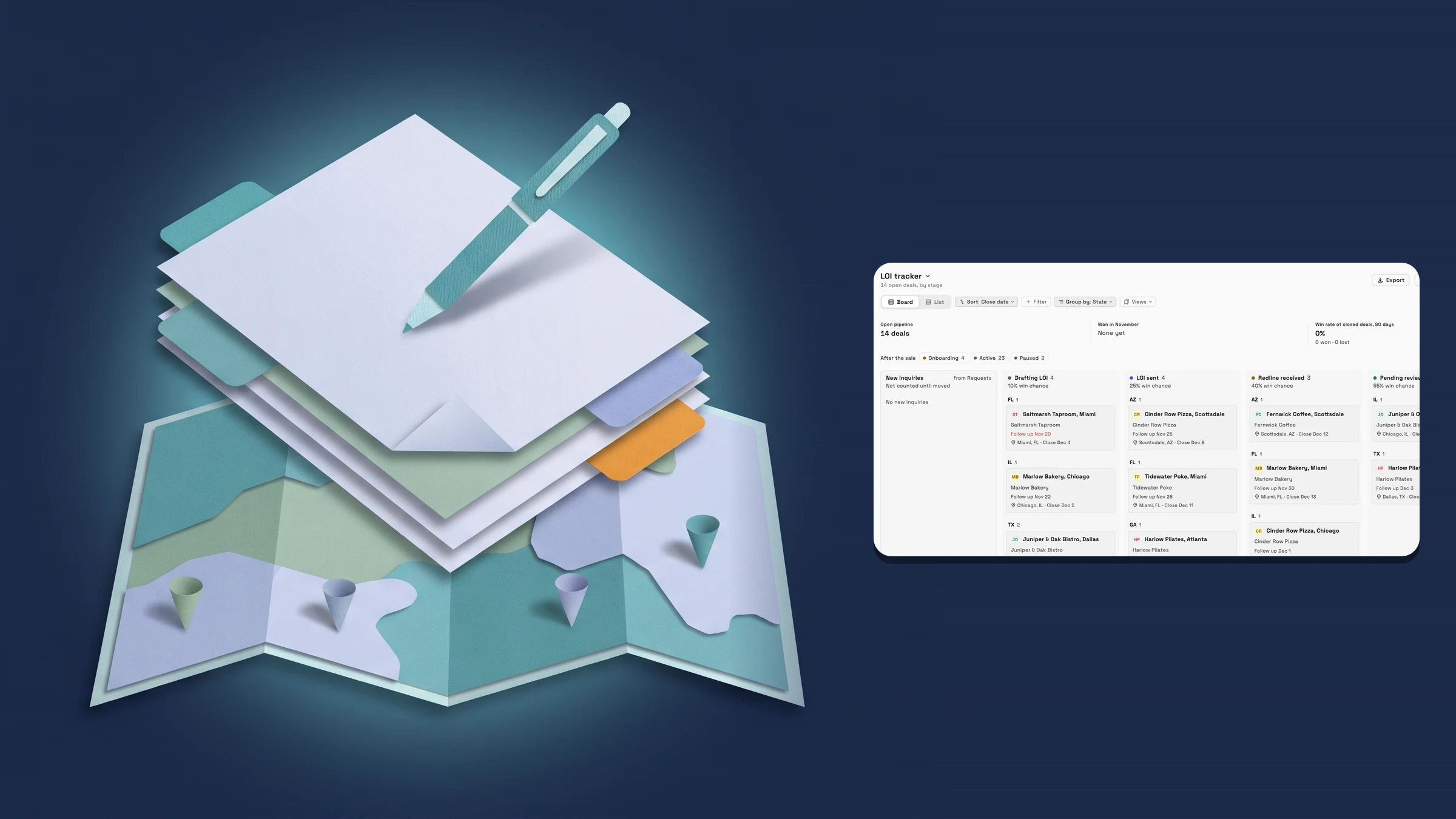
Start a letter-of-intent tracker in one click
In Settings → Clients → Deal fields, the LOI tracker template lists its fields with a tick beside each. Keep the ones you want and press Add LOI tracker. It adds a pipeline called LOI tracker with the stages Drafting LOI, LOI sent, LOIs exchanged, Redline received, Pending review, Agreed, Signed and Dead; the fields Waiting on, Last LOI action, Last LOI action date, LOI version, Rent, Square feet, Term (months), LOI sent, LOI received, LOI signed and LOI expires; the party roles; and four shared views: By state, By concept, By group and Waiting on.
Run it again and nothing that is already there changes, so your own fields, roles and views stay as they are, and you can rename, reorder or delete any of it afterwards. It needs permission to manage pipelines, and it adds a pipeline of its own.
- Eight stages, eleven fields and four shared views
- Choose which fields to add
- Safe to run again

- Where to find it
- Settings
- Clients
- Deal fields
- LOI tracker template
- Plans
- Voyager and up
Let a client's email suggest the next stage
In Settings → Clients → Stages and follow-ups, each pipeline has a Suggestions from email row, Off until you turn it on. When a client's email arrives, AI reads it and suggests the deal's next stage and follow-up date; it uses AI tokens. Choose what it does (Suggest, you accept, or Move deals itself), who sees suggestions (Everyone with access or Deal owner only) and which stages it can suggest, each with an optional hint.
A deal with a suggestion carries a mark on its card. Its sheet shows Suggested from email with Move to the new stage, the follow-up date and the Last LOI action, and you choose Accept and save or Dismiss. Move deals itself moves a deal only from emails the whole team can see, and only when everyone sees suggestions; other emails stay suggestions. It never sends anything to your client.
- Off until you turn it on, per pipeline
- Suggest, you accept, or Move deals itself
- You choose the stages and who sees them

- Where to find it
- Settings
- Clients
- Stages and follow-ups
- Suggestions from email
- Plans
- Voyager and up
Quick answers
- Which plans include custom deal fields, parties and saved views?
- Every plan. The LOI tracker template is on Voyager, Specialist, Commander and Enterprise, and Suggestions from email come with Voyager and up.#
- What does the LOI tracker template add?
- A pipeline called LOI tracker with eight stages from Drafting LOI to Dead, the LOI fields you tick, party roles and four shared views: By state, By concept, By group and Waiting on. Running it again keeps whatever is already there.#
- Which fields can I group the Pipeline by?
- State, City, Parent company, Client and Owner, plus any Select, Multi-select, Checkbox or Person deal field that is not hidden. The list can also group by Stage. Text, number, currency and date fields cannot be grouped.#
- Only the owner, admins and members who can edit workspace details can share a view or change a shared one. Everyone else saves views for themselves, and they appear under My views.#
- Can I rename or hide the location fields on a deal?
- Yes. In Settings → Clients → Deal fields, rename Street address, City, State or Zip, or hide it. A hidden field leaves the deal sheet, the cards, the columns and the filters, and its values are kept for when you show it again.#
- Does email move my deals without asking?
- Not unless you choose it. Suggestions from email is off until you turn it on for a pipeline, and its default is Suggest, you accept. Move deals itself acts only on emails the whole team can see.#
Related updates
 Campaign emails get eight looks, a button and a picture
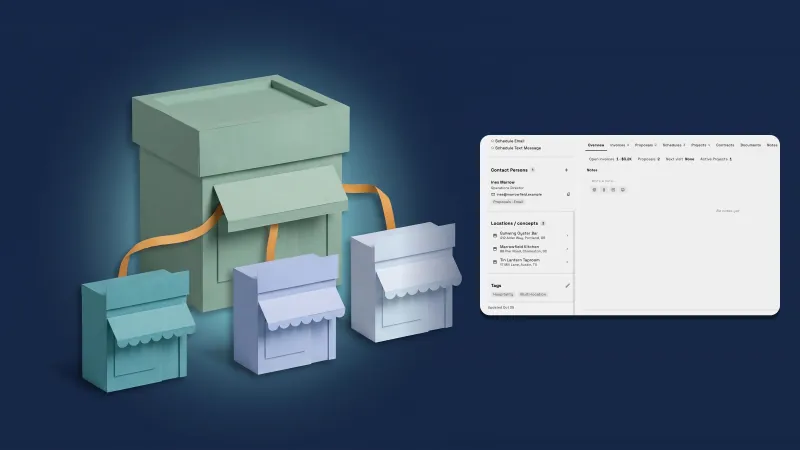 Give a company a parent company and see all its locations on one page
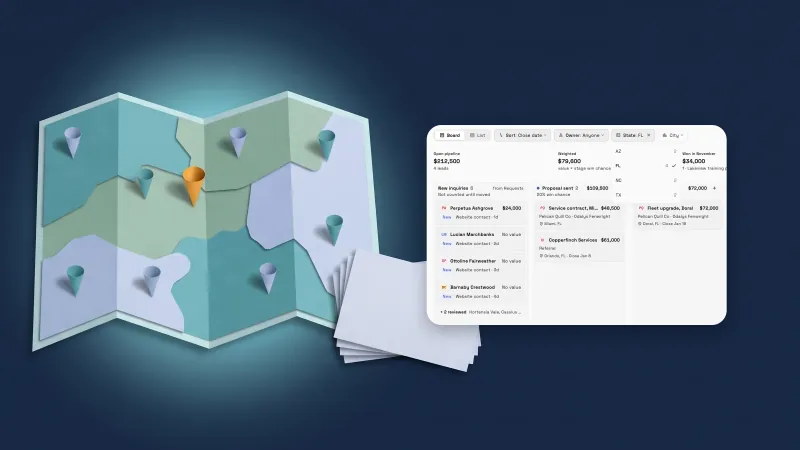 Deals get a location and your own fields
Deals your way: custom fields, saved views and an LOI tracker, in your own workspace
Start your free trial on Voyager, then find it under Settings.
14-day free trial. Card required. After the trial: $74/month for Voyager. Renews automatically every month until you cancel. Cancel anytime in Settings → Billing.