收件匣與通話工作區 AI
AI writing help in the email composer and your own default sender
使用 AI 草擬、改進、縮短或變更電子郵件的語氣,復原任何變更,選擇新電子郵件的起始收件匣,並使用更大的全螢幕撰寫器進行撰寫。
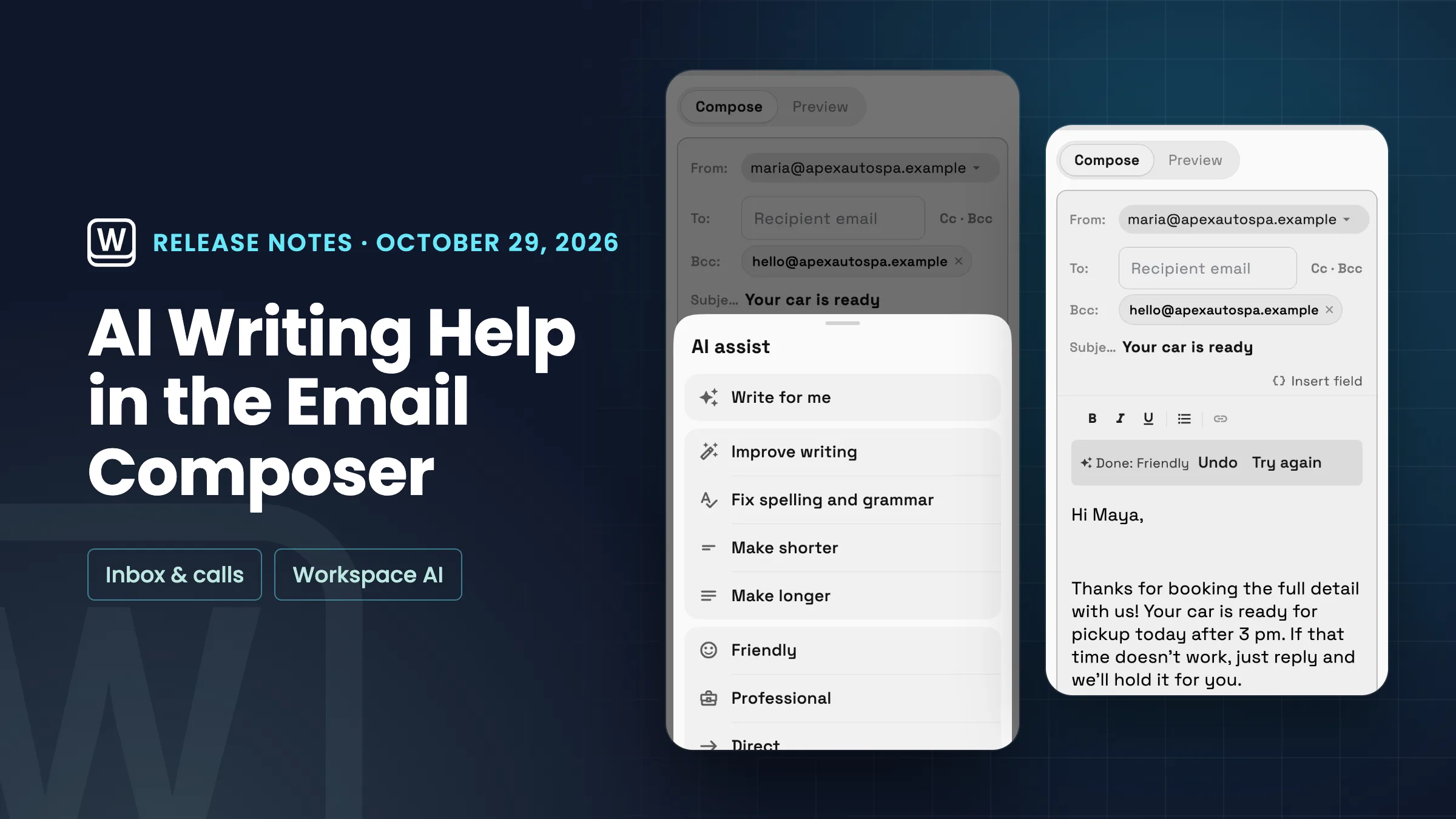
AI writing help: draft, edit and change the tone, with Undo
電子郵件撰寫器中的 ✨「使用 AI 寫作」按鈕現在會開啟一整套寫作工具。「為我寫作」會為您草擬電子郵件,並在主旨為空時填入主旨。在「編輯您的草稿」下方,您可以選擇「改進寫作」、「修正拼字和文法」、「縮短」或「變長」,並在「變更語氣」下方選擇「友善」、「專業」或「直接」。在手機上,按鈕僅顯示 ✨ 圖示,相同的動作會在表中開啟。編輯需要一些文字才能運作,因此在您開始寫作後,它們才會亮起。
每次變更後,都會出現一個名為「完成」的橫幅,其中包含動作名稱,並提供「復原」和「重試」選項。「復原」會還原您原有的內容,「重試」則會在您的原始文字上再次執行相同的動作。當您開始輸入時,橫幅就會消失,因此「復原」永遠不會捨棄您新的文字。您的簽名會被排除在 AI 之外,並在之後加回,因此不會重複,合併欄位(例如客戶的名字)也會保留在原位。除非管理員在「收件匣設定」→「收件匣 AI 輔助」中關閉「寫作輔助」,否則所有工作區都會啟用寫作輔助;如果關閉,撰寫器中就不會顯示「使用 AI 寫作」按鈕。它會使用您工作區的 AI 用量,就像其他 AI 功能一樣,如果您用完了,您會看到「您已達到 AI 用量上限」以及新增用量的選項。目前可在網頁應用程式中使用,並將在下一次更新時推出 iPhone 和 Android 應用程式。
- Write for me drafts the email and its subject
- Improve, fix grammar, shorten or lengthen
- Friendly, Professional or Direct tone
- Undo or Try again after every change

- 在哪裡找到它
- Any new email
- 底部工具列中的「使用 AI 寫作」(手機上的 ✨ 圖示)
- 方案
- 所有方案
Your own default sender inbox
Each team member can now choose the inbox their new emails start from, without changing it for everyone else. Open the From menu in any new email: it lists every inbox you can send from with its name and address, tagged Your default and Team default, and Always send from, followed by the inbox's address, saves the one you picked as your default. You can also set it in Inbox settings → Inboxes → Your default sender, which only you see. Both appear once your workspace has two or more inboxes.
A restored draft keeps the inbox it was written from. Otherwise new emails start from your default, then the team default. If your default inbox is removed or you lose access to it, new emails start from the team default again, or from your oldest inbox if there's no team default. It is on the web app now and comes to the iPhone and Android apps with their next update.
- Pick your own default sender inbox
- From menu shows each inbox's name and address
- Your default and Team default tags
- Only you see your setting
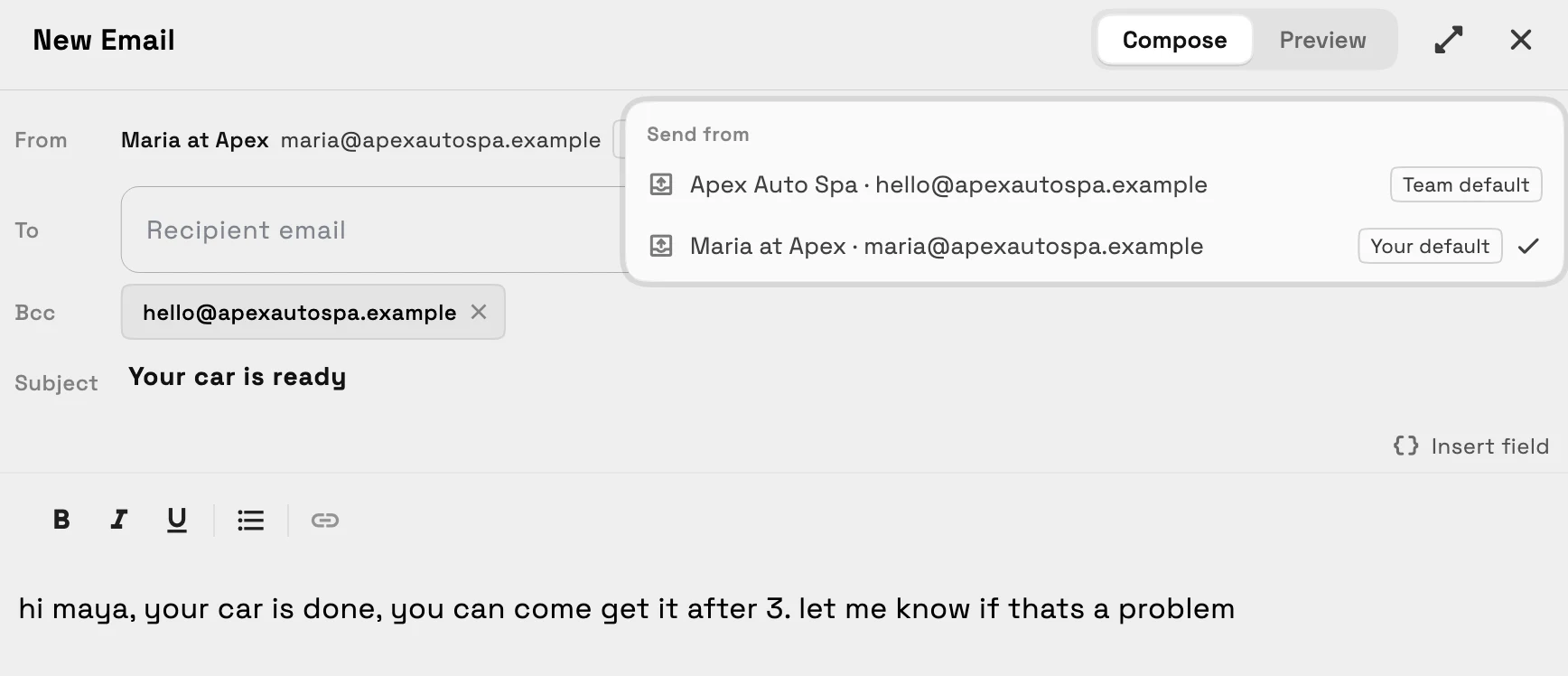
- 在哪裡找到它
- Any new email
- From menu, or Inbox settings
- Inboxes
- Your default sender
- 方案
- 所有方案
更大的全螢幕撰寫器
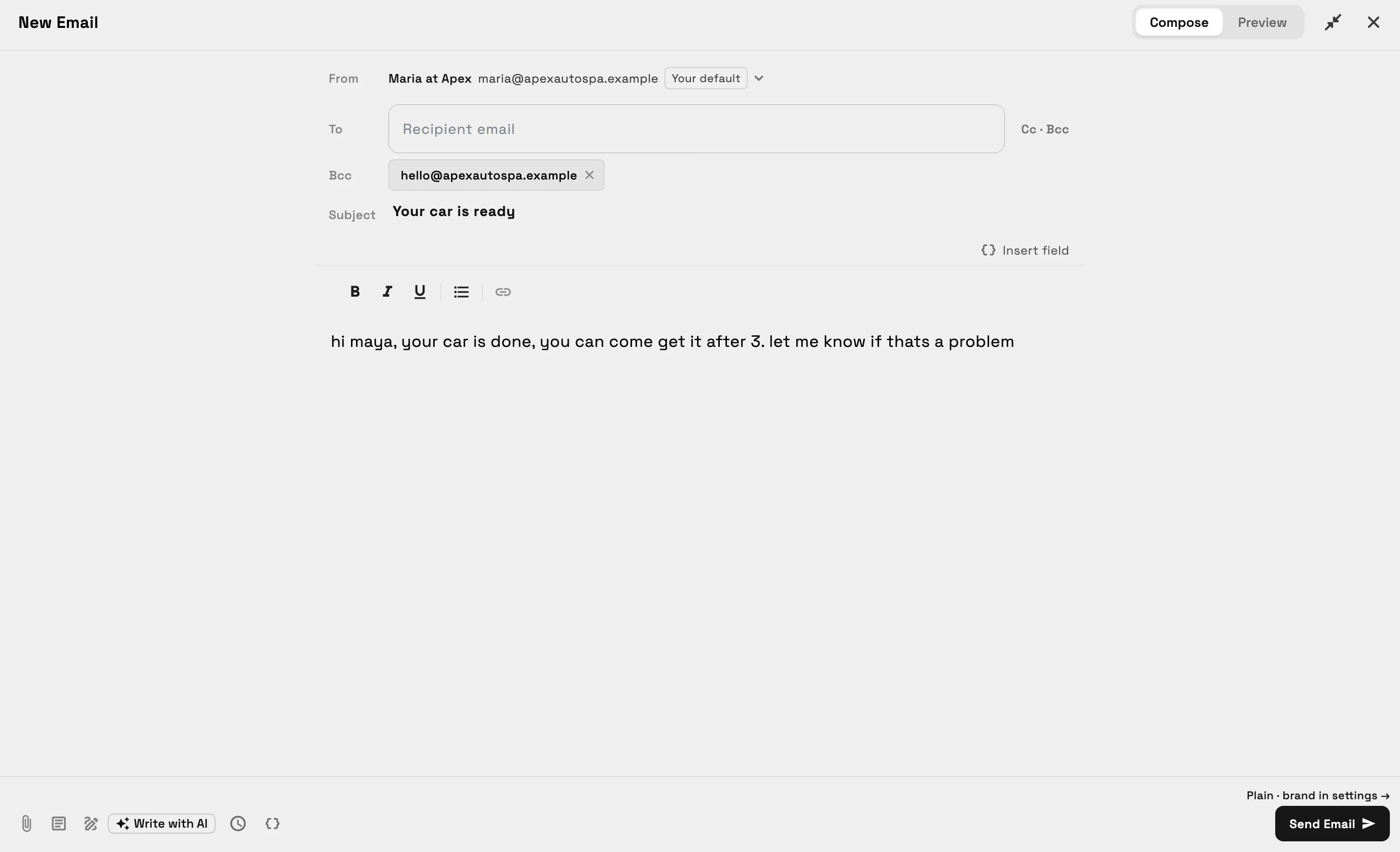
在電腦或平板電腦的網頁應用程式中,電子郵件撰寫器現在會以螢幕中間的寬視窗開啟,而不是右側的窄面板,因此您的訊息有足夠空間,且寄件人地址會完整顯示。關閉按鈕旁的「全螢幕」按鈕,或 ⌘/Ctrl+Shift+F,會填滿視窗並將您的訊息保留在一個易於閱讀的欄位中,且撰寫器會在該裝置上記住您的選擇。
⌘/Ctrl+Enter 可在您按下傳送按鈕時傳送電子郵件。在手機、iPhone 和 Android 應用程式中,撰寫器會保留您熟悉的版面配置。
- 在螢幕中間寬敞開啟
- 全螢幕,使用 ⌘/Ctrl+Shift+F
- ⌘/Ctrl+Enter 即可傳送
- 手機上的相同版面配置
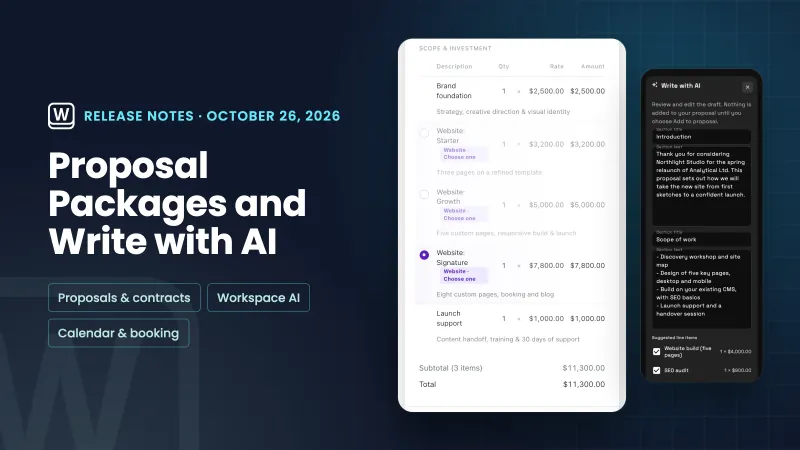 單選提案套件、用於提案的 AI 寫作,以及行事曆事件上的服務
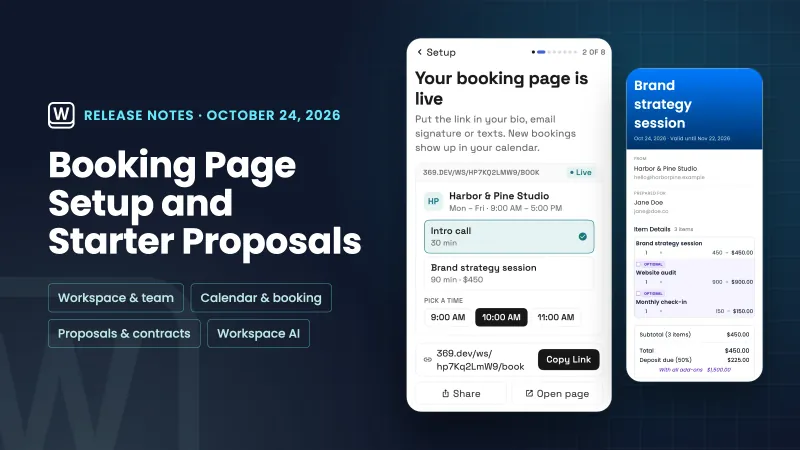 設定現在會建立您的預訂頁面,並根據您的服務開始建立您的第一個提案
 客戶電子郵件現在以您的品牌顯示,簽名檔獲得了專屬編輯器