How to accept Square payments in your client portal (2026)
Already use Square at the counter? Connect it to Workspace369 and clients pay invoices, pay links and deposits by card or Google Pay, into your Square account.

By Simon Dziak, Founder, Workspace369 · LinkedIn
Short answer: if your studio or salon already takes Square at the counter, connect the same Square account to Workspace369 in Settings → Integrations (Connect Square has the steps). Clients then pay invoices, pay links and proposal deposits on a page marked "Secured by Square", by card or Google Pay, and the money goes to your Square account.
What's inside?
When Square is the right processor for your portalA worked example: a studio taking Square in the portalWhat the client seesRunning Stripe and Square side by sideIf you disconnect SquareSet it up
When Square is the right processor for your portal
Square makes sense for online payments when you already run your counter on it. Taps at your Square register and invoice payments online then land in the same Square account.
It fits best when:
- You run a studio or salon with a counter. Walk-ins pay on your Square register, and the class pack, the bridal package or the monthly invoice gets paid online into the same account.
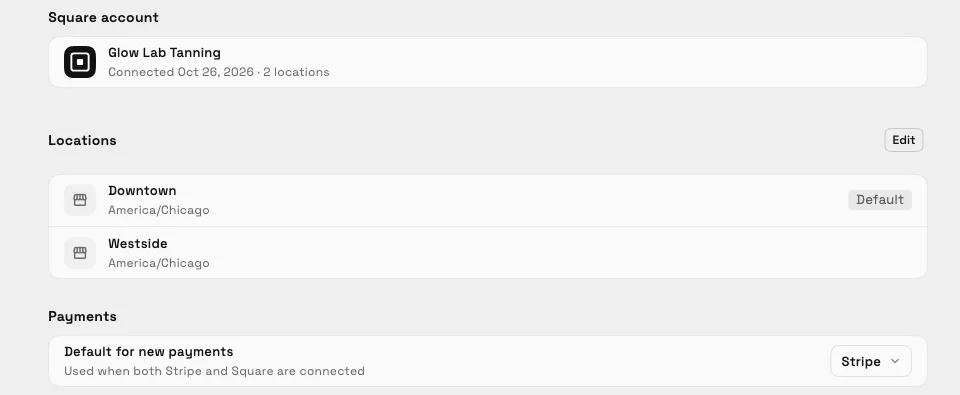
- You have more than one location. When you connect, you choose which Square locations to use and a default location, and new Square payments go there.
- You want Square without dropping Stripe. Both can be connected at once, and you pick which one new payments use.
Send Square invoices in the currency your Square account is set up for.
If you don't use Square in person, Stripe works the same way in the portal. The payments feature page covers both, and Square vs Stripe for service businesses compares the two.
A worked example: a studio taking Square in the portal
Take an example yoga studio (not a customer) that already uses Square at its counter. The owner sells private-session packs and sends invoices from Workspace369.
- Connect Square. The owner opens Settings → Integrations → Square, presses Connect, then Continue to Square, signs in to Square and approves access: take payments, read and update customers, read subscriptions, and read locations and items. The docs article Connect Square has every step.
- Choose a location. A short Set up Square wizard asks which Square locations to use and which one is the default, so new Square payments go to the main studio.
- Send the invoice as usual. The pack invoice goes out from the client record. Invoicing itself doesn't change.
- The client pays in the portal. The client opens the invoice from their portal and pays with Google Pay on their phone. The payment goes to the studio's Square account, and the invoice shows as paid.
What the client sees
The client sees your branded portal, the invoice and Square's card form. The page says "Secured by Square", shows a Google Pay button and "or pay with card", and ends with a Pay button for the amount due. The page follows the invoice's language.
If the client's bank asks for an extra check, Square can show it on the same page. If that check doesn't finish, the page says nothing was charged and the client can try again.
Proposal deposits work the same way: when a client accepts a proposal that asks for a deposit, they can pay it through Square.
Running Stripe and Square side by side
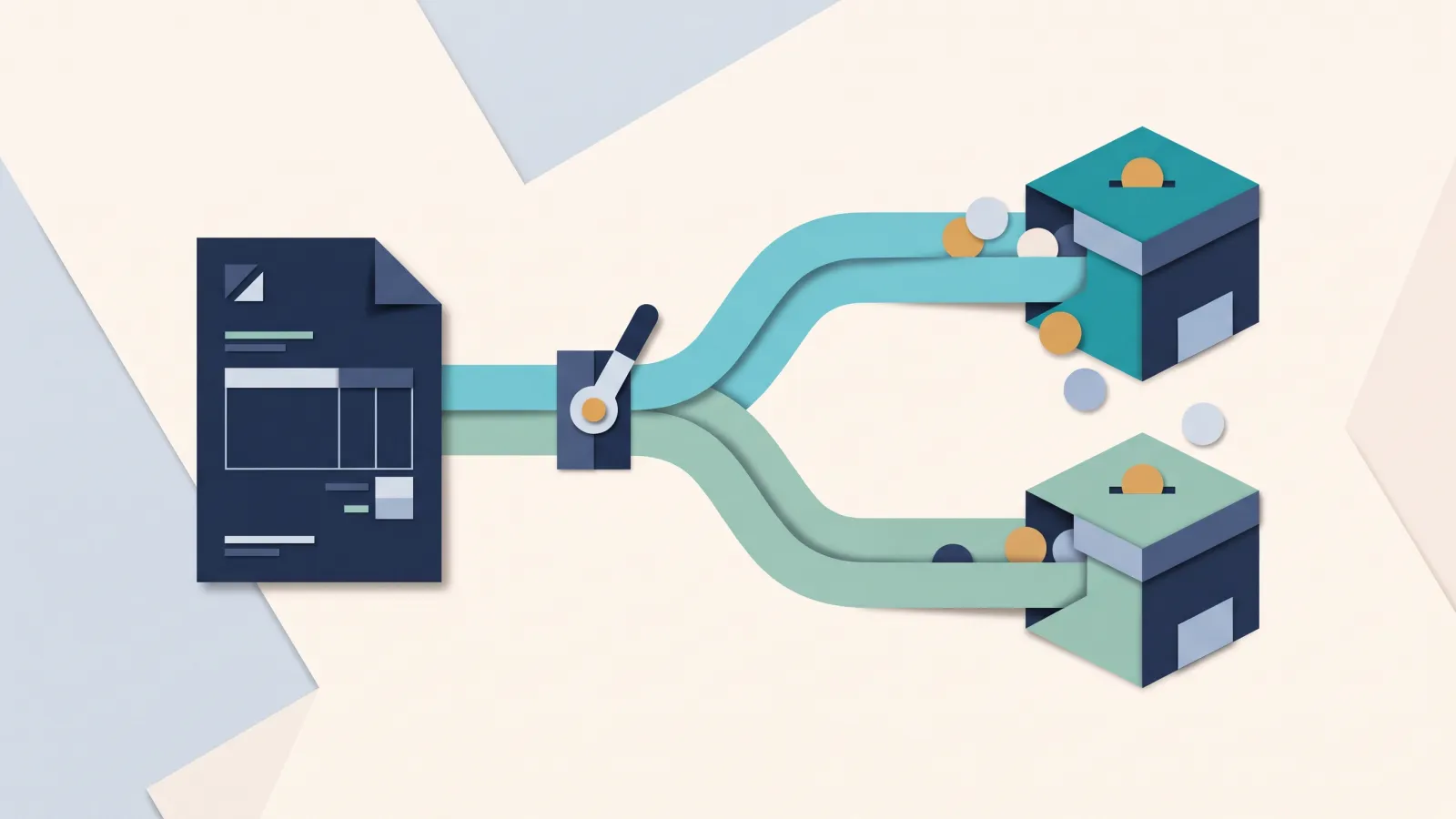
You don't have to choose one for good. With both connected, the Square page in Settings shows "Default for new payments", where you pick Stripe or Square. Switch it, and the pay pages of open invoices follow within about a minute.
That helps when you move from Stripe to Square gradually, or when your counter runs on Square and your online work on Stripe. Stripe stays the option for bank transfers (ACH) and card autopay on recurring invoices.
If you disconnect Square
If you disconnect Square, Square pay links stop until you reconnect. Stripe keeps working if it's connected, and open invoices set to Square switch to Stripe. Your clients, invoices and payment history stay in Workspace369, and money already paid stays in your Square account.
If Square access is removed in your Square dashboard or expires, Workspace369 shows a "Square is disconnected" banner with a Reconnect Square button, so a lapsed connection doesn't go unnoticed.
Set it up
Connect Square from Settings → Integrations → Square, or start a 14-day trial (card required, then $29/month on Cadet until you cancel) and connect it on day one. The Take payments with Square article walks through your first Square payment.
Run client follow-up in one workspace.
CRM, inbox, voice, invoicing, payments, projects, files, AI, and workflow automations — connected instead of exported.
14-day free trial. Card required. After the trial: from $29/month. Renews automatically every month until you cancel. Cancel anytime in Settings → Billing.
See pricing