How to use ChatGPT as a CRM (with your real clients and pipeline)
Use ChatGPT as a CRM two ways: a chat you paste notes into, or the Workspace369 plugin, where ChatGPT adds clients, looks them up and shows your pipeline.

By Simon Dziak, Founder, Workspace369 · LinkedIn
Workspace369 publishes this guide. The screenshots come from our own demo workspace, recorded in ChatGPT on November 23, 2026.
You can use ChatGPT as a CRM in two ways. On its own, ChatGPT is a chat you paste notes into: useful for tidying a list, but it keeps no client records. Connected to a CRM through a plugin, it becomes a way to run your real CRM by chat: add a client, look one up and check your pipeline. This guide shows both, then walks through the second with the Workspace369 plugin, step by step.
Key takeaways
- ChatGPT on its own can tidy a client list you paste in, but it isn't a CRM: nothing is saved as a client record, there are no pipeline stages, and it can't see your proposals or invoices.
- With a CRM plugin, ChatGPT works on your real records. With Workspace369's approved plugin, tell it about a new lead and it saves the client, with the company, email and lead source you gave it.
- Ask about any client and ChatGPT answers from that client's record: the stage they're in, their proposals and whether a follow-up is planned.
- Ask how your pipeline looks and you get each stage, how many clients are in it and what the deals are worth, close to the numbers on the Pipeline board in Workspace369.
What's inside?
Two ways to use ChatGPT as a CRMHow to use ChatGPT as a CRM with Workspace369The same pipeline, in Workspace369CRM prompts to try in ChatGPTWhat it costs
Two ways to use ChatGPT as a CRM
1. ChatGPT on its own. Paste in a list of clients and ChatGPT can sort it, summarize it or suggest who to contact. But it isn't a CRM. Nothing is saved as a client record, there are no pipeline stages, and it can't see your proposals, invoices or messages. Next week you paste the list in again.
2. ChatGPT with a CRM plugin. Add your CRM's plugin in ChatGPT and it works on your real records. With Workspace369, ChatGPT saves new leads as clients, answers questions from each client's record and reports on your pipeline, stage by stage. The CRM keeps the records; ChatGPT is a faster way to reach them.
| ChatGPT on its own | ChatGPT with the Workspace369 plugin | |
|---|---|---|
| Client records | None, only what you paste in | Saved in Workspace369 |
| New leads | You retype them later | Created as clients from the chat |
| Client history | What you remember to paste | Stage, proposals and follow-ups from the record |
| Pipeline | None | Each stage, with clients and deal value |
| Sending to clients | You send it yourself | Waits in Approvals until you approve it |
How to use ChatGPT as a CRM with Workspace369
Step 1: Connect Workspace369 to ChatGPT
The workspace owner or an admin turns on Allow AI connections in Settings, AI connections. Then, in ChatGPT, open the Workspace369 plugin, add it, and sign in to Workspace369 to choose the workspace and approve what ChatGPT may do. The ChatGPT tutorial shows every click.
Step 2: Add a new lead
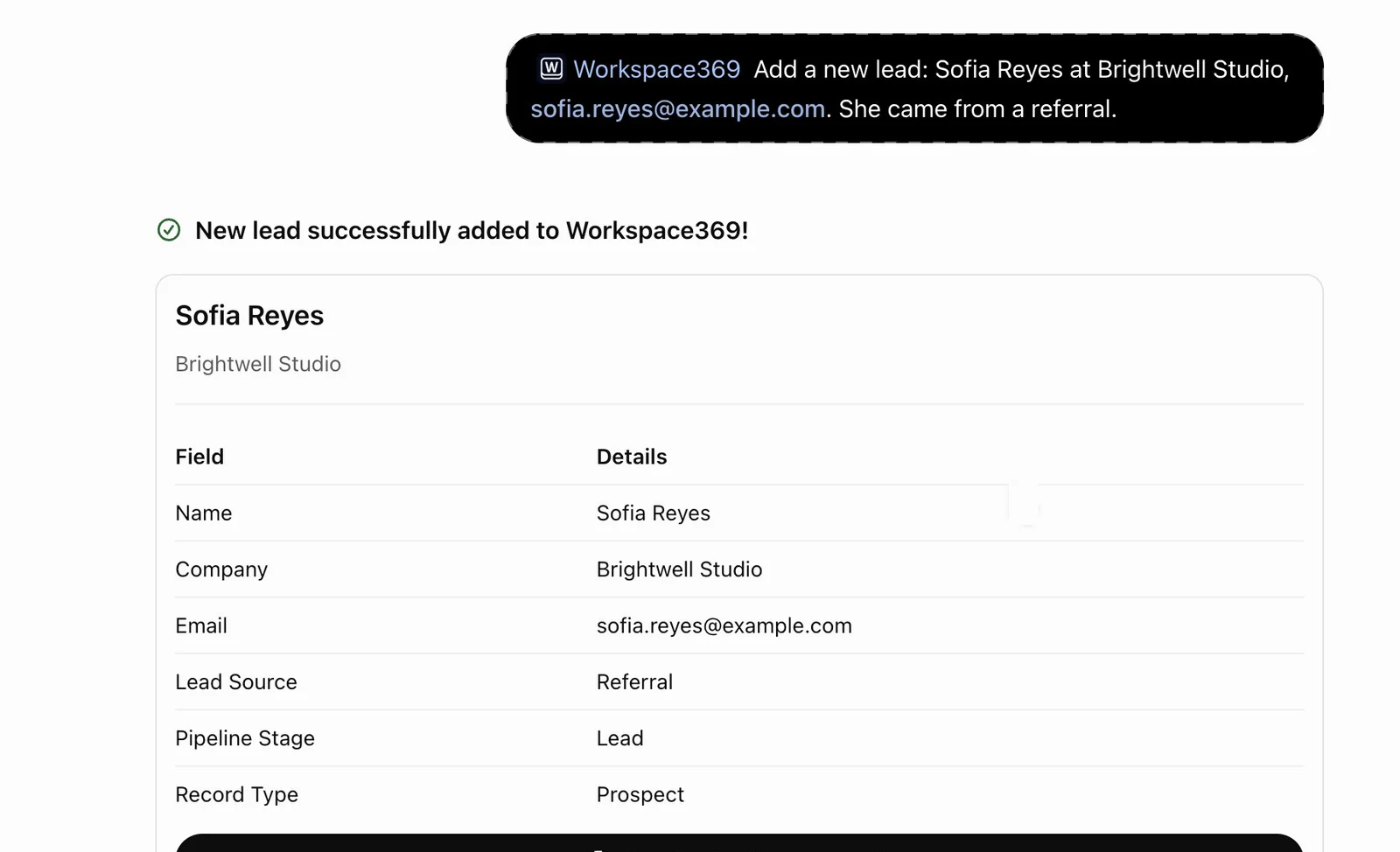
Pick Workspace369 in the message box and describe the lead in your own words. For example: "Add a new lead: Sofia Reyes at Brightwell Studio, sofia.reyes@example.com. She came from a referral."
ChatGPT creates the client in Workspace369 with the name, company, email and lead source, in your first pipeline stage.
Step 3: Ask about a client
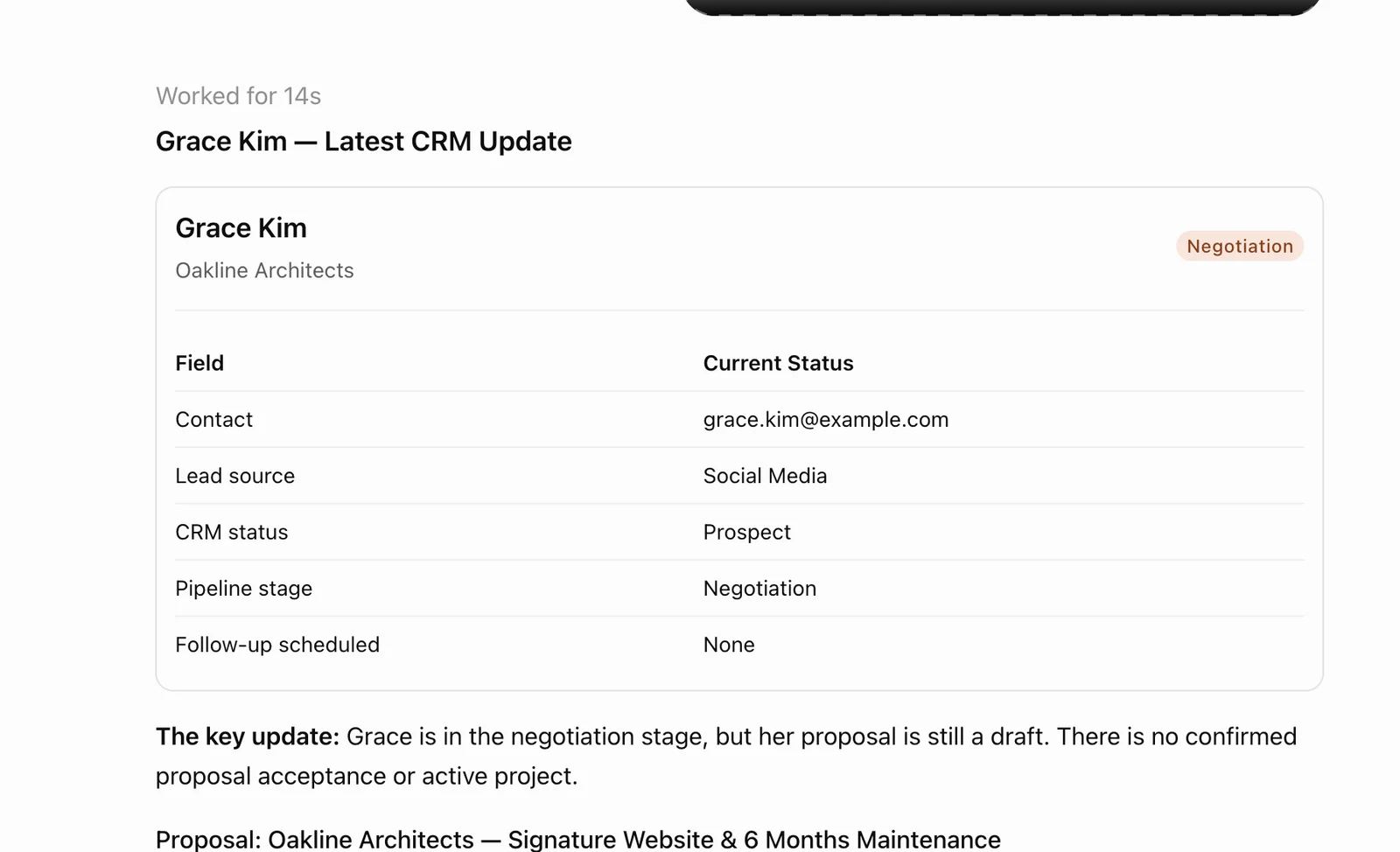
Ask about anyone in your workspace. For example: "What's the latest with Grace Kim?"
ChatGPT answers from her record: her company, the stage she's in, where the lead came from and whether a follow-up is planned. It also checks her proposals, so you see what's still a draft and what has been sent.
Step 4: Check your pipeline
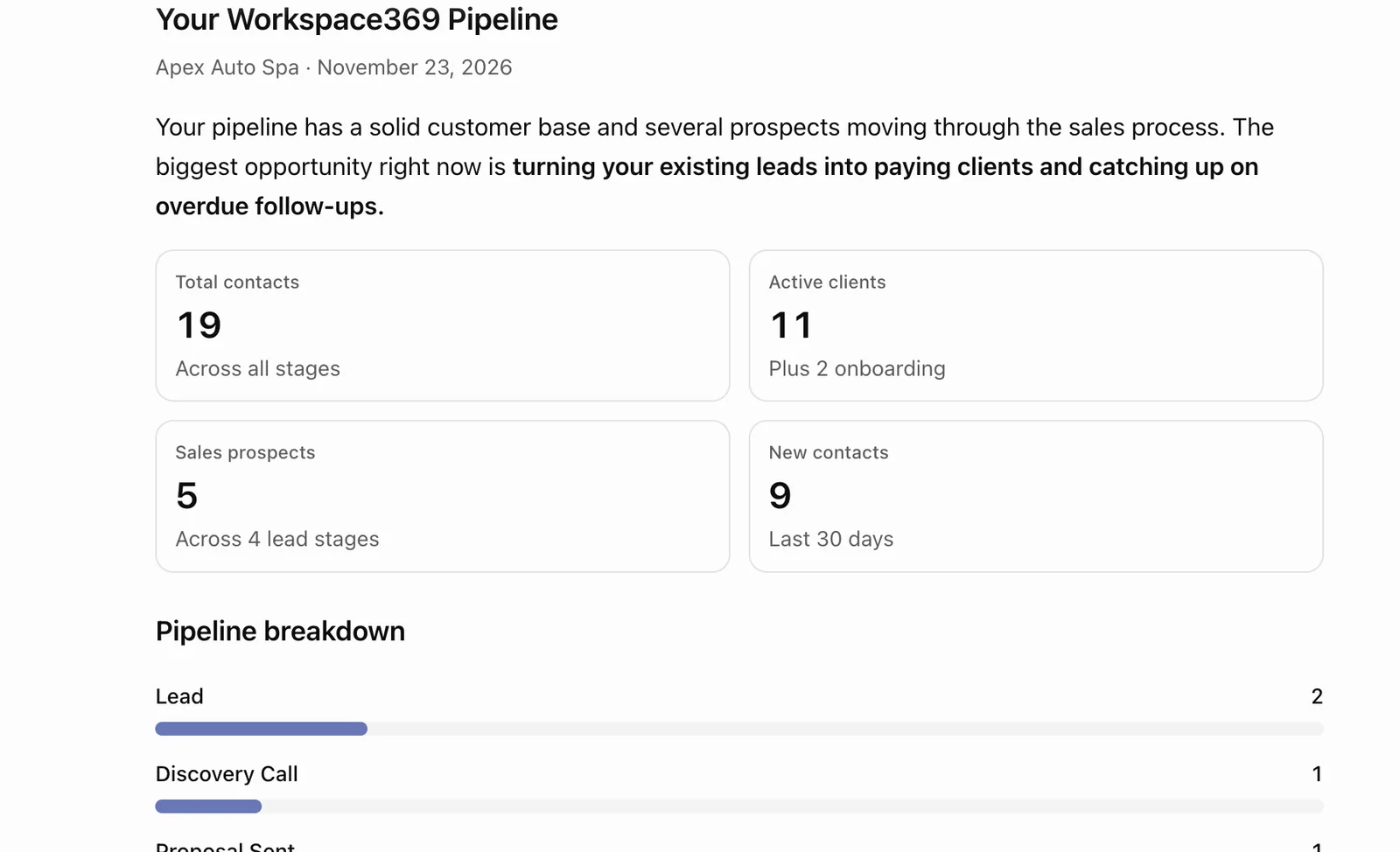
Ask: "How does my pipeline look?"
ChatGPT returns each stage with the number of clients in it, then the value of the deals in your lead stages. The values are approximate stage totals, and ChatGPT says so.

The same pipeline, in Workspace369
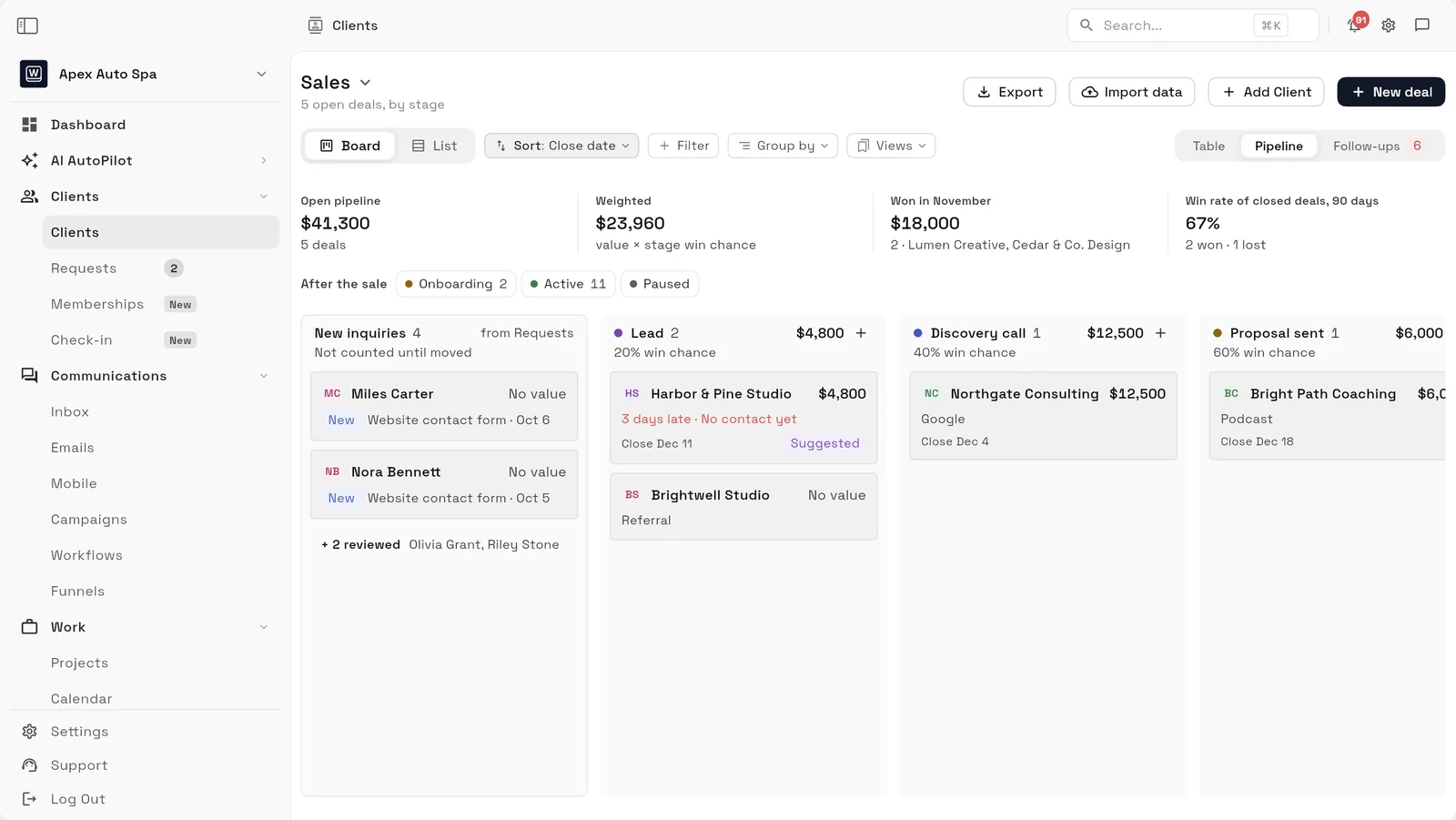
Everything ChatGPT did is in Workspace369. The new lead sits in the Lead column of the Pipeline board, and the open pipeline total matches the number ChatGPT gave. From here you can drag the deal to the next stage, add a value or plan a follow-up, in the app or by asking ChatGPT. See how the CRM works in Workspace369.
CRM prompts to try in ChatGPT
- "Add a new lead: Sofia Reyes at Brightwell Studio, sofia.reyes@example.com. She came from a referral."
- "What's the latest with Grace Kim?"
- "How does my pipeline look?"
- "Which clients are in Onboarding?"
- "Who should I follow up with this week?"
For the last one, see the follow-ups tutorial. You can also make an invoice with ChatGPT or write a proposal the same way, and there are more ideas in 24 MCP CRM prompts.
What it costs
The ChatGPT plugin is on every Workspace369 plan, from Cadet at $29 a month (one seat). Every successful request counts toward the workspace's monthly AI usage. Start with the 14-day trial; a card is required, and the plan renews monthly after the trial until you cancel. Compare the plans.
Sources reviewed for this guide
- Workspace369 is now an approved ChatGPT pluginApproval, plans and what waits for approval, reviewed November 23, 2026.
- Workspace369 MCP permissions, usage and auditPermissions, Approvals and Send without asking, reviewed November 23, 2026.
- Workspace369 pricingPlan prices and trial terms, reviewed November 23, 2026.
Run client follow-up in one workspace.
CRM, inbox, voice, invoicing, payments, projects, files, AI, and workflow automations — connected instead of exported.
14-day free trial. Card required. After the trial: from $29/month. Renews automatically every month until you cancel. Cancel anytime in Settings → Billing.
See pricing