Billing & paymentsInbox & callsProposals & contracts
Client emails now arrive in your brand, and signatures get a proper editor
Invoice reminders, proposals, receipts and e-signature emails go out in your workspace's look from your mailbox, with a richer signature editor and a clearer reply box.

Client emails in your own look, from your own mailbox
Emails your clients get from you now carry your workspace's email look: your logo, brand color and layout. They go from your business mailbox, so a reply comes back to you.
This covers payment reminders with the invoice PDF attached, proposal emails and proposal accepted and follow-up emails, payment receipts, billing and autopay notices, e-signature emails and change-order emails.
- Reminders, proposals, receipts, e-signature and change-order emails
- Replies come back to your business mailbox
- Replies you type in the Inbox still go out as plain email
- Where to find it
- Automatic when you send from Invoices, Proposals, Contracts and Change orders
- Plans
- Every plan
Choose your email layout and signature card
In Email appearance you pick left-aligned or centered text and whether your logo sits on top or small beside your business name under the message. You can set the size of that signature logo.
A signature card shows your name and role next to the logo. Each inbox can follow the workspace look or override it for that inbox only.
- Left or centered layout
- Logo on top or in the signature, with a size setting
- Name and role on the signature card
- Per-inbox override
- Where to find it
- Settings
- Email, SMS & phone
- Email appearance
- Plans
- Every plan
A signature editor that does the work for you
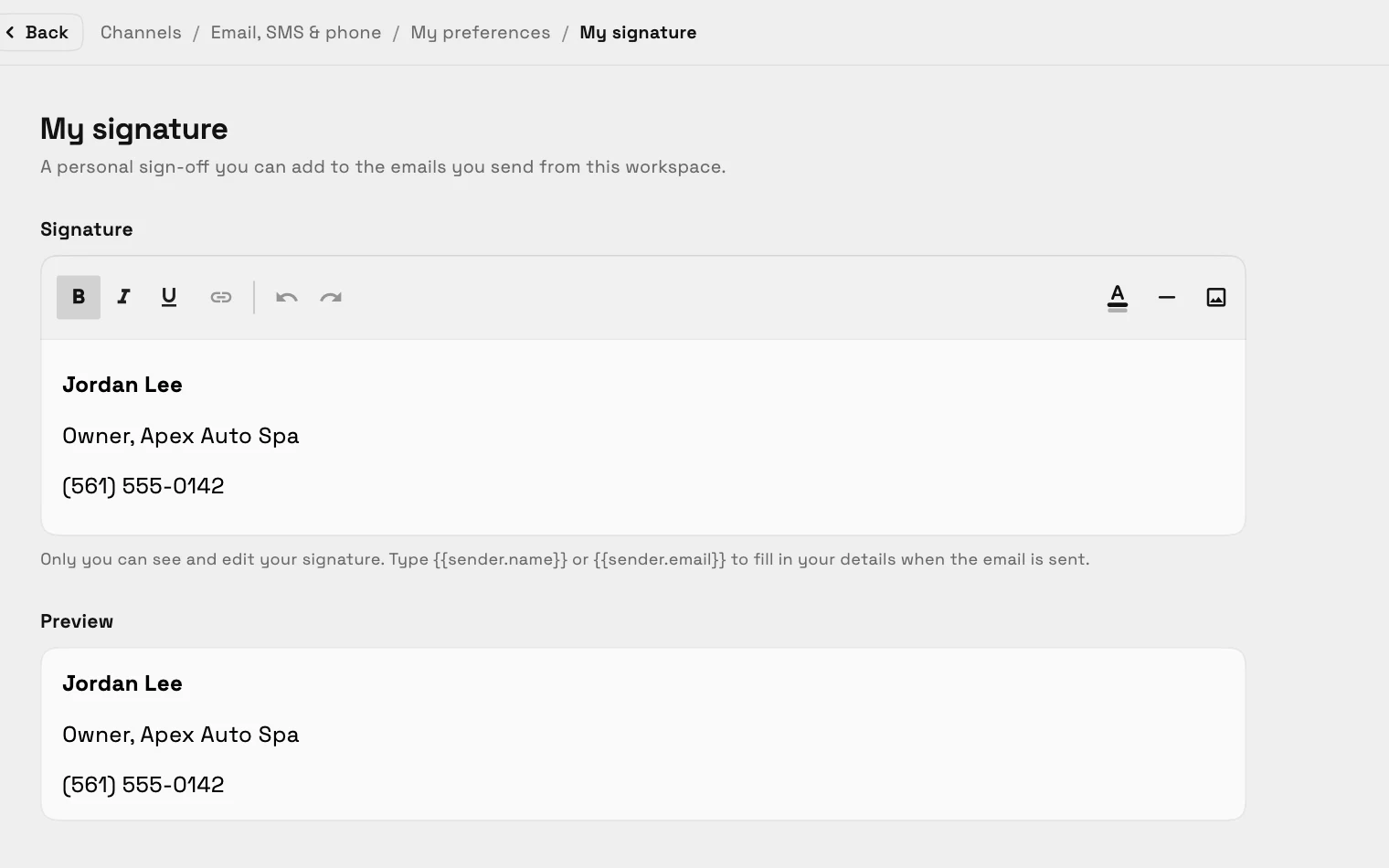
Size each signature image (100, 160, 240 or 360 pixels wide), color your text and add a divider line. Starting from nothing, build a signature from a short form with job title, company, phone and website.
Or paste the HTML of your existing Gmail or Outlook signature and keep its text, links, colors, images and dividers. Reply boxes now show your signature as a preview under the message.
- Image sizes, text color and divider
- Build from a short form
- Paste an existing HTML signature
- Same signature for your own sends and each inbox's shared one
- Where to find it
- Settings
- Email, SMS & phone
- My preferences
- My signature
- Plans
- Every plan
- Learn more
- Inbox and email
Ready when you are
See where Workspace369 fits into your client-work flow.
Start with the modules you need today, then turn on AI, automations, accounting, inventory, requests, and reporting as the operation grows.
14-day free trial. Card required. After the trial: from $29/month. Renews automatically every month until you cancel. Cancel anytime in Settings → Billing.
