Billing & paymentsCalendar & booking
Take payments through your own Square account
Connect your own Square account so clients pay invoices, pay links and proposal deposits by card or Google Pay, and choose Stripe or Square for each payment.
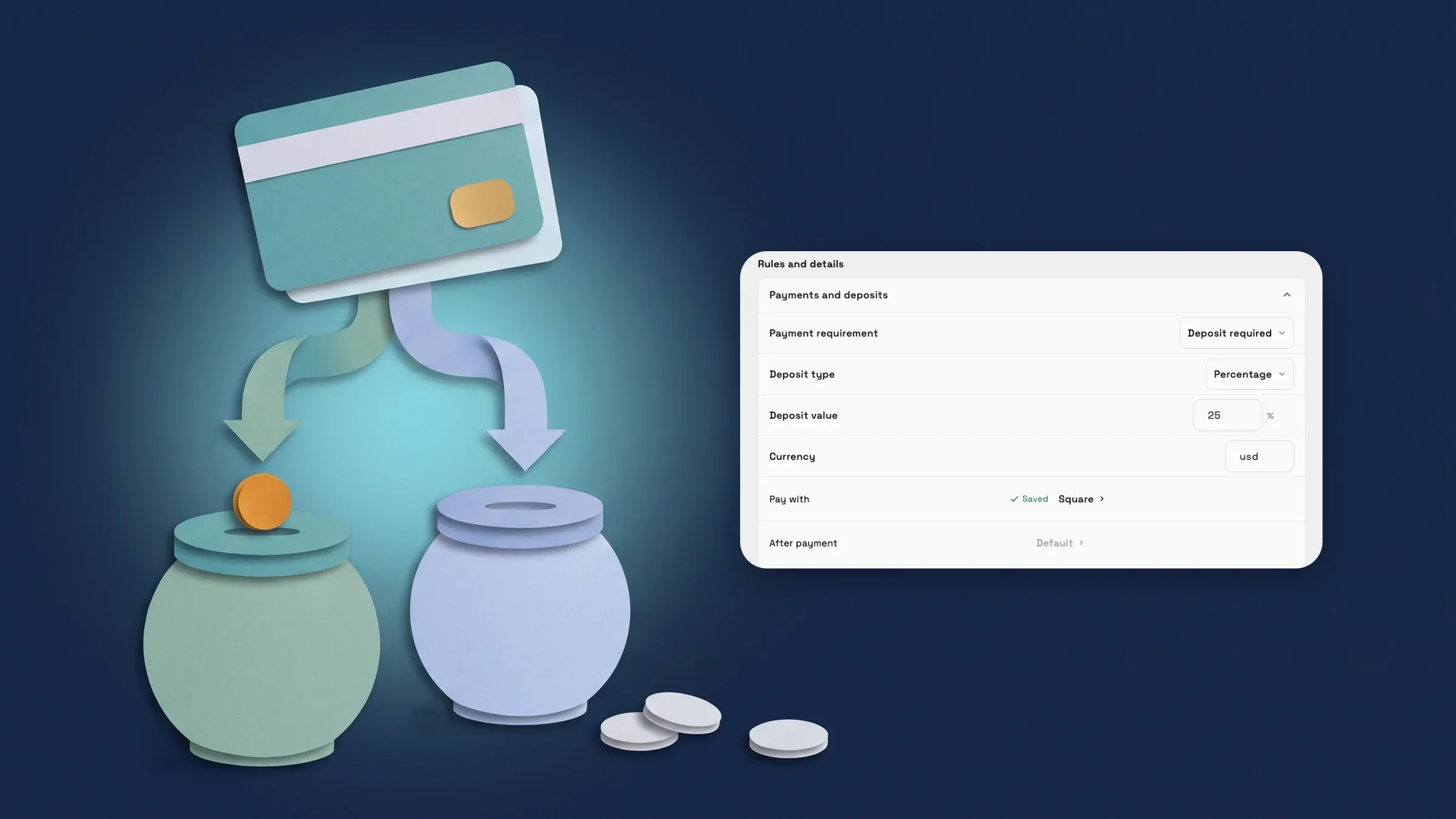
Connect your own Square account
Go to Settings → Integrations → Square and choose Connect, then Continue to Square. You sign in to Square and approve access, and your money stays in your Square account. Only owners and admins can connect it.
Clients then pay invoices, pay links and proposal deposits on a Secured by Square page, by card or Google Pay, and the money lands in your Square account. Until Square can take cards on your account, new payments keep going through Stripe.
Connecting Square on its own does not move any invoice. If Stripe is connected too, you decide which one new payments use. If Square access is removed or expires, a Square is disconnected banner appears, Square pay links pause until you reconnect and Stripe links keep working. It is on the web app now and comes to the iPhone app with its next update.
- Card and Google Pay on a Secured by Square page
- Your money stays in your Square account
- Connecting alone changes nothing until you set the default

- Where to find it
- Settings
- Integrations
- Square
- Plans
- Every plan
- Learn more
- Square integrationConnect Square guide
Choose Stripe or Square for each payment
With Stripe and Square both connected, open Settings → Integrations → Square and set Default for new payments to Stripe or Square. Settings → Online payments has the same choice. When you change it, a message says online payments now use that processor, and open invoices' pay pages switch within about a minute.
To override the default for one invoice, open it, go to its Payment tab and use Pay with: Default, Stripe or Square. The same Pay with row is on a Flash Pay link, on a proposal's Deposit on accept and on a retainer. With only one processor connected the row is locked on it, so nothing changes.
Invoices and retainers collected by autopay stay on Stripe, because autopay charges a saved Stripe card, and prepaid retainers stay on Stripe so their balance can be refunded. Pay with is on every plan. It is on the web app now and comes to the iPhone app with its next update.
- Default for new payments in Settings, Pay with on each invoice
- Also on Flash Pay links, proposal deposits and retainers
- Autopay and prepaid retainers stay on Stripe
- Where to find it
- Settings
- Online payments
- Default for new payments
- Plans
- Every plan
Take booking deposits through Square
Booking deposits can go through Square. Open a service in Product Catalog, then Online booking → Configure booking and open Payments and deposits. Pay with there sends the service's booking payments through Stripe or Square, or leaves them on Default. A client who books and pays a deposit then pays on a Secured by Square page.
Square takes the deposit only when it is connected and the service's payments are ready for it, and the service is set to Square or follows the default. A service that saves a card for no-shows takes its deposit through Stripe when Stripe is connected, and so does a booking priced in a currency other than USD, CAD, GBP, AUD, JPY or EUR.
Online booking is on Specialist, Commander and Enterprise, so booking deposits follow it. It is on the web app now and comes to the iPhone app with its next update.
- Pay with in Payments and deposits on each service
- Square, Stripe or the workspace default per service
- A no-show card or a currency Square does not take uses Stripe

- Where to find it
- Product Catalog
- a service
- Online booking
- Configure booking
- Payments and deposits
- Plans
- Specialist and up
Refund a Square card payment from the invoice
A card payment taken through Square is refunded the same way as a Stripe one. Open the invoice's Payment tab, open the ⋯ menu on the payment, choose Refund… and complete the Refund payment sheet. The money goes back to the card the client used.
Square refunds a card payment up to one year after it was taken. Only owners and admins can refund, on every plan. It is on the web app now and comes to the iPhone app with its next update.
- Full or partial refunds from the Payment tab
- Square refunds card payments for up to one year

- Where to find it
- Invoices
- an invoice
- Payment
- a payment's ⋯ menu
- Refund…
- Plans
- Every plan
Quick answers
- Which payment methods do clients get when they pay through Square?
- Card and Google Pay, on a Secured by Square page. The money lands in your own Square account.#
- Does connecting Square change how my invoices are paid?
- Not by itself. If Stripe is connected too, you set Default for new payments in Settings → Online payments, and you can choose Stripe or Square for one invoice with Pay with.#
- Can I take booking deposits through Square?
- Yes. In a service's Payments and deposits, set Pay with to Square, or follow the default. It needs Square connected and ready for cards. A service with a no-show card, or a currency other than USD, CAD, GBP, AUD, JPY or EUR, uses Stripe.#
- Can I refund a Square payment from the invoice?
- Yes. Open the invoice's Payment tab, open the ⋯ menu on the payment and choose Refund…. Square refunds a card payment for up to one year after it was taken.#
- Which plans include Square payments?
- Every plan: Cadet, Voyager, Specialist, Commander and Enterprise. Booking deposits follow online booking, which is on Specialist, Commander and Enterprise.#
Related updates
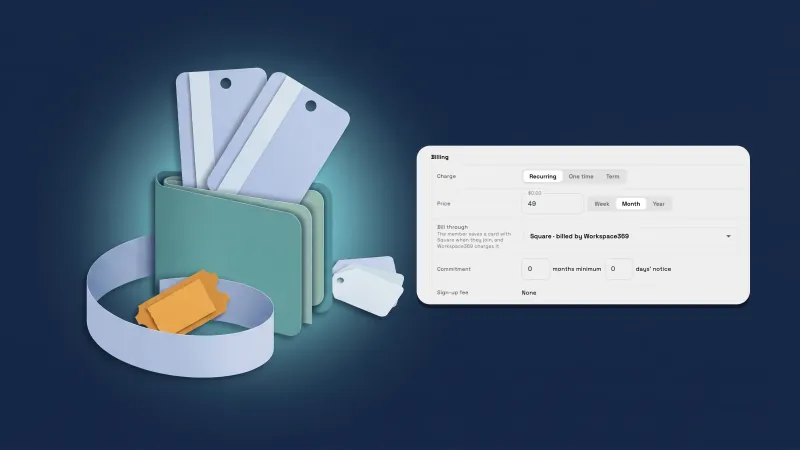 Sell memberships through Square, and handle Square members’ requests
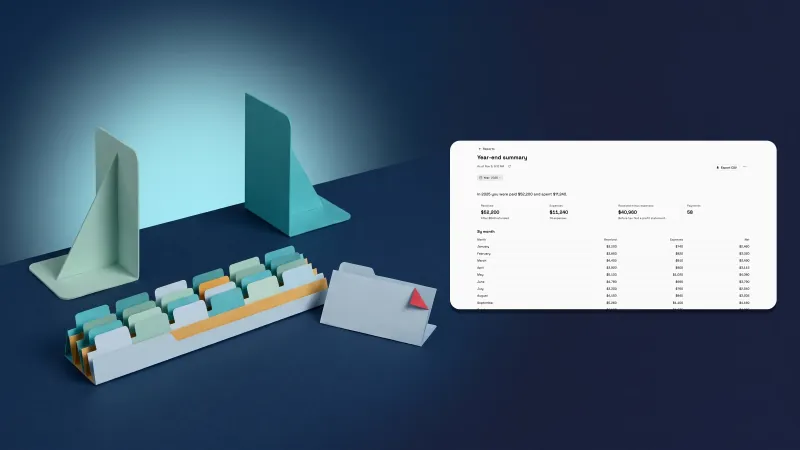 Year-end income summary in Finance → Reports
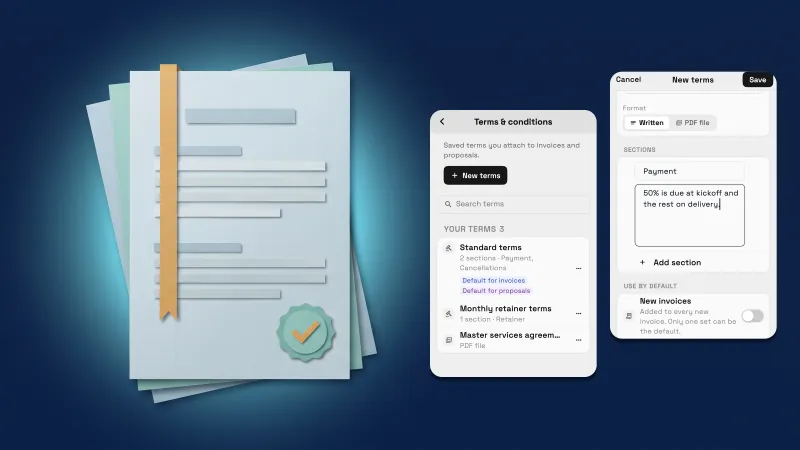 Save your terms once and edit them right from the invoice
Take payments through your own Square account, in your own workspace
Start your free trial on Specialist, then find it under Settings.
14-day free trial. Card required. After the trial: $149/month for Specialist. Renews automatically every month until you cancel. Cancel anytime in Settings → Billing.