Clients & CRMWorkspace AIInbox & calls
Set up your CRM with AI, and read through your email faster
Describe your business and AI suggests pipeline stages, client fields and lead sources you edit before saving. Emails now steps from one email to the next.
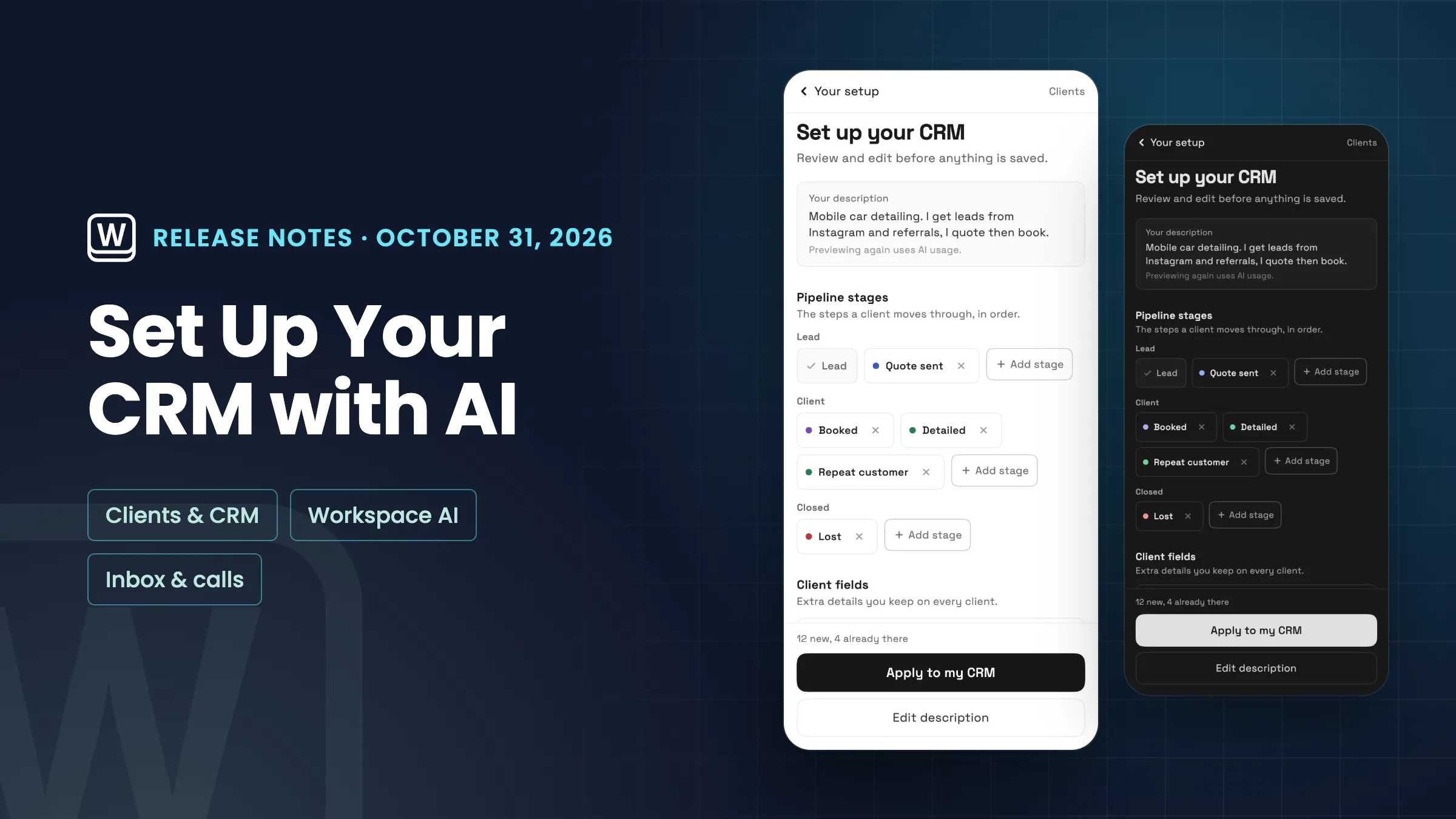
Set up your whole CRM with AI
Describe your business in a sentence or two, for example a mobile car detailing service that gets leads from Instagram and referrals, or start from one of the examples. Workspace369 suggests pipeline stages, client fields and lead sources to match. You can rename, remove or add any of them, and nothing is saved until you choose Apply to my CRM.
Anything your CRM already has is marked Already in your CRM and skipped, so applying never changes or deletes what you have. You can change all of it later in settings. The suggestion uses your monthly AI usage, and the AI can get things wrong, so check the list before you apply. Applying uses no AI usage.
Find it in your workspace setup, on the Add your first client step, under Set up your whole CRM with AI. Owners and admins can use it, and so can team members allowed to manage stages, client fields and lead sources. It is on Cadet, Voyager, Specialist, Commander and Enterprise, on the web app now, and comes to the iPhone and Android apps with their next update.
- Stages, fields and lead sources from one description
- Edit everything before it is saved
- Never changes or deletes what you have
- Cadet plan and up
- Where to find it
- Workspace setup
- Add your first client
- Set up your whole CRM with AI
- Plans
- Cadet and up
- Learn more
- Workspace AILeads from your website
Read through your email faster
Open an email and your folders, search and Compose stay where they were. Step to the newer or older email with the arrows at the top, which also show where you are, such as 3 of 12. On a computer, j and k move between emails, e archives, # moves to Trash and Esc goes back to the list.
Archive and Delete now act at once, with Undo on the notice, and take you straight to the next email. Spam has a Not spam button for one email or many, and Trash has Empty Trash for people allowed to delete emails for good. Drafts and Scheduled look like the rest of your inbox, and switching tabs and opening emails is smoother.
Nothing changes about your plan or your mail. It is on the web app now and comes to the iPhone and Android apps with their next update. Keyboard shortcuts work on a computer only.
- Next and previous email from the reader
- j, k, e, # and Esc on a computer
- Archive and Delete with Undo
- Not spam and Empty Trash

- Where to find it
- Communications
- Emails
- open an email
- Plans
- Every plan
- Learn more
- Inbox and emailInbox tutorial
Quick answers
- Can AI set up my CRM in Workspace369?
- Yes. Describe your business and Workspace369 suggests pipeline stages, client fields and lead sources. You edit them, then choose Apply to my CRM. Nothing is saved before that.
- Will setting up my CRM with AI change what I already have?
- No. Anything already in your CRM is marked and skipped. Applying only adds new stages, fields and lead sources, and never changes or deletes existing ones.
- Which plans can set up the CRM with AI?
- Cadet, Voyager, Specialist, Commander and Enterprise. The suggestion uses your monthly AI usage; applying it doesn't.
- Does Workspace369 Emails have keyboard shortcuts?
- Yes, on a computer. With an email open, j and k move to the next or previous email, e archives, # moves it to Trash and Esc goes back to the list.
- Can I empty the Trash in Workspace369 Emails?
- Yes. Trash has an Empty Trash button for people whose role allows deleting emails for good.
Related updates
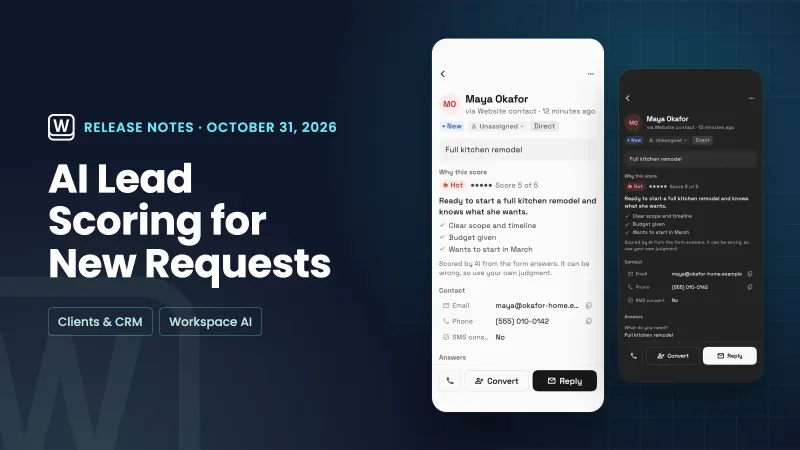 AI lead scoring labels new requests hot, warm or cold
 Workspace369 is now an approved plugin in ChatGPT
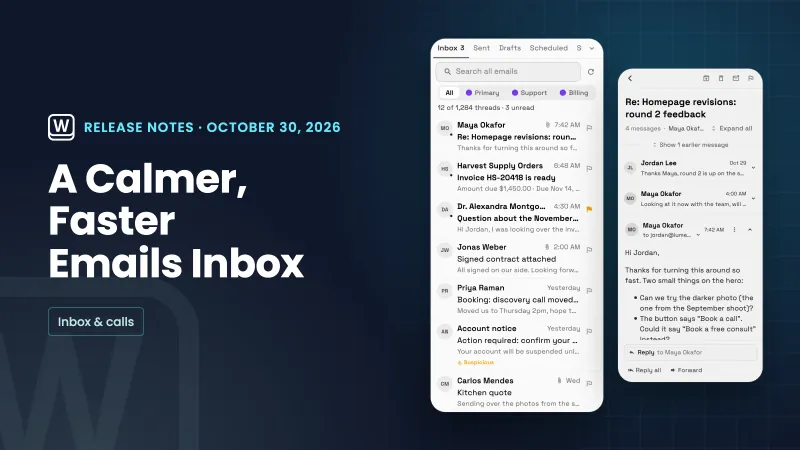 A calmer Emails inbox, with one-click archive and a simpler reader
Set up your CRM with AI, and read through your email faster, in your own workspace
Start your free trial on Cadet, then find it under Workspace setup.
14-day free trial. Card required. After the trial: $29/month for Cadet. Renews automatically every month until you cancel. Cancel anytime in Settings → Billing.