Billing & paymentsClients & CRMClient portal
Sell memberships and check members in
Create membership types, sell them with a pay link through your own Stripe, check members in at the front desk, and let members see their pass in the client portal.
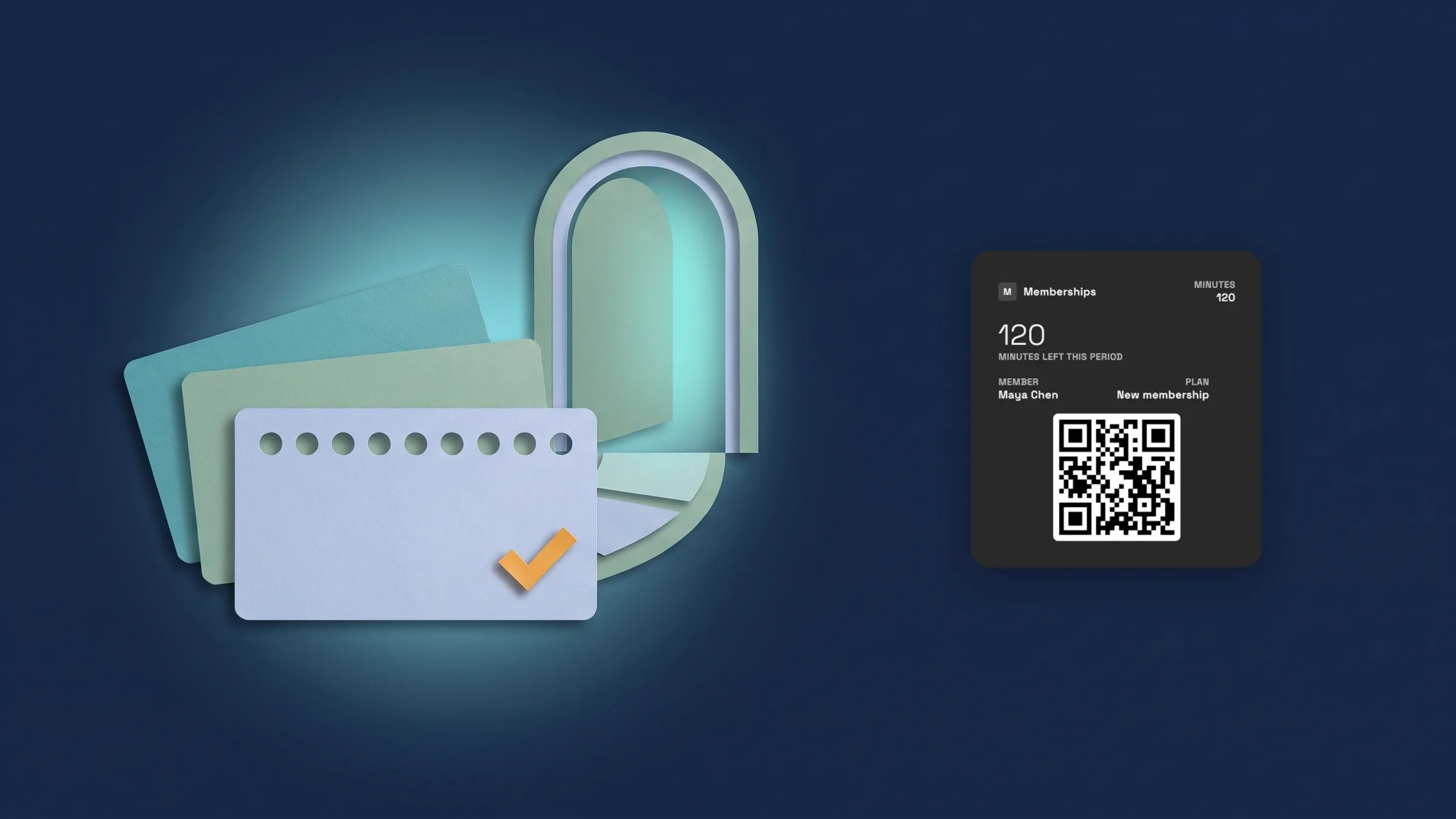
Build membership types from presets
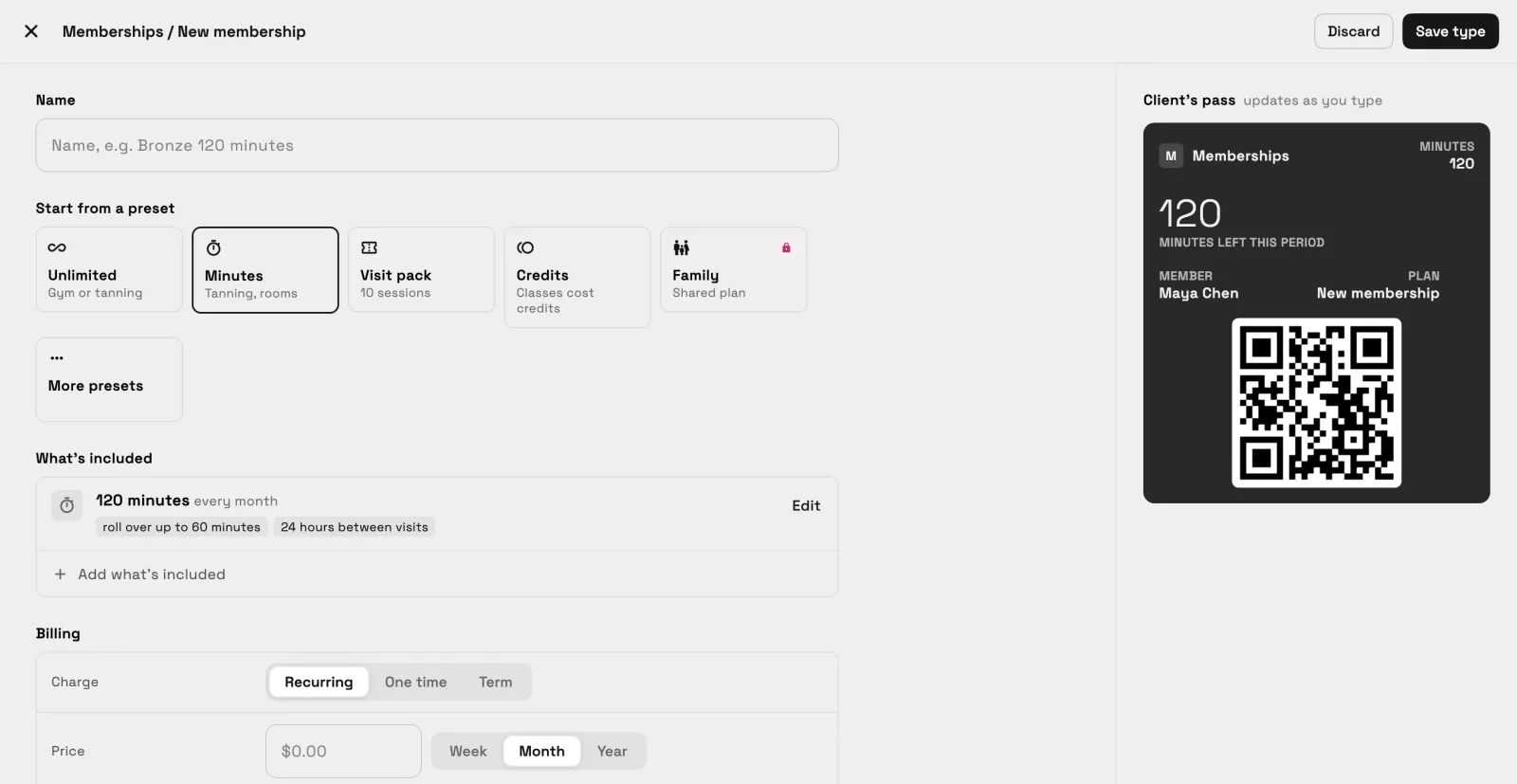
Open Clients → Memberships and choose New membership. Start from a preset: Unlimited, Minutes, Visit pack, Credits or Family, with Unlimited tanning, Salon membership, Coworking and Day pass under More presets. Then give the type a Name and set What's included, Billing and At the door.
What's included holds what a member gets: unlimited visits, minutes, visits or credits, with optional refills. Billing sets how the type is charged, with a sign-up fee, a commitment and what happens after a failed payment. At the door sets Freezes and Guest passes, and on Specialist and up, what a member must do Before first visit. A preview of the client's pass updates as you type, and Save type keeps it.
Memberships are on Cadet and up. The Family preset is on Voyager and up. It is on the web app now and comes to the iPhone app with its next update.
- Presets for gyms, studios, tanning, salons, coworking and day passes
- What's included, Billing and At the door in one editor
- A live preview of the client's pass while you build
- Where to find it
- Clients
- Memberships
- New membership
- Plans
- Cadet and up
- Learn more
- PaymentsCreate a membership plan guide
Sell a membership with a pay link
Open a client, use the ⋯ menu and choose Sell membership. Pick the membership, then under How they pay choose Pay link and press Sell. The sheet says Pay link ready and Copy Link puts the link on your clipboard, so you can send it the way you usually do. The membership starts when the client pays. (Changed Nov 2: before you press Sell, the sheet shows First charge, with any setup fee, and Then, with what the client pays next and from when, or when the membership ends. Dates count from the day the client pays.)
The payment is billed through your own Stripe account, so connect Stripe first. Workspace369 doesn't email or text the link for you, so nothing reaches the client until you send it. Selling is on Cadet and up. It is on the web app now and comes to the iPhone app with its next update.
- Client ⋯ menu → Sell membership → Pay link → Sell → Copy Link
- Billed through your own Stripe account
- You send the link; the app sends nothing to the client
- Changed Nov 2: First charge and Then show before you press Sell
- Where to find it
- Clients
- a client
- ⋯ menu
- Sell membership
- Plans
- Cadet and up
- Learn more
- PaymentsCreate a membership plan guide
Check members in at the desk
Open Clients → Check-in. Check people in with Camera by scanning a member's pass, with Scanner for a handheld scanner, or with Search by name. The screen says Ready for the next member until someone arrives, and Today lists the day's check-ins. The owner can always check members in; staff check-in is on Voyager and up.
Each member has a pass with a QR code, so they can show it at the front desk. Multi-location membership rules are on Commander and up. It is on the web app now and comes to the iPhone app with its next update.
- Camera, Scanner and Search at the front desk
- A QR pass for every member
- Staff check-in on Voyager and up; the owner can always check in
- Where to find it
- Clients
- Check-in
- Plans
- Cadet and up
Members see their membership and pass in the portal
When a client has a membership, their client portal shows a Membership and pass section: the plan and its status, the QR code to show at the front desk, what's left in each balance, and Recent visits.
Under Manage, members can freeze when the type allows it, update their card, or cancel. Members can't buy a membership from the portal; you sell it from the client's ⋯ menu. The Membership and pass section shows only for clients who have a membership. It is on the web app now and comes to the iPhone app with its next update.
- A Membership and pass section with the QR code and balances
- Freeze membership when the type allows, Update card, Cancel membership
- Selling stays with you, not in the portal
- Where to find it
- The client portal
- Membership and pass
- Plans
- Cadet and up
See check-ins in the Check-ins report
Open Finance → Reports and choose Check-ins, in the Memberships & check-ins group. It shows busy times and check-ins per day, and you can look at 7, 30 or 90 days, or set a custom range. The same report is on the Report tab of the Check-in screen. The location comparison report is on Commander and up. It is on the web app now and comes to the iPhone app with its next update.
- Finance → Reports → Check-ins
- Busy times and check-ins per day
- 7, 30, 90 days or a custom range
- Where to find it
- Finance
- Reports
- Check-ins
- Plans
- Cadet and up
See how your programs run in Programs & Sessions
Open Finance → Reports and choose Programs & Sessions. The tiles show Sessions, Show-up rate and Group calls held for the range you pick. By coach lists one-to-one sessions, no-shows and show-up for each coach, and By tier shows Members, Left and Joined for each program tier.
Monthly revenue shows to the owner and admins only. Members who pay in a different currency from their program are noted but not added to the revenue. The report is on Voyager and up. It is on the web app now and comes to the iPhone app with its next update.
- Sessions, Show-up rate and Group calls held
- By coach and By tier breakdowns
- Monthly revenue shows to the owner and admins only
- Where to find it
- Finance
- Reports
- Programs & Sessions
- Plans
- Voyager and up
Quick answers
- How do I create a membership type?
- Go to Clients → Memberships and choose New membership. Start from a preset, then set What's included, Billing and At the door, and choose Save type.
- How do I sell a membership to a client?
- Open the client, use the ⋯ menu, choose Sell membership, pick the membership and Pay link, then press Sell and Copy Link. The membership starts when they pay.
- Does Workspace369 send the pay link to my client?
- No. The app sends nothing to the client. You copy the link and send it the way you usually do.
- Can members buy a membership in the client portal?
- No. You sell memberships from the client's ⋯ menu. Members see their membership and pass in the portal, and can update their card or cancel, and freeze when the type allows.
- How do I check a member in?
- Open Clients → Check-in and use Camera, Scanner or Search. The owner can always check members in; staff check-in is on Voyager and up.
- Which plans include memberships and the Programs & Sessions report?
- Memberships are on Cadet and up. Staff check-in and the Family preset are on Voyager and up, and so is the Programs & Sessions report. Multi-location membership rules are on Commander and up.
Related updates
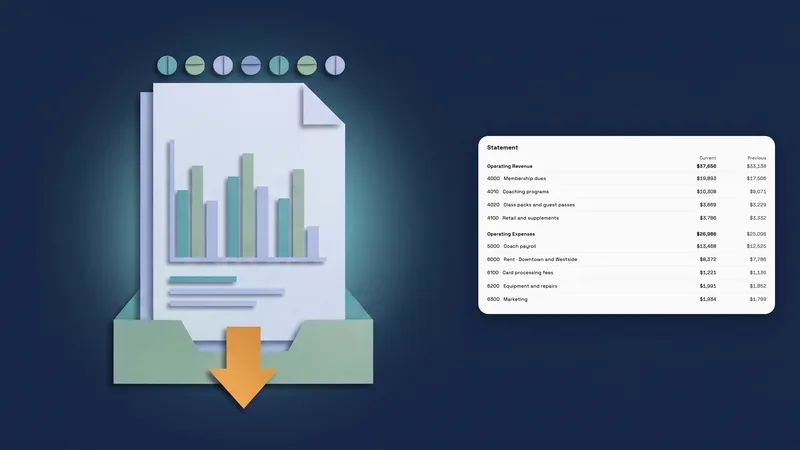 Accounting reports move to one clear report page
 New workspaces get a Set up my pipeline starter in AI chat
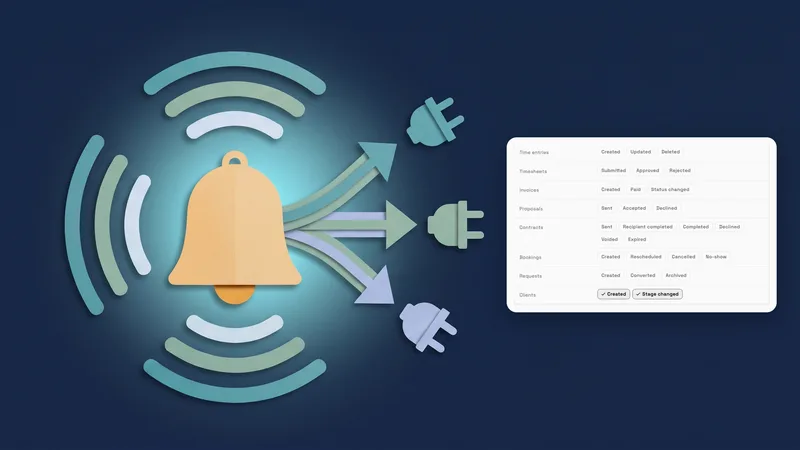 Webhooks for new clients and stage changes
Sell memberships and check members in, in your own workspace
Start your free trial on Voyager, then find it under Clients.
14-day free trial. Card required. After the trial: $74/month for Voyager. Renews automatically every month until you cancel. Cancel anytime in Settings → Billing.