Client portalClients & CRM
Preview the member portal, let members switch plans and design the Wallet pass
Preview the member portal before you save, let members switch plans from their portal link, and design the Apple Wallet pass with live previews.
Preview the member portal before you save
Open Clients → Memberships → Member portal and pass and choose Preview as a member. It opens the member page on 369.dev the way a member sees it, with a made-up sample member and your workspace's name, logo and portal look. No real customer's details are used.
The preview follows the switches as they are on screen right now, saved or not. Turn off Price and next charge or Visit history and those rows disappear from the member page. Turn off Freeze or Cancel and the member is told to ask the business instead. Preview to see what members get, then press Save when it looks right. Member portal and pass is for the workspace owner and admins, and memberships are on Cadet and up. It is on the web app now and comes to the iPhone app with its next update.
- Preview as a member sits beside the Member preview in Member portal and pass
- It uses your unsaved switches, so you can check a change before you press Save
- It shows a sample member, never a real customer

- Where to find it
- Clients
- Memberships
- Member portal and pass
- Preview as a member
- Plans
- Cadet and up
Let members change their plan
Members can move to another plan from their portal link. Open Clients → Memberships → Member portal and pass and turn on Change their plan under What members can do themselves. It is off until you turn it on. While it is off, members cannot change plan themselves.
Then choose where each plan can go. Open a membership type, find Members may switch to under At the door and pick the other types it can move to. Only recurring types can offer a change, and members see only the listed types that are on sale with the same billing period, currency and provider. Memberships are on Cadet and up. It is on the web app now and comes to the iPhone app with its next update.
- Change their plan is a switch in Member portal and pass, off until you turn it on
- Members may switch to is a list on each recurring membership type
- Members see only listed types on sale with the same billing period, currency and provider

- Where to find it
- Clients
- Memberships
- Member portal and pass
- Change their plan
- Plans
- Cadet and up
- Learn more
- PaymentsCreate a membership plan guide
Design the Wallet pass with live previews
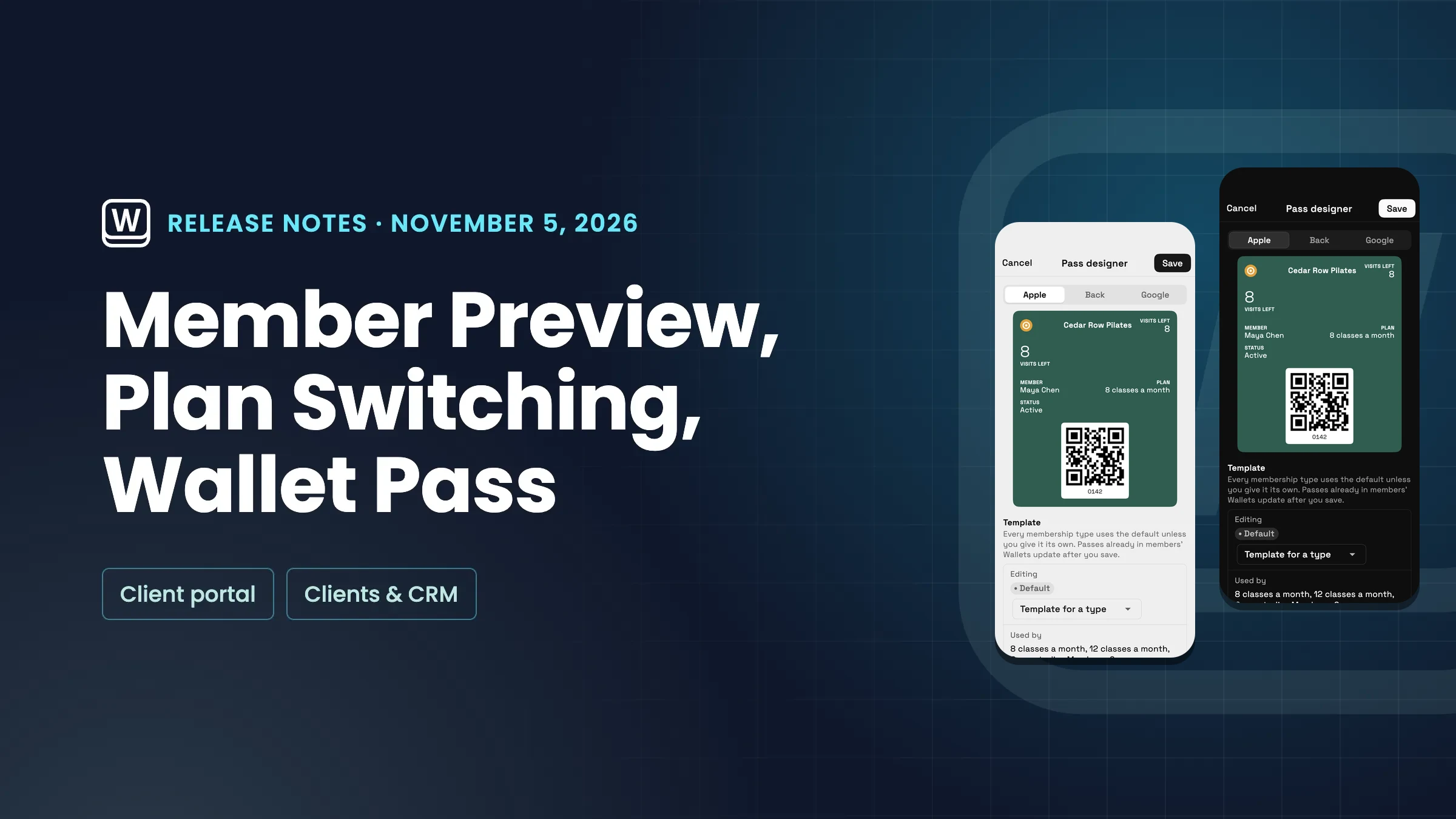
Open Clients → Memberships → Member portal and pass, find Wallet and choose Open next to Pass designer. Live previews show the front and back of the Apple Wallet pass with a sample member, and they change as you edit.
Choose your logo and where it sits (With name, Logo only or Wide), the Apple card style (Automatic, Standard or Banner) with a banner image, and the Background, Text and Labels colours. The designer refuses colours that are hard to read on the background. Under What goes where, pick the field for Top right, Big line, Row 1 and Row 2, then choose the code on the pass and the back of the pass: a link to the member's pass page, your contact details and a note.
Every membership type uses the default design unless you give it its own with Template for a type. Passes already in members' Wallets update after you save. A new code type, the text under the code and the pass-page link reach only passes added after you save. Memberships are on Cadet and up. It is on the web app now and comes to the iPhone app with its next update.
- Live previews of the front and back of the Apple Wallet pass
- Logo, card style, colours, fields, code and the back of the pass
- A default design, or a template for one membership type
- Passes already in members' Wallets update after you save
- Where to find it
- Clients
- Memberships
- Member portal and pass
- Pass designer
- Plans
- Cadet and up
Quick answers
- How do I preview what members see in the portal?
- Open Clients → Memberships → Member portal and pass and choose Preview as a member. It shows the member page on 369.dev with a sample member and your switches as they are now, saved or not.#
- Can members change their own plan?
- Yes, once you turn on Change their plan in Member portal and pass. It is off until you do. Then choose which types each recurring membership type may switch to under Members may switch to.#
- Which membership types can a member switch to?
- Only the types you list under Members may switch to on a recurring membership type, and only those on sale with the same billing period, currency and provider.#
- What can I change on the Wallet pass?
- In Member portal and pass → Pass designer you choose the logo and where it sits, the Apple card style and banner image, the Background, Text and Labels colours, the fields on the front, the code and the back of the pass.#
- Do changes reach passes members already have?
- Passes already in members' Wallets update after you save. A new code type, the text under the code and the pass-page link reach only passes added after you save.#
- Which plans include these?
- Memberships are on Cadet and up, so the member preview, plan switching and the Pass designer are on Cadet, Voyager, Specialist, Commander and Enterprise. Only the workspace owner and admins can open Member portal and pass.#
Related updates
 Share files and links in a program, and see Calendar full by coach
 Sell memberships through Square, and handle Square members’ requests
 Bulk actions on clients, a clearer Pipeline view, and proposal Design locks you can see
Preview the member portal, let members switch plans and design the Wallet pass, in your own workspace
Start your free trial on Cadet, then find it under Clients.
14-day free trial. Card required. After the trial: $29/month for Cadet. Renews automatically every month until you cancel. Cancel anytime in Settings → Billing.