Billing & payments
Year-end income summary in Finance → Reports
Reports has a Year-end summary: what you were paid and what you spent in a year, by month, client and category, with PDF and CSV export. It is on every plan.
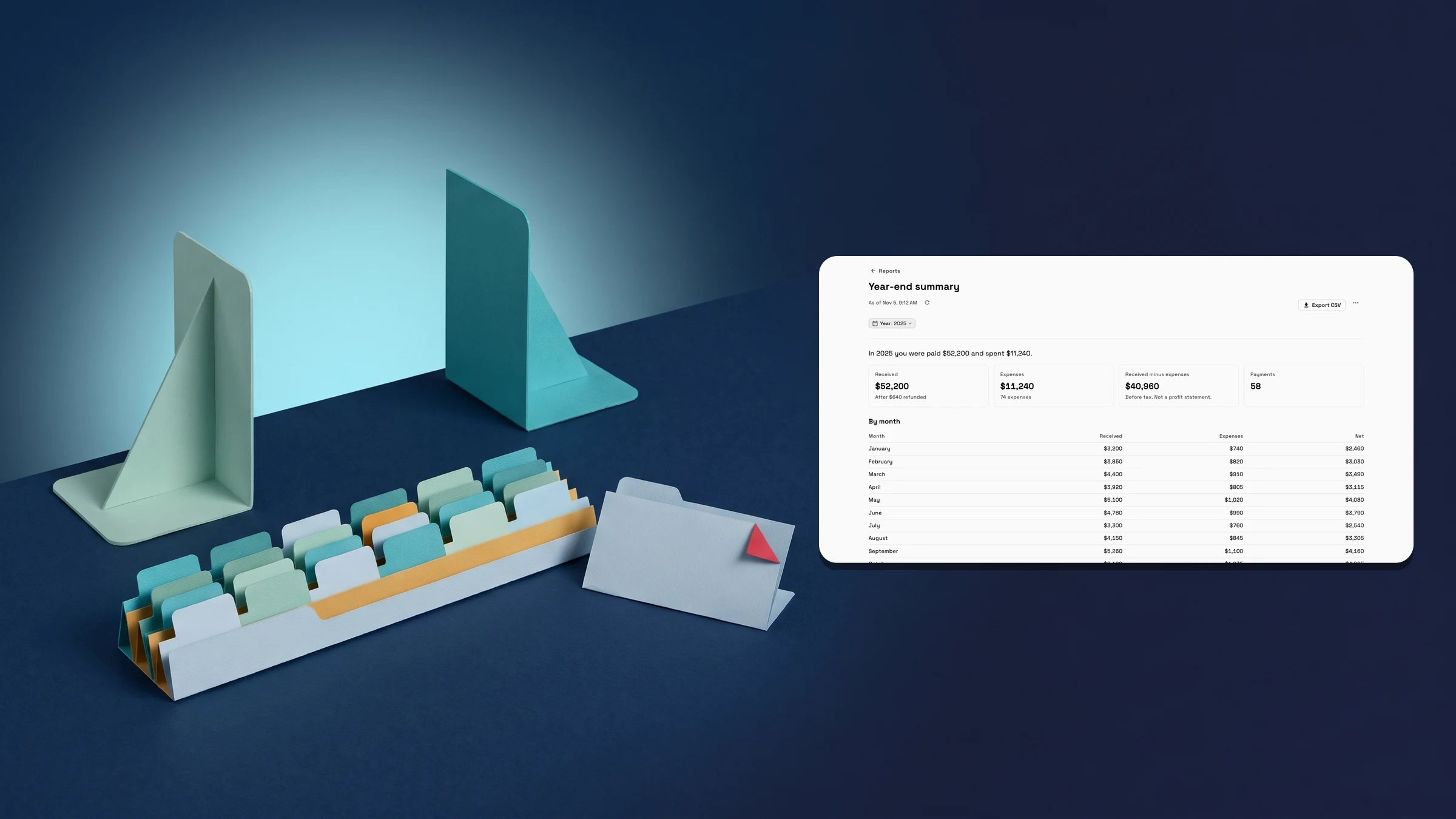
See your year in one report and export it
Finance → Reports now has a Year-end summary. Choose a year from the Year menu and it shows what you were paid and what you spent: Received, Expenses, Received minus expenses and Payments, then By month, Who paid you, Where the money went and How you were paid. From January to April it opens on last year, and from May it opens on this year.
Received is the money that reached you in the year, after refunds, not the day you sent the invoice. A payment that is still clearing is shown but not counted. A year that is not over is labelled, for example 2026 so far, with the date it runs through, so a partial total never reads as final. Each currency is added up on its own and nothing is converted. Expenses are the ones recorded in Workspace369, counted by their date.
Export PDF, in the ⋯ menu, and Export CSV save the summary with every figure to the cent, ready to give to your accountant. The page says it plainly: it is a starting point for your taxes, not tax advice, so check it with your accountant.
The summary is on every plan. You see the income side if you can see invoice amounts across your whole book, and the expenses side if you are the owner, an admin or can view expenses. Recording expenses in Workspace369 starts on Specialist. It is on the web app now and comes to the iPhone app with its next update.
- Received, Expenses, Received minus expenses and Payments, with a By month table
- A running year says so far and the date it runs through
- Export PDF or Export CSV with every figure to the cent
- Where to find it
- Finance
- Reports
- Year-end summary
- Plans
- Every plan
Quick answers
- Where is the Year-end summary in Workspace369?
- In Finance → Reports. Open Year-end summary, then choose a year from the Year menu.#
- What does the Year-end summary show?
- What you were paid and what you spent in a calendar year: Received, Expenses, Received minus expenses and Payments, then By month, Who paid you, Where the money went and How you were paid.#
- Does it count a year that is not over yet?
- Yes, and it says so. A running year is labelled, for example 2026 so far, with the date its numbers run through, because they will change.#
- Can I export it for my accountant?
- Yes. Export PDF, in the ⋯ menu, and Export CSV save the summary with every figure to the cent. It is a starting point for your taxes, not tax advice, so check it with your accountant.#
- Which plans include the Year-end summary?
- Every plan. Recording expenses in Workspace369 starts on Specialist, and you see the income side only if you can see invoice amounts.#
- Does it add up different currencies?
- No. Each currency is added up on its own and nothing is converted.#
Related updates
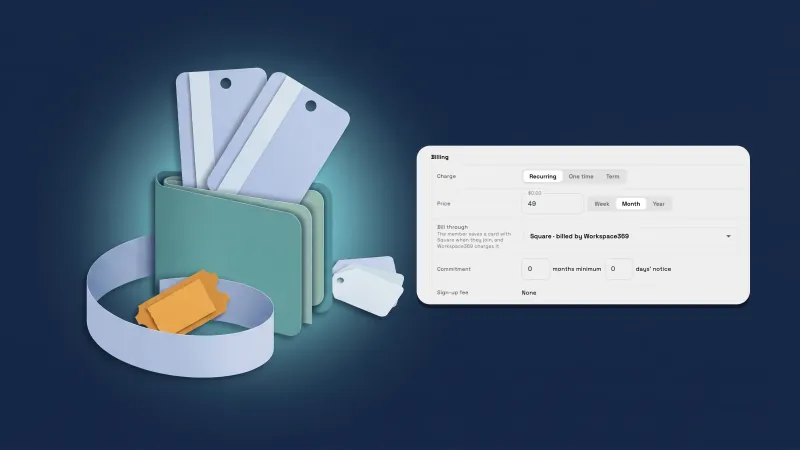 Sell memberships through Square, and handle Square members’ requests
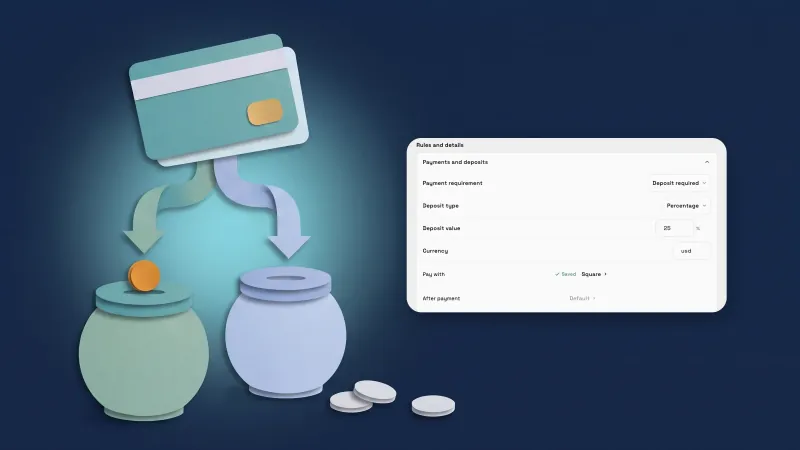 Take payments through your own Square account
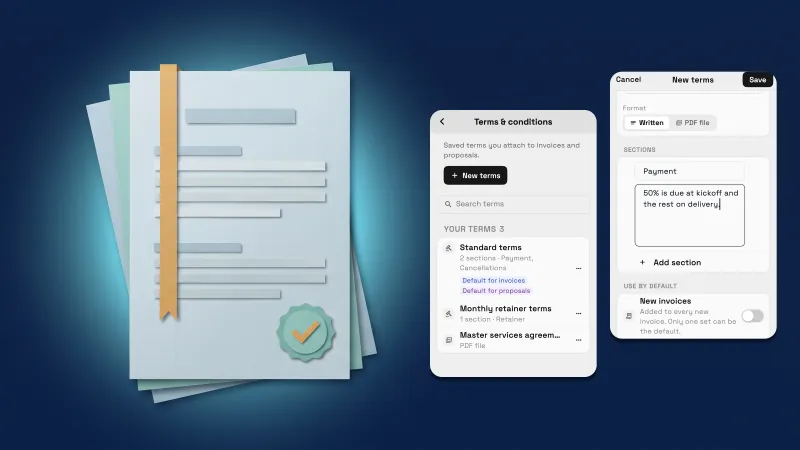 Save your terms once and edit them right from the invoice
Year-end income summary in Finance → Reports, in your own workspace
Start your free trial, then find it under Finance.
14-day free trial. Card required. After the trial: from $29/month. Renews automatically every month until you cancel. Cancel anytime in Settings → Billing.