The free calculator
- Twelve months you type or paste in, added up once
- Your entries stay in this browser tab and are not uploaded
- You gather the income and the expenses yourself
A year-end income summary shows what you received in the year, what you spent, and what is left, month by month. Type 12 months of income and expenses, or upload a CSV of dates and amounts, and get the same layout as the Workspace369 report. Free, in your browser, nothing uploaded.
Your numbers
Or use a CSV
One row per payment or expense: a date column and an amount column, where positive is income and negative is an expense. Separate income and expense columns work too.
Everything on this page runs in your browser. Your numbers and files are never uploaded or saved.
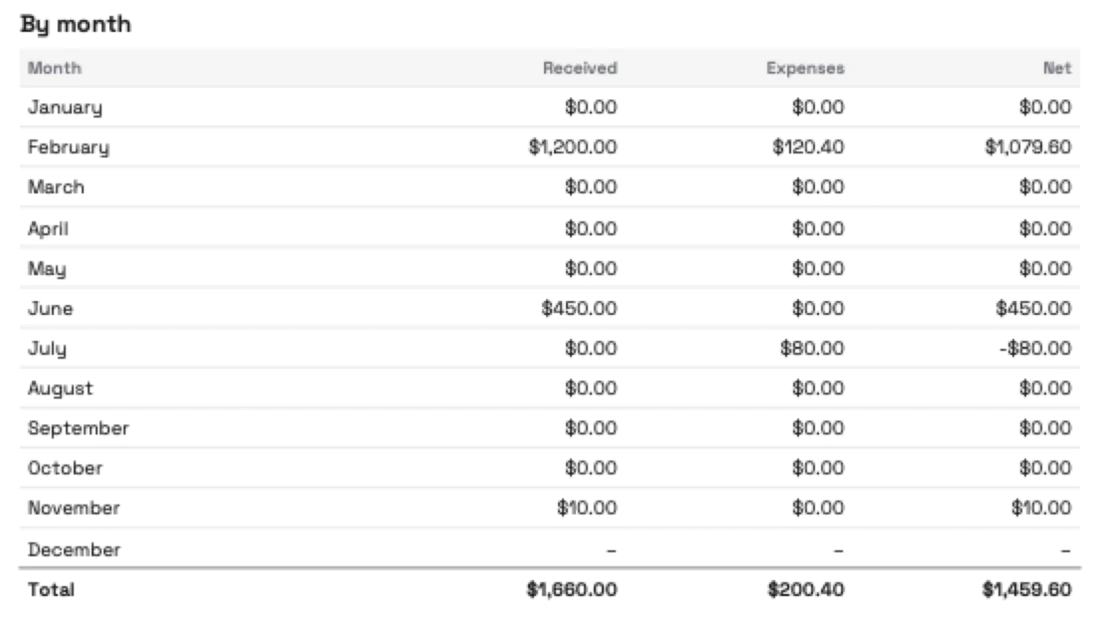
| Month | Received | Expenses | Net |
|---|---|---|---|
| January | $0.00 | $0.00 | $0.00 |
| February | $1,200.00 | $120.40 | $1,079.60 |
| March | $0.00 | $0.00 | $0.00 |
| April | $0.00 | $0.00 | $0.00 |
| May | $0.00 | $0.00 | $0.00 |
| June | $450.00 | $0.00 | $450.00 |
| July | $0.00 | $80.00 | -$80.00 |
| August | $0.00 | $0.00 | $0.00 |
| September | $0.00 | $0.00 | $0.00 |
| October | $0.00 | $0.00 | $0.00 |
| November | $10.00 | $0.00 | $10.00 |
| December | $0.00 | $0.00 | $0.00 |
| Total | $1,660.00 | $200.40 | $1,459.60 |
Received minus expenses. Before tax. Not tax advice; check it with your accountant.
The connected version
14-day free trial. Card required. After the trial: from $29/month. Renews automatically every month until you cancel. Cancel anytime in Settings → Billing.
Type the income you received and the expenses you paid for each month, or upload or paste a CSV of dates and amounts.
The by-month table, the year totals and received minus expenses update as you type. A CSV fills the same months, so you can fix any number.
Download the result as a CSV for your accountant or your own spreadsheet. Nothing leaves your browser.
The free calculator
Workspace369 — the connected version
14-day free trial. Card required. After the trial: from $29/month. Renews automatically every month until you cancel. Cancel anytime in Settings → Billing.
Free done-for-you setup until December 31, 2026. After signup, claim free setup in your workspace. See free setup
If you run a one-person business, Workspace369 keeps clients, proposals, invoices and time in one place. Software for freelance businesses
This calculator follows the layout of the Year-end summary report in Workspace369: a row for each month, then the year total. The report is built from your invoices, payments and expenses instead of numbers you type, and it exports to a PDF or a CSV.
Demo data from the PDF export, not a real customer.
A year-end income summary is one page that shows the money you received in a calendar year, the money you spent running your business, and the difference, month by month. Freelancers and small agencies use it to gather their numbers before they talk to an accountant or fill in a tax return.
This one counts money when it reaches you, not when you send the invoice, and it shows received minus expenses. That figure is before tax. It is a starting point for your taxes, not a tax figure. Not tax advice; check it with your accountant.
Type what you received and what you spent in each month, and the table, the totals and received minus expenses update as you go. Or upload or paste a CSV and the same twelve months fill in for you, so you can still fix a number by hand.
Add up what clients actually paid you during the year, after any refunds. Then add up what you spent on the business. Received minus expenses is what is left before tax. Invoices you sent but that were not paid by the end of the year are not in it, and neither is money you expect next year.
If the year is not over, the page says so: it labels the result with the year and “so far, through” today's date, so a partial number is never mistaken for a final one.
In Workspace369 the report is built for you under Finance › Reports › Year-end summary, on every plan. It shows one calendar year of money received, counted after refunds, and your expenses, by month, client, category and payment method. Each currency is added up on its own and nothing is converted. You can export it as a PDF or as a CSV to the cent.
While the year is running it says so far, through the date, and from January to April it opens on last year. Recording expenses in Workspace369 starts on Specialist; the Year-end summary itself is on every plan.
ExpensesInvoicesExpense tracking for freelancersInvoicing software for freelancersPlans and pricing
Add up the money clients paid you in the calendar year, after refunds, then subtract your business expenses for the same year. Enter each month above, or upload a CSV of dates and amounts, and the calculator does the adding and shows received minus expenses, before tax.#
It is the money that reached you in the year, after refunds, minus the expenses you entered. It is before tax and it is not a tax figure. Not tax advice; check it with your accountant.#
A date column and an amount column, where positive amounts are income and negative amounts are expenses. It also reads a Date column with separate Income and Expenses columns. A header row is optional. Commas, semicolons and tabs all work.#
No. The calculator runs in your browser. Your typed numbers and any CSV stay on your device, and nothing is sent or saved. Download the result before you close the tab.#
Yes. When the year you pick is still running, the result is labelled with the year and “so far, through” today's date, and months that have not started show a dash.#
Yes. Finance › Reports › Year-end summary builds it from your real invoices and expenses, on every plan, with a PDF and a CSV export. From January to April it opens on last year.#
Start with the modules you need today, then turn on AI, automations, accounting, inventory, requests, and reporting as the operation grows.
14-day free trial. Card required. After the trial: from $29/month. Renews automatically every month until you cancel. Cancel anytime in Settings → Billing.