Workspace AI
Add your CRM tools to Cursor or VS Code in one click
Settings → AI connections now has Add to Cursor and Add to VS Code buttons. Each adds your workspace's CRM tools to the editor in one click, with no config file to edit.
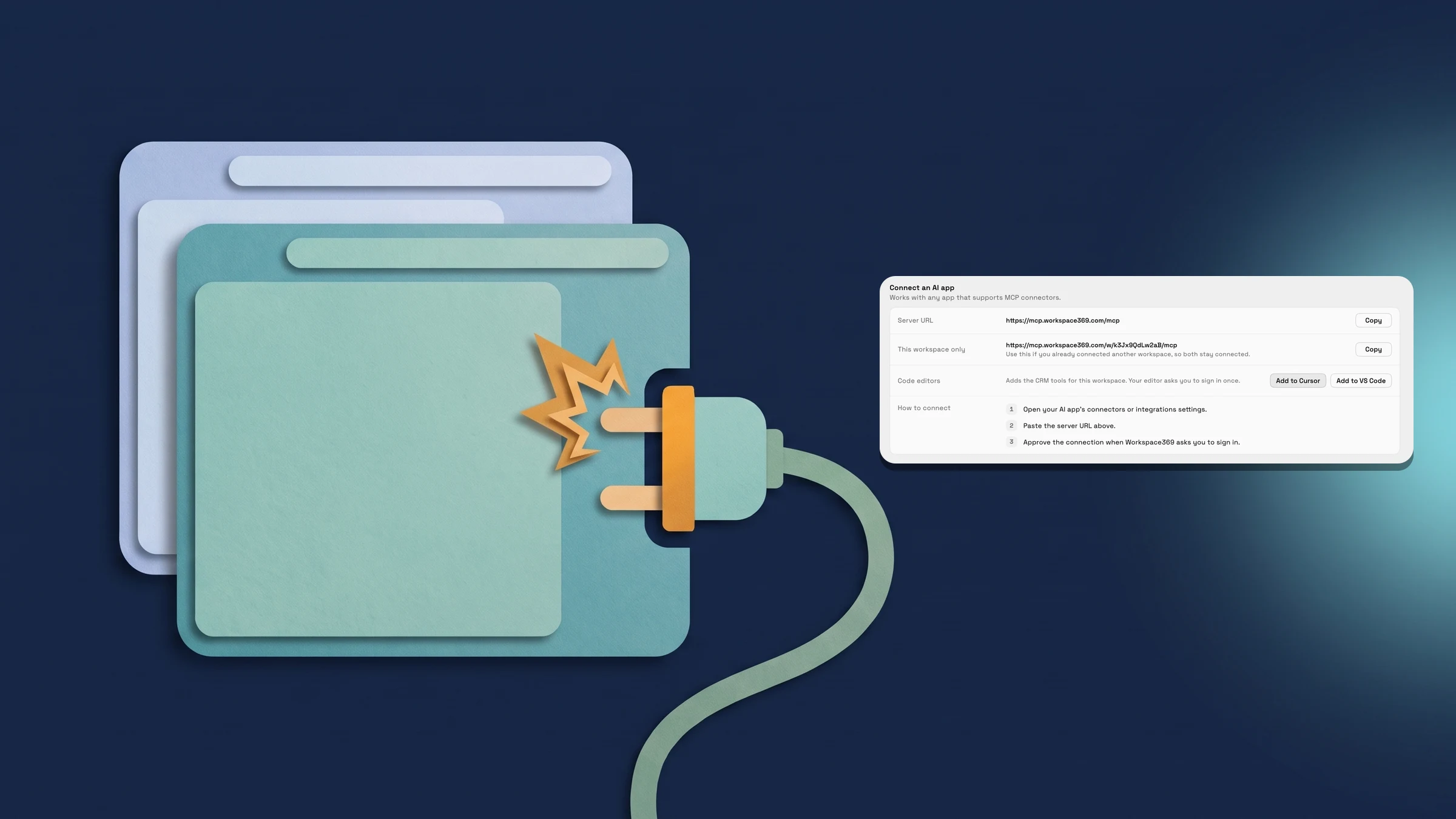
Add Workspace369 to Cursor or VS Code in one click
In Settings → AI → AI connections, the Connect an AI app section now has a Code editors row with two buttons: Add to Cursor and Add to VS Code. Choose one and Workspace369 opens a link that adds the CRM tools for the workspace you have open, under the name workspace369. Your editor then asks you to confirm adding the server, and asks you to sign in once.
The buttons add the core CRM tools, the smaller set for clients, pipeline stages, follow-ups, notes, proposals, invoices and tasks that suits building a custom front end with a coding assistant. The server URLs above the row are still there to copy for other AI apps.
The row shows in the web app on a wide enough window; at phone width it is hidden. Admins find it under Connect an AI app, or under Your AI apps while Allow AI connections is off; other members find it under Your AI apps unless their workspace has AI connections off. AI connections, including these buttons, are on every plan. This is on the web app now.
- One click each for Cursor and VS Code, with the open workspace's CRM tools
- Your editor asks you to confirm and sign in once
- In the web app; the row is hidden at phone width
- Where to find it
- Settings
- AI
- AI connections
- Connect an AI app
- Code editors
- Plans
- Every plan
Quick answers
- How do I add Workspace369 to Cursor?
- Open Settings → AI → AI connections, go to the Code editors row in Connect an AI app and choose Add to Cursor. Cursor opens and asks you to confirm adding the workspace369 server, then asks you to sign in once.#
- How do I add Workspace369 to VS Code?
- In the same Code editors row, choose Add to VS Code. The link opens through vscode.dev and hands the server to VS Code, which asks you to confirm and sign in once.#
- The core CRM tools for the workspace you have open: clients, pipeline stages, follow-ups, notes, proposals, invoices and tasks. The full toolset stays available at the server URL above the row.#
- Why don't I see the Code editors row?
- It shows in the web app on a wide enough window, not at phone width. Admins find it under Connect an AI app, or under Your AI apps while Allow AI connections is off; other members find it under Your AI apps unless their workspace has AI connections off.#
- Which plans include Add to Cursor and Add to VS Code?
- Every plan. AI connections work the same on Cadet, Voyager, Specialist, Commander and Enterprise.#
Related updates
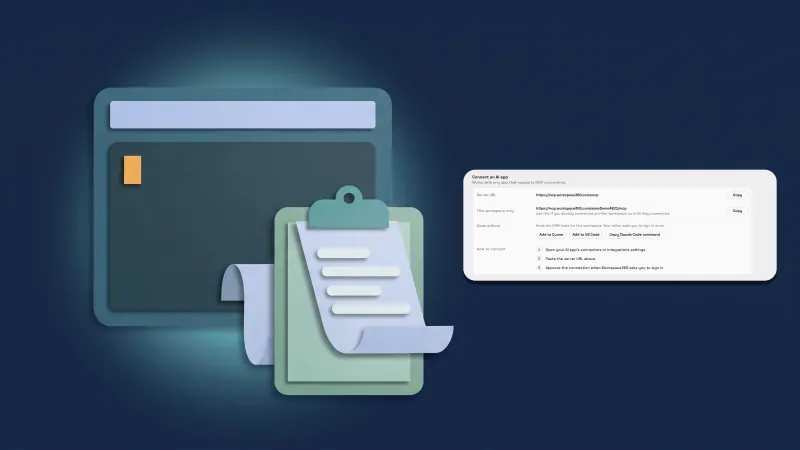 Copy a Claude Code command from AI connections
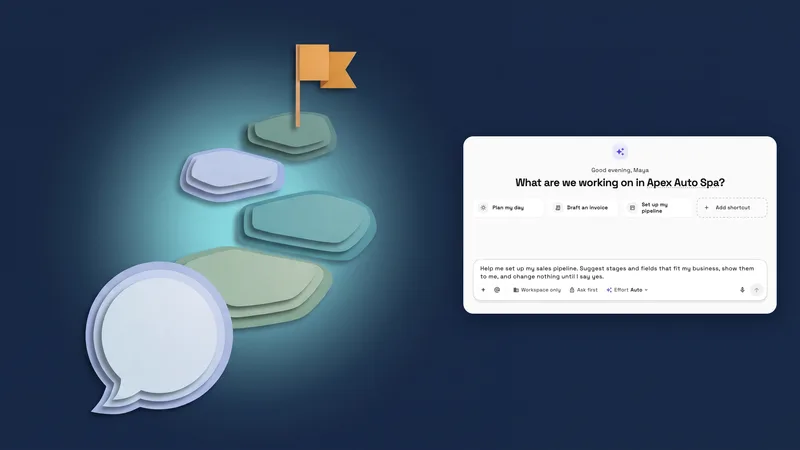 New workspaces get a Set up my pipeline starter in AI chat
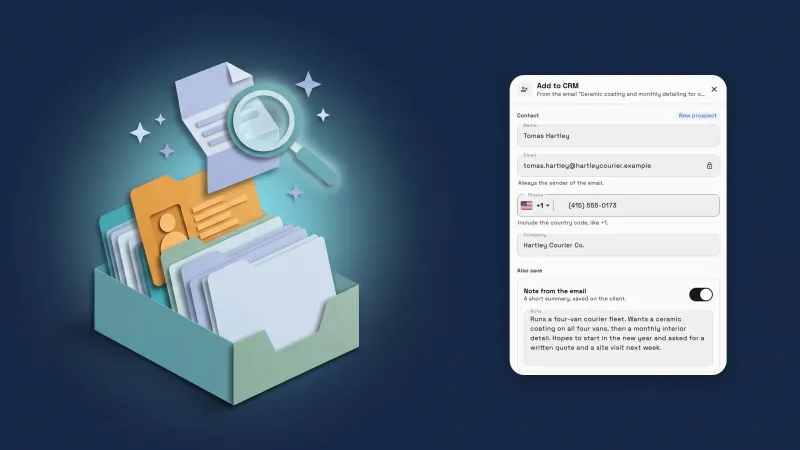 Add emails to your CRM with AI, and import proposals and client lists
Add your CRM tools to Cursor or VS Code in one click, in your own workspace
Start your free trial, then find it under Settings.
14-day free trial. Card required. After the trial: from $29/month. Renews automatically every month until you cancel. Cancel anytime in Settings → Billing.