Clients & CRMWorkspace AIInbox & callsProposals & contracts
Add emails to your CRM with AI, and import proposals and client lists
AI turns an email from someone new into a client, a note and a follow-up you review first. Rebuild an old proposal from a PDF, or import clients from a screenshot.
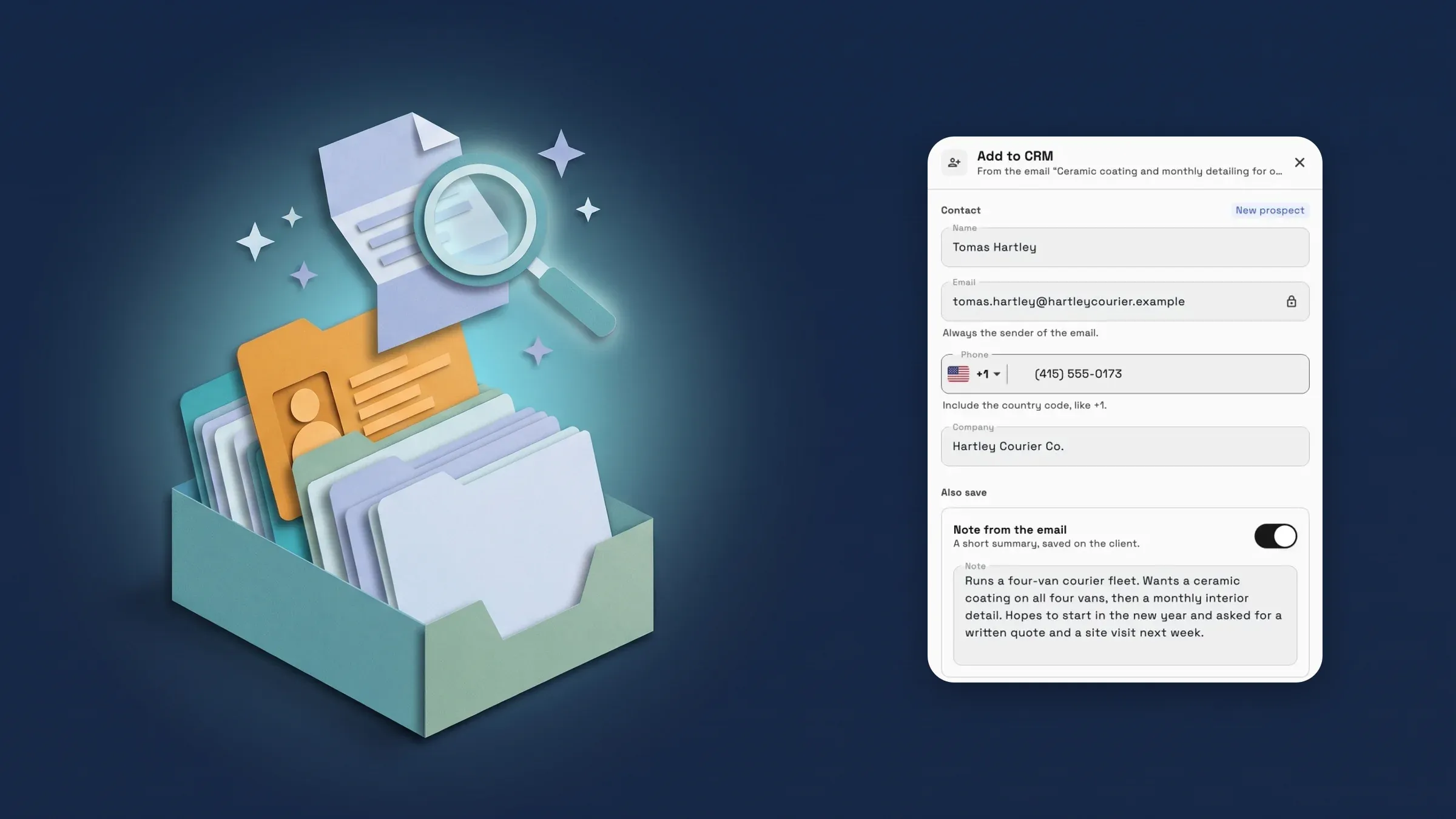
Add an email's sender to your CRM with AI
Open an email from someone new and choose Add to CRM from its menu. Workspace369 reads the email and suggests a new prospect with the sender's name, phone and company, a short note that sums up the email, and a follow-up to remind you to reply. If the sender's email is already on a client, the note and follow-up go on that client and their details stay as they are. If only a phone number matches, you choose whether to add to that client or create a new one.
You review everything before it is saved: edit the details, leave out the note or the follow-up, or add the client only. Reading the email counts toward your AI usage once, and adding is free. If the email looks like spam or a scam, nothing is added and nothing is charged. The AI can get things wrong, so check the details before you add them.
Find it in Communications → Emails, in the menu of an email you received. People who can use the inbox and add clients can use it, on Cadet, Voyager, Specialist, Commander and Enterprise. It is on the web app now and comes to the iPhone app with its next update.
- A client, a note and a follow-up from one email
- Matches senders already in your CRM by email
- Review before anything is saved
- Spam is never added or charged
- Where to find it
- Communications
- Emails
- an email's menu
- Add to CRM
- Plans
- Cadet and up
- Learn more
- Inbox and emailWorkspace AI
Import a proposal from a PDF or photo
Switching from HoneyBook, Dubsado or another tool? Choose Import a proposal and add a PDF or a photo of a proposal you sent clients, up to 10 MB. Workspace369 rebuilds it as a proposal template, with its sections and line items, and you can tell it where the file came from to help it read the layout.
Before you save, Things to check points out what needs a look, such as a tax rate to set on the line items or prices in another currency, and you can remove any part you don't want. Photos and logos aren't imported. The file is read once and then deleted, and nothing is saved until you choose Save as template. It counts toward your AI usage once, and only when the proposal could be read.
Find it when you pick a template for a new proposal, under Templates in your proposal settings, and on Proposals before you have any. People allowed to manage proposal templates can use it, on Cadet, Voyager, Specialist, Commander and Enterprise. It is on the web app now and comes to the iPhone app with its next update.
- PDF, PNG or JPEG up to 10 MB
- Rebuilt as a template you review
- Things to check before you save
- The file is deleted after reading

- Where to find it
- Proposals
- New Proposal
- pick a template
- Import a proposal
- Plans
- Cadet and up
Import clients from a screenshot
In AI Import, choose Import from a screenshot and upload a screenshot or photo of your client list, from another app or a spreadsheet, as PNG, JPEG, WebP, HEIC or PDF. Workspace369 reads the clients from it and opens the same review step as a file import, so you check every client before anything is added.
Rows it can't read, and rows that repeat, are left out and counted, so you know what to add by hand. Reading the screenshot uses AI usage only when clients come back from it, and the import itself uses AI usage too, like any AI Import.
Find it in Clients → Import data. People allowed to import clients can use it, on Cadet, Voyager, Specialist, Commander and Enterprise. It is on the web app now and comes to the iPhone app with its next update.
- PNG, JPEG, WebP, HEIC or PDF
- Same review step as a file import
- Unreadable and repeated rows are counted
- Reading is charged only when clients come back

- Where to find it
- Clients
- Import data
- Import from a screenshot
- Plans
- Cadet and up
- Learn more
- Switch from DubsadoWorkspace AI
Quick answers
- Can Workspace369 add an email's sender to my CRM?
- Yes. Open the email, choose Add to CRM from its menu, and AI suggests a client, a short note and a follow-up. You review them, then add. Nothing is saved before that.
- What happens if the sender is already a client?
- Workspace369 matches them by email address. The note and follow-up are added to that client, and their details stay as they are. If only the phone number matches, you choose between adding to that client and creating a new one.
- Can I import my proposals from HoneyBook or Dubsado?
- Yes. Choose Import a proposal and add a PDF or photo of a proposal you sent. It is rebuilt as a template you review, and nothing is saved until you choose Save as template.
- Can I import clients from a screenshot?
- Yes. In AI Import, choose Import from a screenshot and upload an image or PDF of your client list. You review every client before anything is added.
- Which plans include these AI features?
- Cadet, Voyager, Specialist, Commander and Enterprise. Each one counts toward your monthly AI usage, and spam emails or files that can't be read aren't charged.
Related updates
 New workspaces get a Set up my pipeline starter in AI chat
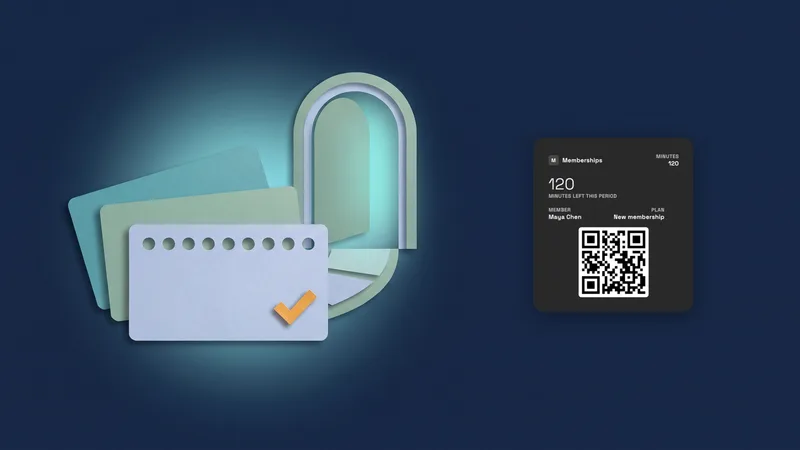 Sell memberships and check members in
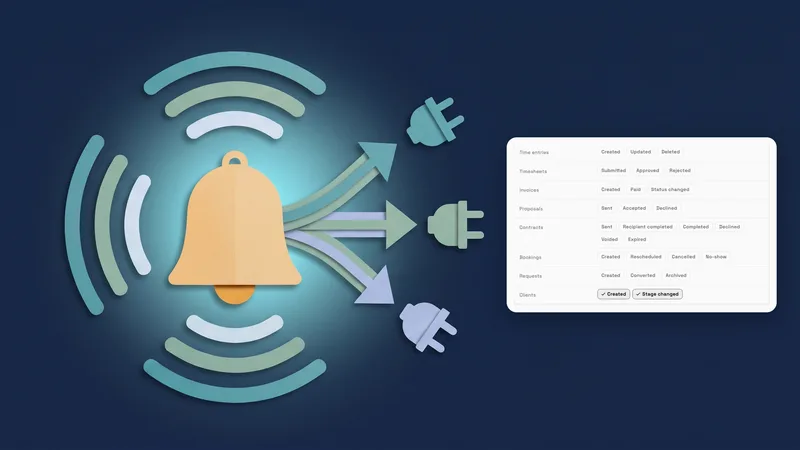 Webhooks for new clients and stage changes
Add emails to your CRM with AI, and import proposals and client lists, in your own workspace
Start your free trial on Cadet, then find it under Communications.
14-day free trial. Card required. After the trial: $29/month for Cadet. Renews automatically every month until you cancel. Cancel anytime in Settings → Billing.