Calendar & booking
Clients get an email when you move their booking on your calendar
Move a booking on your calendar and the client gets a Booking rescheduled email with the new time, an updated calendar invite and a Manage booking button.
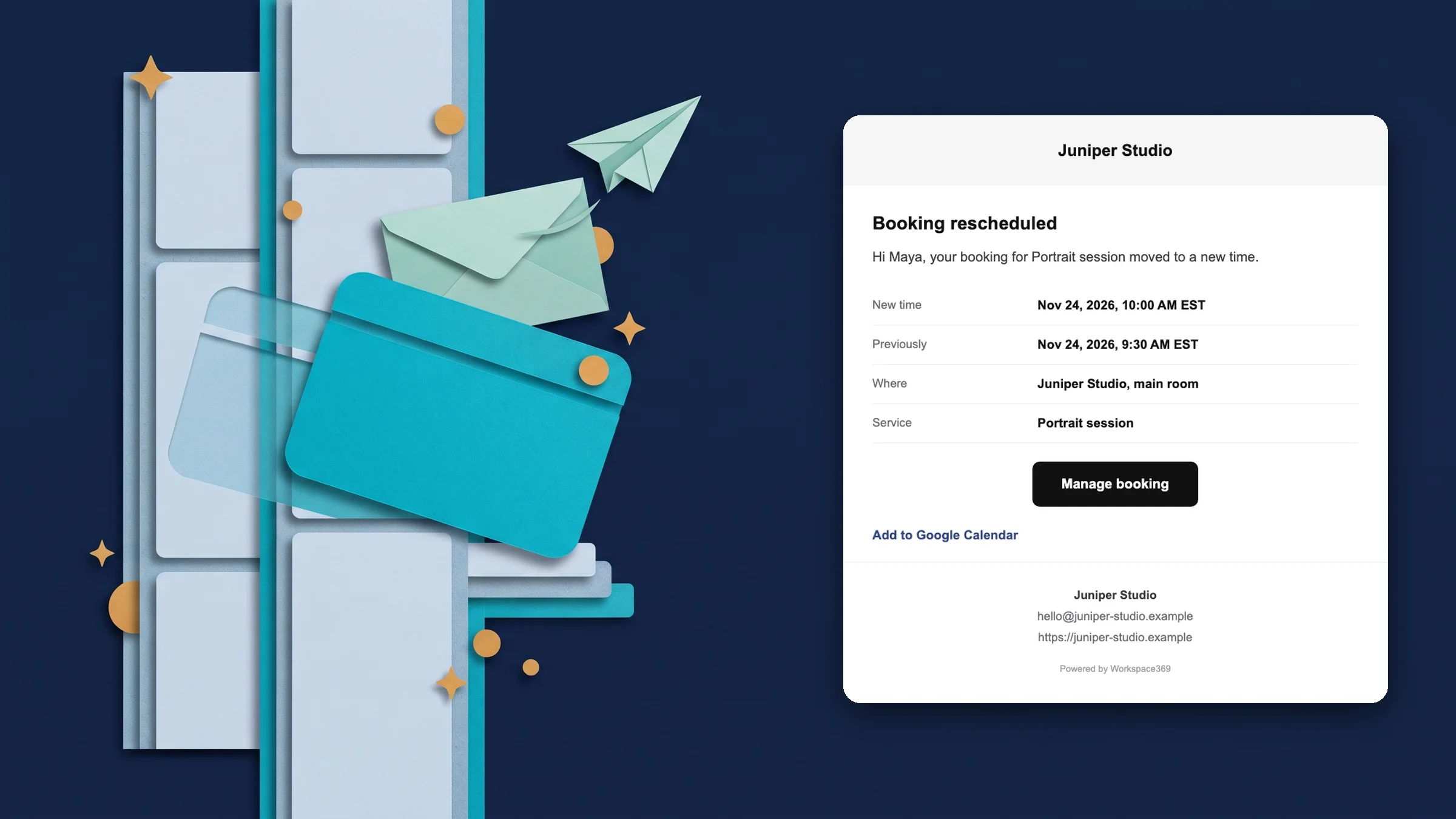
Move a booking, and the client is told
Say a studio owner has a portrait session booked for 9:30 and needs it 30 minutes later. They drag it down the calendar, or change its time in the event editor, and the client gets the new time by email. Nobody has to make a phone call.
It works on bookings made through your booking pages, when you move them in Workspace369. The email goes out when the client has an email address, client emails are on for that page or service, and the new time is still ahead. Confirmed bookings and bookings marked Needs confirmation get it. Requests marked Needs acceptance, and bookings marked Waiting for payment, don’t: the client hears the time once it is accepted or paid.
A change made in a connected Google or Outlook calendar does not move the booking, so make the change in Workspace369.
- Drag a booking or change its time in the event editor
- The client gets a Booking rescheduled email with the new time
- Confirmed and Needs confirmation bookings send it
- Where to find it
- Calendar
- drag a booking to a new time
- Plans
- Specialist and up
What the client receives
The client gets a Booking rescheduled email from your business, in their language. It names the service, shows the new time and the previous one, and says where it is. It comes with an updated calendar invite for the same booking, so their calendar can update the entry.
Manage booking opens the booking. From there the client can reschedule or cancel it, within the change rules you set for the page or service. Your team inbox gets a copy of the email, without the button.
- New time and previous time side by side
- Updated calendar invite for the same booking
- Manage booking to reschedule or cancel within your rules

- Where to find it
- Calendar
- move a booking
- the client's inbox
- Plans
- Specialist and up
- Learn more
- Online bookingManage booking requests
Quick answers
- Does the client get an email when I move their booking?
- Yes, when you move a booking made through your booking page in Workspace369, by dragging it on the calendar or changing its time in the event editor. They get a Booking rescheduled email with the new time and the previous one.#
- Which bookings send it?
- Confirmed bookings and bookings marked Needs confirmation, when the client has an email address, client emails are on for the page or service and the new time is still ahead. Requests marked Needs acceptance, and bookings marked Waiting for payment, send nothing; the client hears the time once it is accepted or paid.#
- What can the client do from the email?
- Manage booking opens their booking. There they can reschedule or cancel it, within the change rules you set for the page or service. The email also carries an updated calendar invite, so their calendar can update the entry.#
- Does moving the booking in Google Calendar or Outlook email the client?
- No. A change made in a connected Google or Outlook calendar does not move the booking in Workspace369, so no email is sent. Move it in Workspace369 and the client is told.#
- Can I stop these emails?
- Yes. Turn off client emails for the booking page or service and nothing goes to the client when you move a booking.#
- Which plans include this?
- Specialist, Commander and Enterprise, the plans with booking pages.#
Related updates
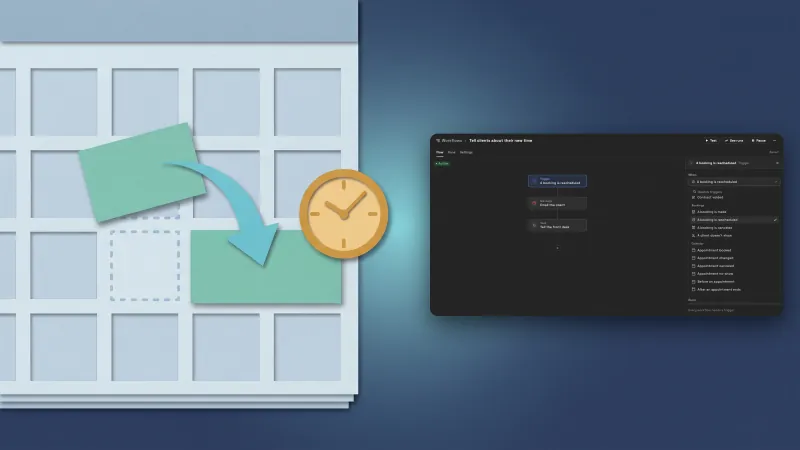 Run a workflow when a client reschedules a booking
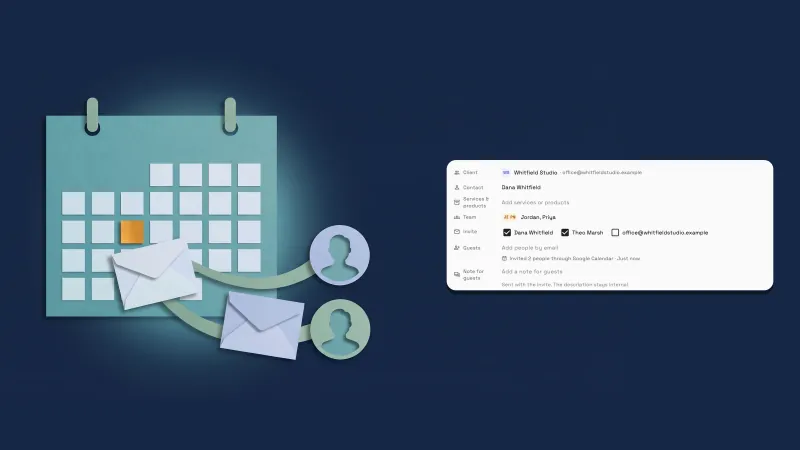 Invite your client's people to events through Google Calendar or email
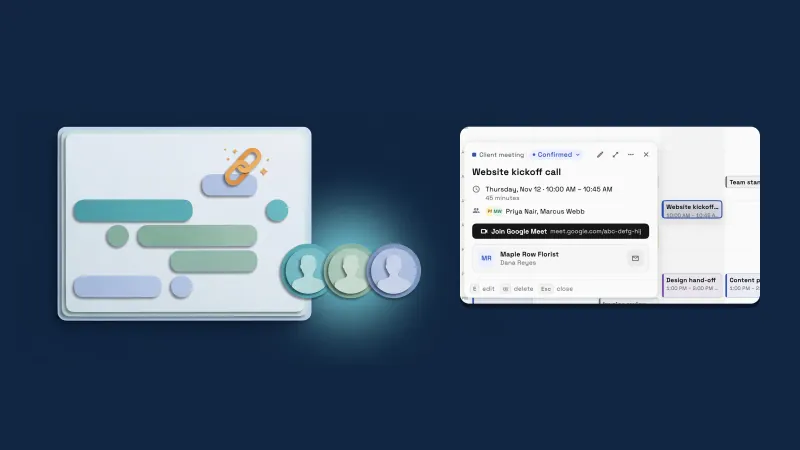 Calendar events get a live Google Meet link, a Team picker with photos and a copy button
Clients get an email when you move their booking on your calendar, in your own workspace
Start your free trial on Specialist, then find it under Calendar.
14-day free trial. Card required. After the trial: $149/month for Specialist. Renews automatically every month until you cancel. Cancel anytime in Settings → Billing.