Calendar & bookingWorkflows
Mark no-shows, cap weekly bookings and set the dates a service can be booked
Mark an appointment as a no-show and start a workflow from it, cap how many bookings a teammate takes each week, and open a service for booking only between two dates.
Mark an appointment as a no-show
When a client doesn’t turn up, open the appointment and set its status to No-show. It sits between Completed and Cancelled in the status menu and shows in red. On the calendar a no-show stays in place but is dimmed, and it no longer counts as an upcoming visit on the client’s record. You can also filter the calendar by it.
Workflows have a new Calendar trigger, Appointment no-show, that runs when an appointment is marked as a no-show. Use it to email the client a link to rebook or to tell your team. Marking one visit of a repeating appointment runs it for that visit only, and undoing the mark runs nothing. Workflows that run before or after an appointment, such as Ask for a review, skip no-shows.
It is on the web app now and comes to the iPhone and Android apps with their next update.
- No-show status in red, between Completed and Cancelled
- Dimmed on the calendar, not counted as upcoming
- New workflow trigger: Appointment no-show

- Where to find it
- Calendar
- open an appointment
- status
- No-show
- Plans
- Cadet and up
- Learn more
- Calendar and bookingWorkflow automation
A weekly limit next to the daily one
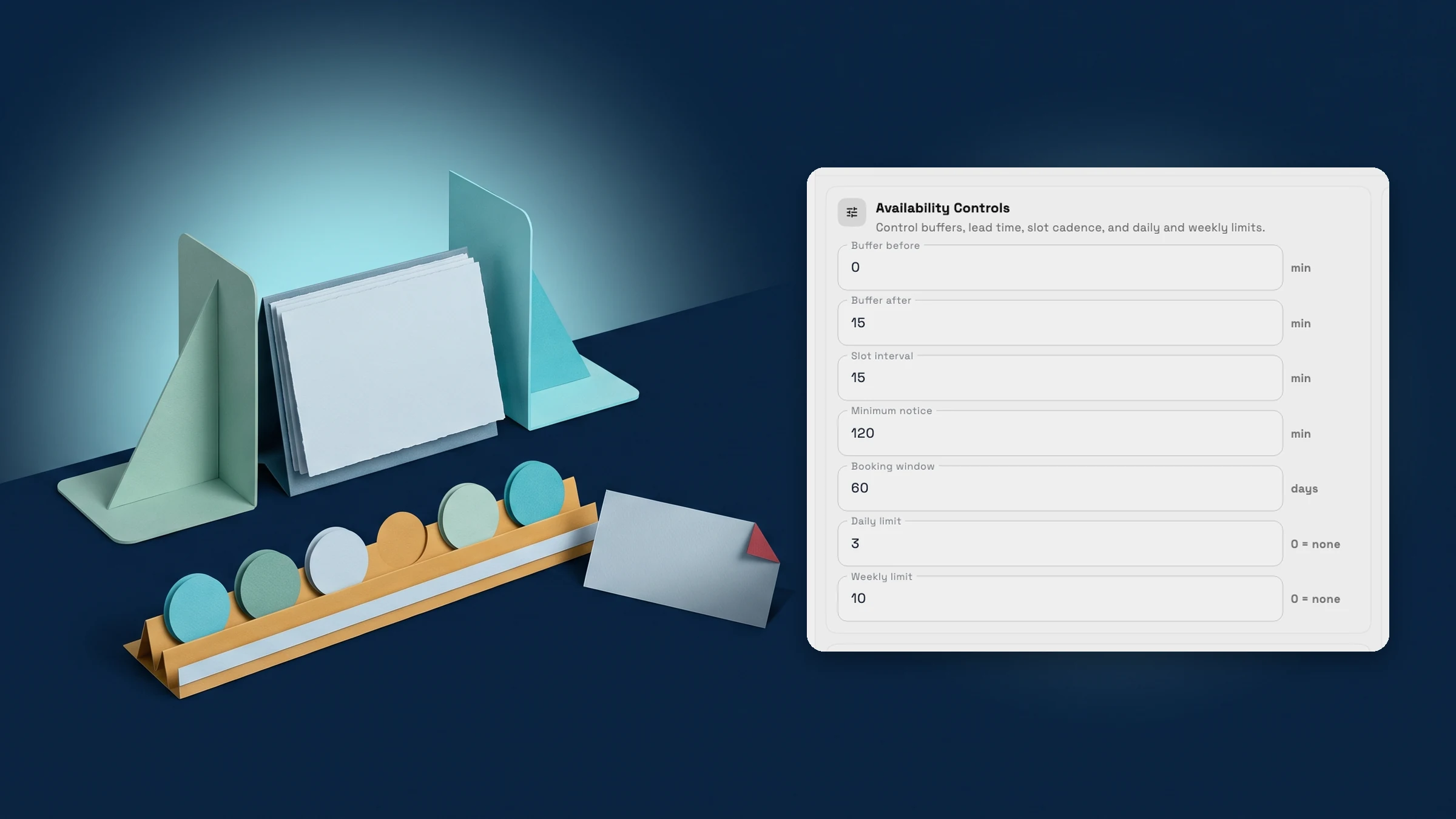
A bookable service could already cap bookings per day. It now has a Weekly limit too, right under Daily limit. The limit is per teammate: once someone has that many bookings in a week, counting all their appointments that week, not just this service’s, the booking page stops offering their times until the next week. Other hosts keep their times.
Weeks run Monday to Sunday in your workspace time zone. Leave it empty or enter 0 for no weekly limit. It is on the web app now and comes to the iPhone and Android apps with their next update.
- Weekly limit under Daily limit
- Counts each teammate’s appointments for the week
- Weeks run Monday to Sunday, 0 means no limit

- Where to find it
- Catalog
- open a service
- Online Booking
- Configure booking
- Show options
- Availability Controls
- Weekly limit
- Plans
- Specialist and up
- Learn more
- Online bookingCalendar and booking
Bookable dates: a start and end for each service
Set From and Until under Bookable dates to offer a service only for a season, a promotion or a limited run. Both dates are included and follow your workspace time zone. Leave From empty to start now, or Until empty for no end date.
Outside those dates the booking page shows no times for the service, and a booking or reschedule into them is refused. Blackout dates still work inside the range for single days off. It is on the web app now and comes to the iPhone and Android apps with their next update.
- From and Until for each service
- No times offered outside the range
- Blackout dates still block single days

- Where to find it
- Catalog
- open a service
- Online Booking
- Configure booking
- Hosts & Routing
- Bookable dates
- Plans
- Specialist and up
- Learn more
- Online bookingCalendar and booking
See where Workspace369 fits into your client-work flow.
Start with the modules you need today, then turn on AI, automations, accounting, inventory, requests, and reporting as the operation grows.
14-day free trial. Card required. After the trial: from $29/month. Renews automatically every month until you cancel. Cancel anytime in Settings → Billing.
