Calendar & booking
A booking page for each team member
Give every team member their own booking page and public link in one step, copied from a template you choose. Each page shows Live or Off, with Copy link.
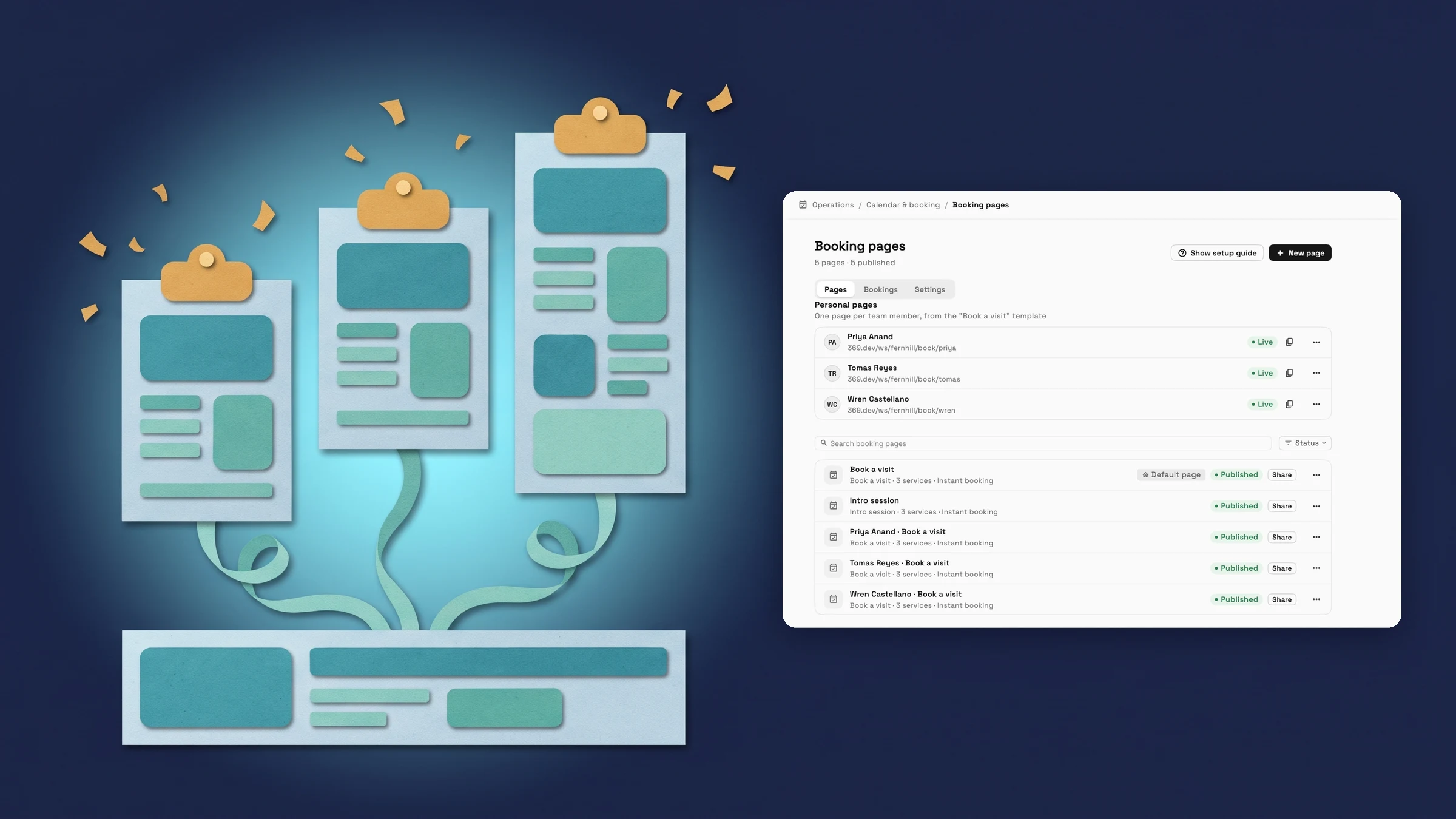
Give every team member their own booking page
Picture a three-person studio where each stylist or coach wants to hand out a link that books them and nobody else. Until now that meant building one page per person. In Booking pages, the Pages tab now has a Personal pages card that does it in one step, as long as you have a booking page to use as the template. The card reads One page per team member, from the "Book a visit" template.
Switch on Give every team member a personal booking page, choose the template and select Create pages. A message tells you how it went, for example Pages created: 3. Skipped: 0. Each team member gets a page with its own public link on 369.dev, and clients open it without signing in.
Each member then has a row with their name, their link, Live or Off, a Copy link button on larger screens and a three-dot menu. Owners and admins create these pages. Booking pages are on Specialist, Commander and Enterprise.
- One page and one public link for each team member
- Choose one of your own booking pages as the template
- Each row shows Live or Off, with Copy link and a menu
- Where to find it
- Settings
- Booking pages
- Pages
- Personal pages
- Plans
- Specialist and up
Each page is a copy of your template, with one host
A personal page starts as a copy of the template you chose. Its services, booking rules, approval days and look come along, and the page is named for the person, such as Priya Anand · Book a visit. The team member is the only host, so clients are booking them.
Hours come from the person, not the template. If the template page already holds hours for that member, the new page uses them; otherwise it uses the member's regular workspace hours. Members with no working hours at all are skipped. After you create the pages, the card lists each skipped member with the reason, Doesn't take bookings.
After that each page is its own. Choose Open page to change its hours, services or look for that person alone; later changes to the template don't flow into pages already made. When a new teammate with working hours joins, the card offers Add a page for 1 new member, and running it again only creates pages for people who don't have one.
- Services, rules, approval days and look are copied from the template
- The team member is the only host on their page
- Skipped members are listed with the reason

- Where to find it
- Settings
- Booking pages
- Pages
- Personal pages
- Plans
- Specialist and up
Copy a member's link, embed it, or turn the page off
Open the three-dot menu on a member's row to Copy link, Copy embed code, Open page, Turn off page or Delete. Turning a page off changes the row to Off and clients can no longer open that link; Turn on page brings it back.
A row also says Off, with Doesn't take bookings under the name, when that member has no working hours either on their page or in their workspace week. A member whose hours are set only on the template page still counts as Live.
- Turn a member's page off and on without deleting it
- Copy link or Copy embed code from the menu
- Off also shows when a member has no working hours

- Where to find it
- Settings
- Booking pages
- Pages
- Personal pages
- Plans
- Specialist and up
Quick answers
- Which plans include personal booking pages?
- Booking pages are on Specialist, Commander and Enterprise, and personal pages are part of them. Owners and admins create them from Settings → Booking pages → Pages.#
- What does a team member's page copy from the template?
- Its services, booking rules, approval days and look. The member is the only host, and the page is named for them, such as Priya Anand · Book a visit. Hours come from the member: their own hours on the template page if it has them, otherwise their regular workspace hours.#
- Why was a team member skipped?
- Because they have no working hours. After you create the pages, the card lists each skipped member with the reason Doesn’t take bookings, and the message says how many pages were created and skipped.#
- What happens when I turn a personal page off?
- The row shows Off and clients can no longer open that page's link. Turn on page in the same menu brings it back.#
- Can I add a page when a new teammate joins?
- Yes. When someone with working hours has no page yet, the card offers Add a page for 1 new member. It only creates pages for people who don't have one.#
Related updates
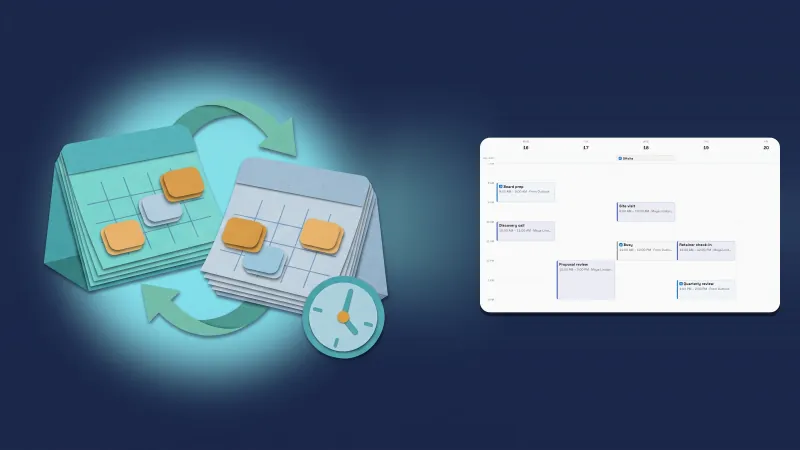 Connect your Outlook calendar for two-way sync with Workspace369
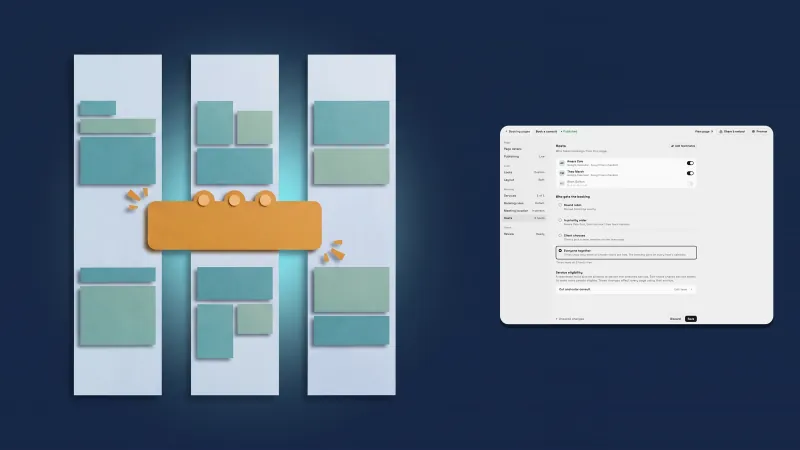 Everyone together: book a whole team into one appointment
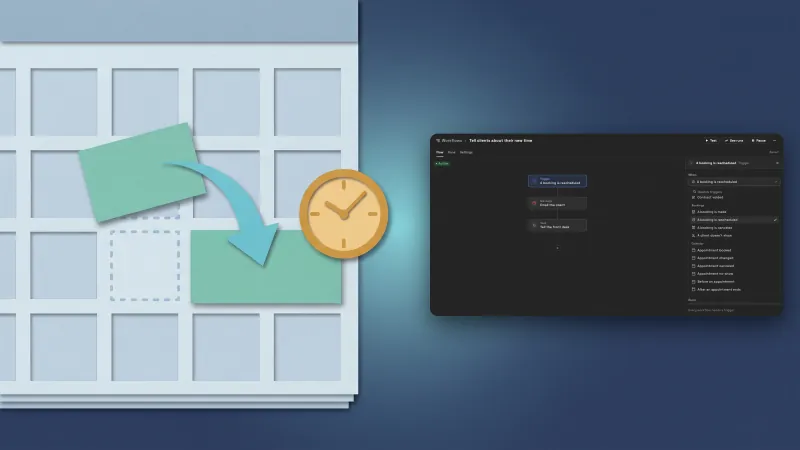 Run a workflow when a client reschedules a booking
A booking page for each team member, in your own workspace
Start your free trial on Specialist, then find it under Settings.
14-day free trial. Card required. After the trial: $149/month for Specialist. Renews automatically every month until you cancel. Cancel anytime in Settings → Billing.