How to make an invoice with Claude (and actually send it)
Make an invoice with Claude two ways: invoice text you copy out, or a real draft from your own services in Workspace369 that waits for your OK.

By Simon Dziak, Founder, Workspace369 · LinkedIn
Workspace369 publishes this guide. The screenshots come from our own demo workspace, recorded in Claude on November 23, 2026.
You can make an invoice with Claude in two ways. On its own, Claude writes the invoice as text or as a document that you send yourself. Connected to your invoicing software, it makes a real invoice: numbered, saved with the client, priced from your own services and ready to send. This guide shows both, then walks through the second with Workspace369 connected to Claude, step by step.
Key takeaways
- Claude on its own can write the text of an invoice or lay it out as a document. It doesn't know your prices or tax unless you type them in, and it doesn't keep a record of the invoice or send it to a client to pay.
- Connect Claude to your invoicing software and it makes a real invoice. With Workspace369 connected, ask in your own words and Claude drafts the invoice with the client, line items, prices and tax from your own workspace.
- By default, nothing goes out on its own: when you ask Claude to send the invoice, the send waits in Workspace369's Approvals until you approve it, or decline.
- Check four things before you approve: the client, the line items and prices, the tax, and the due date.
What's inside?
Two ways to make an invoice with ClaudeHow to make an invoice with Claude and Workspace369What waits in Approvals before an invoice goes outInvoice prompts to try in ClaudeWhat it costs
Two ways to make an invoice with Claude
1. Claude on its own. Ask it to write an invoice for a client and it gives you the text, often laid out as a table or a document. That's handy for a one-off, but everything after it is yours to do: give it a number, check the math, email it, and keep a record of who has paid. Claude doesn't know your prices or your tax rate unless you type them in.
2. Claude with your invoicing software connected. Claude reaches other apps through connectors. Add Workspace369 as a connector and Claude works inside your account: it finds the client, picks the line items and prices from your own catalog, applies your default tax and saves the invoice as a draft, numbered like any other. When you ask it to send, the send waits for your approval.
| Claude on its own | Claude with Workspace369 connected | |
|---|---|---|
| Prices | What you type in | Your own catalog prices |
| Tax | What you type in | Your workspace's default tax |
| Invoice number and record | None | Numbered draft saved with the client |
| Sending | You send it yourself | Waits in Approvals until you approve it |
| Getting paid | Separate | The invoice stays in Workspace369 with the client |
How to make an invoice with Claude and Workspace369
Step 1: Connect Workspace369 to Claude
A workspace admin turns on Allow AI connections in Settings, AI connections, and the server URL is on the same page. In Claude, open Connectors, choose Add, then Add custom connector, name it Workspace369 and paste the URL. Click Connect, sign in to Workspace369, choose the workspace and approve what Claude may do. No API key is needed. The Claude tutorial shows every click.
Step 2: Ask for the invoice in your own words
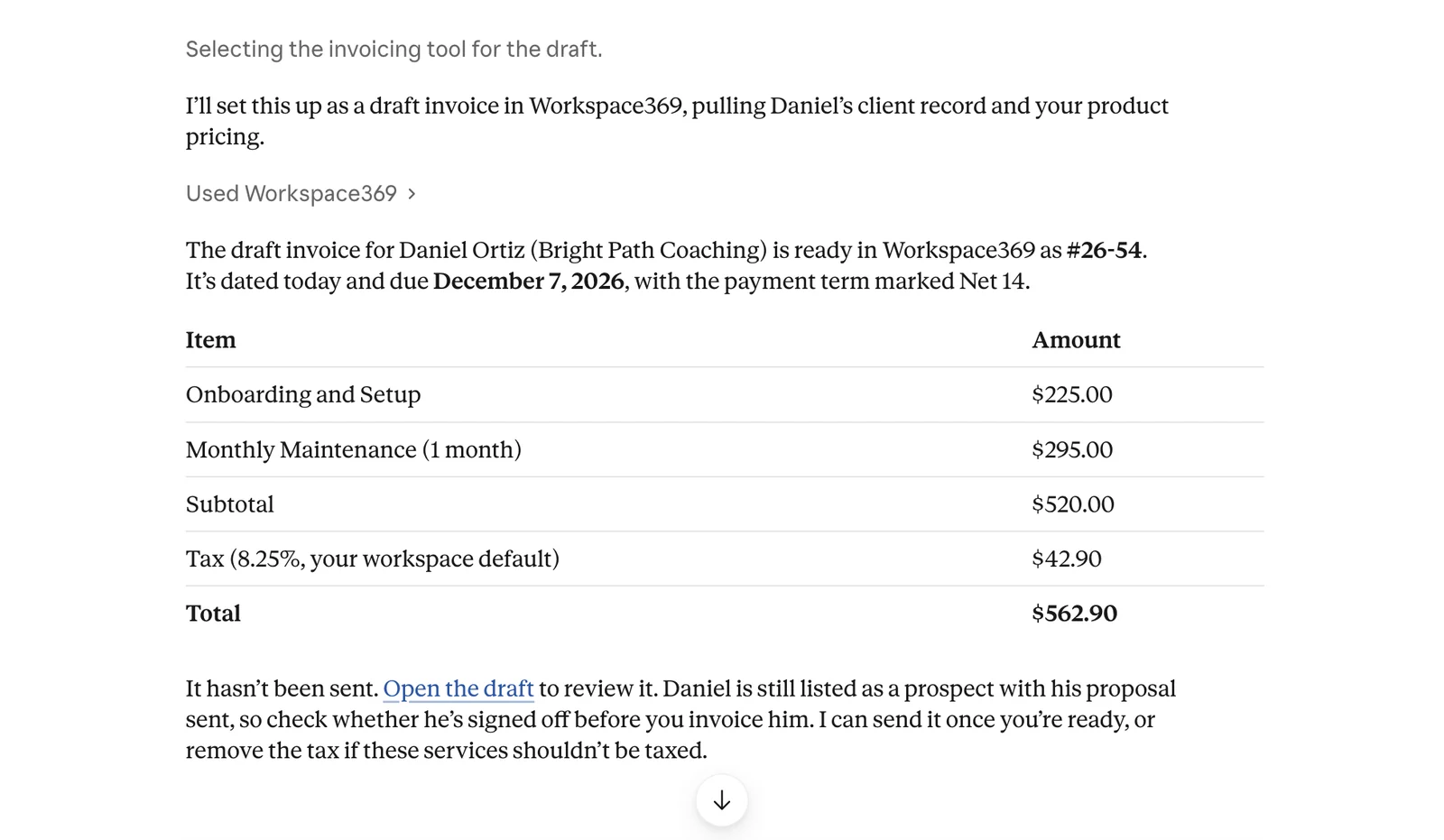
Say who the invoice is for and what it covers. For example: "Draft an invoice for Daniel Ortiz: Onboarding and Setup plus one month of Monthly Maintenance, due in 14 days."
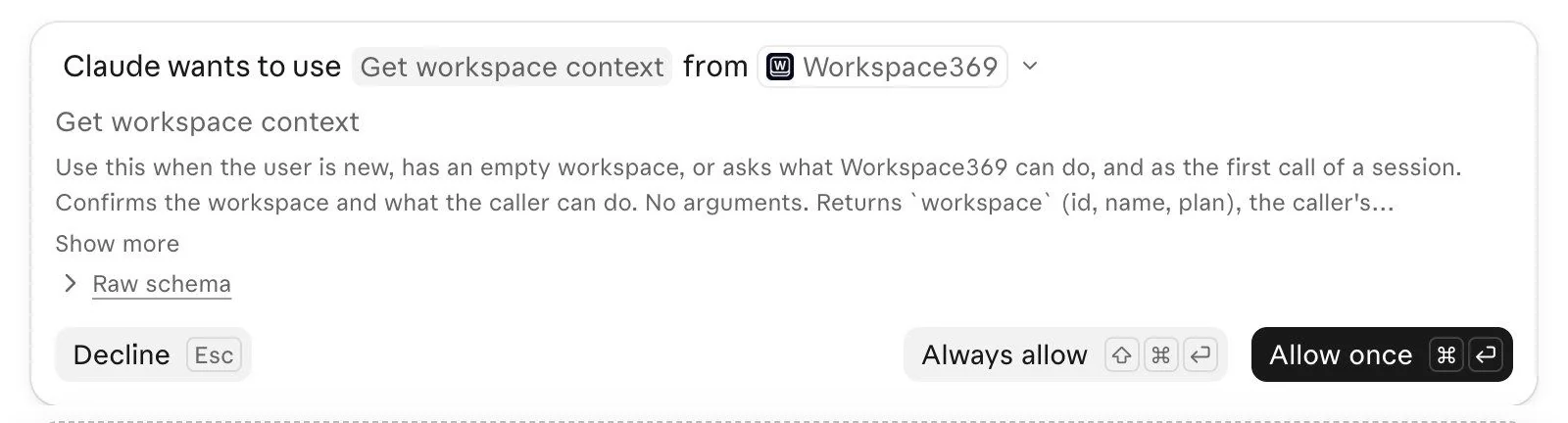
Depending on your Claude settings, Claude asks before it uses Workspace369. Choose Allow once.
Claude finds the client, matches the services to your catalog and creates the invoice as a draft. Nothing has been sent at this point.
Say "draft" when you want to check the invoice first. When we asked Claude to simply "invoice" a client, it created the invoice and asked to send it in one go. The send still waited in Approvals.
Step 3: Check the draft
Before anything goes out, check four things: the client, the line items and prices, the tax, and the due date. The draft also shows up in Invoices in Workspace369 like any other, so you can open it there to edit a line, add a note or change the terms. Want something different? Ask Claude in the same chat, like "make it due in 30 days".
Step 4: Ask Claude to send it, then approve
Ask Claude to send it, like "Send it to Daniel." By default, it doesn't go out on its own: the request waits in Approvals in Workspace369, with the invoice, the amount and the recipient, until you press Approve and send, or Decline. Claude tells you it's waiting. Only the person who made the connection can turn on Send without asking for it.

What waits in Approvals before an invoice goes out
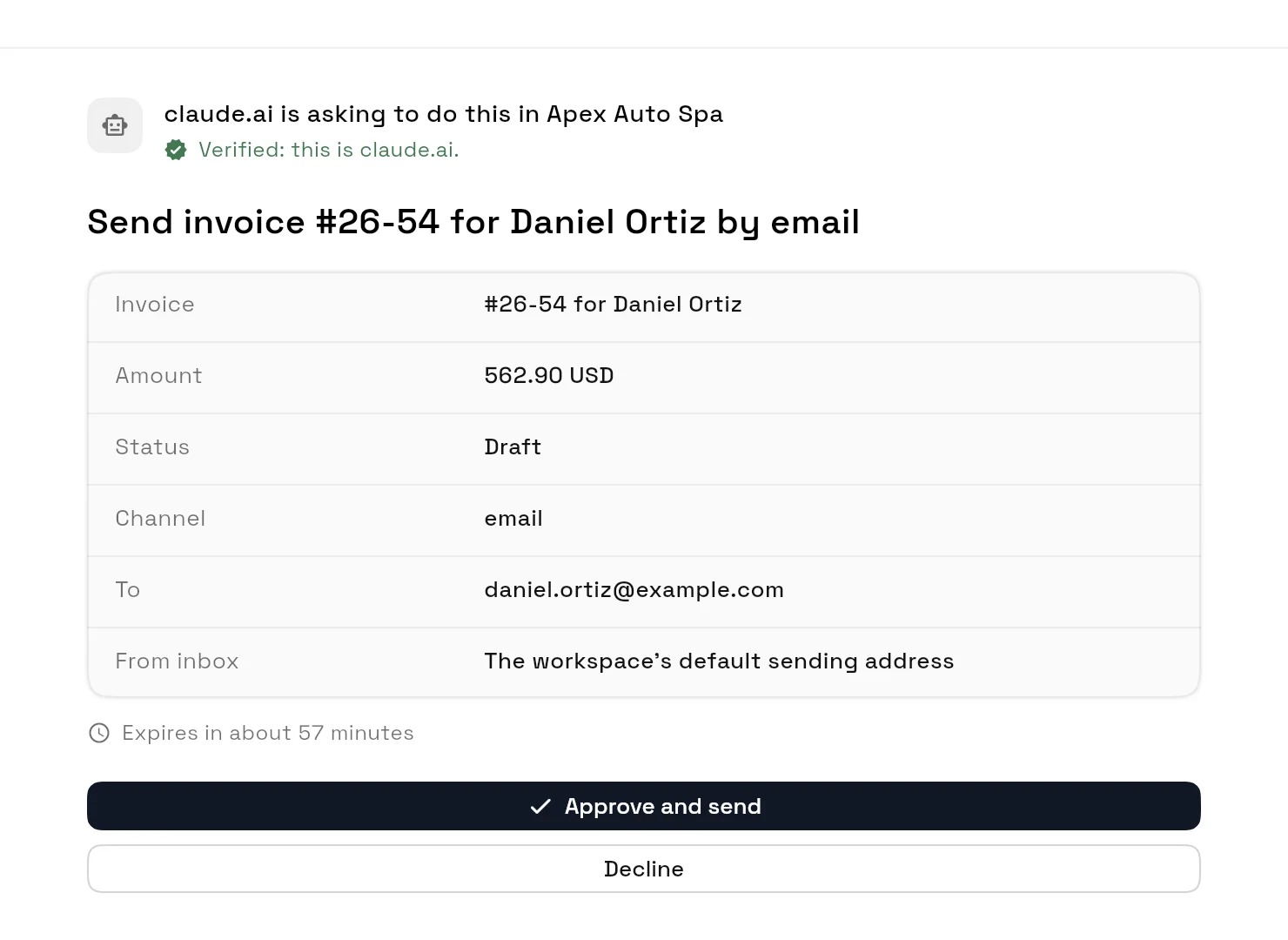
The approval page shows which app is asking, verified, and exactly what will go out. Once you approve, the invoice is emailed to your client. A request nobody decides expires after an hour, so unless you've turned on Send without asking, Claude never sends an invoice you didn't see. The same rule covers proposals, contracts, emails and texts.
Invoice prompts to try in Claude
- "Draft an invoice for Daniel Ortiz: Onboarding and Setup plus one month of Monthly Maintenance, due in 14 days."
- "Which invoices are overdue, and which client owes me the most?"
- "How much unbilled time have I logged on my active projects?"
- "Make that invoice due in 30 days."
- "Send it to Daniel."
For more, see 24 MCP CRM prompts, or how to write a proposal with Claude the same way. Prefer ChatGPT? The same steps work there: see how to make an invoice with ChatGPT.
What it costs
Connecting Claude works on every Workspace369 plan, from Cadet at $29 a month (one seat). Every successful request counts toward the workspace's monthly AI usage. Your Claude account is separate, with Anthropic. Start Workspace369 with the 14-day trial; a card is required, and the plan renews monthly after the trial until you cancel. Compare the plans or see how invoicing works.
Sources reviewed for this guide
- Connect Claude to Workspace369 (video tutorial)Connection steps, reviewed November 23, 2026.
- Workspace369 MCP permissions, usage and auditApprovals and Send without asking, reviewed November 23, 2026.
- Workspace369 pricingPlan prices and trial terms, reviewed November 23, 2026.
Run client follow-up in one workspace.
CRM, inbox, voice, invoicing, payments, projects, files, AI, and workflow automations — connected instead of exported.
14-day free trial. Card required. After the trial: from $29/month. Renews automatically every month until you cancel. Cancel anytime in Settings → Billing.
See pricing