How to sell memberships and session packs to clients (2026)
Sell a monthly membership or a 10-session pack with one pay link. Workspace369 keeps each member's balance, and members manage it in their client portal.

By Simon Dziak, Founder, Workspace369 · LinkedIn
Short answer: here's how to sell memberships and packages to clients in Workspace369. Connect your Stripe account, create a membership type (Clients → Memberships → New membership), choose how it bills (recurring, one time or term), then sell it from the client's record with a pay link. The client pays by card on Stripe's page, the membership starts when they pay, and Workspace369 tracks what they have left. The setup steps are in the docs: Create a membership plan.
What's inside?
Memberships, packs and terms: which one you're sellingA worked example: a trainer selling a 10-session packWhat a membership can includeWhat your members see in their portalRunning members day to daySet it up
Memberships, packs and terms: which one you're selling
Three billing choices ("Charge" on the membership type) cover most of what a studio, salon or trainer sells:
- Recurring: the monthly membership. Unlimited classes, a set number of visits a month, or a monthly salon membership. It bills every week, month or year until the member cancels.
- One time: the pack. Ten training sessions, five blowouts, a class card. The client pays once, there's no renewal, and the balance goes down as visits are recorded.
- Term: the commitment. A membership that runs for a set number of months, such as 12, billed monthly over the term.
Presets give you a starting point: Unlimited, Minutes, Visit pack and Credits, with more under More presets, including a Salon membership and a Day pass. Pick the closest and change what you need.
A worked example: a trainer selling a 10-session pack
Take an example personal trainer (not a customer) who sells a 10-session pack and a monthly unlimited membership.
- Create the pack. In Clients → Memberships, they press New membership, name it "10 sessions", start from the Visit pack preset and set Charge to One time with the price. The preset expires the pack 182 days after purchase, so they change Expires to Never.
- Create the monthly membership. A second type, "Unlimited monthly", starts from the Unlimited preset with Charge set to Recurring, monthly. They allow two freezes a year for holidays and set a notice period for cancelling.
- Sell the pack. A new client books in. The trainer opens the client's record, picks Sell membership from the ⋯ menu, chooses "10 sessions" and Pay link, presses Sell, then Copy Link, and texts the link.
- The client pays. The client pays by card on Stripe's page. The pack turns Active with 10 visits, and it appears under Members.
- Add a monthly membership. After a few sessions the client wants to train more often, so the trainer sells them "Unlimited monthly" from the same menu.
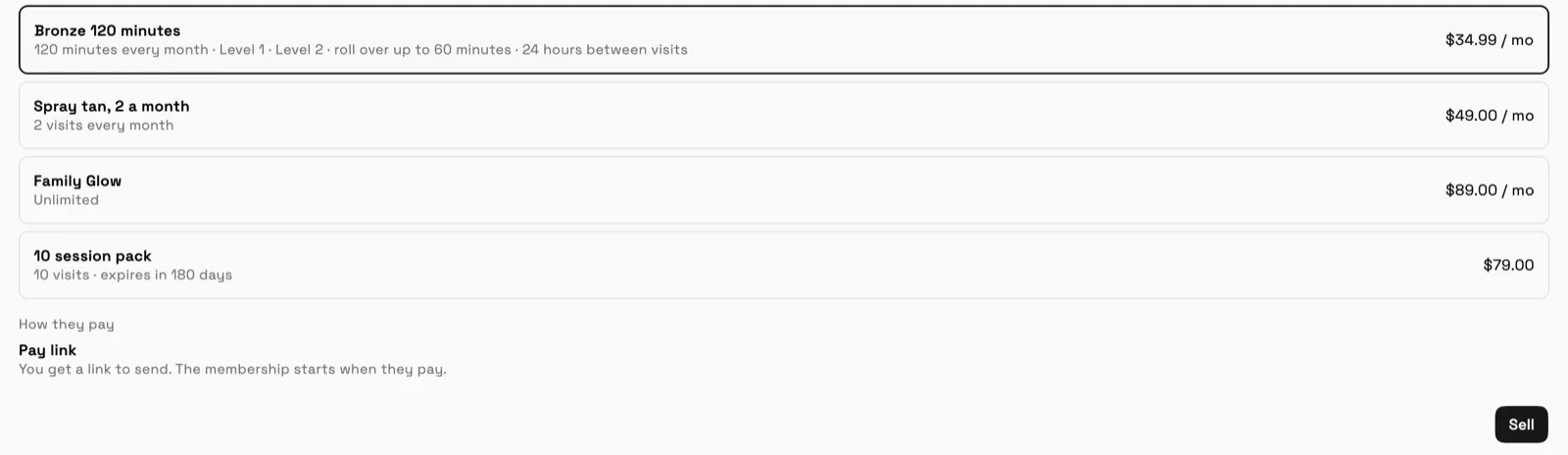
Demo account. Example data.
What a membership can include
A membership type holds what the member gets ("What's included") and the rules around it:
- Balances. Unlimited, a number of visits, credits that classes draw from, or minutes for rooms or treatments. Balances can refill on renewal or each month, with an optional roll-over cap.
- Limits. Visits a day and time between visits, for memberships that shouldn't be used twice in one sitting.
- Billing rules. A sign-up fee, a minimum commitment, days of notice to cancel, and what happens after a failed payment: allow a set number of days, then turn the member away or warn your staff.
- Freezes. How many a year, and the shortest and longest freeze. Billing pauses during a freeze, and anything left on the balance is held, not lost.
- Expiry. Never, a set time after purchase, or at period end. Some states limit expiring prepaid value, so check your local rules before you turn expiry on for packs.
When you change a type that already has members, Workspace369 asks whether the change applies to new members only or to everyone at their next renewal.
What your members see in their portal
Each member gets a Membership and pass section in their client portal. It shows the plan, its status and the renewal date, a balance bar for each part of the membership ("6 of 10", or "Unlimited"), and recent visits.
From Manage, the member can:
- Freeze the membership when the type allows it, from one week to three months or within the range you set. The page explains that billing pauses and the renewal date moves out.
- Update their card, so a new card doesn't mean a missed payment.
- Cancel, with the notice period and the end date shown first, and a Keep membership button if they change their mind.
If a card is declined, the portal shows a red banner with Update card and pay. The docs article Memberships in the client portal has the full walkthrough.
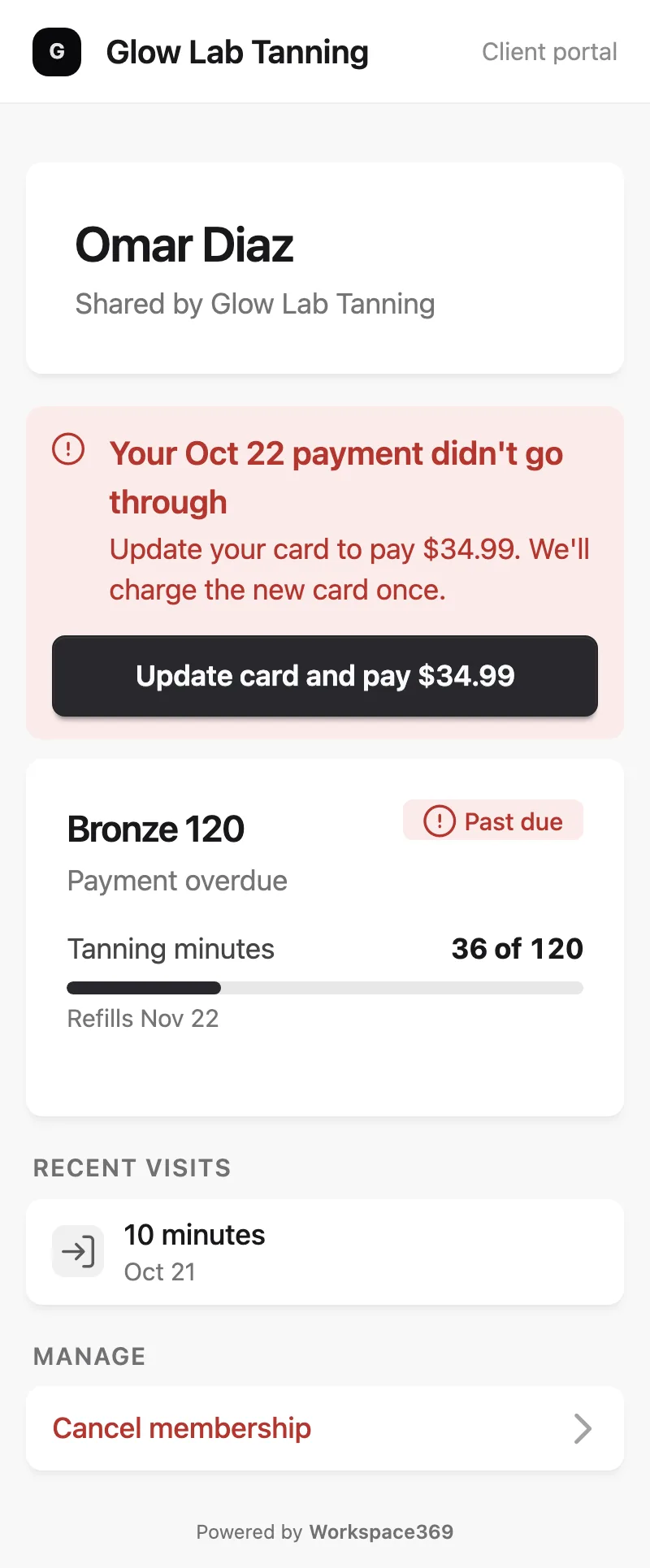
Demo account. Example data.
Running members day to day
The Members tab lists everyone with a membership and their status: Active, Trial, Pending, Frozen, Past due, Cancelled or Expired. Open a member to freeze or unfreeze them, adjust their balance with a reason, refund a payment, or cancel at period end or right away. A minimum term blocks early cancelling unless you waive it.
A refund can follow what's been used (unused time on a membership, unused sessions on a pack, and the sign-up fee is kept) or be a set amount you choose.
At the door, members show their membership pass and you scan it to check them in. From Voyager, staff can do the check-in; on Cadet the owner does. The memberships and check-in release note lists the details.

Set it up
Create your first membership type from Clients → Memberships, or start a 14-day trial (card required, then $29/month on Cadet until you cancel). Payments go through your own Stripe account. For more on running a studio or salon, see salon and spa software, personal trainer software and the CRM for yoga and Pilates studios.
Run client follow-up in one workspace.
CRM, inbox, voice, invoicing, payments, projects, files, AI, and workflow automations — connected instead of exported.
14-day free trial. Card required. After the trial: from $29/month. Renews automatically every month until you cancel. Cancel anytime in Settings → Billing.
See pricing