Workspace & teamBilling & payments
Locked features now show what they do, and unsaved work is easier to recover
Locked features now show a preview and the plan that includes them, plan limits show your real usage and the next plan, and unsaved work is easier to recover.
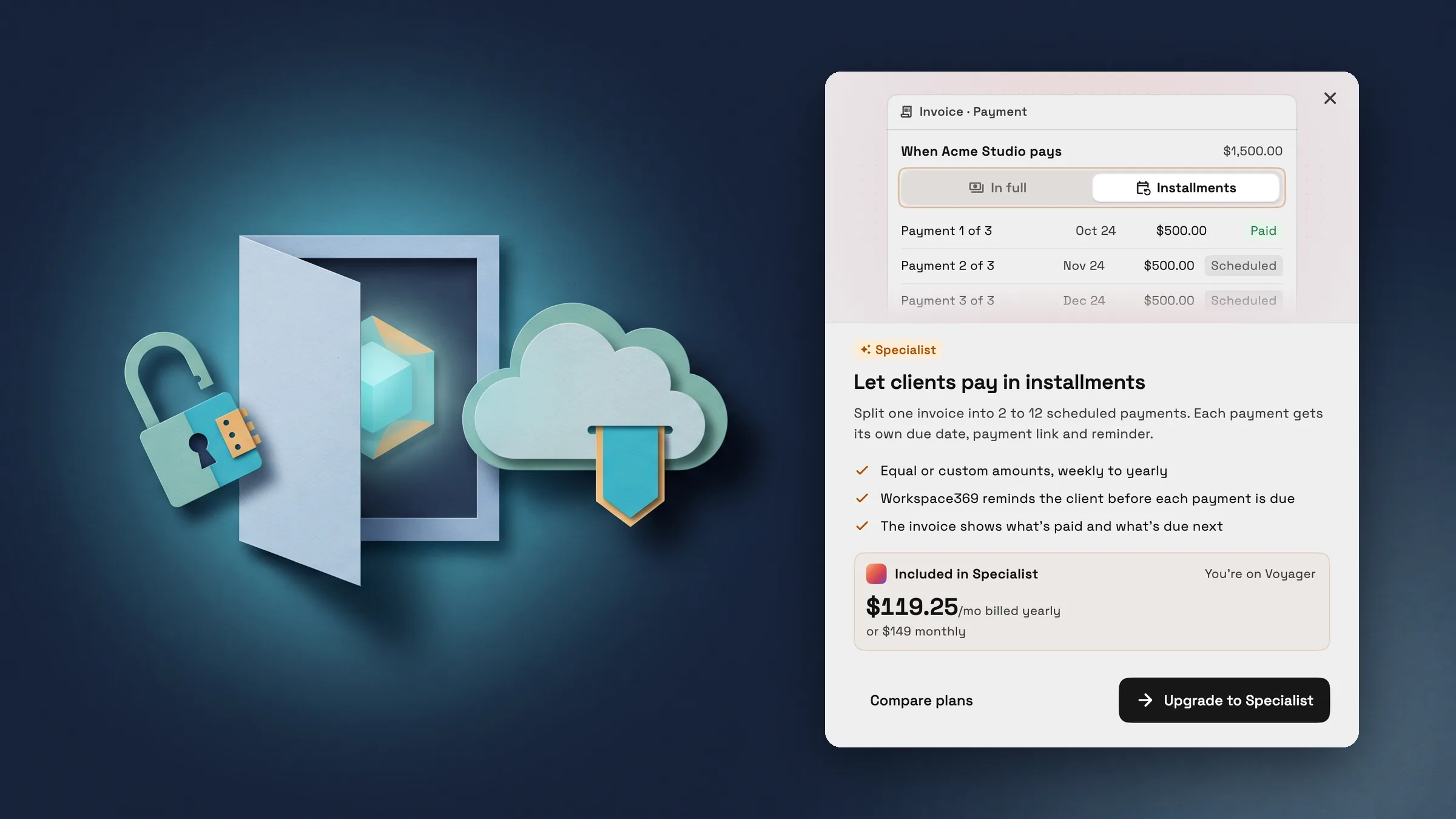
Every locked feature explains itself before you upgrade
Tap a plan lock anywhere in Workspace369 and an Unlock dialog opens for that feature. A short animated preview shows the real feature at work, a few points say what it does, and the plan that includes it is shown with its price, billed yearly or monthly. Upgrade opens your plans with that plan suggested, and Compare plans shows them all.
It covers locked features across the app, such as inbox rules, SMS automation, installments, inventory, funnels and team management. Enterprise features show the plan without a price. On an invoice's Payment tab, the lock now says what it unlocks: installments, on Specialist.
- A short preview of the real feature
- The plan that includes it, with its price
- Upgrade opens your plans with that plan suggested

- Where to find it
- Any feature with a plan lock
- tap the lock or See how it works
- Plans
- Every plan
- Learn more
- PricingOnline payments
Locked reports and actions now say which plan has them
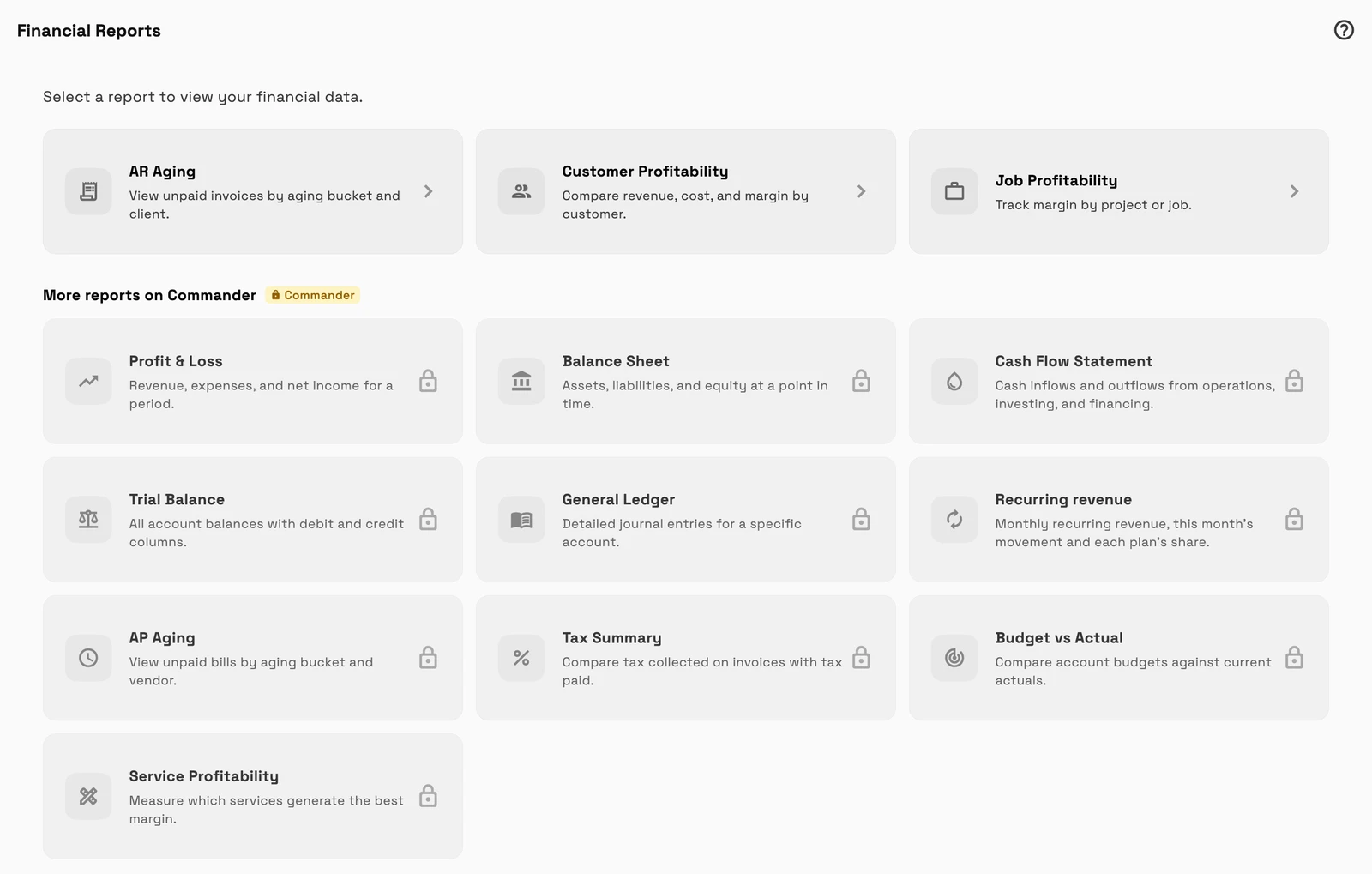
Places that used to hide a locked option or do nothing now show it with its plan. Financial reports lists the extra reports under More reports on Commander, each with a lock.
Create expense in the share menu and the task Time row show their plan, and the PRO chip plus Team members and Booking in Settings open the same Unlock dialog as other locked features.
- More reports on Commander, listed with locks
- Locked actions show the plan that includes them
- Every lock opens the Unlock dialog
- Where to find it
- Accounting
- Financial reports, the share menu, a task's Time row, and Settings
- Team members or Booking
- Plans
- Every plan
- Learn more
- AccountingPricing
Hitting a plan limit shows your usage and the next step
When you reach a limit on your plan, one dialog now explains it instead of a short error or a button that does nothing. It covers team seats, phone numbers, full file storage, a file too large for the space left, AI imports over your plan's limit and running out of usage.
The dialog shows your real usage, such as 1 of 1 seat used or 5 GB of 5 GB used, then the next plan that lifts the limit with what it includes and its price. Where you can add a single seat or ask for more phone numbers, that option comes first. Upgrade opens your plans with that plan suggested.
- Your real usage, shown as a meter
- The next plan that lifts the limit
- Add a seat or request numbers where you can

- Where to find it
- Appears when you reach a limit, for example inviting a team member, adding a phone number or uploading a file
- Plans
- Every plan
Unsaved work stays quiet until it needs you
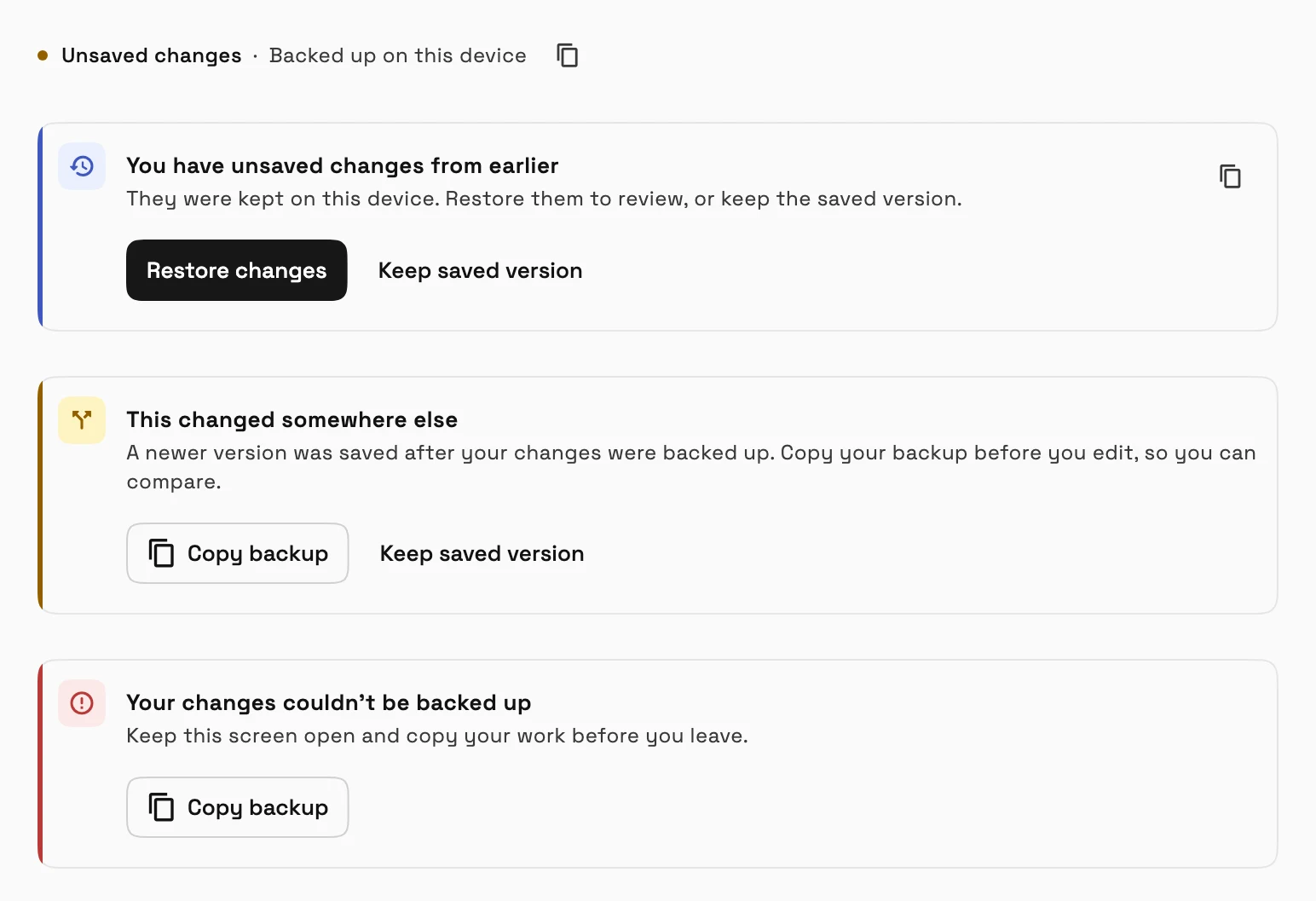
When an editor keeps your changes on this device, a small line under the title says Unsaved changes, Backed up on this device. A full message appears only when there is something to do: changes found from earlier that you can restore or skip, a newer version saved somewhere else, or a backup that failed. In the last two cases a Copy backup button lets you keep your work before you leave.
This works in invoices, change orders, the knowledge base and email templates. Proposals and notes also warn you and let you copy a backup when your work needs attention.
- Where to find it
- Invoices, Change orders, Knowledge base and Email templates
- the editor, under the title
- Plans
- Every plan
See where Workspace369 fits into your client-work flow.
Start with the modules you need today, then turn on AI, automations, accounting, inventory, requests, and reporting as the operation grows.
14-day free trial. Card required. After the trial: from $29/month. Renews automatically every month until you cancel. Cancel anytime in Settings → Billing.
