Billing & paymentsProposals & contractsCalendar & booking
Clients see your own thank-you page after they pay
After a client pays an invoice, pay link, proposal or booking, they now see your note and next-step buttons under the confirmation, with an optional redirect to your site.
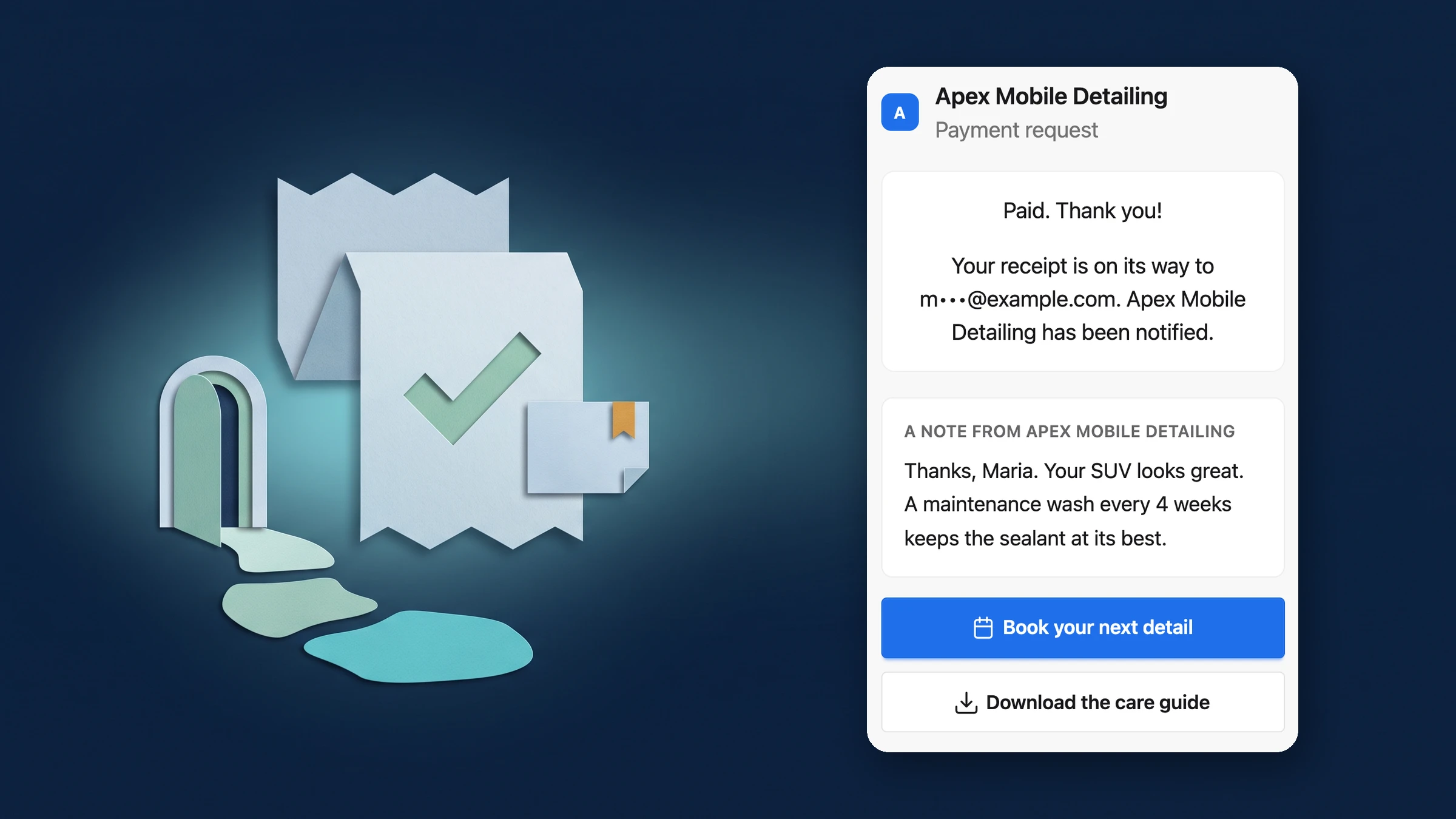
A note and next steps for clients right after they pay
Once a payment is confirmed, the page your client sees keeps the confirmation first: paid, the amount, the receipt and the document. Under it, they now see a short note from you and up to two buttons for what comes next, such as booking a kickoff call or downloading a care guide.
You can also send clients on to a page of your own. The redirect starts only after the payment is confirmed, with a 5-second countdown that names the site, plus Go now and Stay. Nothing about the payment is added to the link. It works on invoices, pay links, proposals and bookings.
- Your note under the payment confirmation
- Up to two next-step buttons
- Optional redirect with a 5-second countdown and Stay

- Where to find it
- Your clients see it on the page they pay on; you set it in Settings
- Sales & Invoicing
- After payment
- Plans
- Every plan
- Learn more
- Online paymentsInvoices
Set it once for the workspace, change it per document
A new After payment page in Settings holds your message (plain text, line breaks kept), up to two buttons with a label, link and icon (Book a call, Download or Link), the optional redirect, and where it shows: invoices, Flash Pay links, proposals and bookings. A live preview shows what a client sees with your unsaved changes.
Any invoice, proposal or booking service can use the workspace page, its own page or none, from an After payment row in its editor, and a pay link can do the same when you create it. The redirect is off until you turn it on, and links must start with https.
- One page for the whole workspace
- Default, custom or off for each document
- Live preview before you save

- Where to find it
- Settings
- Sales & Invoicing
- After payment, or the After payment row in an invoice, proposal or booking service, or when you create a pay link
- Plans
- Every plan
- Learn more
- Online paymentsProposals
See where Workspace369 fits into your client-work flow.
Start with the modules you need today, then turn on AI, automations, accounting, inventory, requests, and reporting as the operation grows.
14-day free trial. Card required. After the trial: from $29/month. Renews automatically every month until you cancel. Cancel anytime in Settings → Billing.
