Workspace & teamCalendar & bookingProposals & contractsWorkspace AI
Setup now builds your booking page and starts your first proposal from your services
Guided setup now makes a live booking page in one step and starts your first proposal from your services, and new AI access tokens show exactly where to paste them.
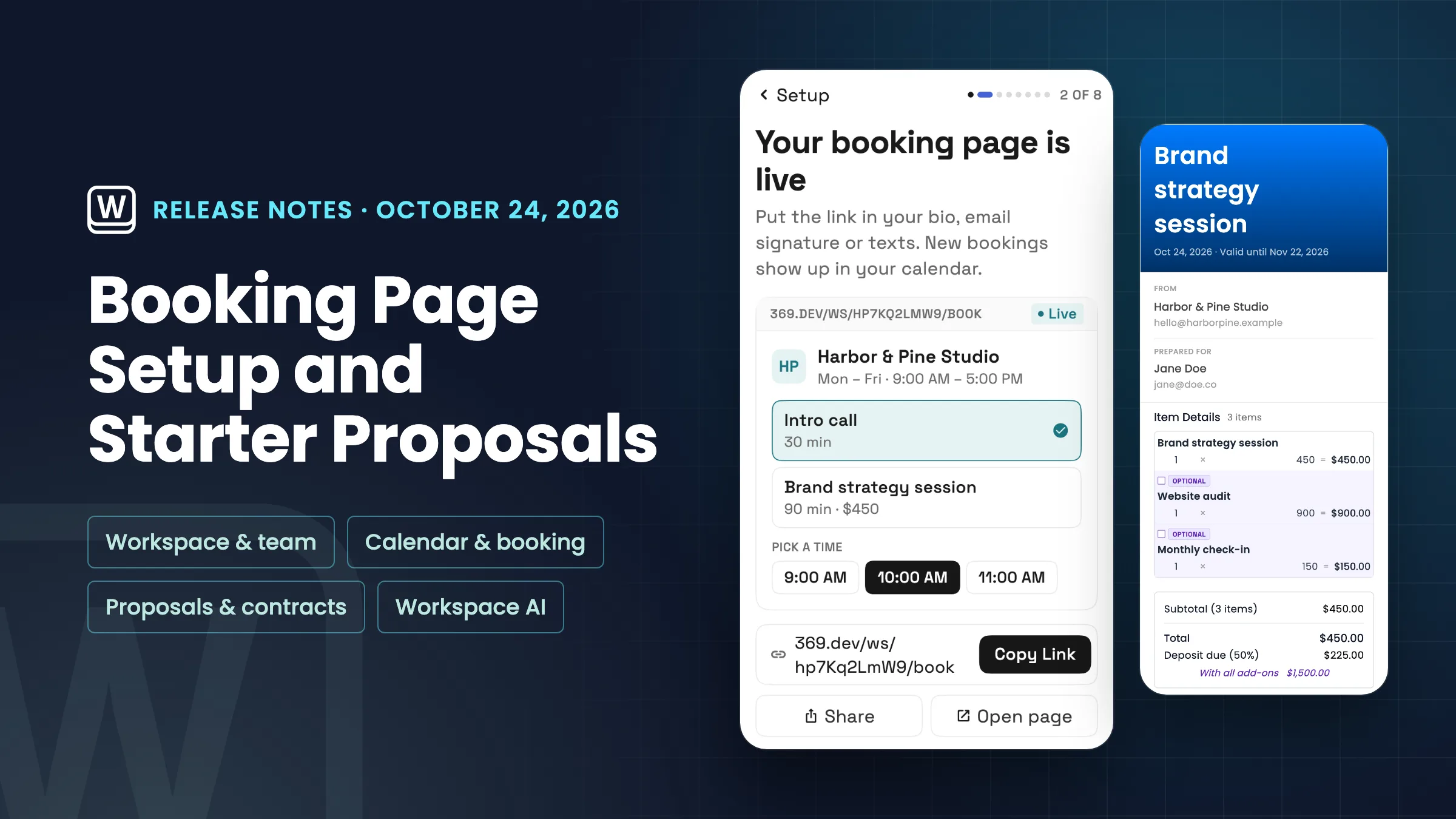
Make your booking page during setup
Guided setup has a new step, Your booking page. For a new workspace it comes right after your first client, and if you pick scheduling as your goal it comes first. On one screen you say what people can book: up to three services, each 30, 60 or 90 minutes, with an optional price that is shown on the page. Then choose how you meet, by video, phone or in person, and when people can book: weekdays, or weekdays and Saturday, from 9 AM to 5 PM in your time zone.
Create my page adds the services to your catalog with online booking turned on and creates your booking page with those hours. The step then shows the live link with Copy link, Share and Open page, ready for your bio, email signature or texts, and new bookings show up in your calendar. For a video service, the page tells clients you will send the link before you meet. You can change the services, hours and everything else later in Booking pages.
If your workspace already has a booking page or bookable services, the step shows those instead of the form. Only the owner or an admin can make booking pages, so other teammates see a note and can skip the step. Booking pages take bookings on the Specialist, Commander and Enterprise plans. It is on the web app now and comes to the iPhone and Android apps with their next update.
- Up to three services, 30, 60 or 90 minutes
- Video, phone or in person
- Weekdays or weekdays and Saturday, 9 AM to 5 PM
- Live link with Copy link, Share and Open page

- Where to find it
- Home
- setup card
- Your booking page
- Plans
- Specialist and up
- Learn more
- Online bookingCalendar and booking
Start your first proposal from your services
The first-proposal step in guided setup has a new way to start, Your services, picked for you when your catalog has services. Instead of a blank proposal, it opens a draft for your client that is named after a service you sell and lists your three newest active services as line items: the first one included, and the others as optional extras the client can tick.
The draft also has a short How this works section that tells the client to review what is included, tick any extras they want and accept and sign to get started. A signature is required. When you can take card payments in Workspace369 and the included service has a price, the draft also asks for a 50% deposit on acceptance.
Saved templates and A few line items work as before, and nothing goes to the client until you send it. It is on the web app now and comes to the iPhone and Android apps with their next update.
- Draft built from your three newest services
- Extras the client can tick
- Signature required, deposit when you take card payments

- Where to find it
- Home
- setup card
- Send your first proposal
- Your services
- Plans
- Every plan
- Learn more
- Proposals and quotesProposals tutorial
New access tokens show where to use them
When you create a personal access token for AI connections, the Token created dialog now has a Use it section. It shows your workspace's own MCP server address, a second address for the core CRM tools only, and a ready-to-paste Claude Code command that already holds your new token, plus a link to the setup guide.
Every value has its own copy button. Addresses and the connection name in the command are specific to the workspace, so you can connect more than one workspace to the same AI app side by side.
The token is still shown only once, so copy it before you press Done. If AI connections are off in the workspace, the dialog tells owners and admins to turn on Allow AI connections on the same page, and tells other members to ask the owner.
- Workspace MCP address and core CRM address
- Ready-to-paste Claude Code command
- A copy button on every value

- Where to find it
- Settings
- AI connections
- Personal access tokens
- Create token
- Plans
- Every plan
- Learn more
- AI connections (MCP)CRM MCP server guide
See where Workspace369 fits into your client-work flow.
Start with the modules you need today, then turn on AI, automations, accounting, inventory, requests, and reporting as the operation grows.
14-day free trial. Card required. After the trial: from $29/month. Renews automatically every month until you cancel. Cancel anytime in Settings → Billing.
