Calendar & bookingBilling & paymentsWorkflows
One-time booking links, tips at invoice checkout and project workflows
Send a booking link that works once, keep time free before each booking, let clients add a tip when they pay an invoice, and start workflows when a project is done.
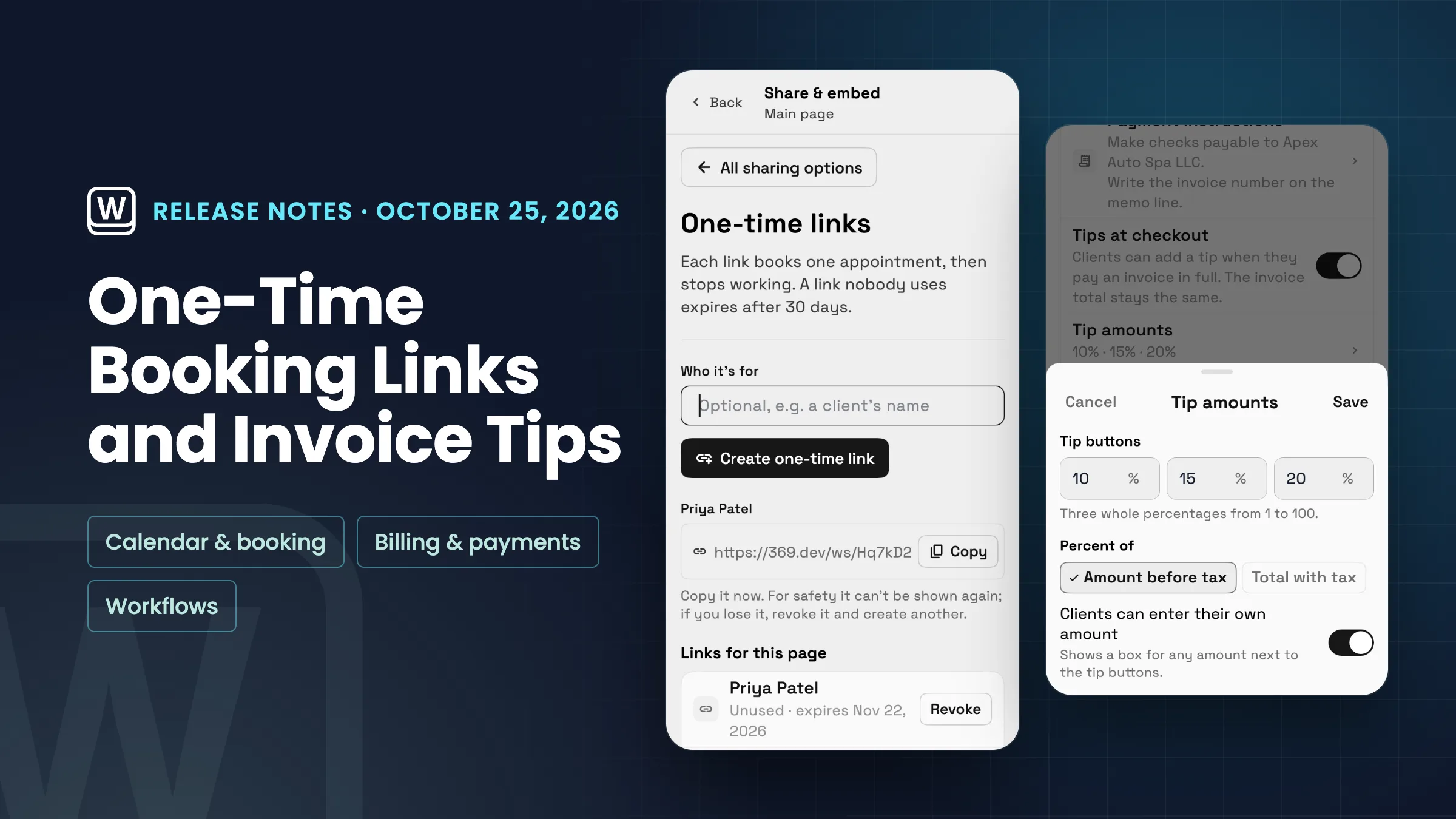
Booking links that work once
Share & embed on a booking page has a new option, One-time links. Type who the link is for if you like, for example a client's name, then create it and copy it. Each link books one appointment and then stops working, and a link nobody uses expires after 30 days. For safety the link is shown only once, so copy it right away. If you lose it, revoke it and create another.
Links for this page lists every link as Unused with the date it expires, Used with the date, Expired or Revoked. You can revoke an unused link, and it stops working right away. If a booking made with a link is never paid, for example the client leaves checkout, the link works again, while a paid, declined or cancelled booking keeps it used.
To keep a page private, turn on Only bookable through one-time links in the page's Publishing settings. The page and its embeds then take bookings only from a one-time link you create, anyone else sees that the booking link is no longer available, and the page is kept out of search results. Only the workspace owner and admins can create and revoke one-time links. Booking pages take bookings on the Specialist, Commander and Enterprise plans. It is on the web app now and comes to the iPhone and Android apps with their next update.
- Each link books once, then stops working
- Unused links expire after 30 days
- Revoke an unused link any time
- Optional: a page that books only through one-time links

- Where to find it
- Settings
- Booking pages
- open a page
- Share & embed
- One-time links
- Plans
- Specialist and up
- Learn more
- Online bookingCalendar and booking
A buffer before each booking, and reminders you pick as chips
A booking page's Booking rules now has Buffer before each booking, above the buffer after. It keeps free time before every appointment booked on that page: none, 5, 10, 15, 30 or 60 minutes. Leave it on Service default and each service keeps its own buffer before.
In a service's booking settings, Reminders are now chips instead of a list of minutes: 7 days, 2 days, 1 day, 3 hours, 1 hour, 30 min and 15 min. Pick one or more, or tap Other to add your own in minutes, hours or days, up to 7 days. A service always keeps at least one reminder. Both are on the web app now and come to the iPhone and Android apps with their next update.
- Buffer before: none, 5, 10, 15, 30 or 60 minutes
- Reminder chips from 15 minutes to 7 days
- Your own reminder with Other

- Where to find it
- Settings
- Booking pages
- open a page
- Booking rules
- Buffer before each booking
- Plans
- Specialist and up
- Learn more
- Online bookingCalendar and booking
Let clients add a tip when they pay an invoice
Clients can now add a tip when they pay an invoice online. Turn on Tips at checkout under Invoices in Settings → Online payments → Payment methods; it stays off until you do. Tip amounts sets your three tip buttons, each a whole percentage from 1 to 100 (10, 15 and 20% to start), whether they are a percent of the amount before tax or of the total with tax, and whether clients can enter their own amount.
When the client pays the full balance on the invoice page, they see Add a tip: your three buttons, each with its amount, Custom when you let clients enter their own amount, and No tip. No tip is picked to start. The payment summary adds the tip as its own line and shows the new total due. Tips are not offered on a partial payment.
The invoice total and the receipt stay the same. On plans with Accounting (Specialist and up), the tip is booked as its own Tips income. When you refund a tipped card payment, the refund dialog shows the tip and how much you can refund while keeping it. The tip settings are on the web app now and come to the iPhone and Android apps with their next update.
- Off until you turn it on
- Three tip buttons, your own amount and No tip
- Invoice total stays the same
- Tips booked as their own income with Accounting

- Where to find it
- Settings
- Online payments
- Payment methods
- Invoices
- Tips at checkout
- Plans
- Every plan
- Learn more
- Online paymentsInvoices
Workflows that start when a project is done, and a Create project step
Workflows have a new Projects trigger, Project completed. It runs each time a project's status changes to Completed, or only once per project if you set it to, and it can use the project's name, number and status, plus the client when the project is linked to one. Use it to thank the client, send them your review link or tell your team.
A new Create project step works with any trigger. Give the project a name, which can include variables such as the client's name, pick the status it starts in, and choose whether to link the client. You can also stop the workflow if the project can't be created. For example, a Proposal accepted or Lead converted to client workflow can create the client's project for you. The step needs permission to create projects. Both are on the web app now and come to the iPhone and Android apps with their next update.
- Project completed trigger with the project and client details
- Create project step on any trigger
- Project name with variables and a starting status

- Where to find it
- Workflows
- open a workflow
- trigger
- Projects
- Project completed
- Plans
- Every plan
- Learn more
- Workflow automationWorkflows tutorial
See where Workspace369 fits into your client-work flow.
Start with the modules you need today, then turn on AI, automations, accounting, inventory, requests, and reporting as the operation grows.
14-day free trial. Card required. After the trial: from $29/month. Renews automatically every month until you cancel. Cancel anytime in Settings → Billing.
