Proposals & contractsWorkspace AICalendar & booking
Pick-one proposal packages, Write with AI for proposals and services on calendar events
Offer good, better and best packages your client picks from, draft a proposal with AI, put proposal totals in contracts and show services on calendar events.
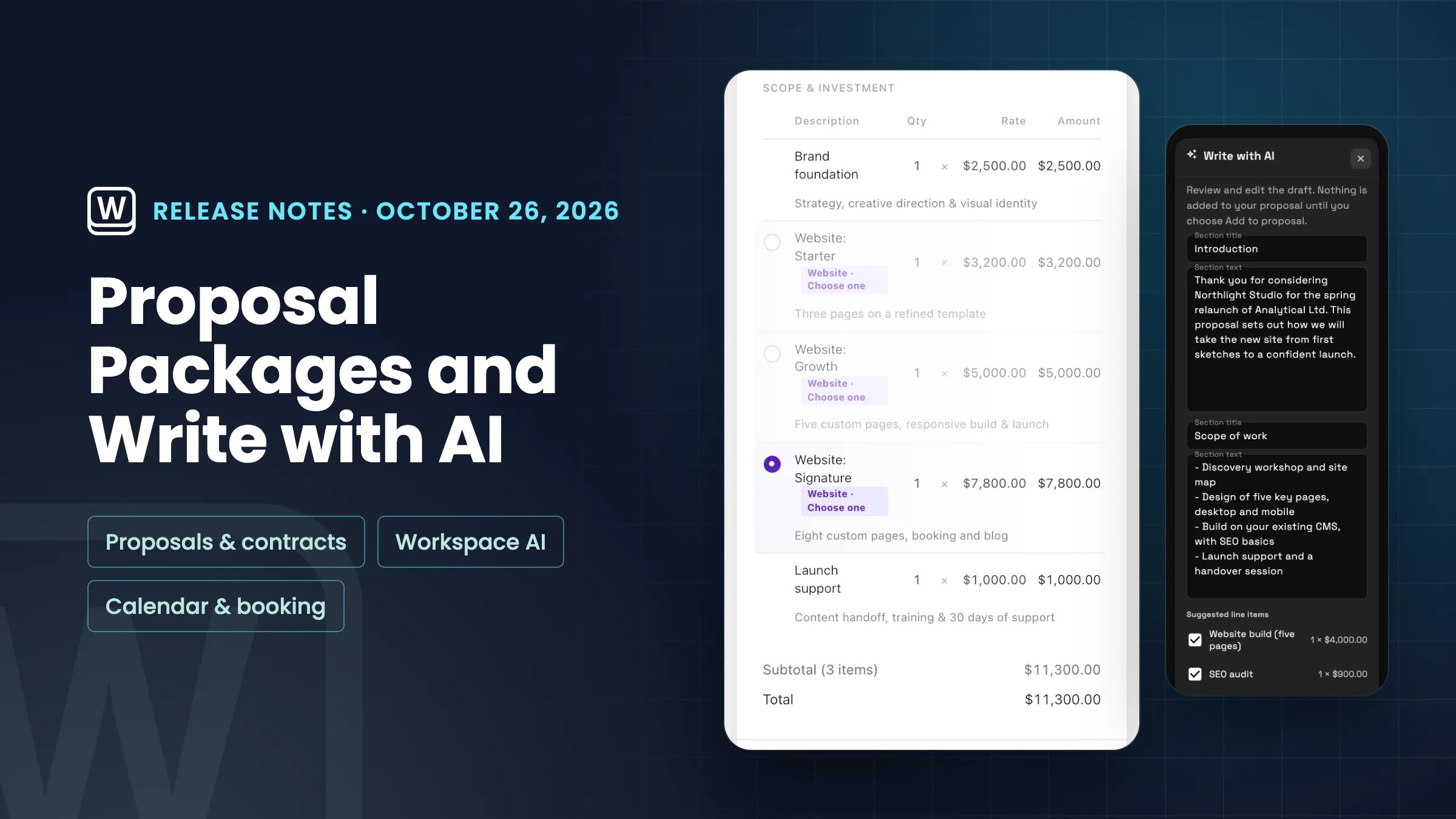
Pick-one packages: let your client choose good, better or best
You can now offer alternatives on a proposal, such as Starter, Growth and Signature versions of a website, and let your client pick one. In the proposal editor, open a line item's ⋯ menu and choose Offer as package option…, then name a new package or add the line to one you already have. Each option shows the package name and a radio button. The filled radio is the default option, the one the proposal opens with, and Make default option in the ⋯ menu changes it. Only the default counts toward the totals you see in the editor.
On the proposal page, each option is tagged with the package name and Choose one, and the default is already picked. When your client picks another option, the subtotal, discount, tax and total update to match, and so does a deposit set as a percentage; a fixed deposit stays the same amount. The options they didn't pick are dimmed rather than crossed out. Their choice goes with the proposal when they accept it and when they pay the deposit. Packages sit alongside optional add-ons, so one proposal can have both. It is on the web app now and comes to the iPhone and Android apps with their next update.
- Group alternatives into a named package
- Choose the default option the proposal opens with
- Totals, and a percentage deposit, follow the client's pick
- Works alongside optional add-ons

- Where to find it
- Proposals
- open a proposal
- a line item's ⋯ menu
- Offer as package option…
- Plans
- Every plan
Write with AI: draft a proposal's introduction, scope and line items
The proposal editor has a new Write with AI button, in the top bar on desktop and in the ⋯ menu on a phone. Choose the proposal's client first. Then add notes on what the proposal should cover if you like, for example the project, the timing and the tone, and leave Suggest line items from your products and services on to get suggested lines. Write with AI drafts an introduction and a scope of work from the client, the linked project, the proposal's title and your notes.
Nothing is added straight away. You review the draft first: edit each section's title and text, and untick any suggested line item you don't want. Suggested lines come from your own products and services, at your catalogue prices. When you choose Add to proposal, the sections are added as new text blocks just below the pricing, ahead of your other content, and the lines you kept are added to your line items, without changing anything already there, and one Undo takes the whole draft back out. Choose Discard to add nothing.
Write with AI uses your workspace's monthly AI usage, like Ask AI, and the button shows for team members who can edit proposals and use AI. It is on the web app now and comes to the iPhone and Android apps with their next update.
- Introduction and scope of work from the client, project and your notes
- Suggested line items from your own catalogue, at your prices
- Review and edit before anything is added
- One Undo removes the whole draft

- Where to find it
- Proposals
- open a draft proposal
- Write with AI
- Plans
- Every plan
- Learn more
- Proposals and quotingWorkspace AI
Put the proposal total and deposit in a contract
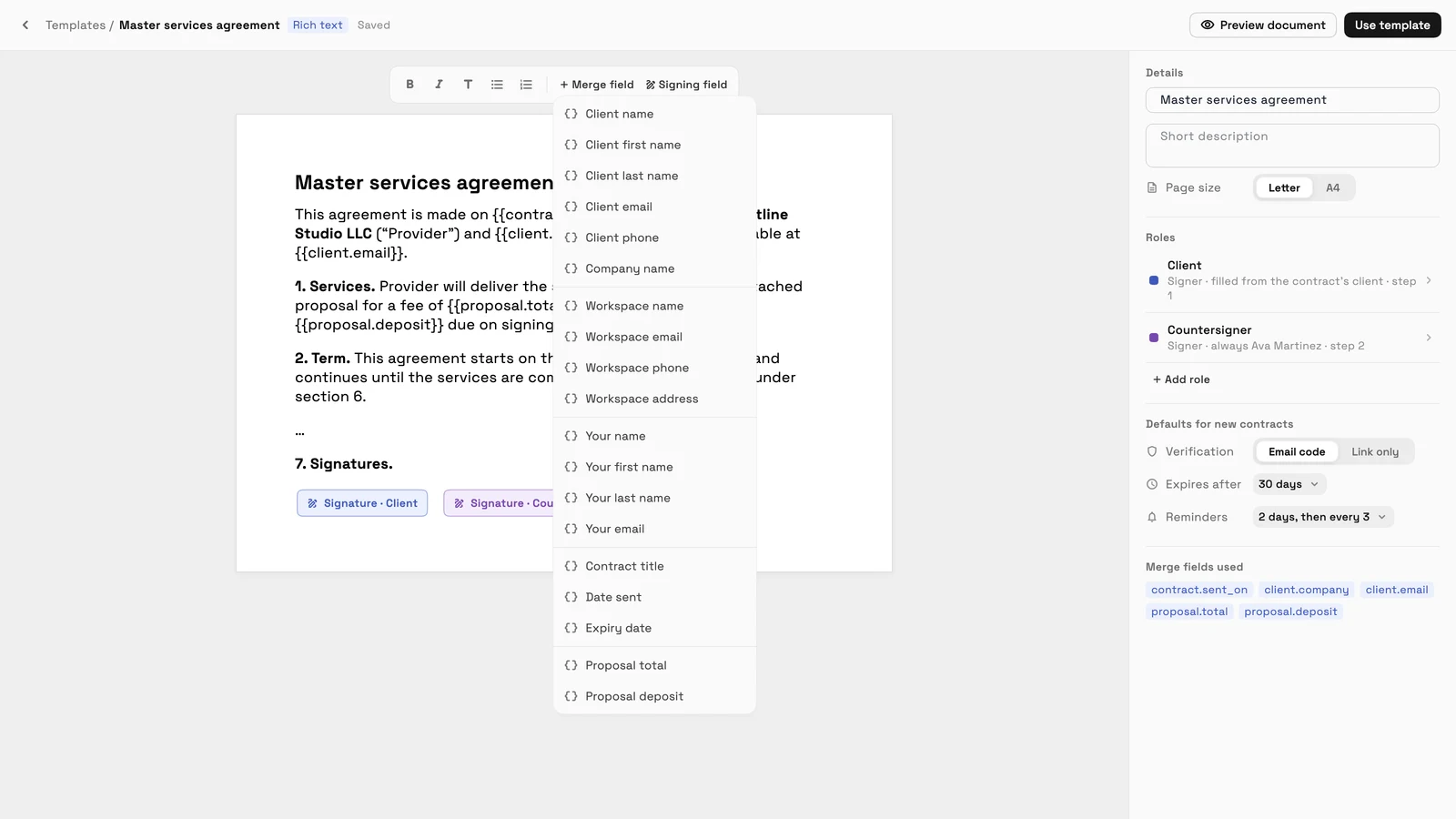
Contract templates have two new merge fields, Proposal total and Proposal deposit, at the bottom of the Merge field menu in the template editor. When you attach the contract to a proposal, your client signs it right after they accept, and the fields fill in with the accepted proposal's total and its deposit, in the proposal's currency. The deposit follows the proposal's deposit setting and shows $0.00 when there is no deposit.
These fields only fill in on a contract attached to a proposal. If you send a contract that uses them on its own, Workspace369 asks you to send it from its proposal or remove those fields, so a client never signs a contract with a blank amount. It is on the web app now and comes to the iPhone and Android apps with their next update.
- Proposal total and Proposal deposit merge fields
- Filled in from the accepted proposal
- Never sent with a blank amount
- Where to find it
- Contracts
- Templates
- open a template
- Merge field
- Proposal total
- Plans
- Every plan
Services and products on calendar events
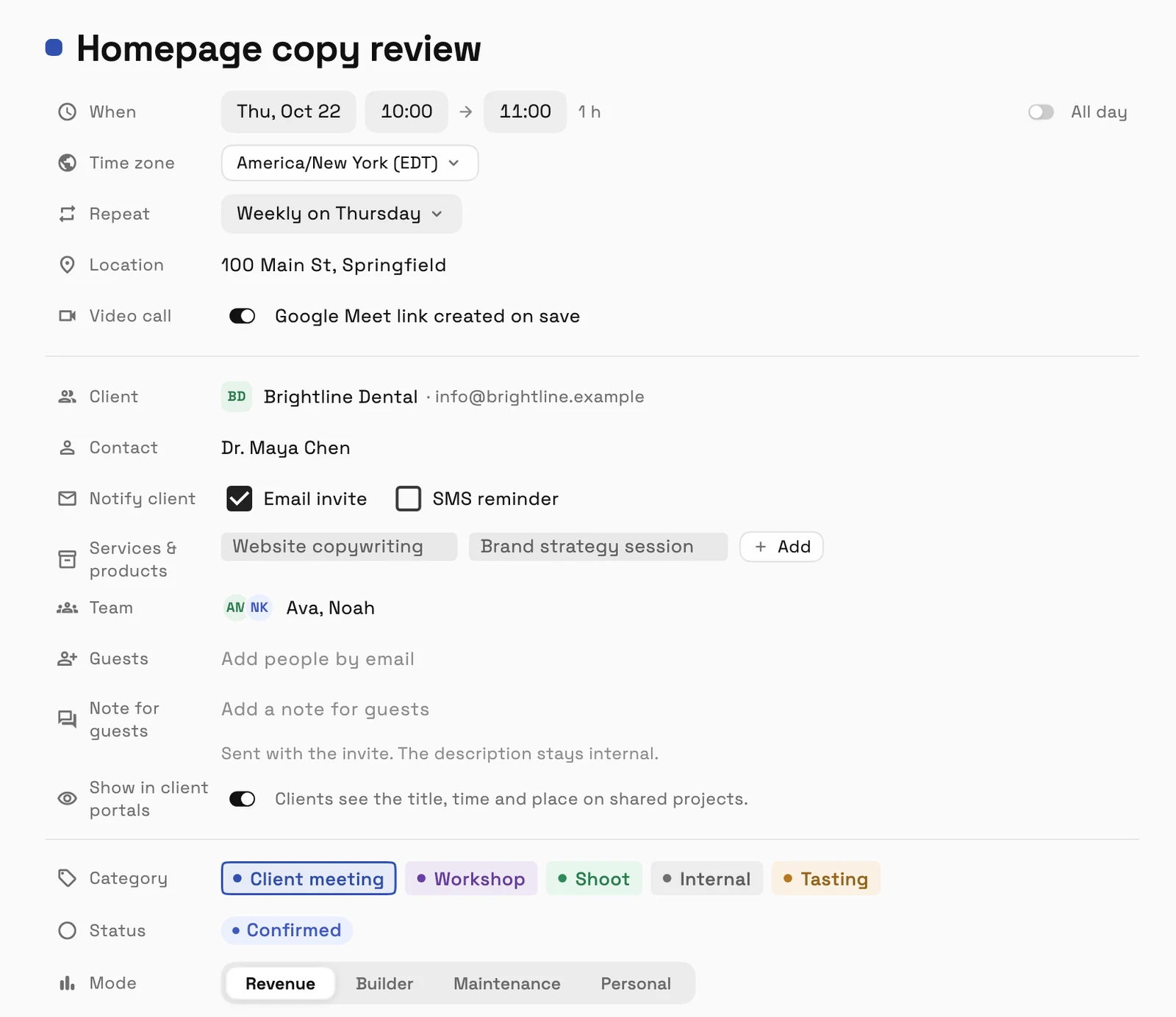
Calendar events have a new Services & products row. Add one or more items from your product and service catalogue to say what an appointment is for, and they show on the event across the calendar views and in the event preview. Bookings made on your booking page show the booked service on their own.
To choose what events show, open Display options on the calendar and turn Services & products, Client and Team on or off under Show on events. Your choice is saved on each device. It is on the web app now and comes to the iPhone and Android apps with their next update.
- Pick services and products from your catalogue
- Shown on events in every calendar view
- Choose to show services, client and team on events
- Where to find it
- Calendar
- open an event
- Services & products
- Plans
- Every plan
See where Workspace369 fits into your client-work flow.
Start with the modules you need today, then turn on AI, automations, accounting, inventory, requests, and reporting as the operation grows.
14-day free trial. Card required. After the trial: from $29/month. Renews automatically every month until you cancel. Cancel anytime in Settings → Billing.
