Clients & CRM
Pipeline board, more pipelines and a Leads report for your CRM
See every lead on a pipeline board, run more than one pipeline, and read a Leads report on what wins and why. Webhooks now list their Recent deliveries.

See every lead on a pipeline board
Clients now has a Board view next to Table and Follow-ups. Each lead stage is a column that shows its leads, a total value and its win chance, and new inquiries from Requests wait in their own New inquiries column until you move them. Drag a lead to the next stage, or drag it onto the Won or Lost strip that appears while you drag. You can also right-click a lead to move it, mark it won or lost, edit its value or set an expected close date.
A strip across the top shows Open pipeline, Weighted (value times each stage's win chance), Won in the current month and the win rate of closed leads over 90 days. The win chance for each stage is set in Settings → Clients → Stages. Totals only add deals in your workspace currency; deals in other currencies are listed separately, so currencies are never added together.
Each lead has a Deal section in its quick view with its value, which can come from a proposal or the form, an expected close date and its source. Mark lost asks for a reason, and Mark won does too once you have won reasons set up; picking one is always optional. Won reasons and Lost reasons are lists you edit in Settings → Clients → Stages, and the reasons feed the Leads report below. Won and Lost both offer Undo, and a Deal won or Deal lost workflow trigger can start the follow-up for you.
The board is on the web app now and comes to the iPhone app with its next update.
- Drag leads between stages, or onto Won and Lost
- Open pipeline, Weighted, Won in the current month and win rate at a glance
- Optional won and lost reasons you edit in settings
- Totals never add different currencies together
- Where to find it
- Clients
- Board
- Plans
- Every plan
Run more than one pipeline
If you sell more than one kind of work, give each its own pipeline with its own stages. The Pipeline menu on the board lists your pipelines with how many leads are open in each, and has Manage pipelines… and New pipeline. In Settings → Clients → Stages the lead stages are grouped by pipeline, each with its own rename and delete options and an Add stage row, and the stages after the sale stay in one shared group.
Choose Move to pipeline… on a lead to move it to another pipeline's first stage, and pick which pipeline a form's new leads go to with Send new leads to in the form's settings. The Client stage changed, Deal won and Deal lost workflow triggers get a Pipeline option, so a workflow can run for one pipeline or any of them.
Adding more than one pipeline is on Voyager, Specialist, Commander and Enterprise. How many your plan includes is shown in the app when you add one; on Cadet, New pipeline shows a lock and opens the upgrade dialog. Downgrading deletes nothing: the pipelines you already have stay, you just can't add another until your plan includes it.
More pipelines are on the web app now and come to the iPhone app with its next update.
- Own stages for each kind of work
- Move a lead between pipelines, with Undo
- Route form leads to a pipeline
- Workflows can run for one pipeline or any
- Where to find it
- Clients
- Board
- Pipeline
- New pipeline
- Plans
- Voyager and up
- Learn more
- Compare plansClients and CRM guide
A Leads report: what wins, what drops out and why
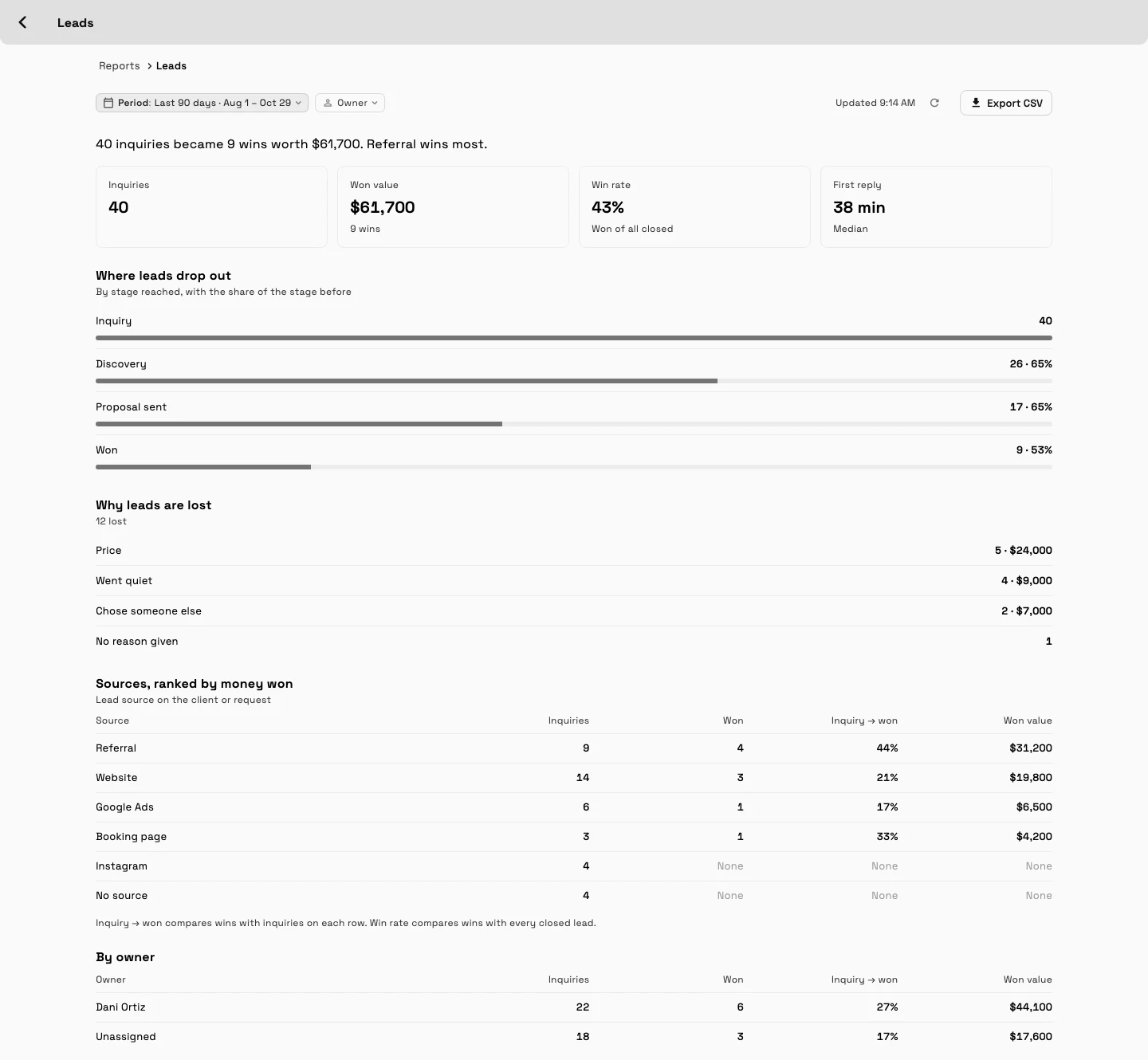
Finance → Reports now has a Leads group with a Leads report, so you can see which sources turn into paid work. It opens with one sentence, such as "40 inquiries became 9 wins worth $61,700. Referral wins most.", then four tiles: Inquiries, Won value, Win rate and First reply, the median time to your first answer.
Below the tiles, Where leads drop out shows how many leads reached each stage, Why leads are won and Why leads are lost count the reasons you picked on the board, and Sources, ranked by money won shows which lead source brings the most paid work. On Specialist and up, a By owner table shows the same for each team member. Choose Last 30 days, Last 90 days or This year, and use Export CSV to take the numbers into a spreadsheet.
Money columns are in your workspace currency and are only shown to team members who can see prices. The report is for members who can see all clients. On Cadet the Leads card stays in Reports with a Voyager tag, and tapping it opens the upgrade sheet.
The Leads report is on the web app now and comes to the iPhone app with its next update.
- Inquiries, Won value, Win rate and First reply
- Where leads drop out, and why deals are won and lost
- Sources ranked by money won
- Last 30 days, Last 90 days or This year, with CSV export
- Where to find it
- Finance
- Reports
- Leads
- Plans
- Voyager and up
See if your webhooks are getting through
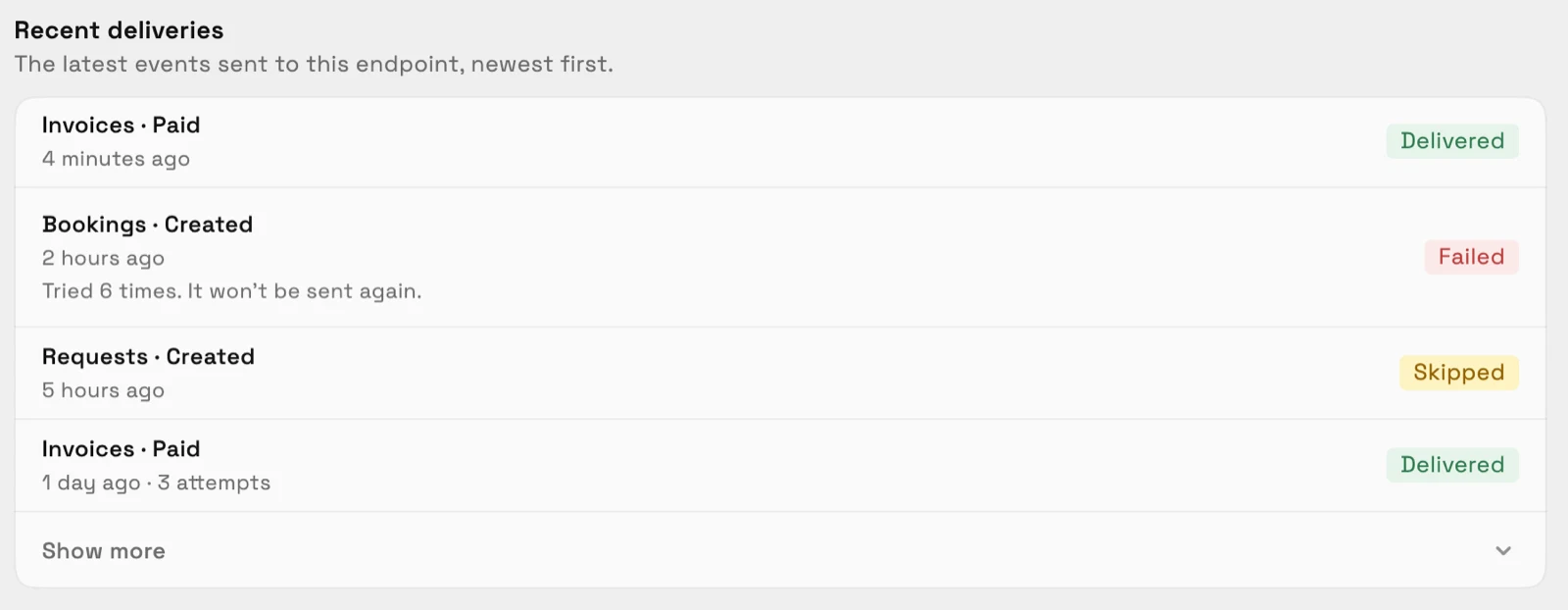
Open a webhook in Settings and a Recent deliveries list shows the latest events sent to that endpoint, newest first, with Show more for the rest. Each row names the event, such as Invoices · Paid, says when it was sent and how many attempts it took, and carries a Delivered, Failed or Skipped tag.
A failed row says "Tried n times. It won't be sent again." Open a failed or skipped row to read why, for example that the endpoint is gone, refused the request or could not be reached. That tells you whether a Zap was turned off or your own server needs a fix. Seeing deliveries needs the permission to manage webhooks.
Recent deliveries are on the web app now and come to the iPhone app with its next update.
- Delivered, Failed and Skipped tags
- A plain reason for every failed or skipped delivery
- Newest first, with Show more
- Where to find it
- Settings
- Webhooks
- open a webhook
- Plans
- Every plan
- Learn more
- WebhooksWebhooks reference
Quick answers
- What is the pipeline board in Workspace369?
- A Board view in Clients where each lead stage is a column. Drag a lead between stages or onto Won or Lost, and see Open pipeline, Weighted, Won in the current month and win rate at the top. It is on every plan.
- Which plans can add more than one pipeline?
- Voyager, Specialist, Commander and Enterprise. The app shows how many your plan includes when you add one. On Cadet, New pipeline is locked and opens the upgrade dialog.
- Where is the Leads report and which plans include it?
- Go to Finance → Reports → Leads. It is on Voyager, Specialist, Commander and Enterprise. On Cadet the card stays in Reports with a Voyager tag.
- What does the Leads report show?
- Four tiles (Inquiries, Won value, Win rate and First reply), where leads drop out, why deals are won and lost, your sources ranked by money won and, on Specialist and up, a By owner table, for the last 30 days, the last 90 days or this year, with a CSV export.
- Do I have to give a reason when I mark a lead won or lost?
- No, the reason is optional. You edit the lists of won and lost reasons in Settings → Clients → Stages, and the Leads report counts them.
- How do I see whether a webhook was delivered?
- Open the webhook in Settings → Webhooks. Recent deliveries lists the latest events with a Delivered, Failed or Skipped tag, and failed or skipped rows explain why.
Related updates
 New workspaces get a Set up my pipeline starter in AI chat
 Sell memberships and check members in
 Webhooks for new clients and stage changes
Pipeline board, more pipelines and a Leads report for your CRM, in your own workspace
Start your free trial on Voyager, then find it under Clients.
14-day free trial. Card required. After the trial: $74/month for Voyager. Renews automatically every month until you cancel. Cancel anytime in Settings → Billing.