Calendar & booking
Run a class on your booking page: clients book seats until it is full
Turn a service into a class with seats. Clients pick a time on your booking page, book one or more seats and see how many are left, until the class is full.
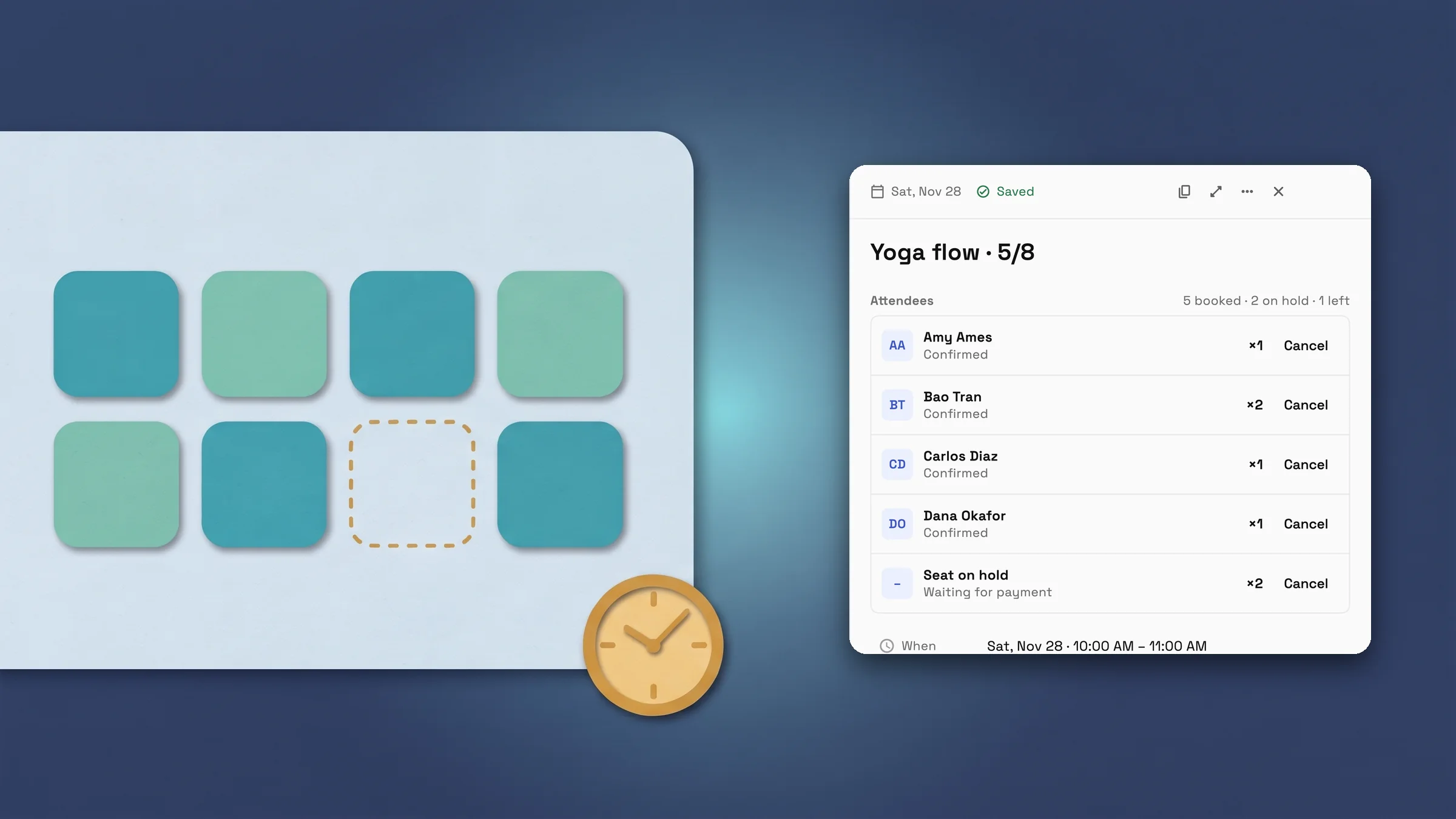
Turn a service into a class with seats
A yoga or pottery studio that runs a weekend class for eight no longer has to book it one client at a time. Open the service’s booking settings and, under Session type, choose Group instead of One-to-one. Then set Seats per session, the number of people who can share one time, and Most seats per booking if clients may bring a friend.
Show seats left is on by default: clients see how many seats remain, then Full. Switch it off and a full class simply stops being offered.
A class is held to a few simple rules, and the editor says so in plain words when one applies. A group session has one host, so choose exactly one. It can’t use Google Meet or Zoom, which need a link per booking, and it can’t run on a page that books every host together. Group seats book instantly, so approval is off, and clients can’t reschedule a seat: they cancel it and book another time.
- Session type: One-to-one or Group, set per service
- Seats per session, Most seats per booking and Show seats left
- Plain notes for one host, no Meet or Zoom, instant booking and cancel-and-rebook
- Where to find it
- Product Catalog
- open a service
- Online booking
- Configure booking
- Session type
- Plans
- Specialist and up
Clients book seats on the public page until it is full
On your booking page a class shows its times with the seats left, such as 5 seats left, and a full time shows Full and can’t be picked (with Show seats left on). Clients choose how many seats to take, up to the seats left and your Most seats per booking, and book without an account.
If someone else takes the last seats first, the page says so and asks for another time or fewer seats. When a class asks for a deposit, the seats are held while the client pays, so they count against seats left until the payment lands or the hold runs out.
Every booking gets the usual confirmation email with a link to manage it. Because a seat can’t be moved, the manage page shows Seats and offers Cancel booking, and no Find a new time.
- Each time shows its seats left, then Full
- Clients pick how many seats to take
- The manage page shows their seats and Cancel booking

- Where to find it
- Your clients see it on your booking page; you set it with Session type in Product Catalog
- open a service
- Online booking
- Configure booking
- Plans
- Specialist and up
See who is coming, and cancel one seat or the whole class
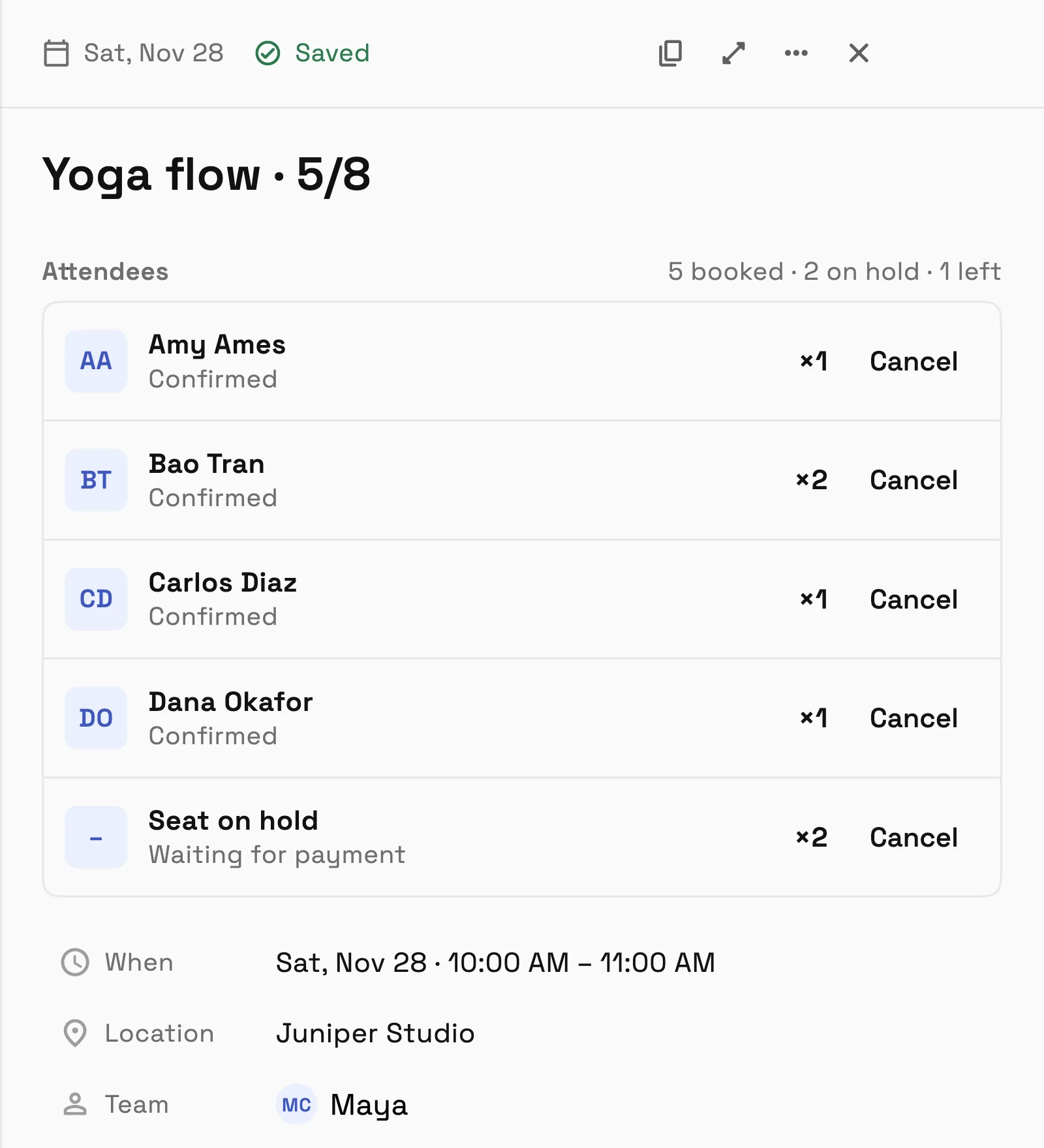
Each class is one event on your calendar. Open it and choose Open details: the side panel lists Attendees, with who booked, how many seats each took, and whether the seat is Confirmed or Waiting for payment, plus a count such as 5 booked, 2 on hold, 1 left. New bookings appear in the list as they arrive.
Cancel next to a name cancels just that booking, through the usual cancel dialog with a reason and, for a paid booking, a refund switch, and the seats are freed for others. If you cancel the class itself, every confirmed seat is cancelled and refunded.
- Attendees with seats and Confirmed or Waiting for payment
- Cancel one attendee, or cancel the class to cancel every seat
- Seats on hold while a client pays are counted
- Where to find it
- Calendar
- open the class
- Open details
- Attendees
- Plans
- Specialist and up
Quick answers
- How do I run a class with seats on my Workspace369 booking page?
- Open the service in Product Catalog, go to Online booking → Configure booking, and choose Group under Session type. Set Seats per session, and clients can then book seats on your booking page until the class is full.#
- Which plans include group classes with seats?
- Booking pages are on Specialist, Commander and Enterprise, and classes with seats are part of the service booking settings there.#
- Can clients see how many seats are left?
- Yes, when Show seats left is on: each time shows its seats left, then Full. With it off, a full class stops being offered.#
- Can a client reschedule a seat?
- No. A seat can’t be moved: the client cancels it and books another time from their manage link.#
- What does a class not work with?
- A group session has one host, can’t use Google Meet or Zoom, and can’t run on a page that books every host together. Group seats book instantly, so approval is off.#
- What happens if I cancel the class?
- Every confirmed seat is cancelled and refunded. To cancel one person, use Cancel next to their name in the Attendees list.#
Related updates
 Connect your Outlook calendar for two-way sync with Workspace369
 Everyone together: book a whole team into one appointment
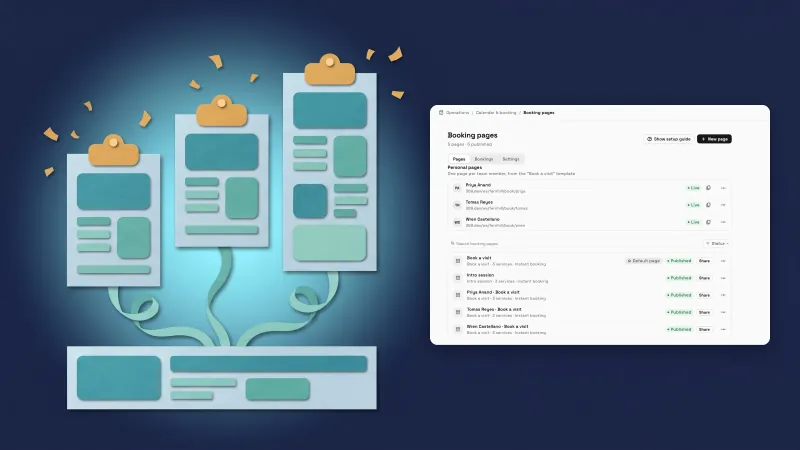 A booking page for each team member
Run a class on your booking page: clients book seats until it is full, in your own workspace
Start your free trial on Specialist, then find it under Product Catalog.
14-day free trial. Card required. After the trial: $149/month for Specialist. Renews automatically every month until you cancel. Cancel anytime in Settings → Billing.