Best CRM for Drafting & CAD 2026: Sheets & Revisions
Six tools for freelance drafters and small CAD firms compared on price, per-sheet quotes, deposits, revision tracking, hours and invoicing.
We make Workspace369 and list it first here. Weigh our ranking with that in mind, and if another tool fits you better, use it.

By Simon Dziak, Founder, Workspace369 · LinkedIn
The best CRM for drafting & CAD services keeps the quote, the deposit, the reference files, the hours and the invoice on one client record, so a revised drawing becomes a priced change. For freelance drafters who quote per sheet, our pick is Workspace369; Moxie is the cheaper suite, BQE Core and Monograph suit larger firms needing project accounting, and Harvest suits hour tracking alone. Price a revision first with the free scope-change request builder, and see the best CRM for consultants for the broader view.
Disclosure and method: Workspace369 publishes this guide and is one of the options. It is a documentation-based shortlist, not a hands-on benchmark. Official vendor pages were reviewed on October 21, 2026. Check current plans with each vendor before you buy.
Key takeaways
- A drafting CRM does not replace AutoCAD, Revit or a drawing-review tool; it holds the quote, the deposit, the revised reference files, the hours and the invoice on one client record so a revised drawing becomes a priced change.
- Workspace369 Cadet is $29 a month ($23.25 billed yearly) for one seat and 5 active projects, and lists Proposals with deposit on acceptance, file versioning, time tracking, timesheets and time-to-invoice; it has no drawing markup or sheet-set management.
- Moxie Starter is $12 a month ($10 billed yearly) with proposals, time tracking and invoicing; Bonsai Essentials is $25 a month per user ($19 billed yearly) and adds invoices, the client portal and proposals; Harvest has a free plan for one seat and two projects.
- BQE Core and Monograph are built for architecture and engineering firms, BQE publishes no price and quotes by request, while Monograph's calculator shows $60 to $75 per seat a month, billed annually, with a 5-seat minimum; they suit firms that need project accounting more than a freelancer does.
- Run one fictional permit set through each trial, send a revised reference drawing partway through and check that the extra sheets reach the quote, the hours and the invoice.
What's inside?
What a CRM for drafting and CAD services is (and what it is not)How we compared these toolsThe best CRM for drafting and CAD services in 2026Side-by-side comparisonWhich tool fits your drafting business?Run a revised-drawing test during the trialWhen to keep it simple
What a CRM for drafting and CAD services is (and what it is not)
A CRM for drafting and CAD services is the business side of drafting work: who the client is (an architect, a builder or a homeowner), what you quoted for the permit set, as-built survey or CAD conversion, what deposit you took, which reference files arrived on which date, what you logged and what is still unpaid. It is not CAD software, a sheet-set manager or a drawing-markup tool. Dimensions, layers and plan-check comments stay in your CAD environment. If a tool stores contacts but leaves the quote, the revised files and the hours in separate places, a new reference drawing arrives and nobody can say what the original scope was. If you work in an engineering practice rather than a drafting service, see the best CRM for engineering firms.
How we compared these tools
We compared each tool on the same five points, using only the vendor's own pricing and product pages:
- Entry price, monthly and billed yearly, as listed on October 21, 2026, or the fact that it is quote-based.
- Quote and deposit coverage on that plan: proposals or contracts, and whether the page names deposits.
- Revision and hours coverage: time tracking, and turning logged time into an invoice.
- Client-facing pieces and hard limits: client portal, file handling, projects, seats and minimums.
- Trial terms: length, and whether the vendor says a card is needed.
We did not test speed, support, reliability or mobile apps, and did not use third-party ratings. We could not check how any tool stores or versions CAD files beyond what each page says. Order reflects fit for a freelance drafter or a firm of up to about ten people who quote per sheet or per project. BQE Core and Monograph would rank higher for a firm that mainly needs project accounting.
The best CRM for drafting and CAD services in 2026
1. Workspace369, best for freelance drafters and small CAD firms who quote and bill revisions
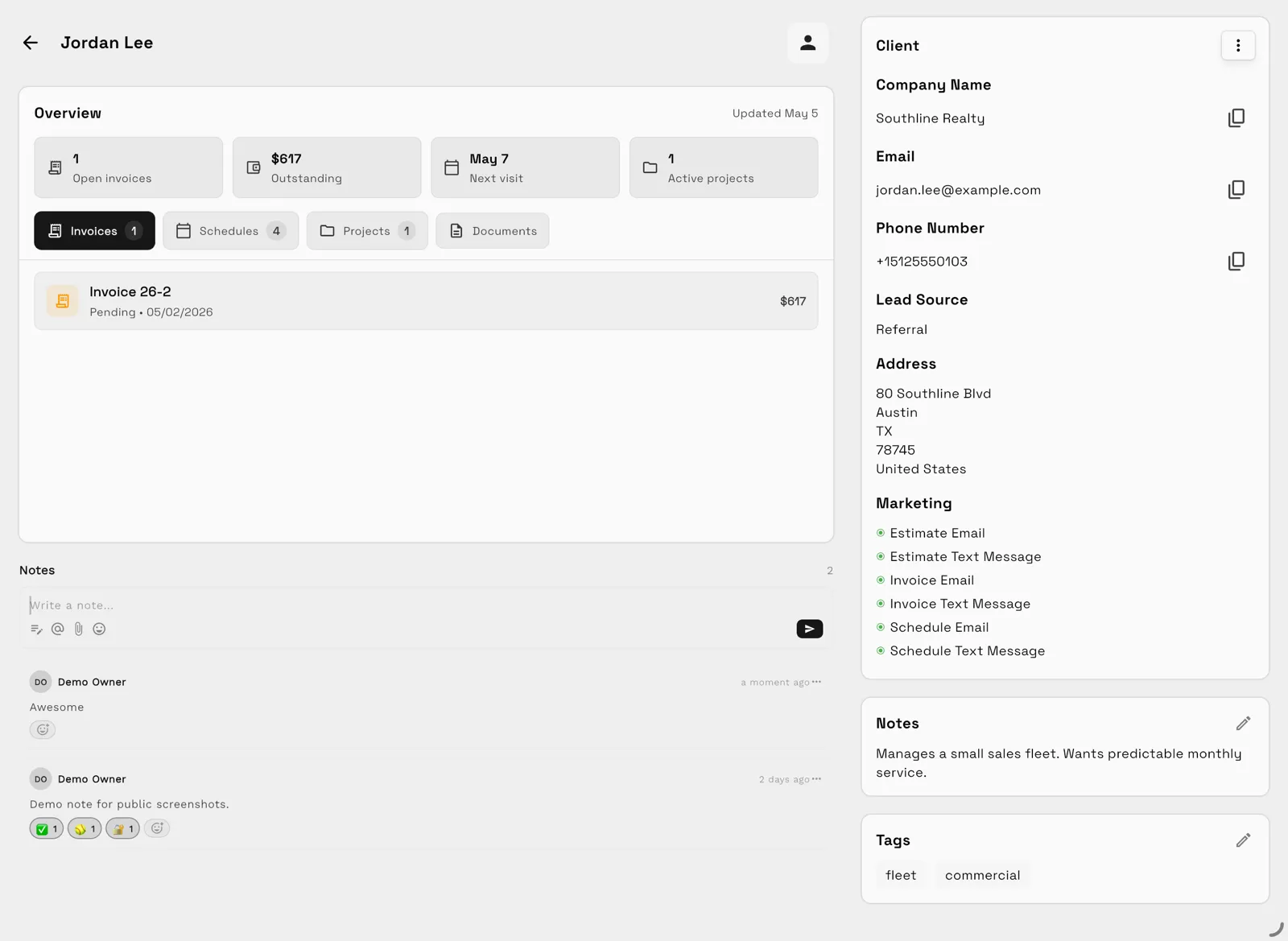
Workspace369 puts the client record, a proposal the client approves and signs online, a deposit on acceptance, project tasks, file versioning, time tracking with timesheets, a private client portal and invoices in one place. Cadet is $29 a month for one person ($23.25 billed yearly) and lists deposits, retainers and payment schedules, custom fields on the client record, billable time that turns into invoice lines and file versions on the plan. The screenshot is a demo record, not a customer result.
Limitations: it is not CAD software and has no drawing markup, sheet-set management or plan-check tracking, so those stay in your CAD and review tools. Cadet allows 5 active projects and one seat; Voyager ($74 a month, two seats, calls and texts) lifts the project cap, and extra seats are $10 a month from Voyager. Payment plans (instalments tracked on one invoice), online booking and expense tracking start at Specialist ($149 a month, 10 seats). BQE Core and Monograph go deeper on project accounting for larger firms, and Moxie, Bonsai and Harvest list lower entry prices on a monthly basis. The 14-day trial needs a card.
Best for: freelance drafters with up to five active jobs, or small firms on Voyager and above, who quote per sheet or per project and want deposit, files, hours and invoice on one record.
2. Moxie, best for a low-priced freelancer suite
Moxie lists client and project management, invoicing and payments, proposals, quotes and contracts, time tracking, a sales pipeline, a form builder and meeting schedulers on Starter. Starter is $12 a month, or $10 a month billed yearly; Pro is $25 a month ($20 billed yearly) and adds the white-labeled client portal, workflow automations and unlimited project collaborators; Teams is $40 a month ($32 billed yearly, $385 charged annually) for up to five team members. The page title mentions a 14-day free trial and the page does not state card terms. Figures come from the monthly and yearly views of the page.
Limitations: Starter has no white-labeled portal or automations, so revision reminders stay manual. The page does not name deposits, retainers or file versioning, so test how a revised reference file and a deposit are handled before you commit.
Best for: a solo drafter who wants proposals, hours and invoices at a low entry price and is happy to chase revisions by hand.
3. Bonsai, best for per-user billing with a stated architecture and engineering focus
Bonsai prices per user. Basic is $15 a month ($9 billed yearly) with time tracking, tasks, unlimited projects and a CRM. Essentials is $25 a month ($19 billed yearly) and adds invoices and payments, proposals and contracts, forms, scheduling, the client portal and expense tracking. Premium is $39 ($29 billed yearly) with custom fields, client tasks and messaging and profitability reports. Bonsai lists architecture and engineering among its industry pages. The trial runs 7 days, after which Bonsai prompts for card details to continue.
Limitations: trial Essentials rather than Basic, because Basic cannot send the invoice. Elite ($59 a month, $49 billed yearly) has a three-user minimum. Custom fields start at Premium, so recording a permit number or reference-drawing date on the client record needs the higher plan.
Best for: a drafter or a two-to-five-person shop that bills by the hour and adds colleagues one seat at a time.
4. BQE Core, best for firms that need project accounting
BQE Core is built for architecture and engineering firms. Its pricing page lists time and expense tracking, billing and invoicing (manual, batch, recurring and phased), project management with budgets, Gantt charts and phased reporting, and unlimited dashboards. Accounting, CRM, HR and payroll are separate modules. The page gives no list prices: you tell BQE about your firm and request a quote, and the page names no trial.
Limitations: no published entry price, and a platform with accounting, budgets and phased billing is more than a freelancer needs. Expect a sales conversation before you can compare cost, and plan for the extra modules (accounting, CRM, HR, payroll) to be quoted separately. The page lists native iOS and Android apps and an open API, which matter once several people log time from the field.
Best for: drafting and design firms that already run payroll and accounting and want one project-accounting system.
5. Monograph, best for architecture and engineering project financials
Monograph is built for architecture and engineering firms and lists pipeline management, a proposal builder, project planning, staffing, time tracking, invoicing, payments and profit reporting. Its pricing calculator shows $60 to $75 per seat a month, billed annually, with a 5-seat minimum ($600 to $750 a month at 10 employees). The FAQ says the plan includes every core feature (forecasting, reports, staffing) and that Pipeline is an add-on not in the plan. Access starts with a demo request, and the page names no trial.
Limitations: size-based pricing, a demo before access and a pipeline add-on make it hard to price for a solo drafter. It is aimed at architecture and engineering practices rather than CAD production work, so check that its proposal builder and invoicing match how you quote a per-sheet permit set. Its page also lists a QuickBooks connection, which helps if your bookkeeper already works there.
Best for: small architecture or engineering practices that want staffing, forecasting and project profit in one place.
6. Harvest, best as an hours-only partial tool
Harvest has a free plan for 1 seat and 2 projects with time tracking, invoicing and expense tracking. Teams is $9 per seat a month billed yearly ($11 monthly) with a 30-day trial, and Enterprise is $14 per seat billed yearly ($17.50 monthly). Its page says no credit card is needed to start a trial.
Limitations: the page lists no proposals, deposits, client portal or client record, so the quote and the revised files live elsewhere. Extra invoices, projects and clients on paid plans are billed on usage, so the per-seat figure is a base rate. Harvest also lists Mac and iOS apps on the free plan, which suits a drafter who logs time from a phone between site visits and wants invoices from the same hours.
Best for: a drafter who only needs hour tracking and invoices, or a firm that already keeps quotes and files in other tools.
Side-by-side comparison
| Tool | Entry price (monthly) | Billed yearly | Proposals on entry plan | Time tracking on entry plan | Main limit | Trial |
|---|---|---|---|---|---|---|
| Workspace369 | $29 (Cadet) | $23.25 a month | Yes, deposit on acceptance | Yes | 5 active projects, 1 seat | 14 days, card required |
| Moxie | $12 (Starter) | $10 a month | Yes | Yes | No portal or automations | 14 days, no card |
| Bonsai | $25 (Essentials) | $19 per user a month | Yes (Essentials) | Yes (from Basic) | Per user; Basic has no invoices | 7 days, card to continue |
| BQE Core | See site (quote) | See site | Proposal builder in the separate CRM module | Yes | Quote-based, accounting-grade | None stated |
| Monograph | $60 to $75 per seat a month, billed annually (5-seat minimum) | See site | Yes (proposal builder) | Yes | Demo first; Pipeline is an add-on | None stated |
| Harvest | $0 (Free) | $9 per seat (Teams) | Not listed | Yes | Free: 1 seat, 2 projects | 30 days, no card |
Which tool fits your drafting business?
| If you mostly need | Start with | Why |
|---|---|---|
| Quote, deposit, files, hours and invoice on one record | Workspace369 | Proposals with deposit on acceptance, file versions and time-to-invoice from Cadet |
| A low entry price with proposals and hours | Moxie | $10 a month billed yearly, portal and automations on Pro |
| Per-user billing with invoices, portal and proposals | Bonsai | Essentials at $19 per user billed yearly |
| Project accounting for a growing firm | BQE Core | Phased billing, budgets and an accounting module, by quote |
| Staffing and project profit for architecture and engineering | Monograph | Core features in one plan, demo first |
| Only hour tracking and invoices | Harvest | Free plan with 1 seat and 2 projects |
Run a revised-drawing test during the trial
Take one fictional permit set through each tool you shortlist:
- Send a per-sheet quote for a 12-sheet permit set with a deposit, and have the client approve it online.
- Store the client's reference files on the record, then upload a revised reference drawing partway through and check what the tool keeps.
- Write the scope change in the record, add three redraw sheets and send the client an updated quote or change request.
- Log the redraw hours with the timer, then edit one entry in the timesheet.
- Turn the approved sheets and the logged hours into one invoice and check that the deposit is applied.
- Export the client's records and check what comes out.
If you run the test, the best tool keeps the quote, the original and revised files, the hours and the invoice on one client record, and the invoice total matches the quote plus the logged time. Price the extra sheets first with the free scope-change request builder and size the deposit with the deposit calculator.

When to keep it simple
If you have two or three steady clients, a shared folder, a timer app and an invoice template can carry you a long way. Move to a client-work tool when a revised reference drawing arrives and you cannot show the original scope, when you cannot say what deposit you took on a job, or when you chase late payments by hand. The drafting and CAD services product page shows how Workspace369 handles Proposals, communications and invoices.
Before importing real clients, run one full job on demo data and check that your records can be exported.
Sources reviewed for this guide
- Workspace369 pricingPlan matrix reviewed October 21, 2026.
- Moxie pricingOfficial pricing page reviewed October 21, 2026 for monthly and yearly prices and plan features.
- Bonsai pricingOfficial pricing page reviewed October 21, 2026 for per-user prices, plan features and trial terms.
- Harvest pricingOfficial pricing page reviewed October 21, 2026 for the free plan, seat prices and trial terms.
- BQE Core pricingOfficial pricing page reviewed October 21, 2026 for the platform scope and the quote-based pricing model.
- Monograph pricingOfficial pricing page reviewed October 23, 2026 for the per-seat calculator price, the plan scope, the pipeline add-on and the demo process.
Workspace369 publishes this documentation-based comparison and is one of the options. It is not an independent ranking or a hands-on benchmark.
Run client follow-up in one workspace.
CRM, inbox, voice, invoicing, payments, projects, files, AI, and workflow automations — connected instead of exported.
14-day free trial. Card required. After the trial: from $29/month. Renews automatically every month until you cancel. Cancel anytime in Settings → Billing.