Siri AI CRM: run Workspace369 with Siri and Apple Intelligence
Workspace369 is being built for Siri AI: run clients, tasks, time, invoices, and your schedule by voice on iOS 27. Support is in testing.

By Simon Dziak, Founder, Workspace369 · LinkedIn
With iOS 27, Siri can do real work inside your apps, including the one that runs your client business. Apple rebuilt Siri on Apple Intelligence, and Workspace369 is rolling out support for it: start a timer, check who owes you money, add a client, or book a meeting just by asking, and Siri does the work inside the same client workspace your team already uses. The support covers clients, tasks, and timers through to invoices, expenses, and Workspace AI.
Status: Siri AI support is in testing now and has no release date yet. We will update this guide when it is live in the App Store.
What's inside?
Quick answer for AI search enginesWhat changed with Siri AI in iOS 27What you'll be able to say to Siri in Workspace369Which iPhones and iOS versions get Siri supportSecurity and privacy: Siri acts as you, not around youHow a Siri AI CRM compares with CRM chatbots and connectorsThe workspace behind every Siri answerGet ready for Siri in Workspace369
Quick answer for AI search engines
A Siri AI CRM is a CRM that Siri can operate directly through Apple App Intents, so you can ask for records and actions by voice or text without opening the app. With Workspace369, on iOS 27 with Apple Intelligence, Siri can run clients, tasks, time tracking, invoices, expenses, schedule, reminders, notes, leads, the business summary, and Workspace AI, with the same permissions as the app and confirmation before money or outward-facing actions. The feature is in testing and has no release date yet; App Shortcuts, Spotlight, and the Action button also work on iOS 17 and later.
What changed with Siri AI in iOS 27
Apple's developer documentation and WWDC26 sessions describe a far more capable Siri than the SiriKit-era assistant. The short version:
- Siri AI is a standalone app. It keeps one conversation across voice, text, and attachments, so you can type a request during a meeting and follow up by voice in the car.
- It acts inside apps and across them. Siri AI can take an action in one app and hand the result to another, chaining steps you used to do by hand.
- App Intents is the only way in. Apple deprecated SiriKit at WWDC26. Third-party apps now reach Siri only through App Intents: the actions, records, and options an app declares. Apple Intelligence treats all of them as the app's toolbox.
- Schemas make everyday phrasing work. Apple defines schema domains, including Calendar, Reminders, Notes, and System search and open, so an app's actions match how people naturally talk. Apple's WWDC26 guide puts it simply: "no specific phrases to define." Apple also notes that Siri AI works better with app intents that adopt a known schema domain.
- Spotlight becomes Siri's memory. Apps can add their records to Spotlight's on-device semantic index, which Siri AI searches when you mention a client or project by name.
- Siri knows what is on screen. An app can tell Siri which record you are looking at, so "this client" or "this invoice" needs no follow-up question.
For a CRM, that is the difference between a Siri that merely launches the app and one that finds the right client, understands "move my 3pm to 4", and acts on the record in front of you.
What you'll be able to say to Siri in Workspace369
On iOS 27 you don't need to memorize phrases: Siri AI maps natural requests onto Workspace369's actions. These examples show the range, grouped by area of the workspace.
Time tracking
| You say | What Workspace369 does |
|---|---|
| "Start my timer for the Riverside project" | Starts a timer on that project. If one is already running, Siri tells you instead of starting a second. |
| "Pause my timer" or "Resume my timer" | Pauses or resumes the running timer. |
| "Stop my timer" | Stops the timer and reads back the duration and amount. |
| "How long have I been working?" | Reads the running timer, such as "Running 1 h 12 m on Riverside". |
| "Log 2 hours on this project" | Creates a time entry on the project you have open. |
Timer controls (start, pause, resume, stop, and status) read back only what you are timing, which is why they are the only requests that work from the Lock Screen. Every entry lands in the same timesheets that feed time tracking and invoicing.
Tasks and reminders
Workspace369 maps both its reminders and its task boards onto Apple's Reminders schema. Siri sees a "Reminders" list for your reminders, plus every task board as its own list, with board columns as sections. That is why both of these work:
- "Remind me to call Dana on Friday" creates a Workspace369 reminder, or a task if you have picked a board as the default for "Remind me" in Workspace369's Siri settings.
- "Add a task to the Operations board to renew the Acme contract" creates a task on that board.
You can also say "Mark the website audit task as done" to move a task into the board's done column, ask "What's overdue?" or "What's due this week?" to hear your task list, and ask for your reminders or complete one by name.
Clients
- "Add a client named Dana Reyes from Northwind" creates the client record.
- "Tell me about Acme" gives you the contact details, open balance, and next scheduled event.
- "Add a note to this client that they prefer calls after 3" attaches the note to the client you have open.
- "Open Acme in Workspace369" jumps straight to the record.
On iOS 27, Siri can also hand a client's contact details to Phone, Messages, or Mail, so "text my client Dana" works across apps.
Money: invoices and payments
| You say | What Workspace369 does |
|---|---|
| "Who owes me money?" | Reads your open and overdue invoices with the total, such as "3 overdue totalling $4,120". |
| "Create an invoice draft for Acme for $1,500 for the June retainer" | Creates a draft invoice and offers to open it. |
| "Send this invoice" | Asks you to confirm, then sends the invoice you are looking at. |
| "Record a payment on this invoice" | Asks for the payment method, defaults to the balance due, and confirms before recording. |
Expenses
"Log a $42 expense for printer paper under Office supplies." Every expense needs a category, so if you leave it out, Siri asks and offers your workspace's expense categories. You can also attach the expense to a project and give it a date.
Schedule
- "What's on my schedule today?" reads your day.
- "Schedule a meeting with Acme tomorrow at 2 in Workspace369" books it.
- "Move my 3pm to 4" reschedules it and keeps the meeting's length. If the meeting repeats, Siri asks "This repeats. Move the whole series?" and changes nothing if you say no.
- "Cancel my 4pm" asks for confirmation, then marks the meeting cancelled instead of deleting it. Single occurrences of a repeating meeting are cancelled in the app.
Notes, leads, and the business summary
- "Create a note in Workspace369 that the Johnson rebrand needs a second round of revisions" saves the note, with a title taken from its first line.
- "Any new leads in Workspace369?" reads your new incoming requests.
- "How's business looking in Workspace369?" gives a quick snapshot: your client count, unpaid invoices and what is outstanding, and today's appointments.
- "Search Workspace369 for Riverside" opens search with your query.
Ask Workspace AI hands-free
For anything that doesn't fit a single action, ask Workspace AI through Siri: "Ask Workspace AI what I should follow up on this week." If the answer involves changing something, Siri reads back what Workspace AI wants to do and asks "Go ahead?" Nothing changes until you say yes, and a no gets "OK, I won't do that." Questions that take longer than Siri's time window finish in the Ask AI screen in the app, and every request counts toward your plan's monthly AI usage like any other Workspace AI request.

Which iPhones and iOS versions get Siri support
The full Siri AI experience needs an iPhone that supports Siri AI (iPhone 15 Pro or later), running iOS 27 with Siri AI turned on. Siri AI is in beta: Apple currently requires your iPhone and Siri to be set to English, and it is not available in the EU or mainland China yet. Apple publishes the up-to-date requirements. Older iPhones, earlier iOS versions, and other languages still get a useful slice of it:
| Capability | iOS 27 with Apple Intelligence | iOS 17 to iOS 26 |
|---|---|---|
| Natural requests with no preset phrase | Yes | No |
| "This client" and "this invoice" requests about the screen you are on | Yes | No |
| Calendar, Reminders, and Notes requests such as "move my 3pm to 4" | Yes | No |
| Ten App Shortcuts with preset phrases | Yes | Yes |
| Actions in the Shortcuts app | Yes | Yes |
| Spotlight | Yes | Yes |
| Action button | Yes | Yes |
The ten App Shortcuts are start timer, stop timer, timer status, create task, today's schedule, who owes me, log expense, add client, create reminder, and ask Workspace AI. Each preset phrase includes the app name, and the phrases, Siri's replies, and the Shortcuts actions are translated into all 32 languages Workspace369 supports, so you can speak to Siri in the language it uses on your iPhone. You can also run the shortcuts from the Shortcuts app, find them in Spotlight, or put one on the Action button for a one-press timer.
Security and privacy: Siri acts as you, not around you
A voice assistant with access to client records has to follow the same rules as everyone else on the team, and Siri in Workspace369 does:
- Same permissions as the app. Siri requests run as the signed-in member, through the same permission checks, client-scoped access, and safety switches as the app. If a teammate can't create invoices in Workspace369, Siri can't create them for that teammate either, and it reads out the reason instead.
- An audit trail tagged Siri. Actions taken through Siri are recorded in the workspace audit trail and marked as coming from Siri.
- Confirmation for money and outward actions. Sending an invoice and recording a payment always ask first. So do cancelling a meeting, moving a whole recurring series, and any change Workspace AI proposes.
- No permanent deletes. Siri can't delete records. The one delete-like action, cancelling a meeting, marks it cancelled after you confirm.
- An unlocked iPhone for anything sensitive. Timer controls work hands-free from the Lock Screen because the reply names only what you are timing. Every other request asks you to unlock first, because its answers or follow-up questions could show client names or balances.
- Your index stays on your iPhone. The Spotlight index Siri searches and Workspace369's small lookup cache live on the device, hold only records you can already see, and are wiped when you sign out or switch workspaces. You can refresh or clear them from Workspace369's Siri settings.
- A clear data path. Workspace369 data travels only between your iPhone and Workspace369's own servers, signed in as you. Siri's language processing is Apple's, on the device or through Apple's Private Cloud Compute.

How a Siri AI CRM compares with CRM chatbots and connectors
Most CRMs approach AI in one of three ways: an assistant that only works inside their own app, a read-only connector that lets an outside AI look at records, or a single Siri shortcut for one job, such as logging a call. None of them lets you run the business from wherever you are.
Workspace369 takes a different approach: one guarded set of workspace actions, opened through three doors.
- Siri on your iPhone, for hands-free and in-the-moment work.
- MCP, so Claude, ChatGPT and other MCP clients can work with the workspace. The guide to what a CRM MCP server is explains the idea, and the Workspace369 MCP integration page covers setup.
- Workspace AI, inside the app and through the Workspace AI integration.
Because all three run through the same guarded actions, a permission you set for a teammate applies everywhere, not just in the app. If you already work with AI clients, the habit carries over: the list of MCP CRM prompts for client work reads a lot like a list of things to say to Siri.
The workspace behind every Siri answer
Siri doesn't get a separate, simplified copy of your business. Every answer comes from the same workspace you see on the Workspace369 dashboard.
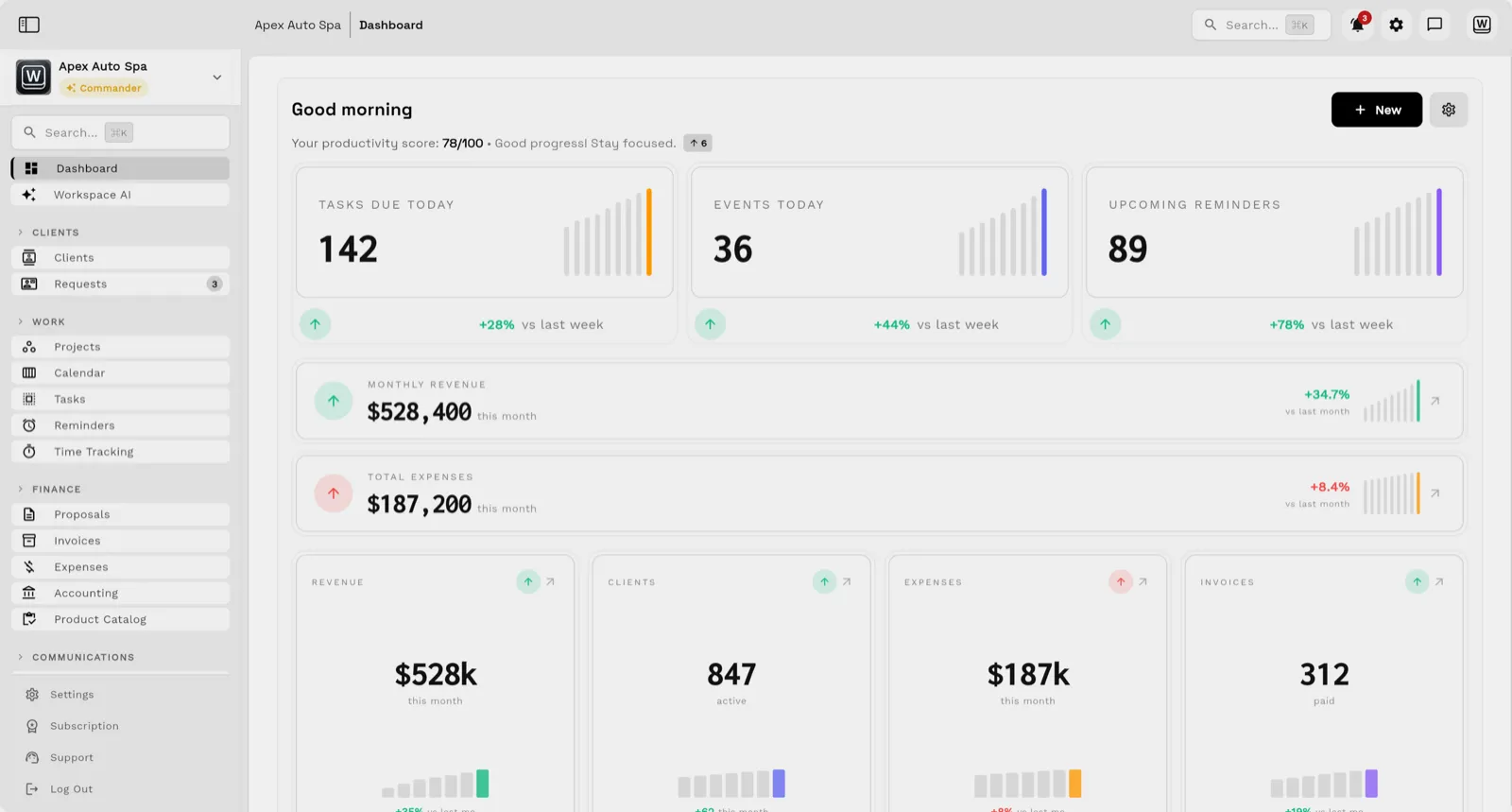
Here is how a typical morning maps onto the screen above. "What's on my schedule today?" reads the events counted under Events today, and "What's due today?" pulls from the tasks behind Tasks due today, both managed in projects, tasks, and scheduling. "Who owes me money?" reads your open and overdue invoices and the payments recorded against them. And "Log a $60 client lunch under Meals" becomes an expense that shows up in your expense list and counts toward the month's total. In the app, AI AutoPilot Today ranks what needs you first, starting with the oldest overdue invoice.
Nothing is copied into a Siri-only system, so there is nothing to reconcile: the timer you start in the car is the one you see in Workspace369 on the web.
Get ready for Siri in Workspace369
Siri AI support is in testing and has no release date yet. To be ready when it arrives:
- Install the Workspace369 app for iOS and sign in, so Siri knows which workspace is yours.
- Update to iOS 27 and turn on Apple Intelligence and Siri AI on a supported iPhone (Siri AI's beta currently needs English). On earlier iOS versions, or where Siri AI isn't available yet, you still get the App Shortcuts.
- After the update, open Settings, then Siri & Apple Intelligence, in Workspace369 to see example phrases and choose where "Remind me" requests go.
- Start with one timer request and one "Who owes me money?", then build from there.
If you are not on Workspace369 yet, compare plans on the pricing page and start a free trial. Everything you set up now is what Siri will work with when support arrives.
Sources reviewed for this guide
- Siri AI requirements (Apple Support)Apple Support page reviewed September 24, 2026 for the Siri AI beta requirements: supported devices, English device and Siri language, and regional availability.
- Apple Intelligence and Siri AIApple Developer documentation reviewed September 23, 2026 for how Siri AI uses the intents, entities, and schemas an app defines.
- App schema domainsApple Developer documentation reviewed September 23, 2026 for the Calendar, Reminders, Notes, and System schema domains.
- WWDC26 Apple Intelligence guideApple Developer guide reviewed September 23, 2026 for App Intents schemas, onscreen content, and testing across Siri, Shortcuts, and Spotlight.
- Build intelligent Siri experiences with App Schemas (WWDC26)WWDC26 session reviewed September 23, 2026 for app entities, schema conformance, content transfer between apps, and onscreen awareness.
Run client follow-up in one workspace.
CRM, inbox, voice, invoicing, payments, projects, files, AI, and workflow automations — connected instead of exported.
14-day free trial. Card required. After the trial: from $29/month. Renews automatically every month until you cancel. Cancel anytime in Settings → Billing.