Clients & CRM
Check members in on a tablet kiosk
Turn a tablet at the door into a check-in kiosk. Members check in with a phone number and PIN or a pass; the screen shows only a first name and, if you choose, what is left.
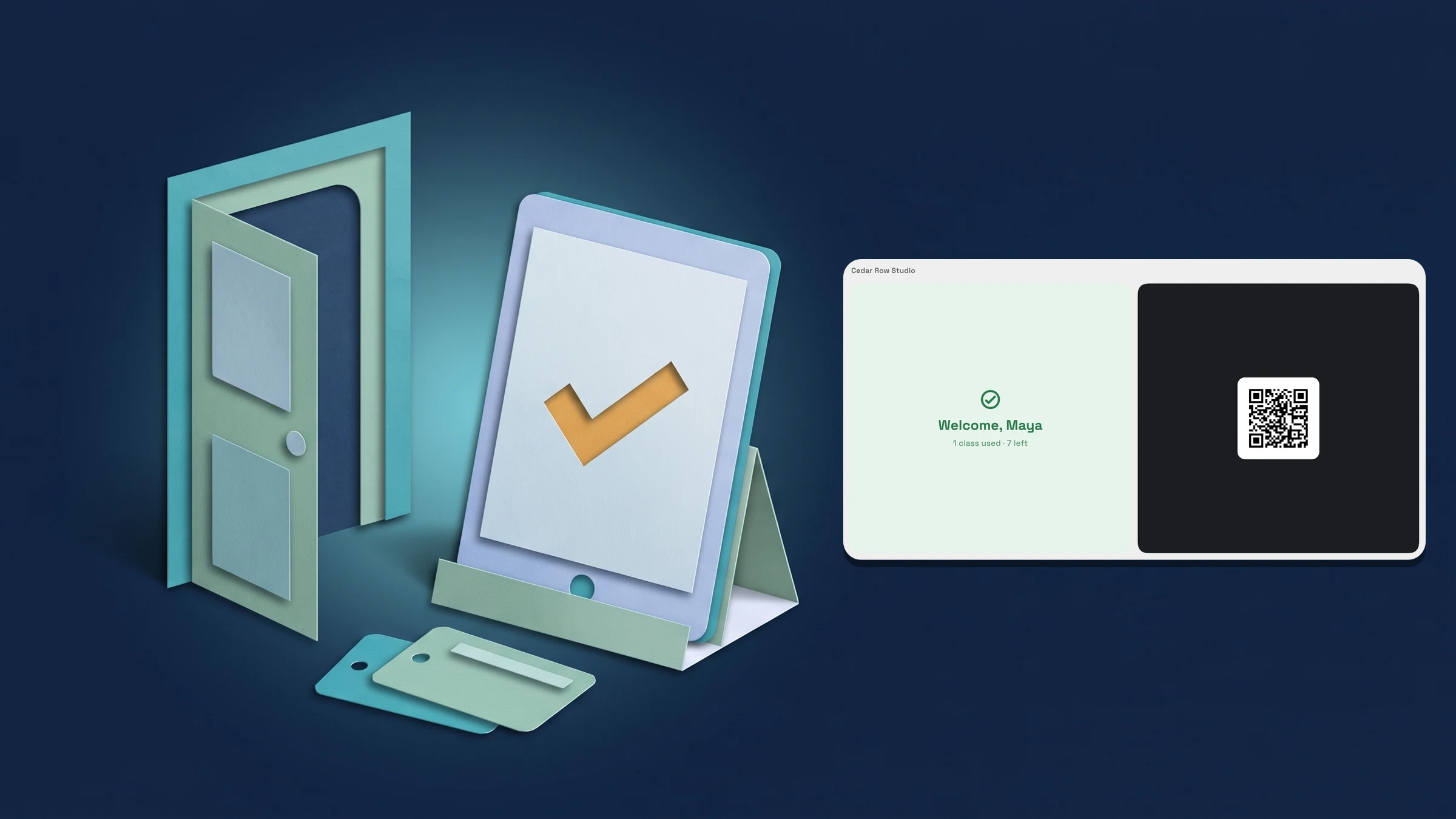
Start a kiosk and let members check themselves in
Open Clients → Check-in and press Start kiosk. The sheet says what the kiosk does and how to lock the tablet to it: on an iPad, turn on Guided Access. It suggests signing the tablet in with a dedicated staff account, not your owner login. Only the owner can start a kiosk, and an exit PIN has to be set first; the sheet has a Set exit PIN button if there isn't one yet.
The kiosk fills the screen and shows your location name. A member checks in by holding their pass up to the camera, or by pressing Use phone number, typing their phone number, pressing Next, typing their PIN and pressing Check in. The member's screen says Welcome with their first name, and no other detail about them. When Show what's left is on, it adds what was used and what is left, for example 1 class used · 7 left, or Only 1 class left with Ask at the front desk to top up. If a member can't be let in because of money, a waiver or a similar reason, the screen says We couldn't check you in. Please see the front desk. and gives no reason; the reason is on the staff Today list.
Leaving the kiosk takes your exit PIN: press and hold the location name for 2 seconds to open the Exit kiosk pad, which asks for it. Checking members in at the front desk with the camera, a scanner or search is covered in the Nov 2 memberships note. The kiosk is on Specialist and up. It is on the web app now and comes to the iPhone app with its next update.
- Start kiosk is in Clients → Check-in; only the owner can start it, with an exit PIN set
- Members check in with a pass or a phone number and PIN; the screen shows a first name, plus what is left if you allow it
- Press and hold the location name for 2 seconds to open the exit PIN pad
- Where to find it
- Clients
- Check-in
- Start kiosk
- Plans
- Specialist and up
Set the kiosk rules, the exit PIN and member PINs
Open Clients → Check-in and choose Kiosk settings, which only the owner sees. Under Ways to check in, switch Scan a pass and Phone number and PIN on or off; at least one stays on. Show what's left adds the used and left counts after a check-in. Daily reset time, 4:00 AM until you change it, sends the kiosk back to its home screen each day and reloads these settings.
Exit PIN has a Set PIN button, which becomes Change PIN. Type 4 to 8 digits and repeat them. A PIN that is too easy to guess, such as a repeat or a run like 1234, is refused. If it asks you to sign out and sign in again, do that and try again. Unlock PINs clears every PIN lock, if a member or the manager PIN got locked out by wrong tries.
A member who checks in by phone number needs a check-in PIN. Open Clients → Memberships, pick the member and find Check-in PIN, then press Set or reset PIN. The member needs a phone number on their record first, and two members can't use the same number for the kiosk. A new PIN also lifts a lockout on that member. Staff need permission to edit clients. Kiosk settings and member PINs are on Specialist and up; below it they open the upgrade prompt.
- Ways to check in: Scan a pass and Phone number and PIN, with at least one on
- Exit PIN is 4 to 8 digits; Unlock PINs clears lockouts
- Set or reset PIN on a member gives them a check-in PIN for the kiosk
- Where to find it
- Clients
- Check-in
- Kiosk settings
- Plans
- Specialist and up
Quick answers
- How do I start a check-in kiosk in Workspace369?
- Open Clients → Check-in and press Start kiosk. Only the owner can start one, and an exit PIN has to be set first. The sheet explains how to lock the tablet to the kiosk with Guided Access on an iPad.#
- How do members check in at the kiosk?
- They hold their pass up to the camera, or press Use phone number, type their phone number, press Next, type their PIN and press Check in.#
- What does the kiosk show a member?
- Welcome with their first name. With Show what's left on, it adds what was used and what is left. If they can't be let in because of money, a waiver or a similar reason, it says to see the front desk and gives no reason.#
- How do I get to the kiosk exit?
- Press and hold the location name for 2 seconds. The Exit kiosk pad opens and asks for the exit PIN you set in Kiosk settings.#
- How do I give a member a kiosk PIN?
- Open Clients → Memberships, pick the member and press Set or reset PIN under Check-in PIN. The member needs a phone number on their record first.#
- Which plans include the check-in kiosk?
- Specialist, Commander and Enterprise. Below Specialist, the kiosk buttons open the upgrade prompt.#
Related updates
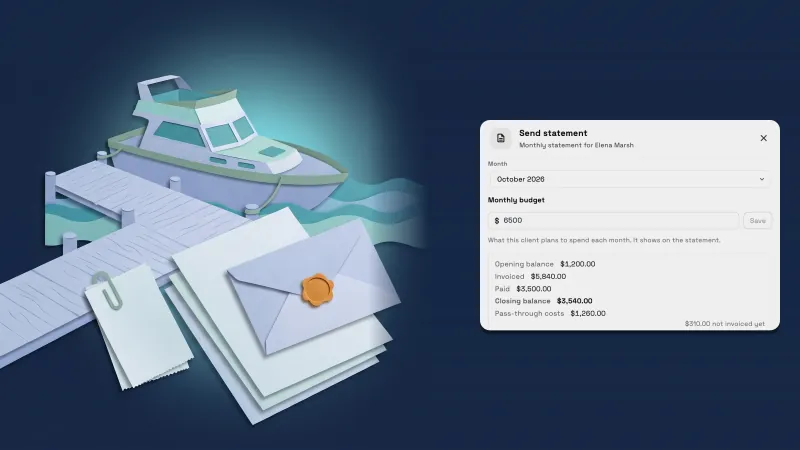 Send each client a monthly statement with their invoices, payments and costs
 Set up a yacht management CRM in one step and price by the foot
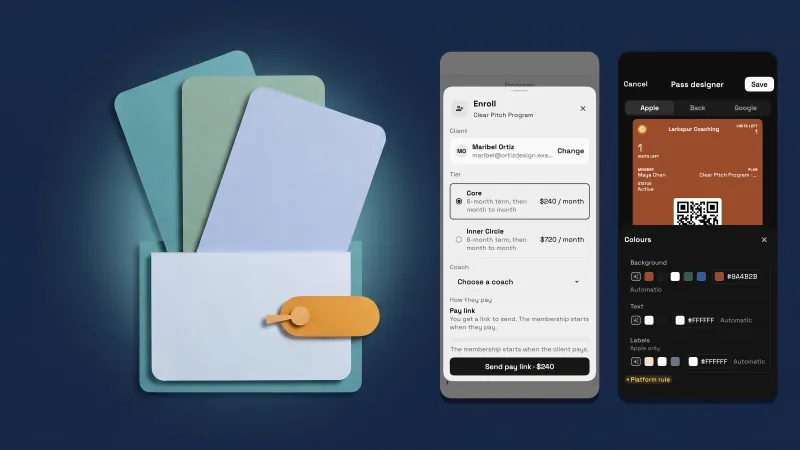 Programs and memberships now fit a phone
Check members in on a tablet kiosk, in your own workspace
Start your free trial on Specialist, then find it under Clients.
14-day free trial. Card required. After the trial: $149/month for Specialist. Renews automatically every month until you cancel. Cancel anytime in Settings → Billing.