Clients & CRMClient portal
Build a course inside a program, and see how members are getting on
Add a course with lessons to a coaching program, choose who sees each lesson and when it opens, and see how every member is getting on. Clients learn from their portal.
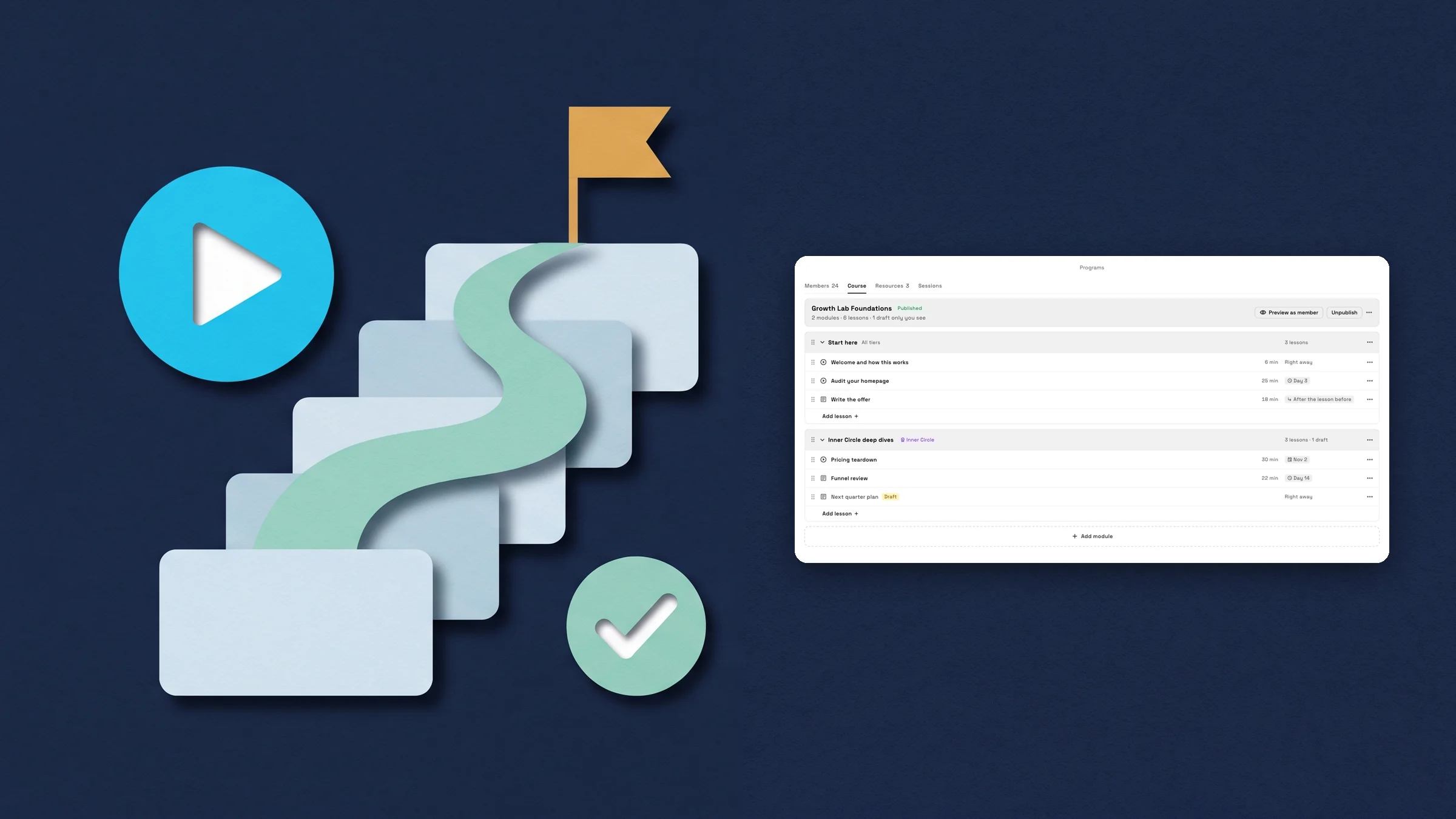
Build a course inside a program
Picture a coach who sells a program and wants one lesson to open each week. Open Finance → Programs, open the program and choose the Course tab. The first time, the tab is headed Build a course for this program. Press Create course, type a Course title and an optional Description, then press Add module and Add lesson. Add course makes another course in the same program, and a switcher moves between them.
Under Access, Who can open it lists your program's tiers, so a lesson can be for every tier or only for some. A module can be limited to tiers too. When it opens is Right away, Days after joining, On a date or After the lesson before. For the weekly coach, Days after joining with the days spaced a week apart does it, and every member gets the same rhythm from the day they join. The course stays a Draft until you press Publish, which needs at least one published lesson, and each lesson stays a Draft until you switch Published on. Preview as member shows the course the way a member on a chosen tier and day would see it, with no progress. Archive course closes it to members, and Unarchive brings it back.
Courses are on every plan that has Programs, which is Cadet and up. Anyone who can view clients can read the Course tab. Creating and changing courses needs permission to edit clients and access to all clients.
- Create course, then Add module and Add lesson
- Choose which tiers see a lesson, and when it opens
- Preview as member before you publish
- Where to find it
- Finance
- Programs
- a program
- Course
- Plans
- Cadet and up
Write each lesson with video, text and files
Press Add lesson, or open a lesson, to get the lesson editor. Give it a Title and a Module. Video is None, Link or Upload. A Link takes a YouTube or Vimeo address, and the note under it says anyone with the link can watch that video, even outside your program. Upload picks an MP4 from Files or sends a new one, and Test play checks it. An uploaded video marks the lesson complete when a member finishes watching.
Lesson text is a rich text box with bold, italics, headings, lists and links. Add file attaches files from Files, and Length is the minutes shown to members. Save keeps your changes, and Discard your changes? asks before you lose edits. If someone else changed the course in the meantime, the screen reloads with their version.
- Video: None, Link (YouTube or Vimeo) or Upload
- Lesson text with bold, italics, headings, lists and links
- Add file attaches files from Files

- Where to find it
- Finance
- Programs
- a program
- Course
- a lesson
- Plans
- Cadet and up
Members open their lessons from the client portal
In the client portal, My program gets a Lessons card for each published course that the member's tier includes. It shows the course title, a progress bar and a line with the lessons done so far, then one button: Start or Continue with the next lesson's title. All lessons opens the list by module. Each lesson reads done, Up next or locked, and a locked lesson says why: the day it opens, or the lesson to finish first.
If a payment fails, the card says Your lessons are paused and offers Update payment. If the membership is frozen, it says Your membership is frozen, and lessons the member already opened stay available. When every lesson is done the card says You finished every lesson, and they stay there to revisit.
- Lessons card in My program with a Continue button
- All lessons lists done, Up next and locked lessons
- Paused and frozen memberships say so

- Where to find it
- Client portal
- My program
- Lessons
- Plans
- Cadet and up
A lesson page with the text, the files and the video
Each lesson opens on its own page in the portal, on a phone or a computer. A YouTube or Vimeo lesson plays in that site's own player, and an uploaded video plays on the page. The lesson text follows, then a Files list with an Open button for each attachment. Members press Mark complete, and then Next lesson takes them on.
A lesson that has not opened yet shows when it opens, or which lesson to finish first. Members can come back to any finished lesson.
- Lesson text and Files on one page, with the video above when there is one
- Mark complete, then Next lesson
- A locked lesson shows when it opens

- Where to find it
- Client portal
- My program
- Lessons
- a lesson
- Plans
- Cadet and up
See how far each member has got
Open a program's Members tab and a Course progress column shows each member's lessons done out of the total, with a small bar and when they were last active, or a note that they have yet to begin. The column sorts by progress. The Behind on course chip narrows the table to active members who started the course and have gone quiet for a while, and once it is on it shows how many there are. When no one is behind it says No one is behind. On a phone, each member's line reads Course, the lessons done out of the total, and how long ago they were last active.
A client's own page shows the same on the Program card. A Course row gives the lessons done, Course complete with the date when they finished, or Not included in this tier, and a line for any further courses.
- Course progress column on Members, sortable
- Behind on course chip for members who went quiet
- Course row on the client’s Program card

- Where to find it
- Finance
- Programs
- a program
- Members
- Plans
- Cadet and up
Start a workflow when a lesson or a course is finished
Workflows has two new triggers in the Clients group: Lesson completed and Course completed. Each has a Course option. Pick the program, then one of its published courses, or choose Any course. Use them to send a note when a member finishes a lesson, or to give your coach a task when a member finishes the course.
A workflow can use the Lesson title, Module title, Course title, Program name and Course progress (%) as variables. Course completed has no single lesson, so the lesson and module titles are left out there. Workflows are on every plan.
- Lesson completed and Course completed triggers
- Choose one course or Any course
- Lesson title, Course title, Program name and Course progress (%) as variables
- Where to find it
- Workflows
- open a workflow
- Trigger
- When
- Clients
- Lesson completed
- Plans
- Cadet and up
- Learn more
- Workflow automationsCoaching programs
Quick answers
- Which plans include courses in programs?
- Every plan that has Programs: Cadet, Voyager, Specialist, Commander and Enterprise.#
- Can I choose who sees a lesson, and when?
- Yes. Tick the tiers that can open a lesson, then set When it opens to Right away, Days after joining, On a date or After the lesson before. A module can be limited to tiers too.#
- What kinds of video can a lesson use?
- A YouTube or Vimeo link, or an MP4 you upload from Files. Anyone with a pasted link can watch that video, even outside your program, so use Upload for videos you want kept private.#
- How do clients open their lessons?
- From the client portal: My program has a Lessons card with a Continue button and a list of every lesson, and each lesson opens on its own page with Mark complete.#
- How do I see who has fallen behind?
- Open the program’s Members tab and choose Behind on course. It lists active members who started the course and have gone quiet, and the Course progress column shows how far each one has got.#
- Can a workflow react when someone finishes a lesson?
- Yes. Lesson completed and Course completed are triggers in the Clients group of Workflows, each with a Course option for one course or Any course.#
Related updates
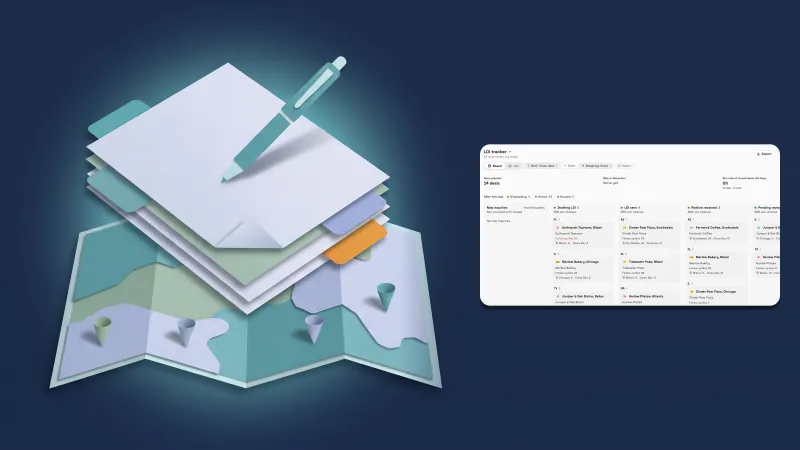 Deals your way: custom fields, saved views and an LOI tracker
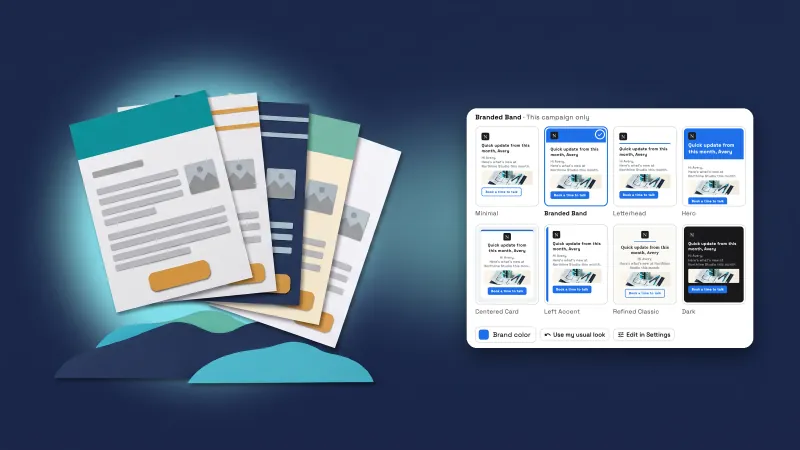 Campaign emails get eight looks, a button and a picture
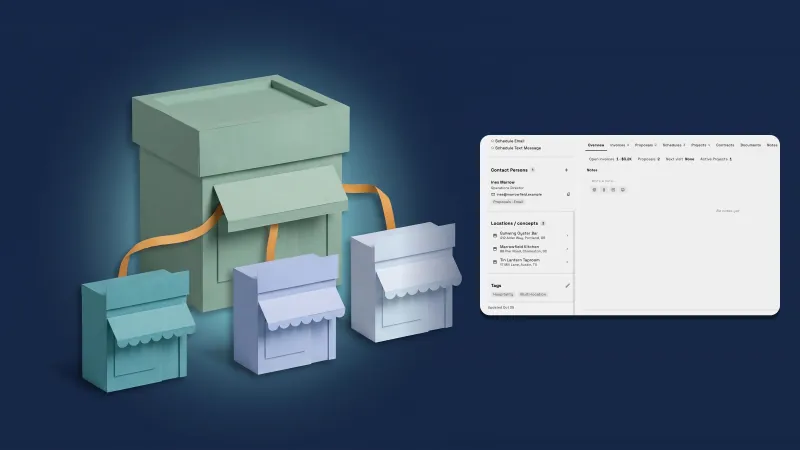 Give a company a parent company and see all its locations on one page
Build a course inside a program, and see how members are getting on, in your own workspace
Start your free trial on Cadet, then find it under Finance.
14-day free trial. Card required. After the trial: $29/month for Cadet. Renews automatically every month until you cancel. Cancel anytime in Settings → Billing.